How to Create a Google Business Profile for a Service-Area Business With No Shop

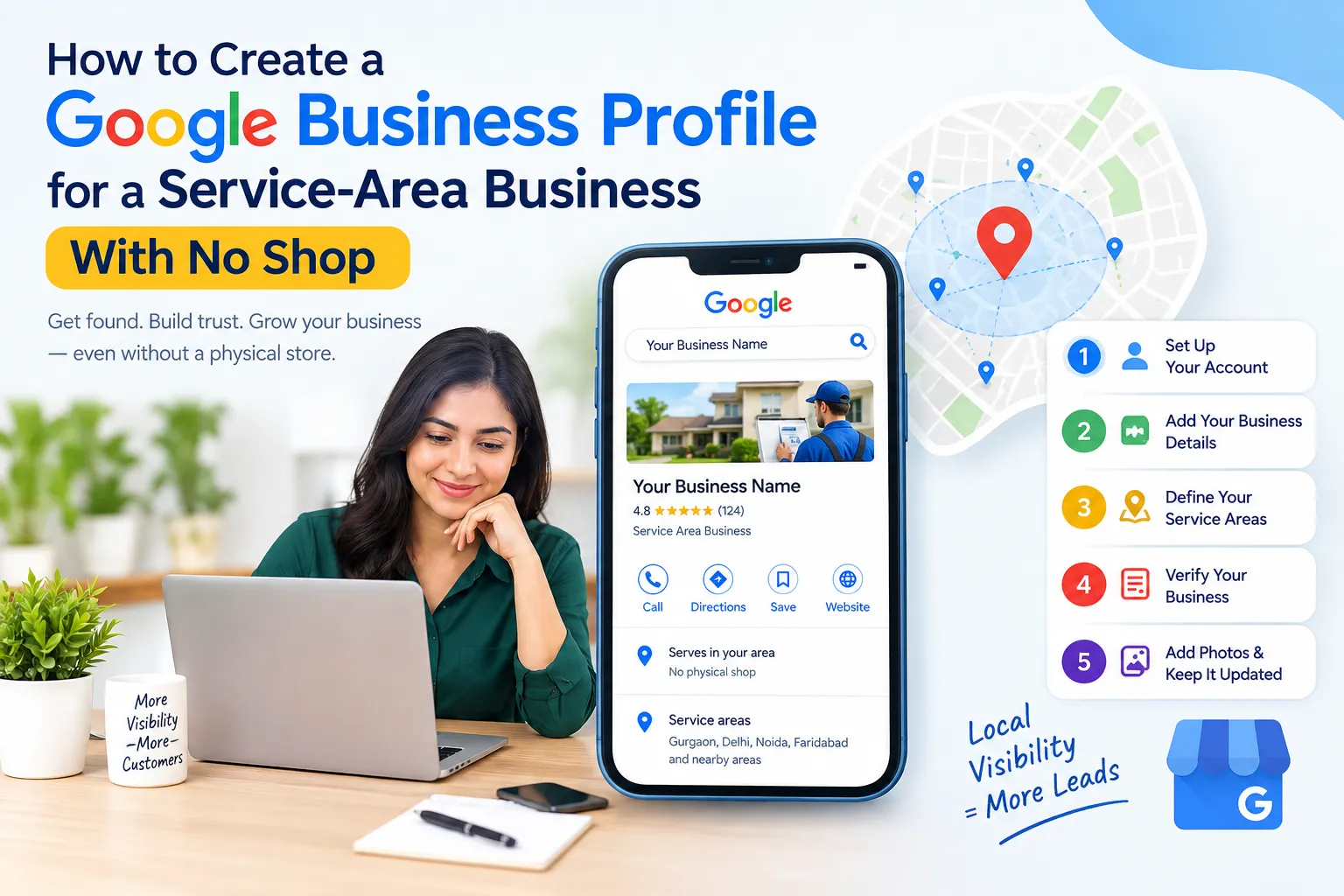
How to Create a Google Business Profile for a Service-Area Business With No Shop
You fix air conditioners, clean homes, repair plumbing, or deliver fresh food, and your customers never visit a shop. That setup works well for you, but it creates a problem online: how do you show up on Google Maps when you have no storefront? The answer is a Google Business Profile. Google built this free tool for businesses of every type, including those that travel to their customers. In this guide, you will learn exactly how to set up a profile, verify it, and turn it into a steady source of local leads.
What Is a Service-Area Business?
A service-area business (SAB) serves customers at their homes or offices rather than at a public location. Plumbers, electricians, pest control teams, mobile mechanics, photographers, tutors, and packers and movers all fall into this category. Google lets these businesses hide their street address and show a service area instead. You still need a real base of operations, such as your home or a small office, but customers never see it.
This distinction matters because Google treats SABs differently from shops. A shop shows a pin on the map. A service-area business shows a list of cities, districts, or postcodes where it works. Understanding this difference helps you avoid the most common setup errors.
Why a Service-Area Business Needs a Business Profile
When someone searches "AC repair near me" or "home tutor in Dwarka," Google shows a map with three businesses at the top. That section, called the local pack, drives a large share of calls and bookings. A complete profile gives you a chance to appear there.
A profile also builds trust. Customers read your reviews, check your photos, and see your phone number before they call. Even people who find you through other channels often search your name on Google to confirm you are real. If you have no profile, you lose that first impression to a competitor who has one.
Finally, a profile supports your wider local SEO strategy. It sends strong location signals to Google, which helps your website rank for area-based searches too.
What You Need Before You Start
Gather these items first, so the process moves quickly:
- A Google account that you will use only for your business
- Your exact business name, as customers know it in the real world
- A mailing address where you can receive verification, such as your home or office
- A phone number that you answer, ideally a local one
- A website or social media page, if you have one
- A list of the areas you serve
- A list of your services
- Clear photos of your team, vehicle, tools, and completed work
Use your real business name, without extra keywords or city names. Google can suspend profiles that stuff their names with search terms, and a suspension costs you far more than a keyword ever gains.
How to Create a Google Business Profile Step by Step
If you are wondering how to create GMB for a business with no shop, follow these steps in order.
Step 1: Open the Setup Page
Sign in to your Google account, then search for your business name on Google or open Google Maps. Choose the option to add or claim your business. First, check whether a profile for your business already exists. Google sometimes creates listings automatically, and you should claim one rather than create a duplicate.
Step 2: Enter Your Business Name
Type your business name exactly as it appears on your signboard, invoices, and visiting cards. Consistency across the web helps Google trust your information.
Step 3: Choose the Right Business Type
Google asks whether you want to show a business address to customers. Since you have no shop, select the option that says you deliver goods and services to your customers, and do not add a storefront. This choice tells Google that you are a service-area business.
Step 4: Pick Your Primary Category
The primary category is one of the most important ranking factors. Choose the one that describes your core service most accurately. A "Plumber" should not select "Home Improvement Store." After that, add a few secondary categories for your other services, but keep them relevant.
Step 5: Add Your Address and Service Areas
Enter your address so Google can verify you, and then hide it from the public profile. Next, add your service areas. You can list up to 20 cities, districts, or postcodes. Choose areas that you can reach within a reasonable time, because Google expects you to serve them in person. Listing an entire state when you work in only two neighbourhoods will not help you rank and may create trust issues.
Step 6: Add Contact Details
Enter your phone number and website link. If you do not have a website yet, Google can create a basic one from your profile data. Still, a dedicated website gives you better results over time.
Step 7: Complete the Verification
Google must confirm that your business is real before the profile goes live. We cover this step in detail in the next section.
Step 8: Add Hours, Services, and a Description
After verification, fill in your working hours, list your services, and write a short description. Mention what you do, whom you serve, and what makes you different. Write naturally and avoid repeating the same phrase.
How Google Business Profile Verification Works
Verification is the step where many service-area owners get stuck, so it deserves extra attention. Depending on your business, Google may offer several methods: a phone call, a text message, an email, a postcard sent to your address, or a live or recorded video.
For businesses without a shop, the video method is increasingly common. You may need to show your vehicle with branding, your tools and equipment, proof that you operate the business, and your location or the area you serve. Record the video in one continuous take, keep it clear, and follow the on-screen prompts. Do not edit it or splice clips together.
If Google rejects your request, do not panic. Read the reason carefully, fix the issue, and resubmit with better evidence. Common problems include blurry footage, missing proof of the business, and mismatched names across documents. Also, avoid creating a second profile while you wait, because duplicates cause more trouble.
Optimize Your Profile to Rank Higher
Creating the profile is only the beginning. Strong GMB optimization helps you stand out in a crowded local market. Focus on these areas:
Photos and videos. Upload real images of your work, your team, your vehicle, and happy customers (with permission). Profiles with fresh photos attract more clicks than those with none. Avoid stock images, because customers can tell the difference.
Services list. Add every service you offer, with a short description and a price or price range when possible. This helps Google match your profile to specific searches such as "geyser repair" or "wedding photographer."
Business description. You have 750 characters, so use them wisely. Explain your experience, the areas you cover, and how customers can reach you.
Attributes. Turn on relevant details, such as online appointments, women-led, or onsite services. These small labels often influence a customer's decision.
Posts. Share offers, project updates, and helpful tips regularly. Posts keep your profile active and give visitors a reason to call.
Collect and Answer Reviews
Reviews influence both your ranking and your conversions. After you finish a job, ask satisfied customers to leave a review. Send them a direct link through WhatsApp or SMS, because a simple path increases the response rate.
Reply to every review, whether it is positive or negative. Thank happy customers by name and mention the service you provided. For negative reviews, stay calm, apologize where appropriate, and offer to solve the problem offline. Future customers read your replies, and a professional response can turn a bad review into proof of good service.
Never buy reviews or offer rewards in exchange for them. Google removes fake reviews, and repeated violations can put your whole profile at risk.
Common Mistakes to Avoid
Most service-area businesses lose visibility because of a few avoidable errors. Watch out for these:
- Using a virtual office or PO box. Google does not accept these as a valid business location.
- Showing a home address publicly. Hide it if customers do not visit you there.
- Adding keywords to the business name. This violates Google's guidelines.
- Choosing too many service areas. Stay realistic and list only the places you actually serve.
- Creating duplicate profiles. One business should have one profile.
- Ignoring inconsistencies. Your name, address, and phone number should match across your website, social pages, and directories.
- Leaving the profile idle. An abandoned profile signals a dormant business.
Ongoing Google Business Profile Management
The best results come from regular care, not a one-time setup. Effective Google Business Profile management takes only a few hours each month, and it keeps your listing competitive.
Here is a simple routine you can follow:
- Weekly: Check for new reviews, reply to them, and respond to any messages or calls you missed.
- Every two weeks: Publish a post and upload at least two fresh photos.
- Monthly: Review your profile insights to see how many people called, visited your website, or found you through search. Then adjust your approach based on the data.
- Quarterly: Update your services, hours, and descriptions. Add holiday timings in advance so customers never see wrong information.
If you manage several businesses or simply lack the time, consider hiring a local SEO professional. A specialist can handle updates, reviews, and reporting, so you can focus on serving customers.
Connect Your Profile to Your Website
Your profile and your website should work together. Create a dedicated page for each major service and each important service area, and link them from your profile where possible. Add your phone number, a short contact form, and customer testimonials. Embed a Google Map showing your service region, not your private address. These steps strengthen your local relevance and give visitors more reasons to contact you.
How Long Until You See Results?
Most businesses see early movement within a few weeks of verification, but strong rankings usually take two to three months. Competition, review count, and profile quality all affect the timeline. Stay consistent, and measure progress through calls, direction requests, and website clicks instead of rankings alone.
Final Thoughts
A missing storefront no longer holds your business back. With a properly built Google Business Profile, a service-area business can appear in front of nearby customers exactly when they need help. Start with accurate information, hide your address, choose your categories and service areas carefully, and complete verification with honest evidence. Then keep the profile fresh with photos, posts, and reviews.
Take the first step today. Sign in, create your profile, and let local customers find you. A few focused hours now can bring you calls, bookings, and loyal clients for years to come.


Sign in to leave a comment.