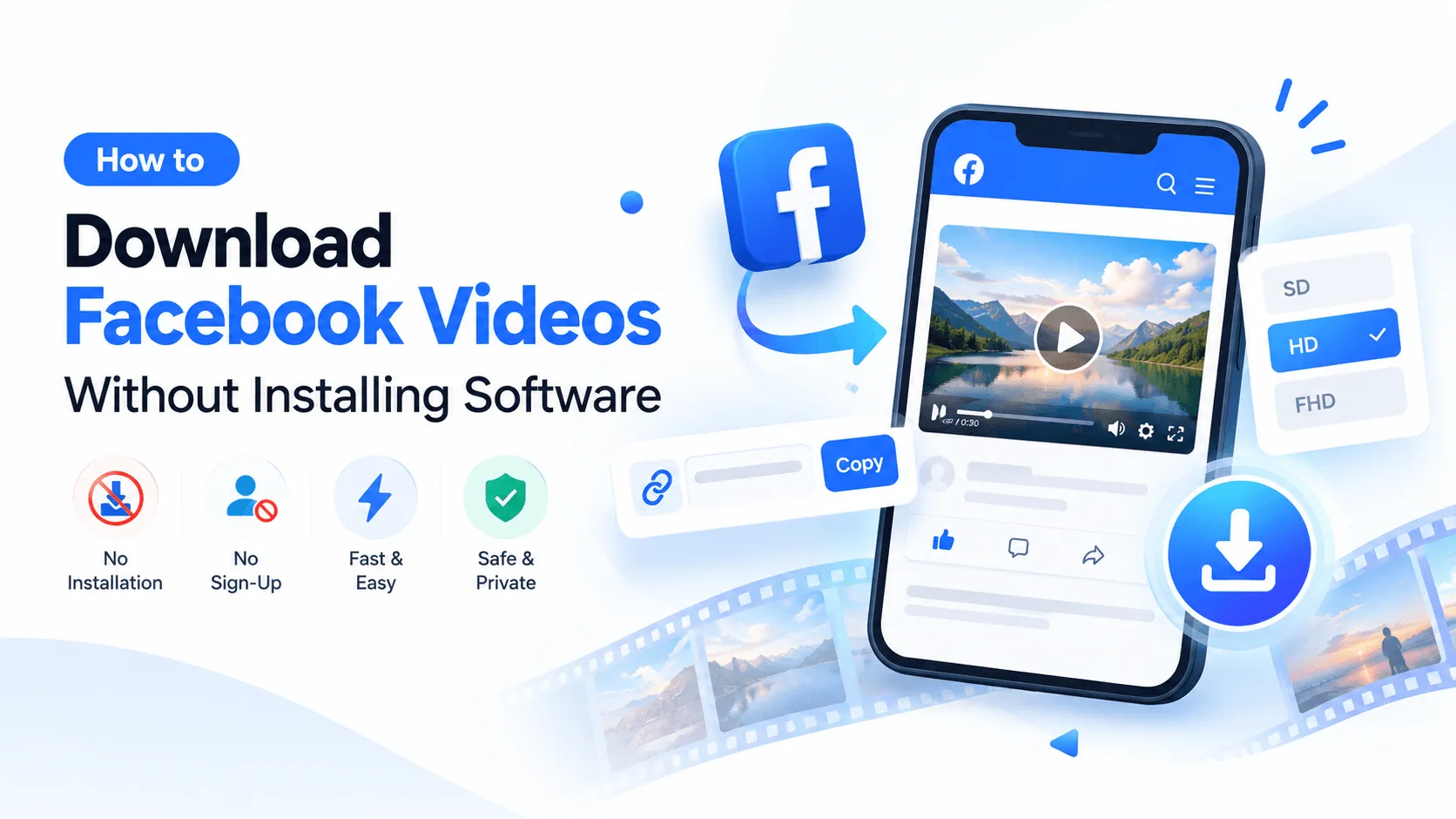

You're scrolling Facebook and you land on a video you really want to keep. Maybe it's a family clip, a cooking tutorial, or a live replay that might disappear next week. You look for a download button, and there isn't one.
So you search online, and the results push you toward apps, browser extensions, and desktop programs. Most of them are heavy, some are shady, and almost all of them are more work than the problem deserves.
Here's the good news: you don't need to install anything. A free online downloader runs right in your browser. You paste the video link, pick a quality, and save the MP4. In this guide, I'll walk you through the whole process using ClipSave, plus a few tips that save you time and trouble.
Can You Download Facebook Videos Without Installing Software?
Yes, you can. An online Facebook video downloader works inside any browser, so there's nothing to install and no account to create. You copy the link of a public Facebook video, paste it into the tool, choose a quality, and download the file. The whole thing usually takes under a minute.
Why Skip Apps and Extensions?
Installing a downloader sounds harmless until you think about what it costs you:
- Storage and speed: extra apps take up space and can slow down an older phone or laptop.
- Security: some downloader apps ask for broad permissions or come bundled with ads you never agreed to.
- Locked devices: school and office computers often block installs completely, but a website still works.
- Hassle: an online tool never needs updating, and you can use it on any device you pick up.
If all you need is to save a video now and then, a browser tool is simply the cleaner option.
How to Download a Facebook Video in 3 Steps
Here's the quick version. It works the same on a phone, tablet, or computer.
Step 1: Copy the video link. Open the Facebook video you want and copy its URL. The next section shows exactly how to do that on phone and desktop.
Step 2: Paste it into ClipSave. Open the free Facebook video downloader, paste the link into the box, and press Fetch. ClipSave pulls up the available MP4 versions automatically.
Step 3: Pick a quality and download. Choose SD, HD, or FHD, depending on what the original video offers, then tap download. The MP4 saves to your device and you can watch it offline whenever you like.
That's the whole process. No sign-up, no installs, no pop-up maze.
How to Copy a Facebook Video Link
This is the step that trips people up, so here's the simple way to do it.
- On your phone: tap the Share button under the video, then tap Copy link.
- On a computer: open the video on its own page, then copy the URL from your browser's address bar.
If you paste the link and nothing happens, check that you copied the full address and not just part of it.
Which Quality Should You Choose?
The options you see depend on how the video was uploaded. SD gives you a smaller file that saves quickly and doesn't eat much storage, which is handy on a phone. HD looks sharper and works well for most screens. FHD is the best pick when you plan to watch on a laptop or TV. ClipSave shows whatever the source offers, so you simply choose the one that fits your device.
Downloading on Android, iPhone, and Desktop
The steps are the same everywhere, with a few small differences:
- Android: Chrome works well. The video usually lands in your Downloads folder, and you can open it from your Files app or gallery.
- iPhone: Safari is the safest choice. After the download finishes, you'll find the video in the Downloads folder of the Files app, and you can move it to Photos from there.
- Desktop: Chrome, Firefox, Edge, and Safari all work. The file goes to your default downloads folder.
What About Facebook Reels and Photos?
Reels are everywhere on Facebook now, and you can save them the same way with ClipSave's Facebook Reels downloader. The process is identical: copy the Reel link, paste, fetch, download. If you want to save a picture instead, there's also a Facebook photo downloader for that.
Can You Download Private or Group Videos?
An online link-based tool can only reach public videos. If a video sits inside a private group or is shared with limited audiences, the tool can't see it. ClipSave mentions a browser extension for private or group-only videos, but that means installing something, which is the opposite of what this guide is about. Whatever route you take, only save content you have permission to view, and never share someone's private video without asking them first.
Is It Safe and Legal?
Saving a video for personal, offline viewing is different from reposting it as your own. The legal side depends on your country and how you use the file, so keep these basics in mind:
- Download videos for personal use, study, or reference.
- Don't re-upload someone else's video and claim it as yours.
- Ask permission and give credit when you share.
- Respect the creator's copyright.
For safety, avoid any downloader that asks for your Facebook password, forces you to install extra software, or opens a flood of pop-ups. A good tool only needs a link. ClipSave doesn't require an account, fetches videos on demand through a secure proxy, and doesn't store your downloads or track your activity.
Frequently Asked Questions
Q1. Can I download Facebook videos without installing any software?
A: Yes. Use an online downloader like ClipSave in your browser. Copy the Facebook video link, paste it into the tool, press Fetch, and download the MP4. There's no app, extension, or desktop program to install.
Q2. Is it free, and do I need an account?
A: ClipSave is free and doesn't ask you to sign up. There are no premium tiers or daily caps, though the site runs a quick check every few downloads. You never need to enter your email or your Facebook login.
Q3. What video quality can I download?
A: You can choose SD, HD, or FHD, depending on what the original video offers. If a video was uploaded in low quality, a higher option may not be available.
Q4. Does it work on iPhone and Android?
A: Yes. ClipSave works on phones, tablets, and desktops in browsers like Chrome, Safari, Firefox, and Edge. On iPhone, Safari is the easiest choice for saving files.
Q5. Is it legal to download Facebook videos?
A: Saving a video for personal offline viewing is different from reposting it. Laws vary by country, so respect the creator's copyright, avoid re-uploading without permission, and give credit when you share.
Q6. Why can't I download some Facebook videos?
A: The usual reasons are that the video is private, restricted to a group, deleted, or the link was copied incorrectly. Make sure the video is public, copy the full link again, and try once more.
Conclusion
Downloading a Facebook video shouldn't mean cluttering your phone with apps or fighting through pop-ups. With a browser-based tool, the job takes three steps: copy the link, paste it, and save the MP4.
ClipSave keeps it simple. It's free, needs no account, works on any device, and lets you pick SD, HD, or FHD when the source offers them. Use it for personal viewing, respect the people who made the videos, and you'll always have a quick way to keep the clips that matter to you.






















Sign in to leave a comment.