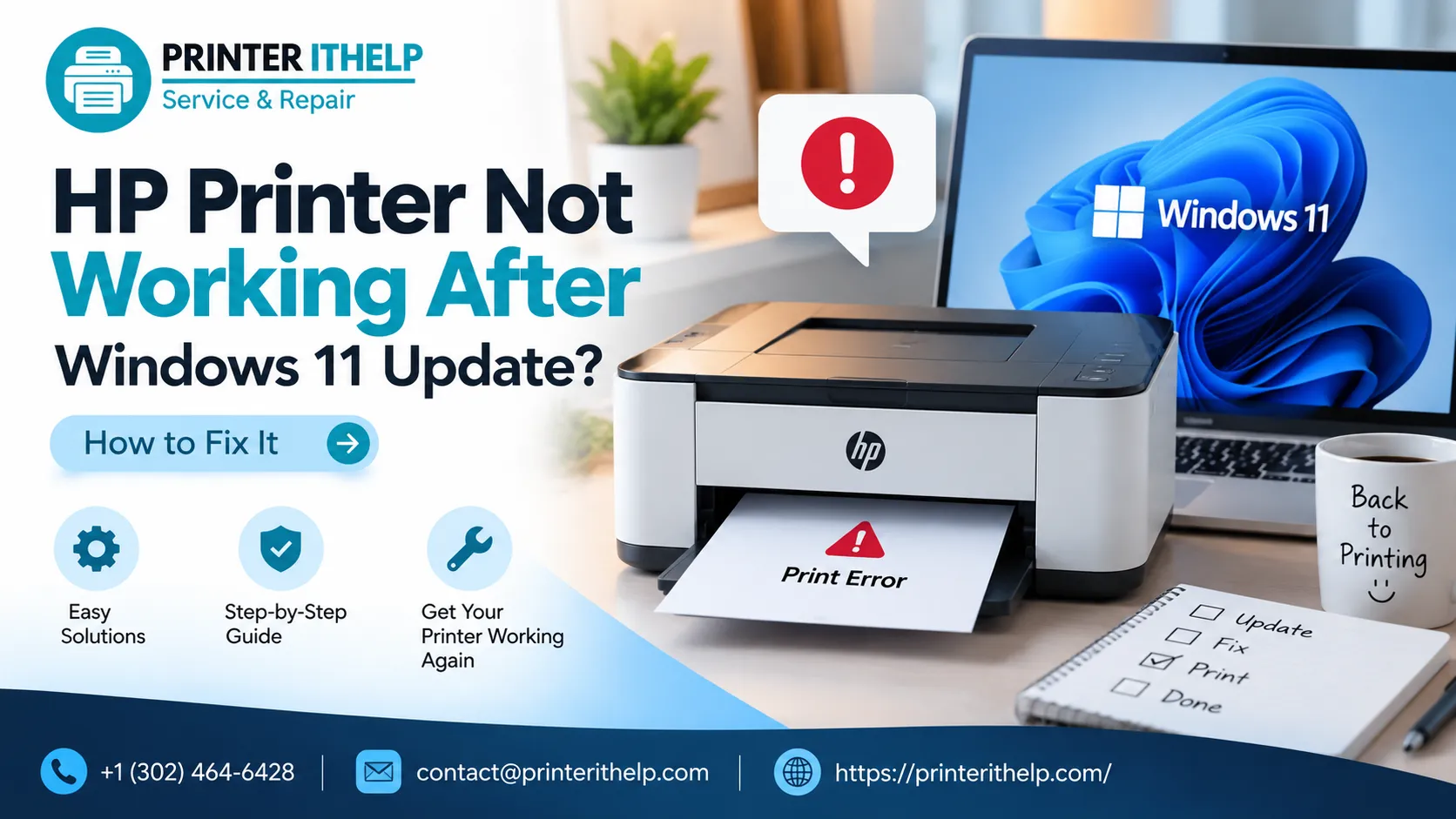

HP Printer Not Working After Windows 11 Update is a common problem that can occur because of incompatible printer drivers, changed system settings, connection failures, or a stuck print queue. After installing an update, your printer may appear offline, stop responding to print commands, lose its wireless connection, or display an error message. Fortunately, you can resolve many of these issues by checking printer settings, updating drivers, restarting services, and testing the connection. This guide explains practical solutions to help restore normal printing.
Why Is Your HP Printer Not Working After a Windows Update?
Windows updates can change system components that printers use to communicate with computers. In some cases, an existing printer driver may not work correctly with the updated operating system. Windows may also change the default printer, interrupt the print spooler service, or affect an existing connection.
Common symptoms include:
- The printer appears offline even when it is turned on.
- Print jobs remain stuck in the queue.
- Documents do not print after being sent from the computer.
- Windows cannot detect the connected printer.
- The printer displays a driver or communication error.
- Wireless printing stops working after the update.
Identifying the exact symptom can help you select the correct solution and avoid unnecessary changes to your computer.
1. Restart Your HP Printer and Computer
Restarting both devices is one of the easiest ways to resolve temporary communication problems. It allows the printer and computer to establish a fresh connection after Windows installs updates.
First, turn off your HP printer and disconnect its power cable. Shut down your computer and wait approximately 30 seconds. Reconnect the printer's power cable and turn it on. Once the printer is ready, start your computer and try printing a test page.
If you use a USB printer, check that the cable is firmly connected at both ends. For a wireless printer, confirm that the printer and computer are connected to the correct network.
If printing resumes, the issue may have resulted from a temporary system or connection problem. Otherwise, continue with the following steps.
2. Check Your Printer Settings in Windows 11
Windows may mark your printer as offline or select another device as the default printer. Checking these settings can help you identify configuration problems.
Follow these steps:
- Open the Windows Start menu and select Settings.
- Click Bluetooth & devices.
- Select Printers & scanners.
- Choose your HP printer from the list.
- Open the print queue and review the available options.
Check whether printing is paused or whether documents are waiting in the queue. Cancel unnecessary jobs and resume printing if the option is available.
You should also confirm that Windows is sending documents to the correct printer. If another device is selected as the default, choose your HP printer instead.
After making these changes, print a test document to check whether the problem has been resolved.
3. Update or Reinstall the HP Printer Driver
An outdated, missing, or incompatible driver can prevent your printer from communicating correctly with Windows. Installing the correct driver may restore printing functionality.
If you experience HP printer not working after windows update, check whether HP provides a compatible driver for your exact printer model and operating system.
Visit the official HP support website and search for your printer model. Open its software and driver section, select Windows 11 if available, and download the recommended driver package.
You can then reinstall the printer:
- Open Settings and select Bluetooth & devices.
- Click Printers & scanners.
- Select your HP printer.
- Choose Remove and confirm the action.
- Restart your computer.
- Install the downloaded driver and add the printer again.
Follow the installation instructions carefully. Some printers require a USB connection during setup, while others support wireless installation.
Avoid downloading drivers from unknown websites. Using the official HP support website helps reduce the risk of installing incorrect or potentially unwanted software.
4. Run the Windows Printer Troubleshooter
Windows troubleshooting tools can identify certain printing problems and recommend possible solutions. The available options depend on your Windows version and installed updates.
To check for the printer troubleshooter, open Settings and select System. Click Troubleshoot, followed by Other troubleshooters. If Printer appears in the list, select Run and follow the instructions.
The troubleshooter may detect a configuration issue, a service problem, or a communication failure. Apply the suggested fix if it addresses the problem you are experiencing.
If a dedicated printer troubleshooter is unavailable, continue with the other methods in this guide.
5. Clear the Stuck Print Queue
A print job that becomes stuck after an update may prevent other documents from printing. Clearing the queue can help restore normal printing.
Open Settings, select Bluetooth & devices, and choose Printers & scanners. Select your HP printer and open its print queue.
Cancel the documents you no longer need and wait for the queue to clear. Send a small test document to see whether printing works again.
If jobs remain stuck, restart the Print Spooler service:
- Press Windows + R to open the Run dialog.
- Type services.msc and press Enter.
- Locate Print Spooler.
- Right-click the service and select Restart.
- Close the window and try printing again.
If the service is stopped, start it instead. Restarting this service can resolve some queue-related problems without requiring a complete driver reinstallation.
6. Check Printer Compatibility With Windows
Printer compatibility is another important factor to consider after installing an operating system update. Older models may have limited driver support or may require a different installation method.
For example, windows 10 update hp printer problems can involve outdated drivers, changed settings, or interrupted communication. Similar symptoms may occur on Windows 11, but the correct solution depends on your printer model and installed software.
Visit the official HP support website and check whether your model supports Windows 11. Review the available drivers and model-specific troubleshooting instructions before changing advanced settings.
If HP does not provide a dedicated driver for your model, Windows may offer a built-in driver with basic printing functionality. Some advanced features may not be available with that option.
Install firmware updates only when HP recommends them for your model. Keep the printer powered on throughout the installation process.
7. Fix Wireless Printer Connection Problems
A printer that worked before an update may stop communicating with your computer because of a network issue or changed connection settings.
Start by checking the wireless status on the printer's control panel. Confirm that it is connected to the correct Wi-Fi network and that the computer is connected to the appropriate network as well.
If your router has separate network names for different frequency bands, follow the printer's networking instructions to confirm compatibility.
Restart the router if other devices are also experiencing connection problems. If the printer remains disconnected, use its control panel or the HP setup software to reconnect it to Wi-Fi.
For USB printers, try another USB port and inspect the cable for damage. Testing one connection method at a time can help you identify whether the problem is related to the network, cable, or computer settings.
8. Review Recently Installed Windows Updates
If the printer worked correctly before a particular update and stopped immediately afterward, reviewing your update history may help identify the cause.
Open Settings, select Windows Update, and click Update history. Review the recently installed updates and compare their dates with when the printing problem started.
Do not uninstall an update simply because it was installed recently. First, try updating the printer driver, checking compatibility, and restarting the printing service.
If the problem clearly began after a specific update and other solutions have failed, consult Microsoft's official instructions before considering its removal. Uninstalling an update may affect security or system stability, so use this option carefully.
9. Test the Printer and Identify the Remaining Problem
If the previous solutions do not work, perform a few additional checks before making advanced system changes.
First, determine whether Windows detects the printer. Next, check whether a test page prints successfully. If possible, try printing from another compatible computer to determine whether the problem affects the printer itself or only one computer.
Record any error message displayed by Windows or the printer. Also note whether you use a USB or wireless connection and whether the issue affects every application or only one program.
If your printer remains unresponsive, check the official HP support resources for model-specific instructions. A persistent driver conflict, network problem, or hardware issue may require further investigation.
Printer IT Help provides printer troubleshooting information and assistance with setup, connectivity, driver installation, and common printing problems. Visit https://printerithelp.com/ for additional guidance.
Conclusion
An HP printer that stops working after a Windows update does not always have a serious hardware fault. Restarting the devices, checking printer settings, reinstalling compatible drivers, clearing the print queue, and troubleshooting the network can resolve many common problems.
If you experience an HP Printer Not Working After Windows 11 Update issue, follow the troubleshooting steps one at a time and test the printer after each change. For an HP Printer Not Working After Windows 10 Update problem, similar basic checks may help, although the exact instructions can differ between operating systems.
If you continue to experience an hp printer issue after windows update, confirm your printer model, operating system version, connection type, and any displayed error messages before trying advanced solutions.























Sign in to leave a comment.