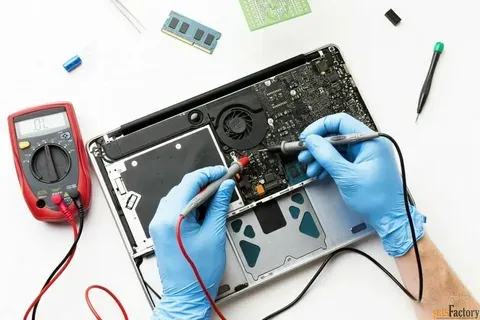

A laptop that freezes, runs slowly, displays software errors, or refuses to open an application may not need to leave the owner's desk. If the device can start normally and maintain an internet connection, many problems can be investigated through remote troubleshooting. The important distinction is between a software problem that can be diagnosed through the operating system and a physical fault that requires someone to handle the machine.
For users considering online laptop repair in Kansas City, Missouri, the first step is identifying the type of failure. Application crashes, operating system errors, browser problems, configuration issues, update failures, and some performance complaints can often be investigated remotely. A broken screen, damaged charging port, liquid exposure, failing storage device, or laptop that will not power on presents a different challenge.
Why Laptop Problems Are Not Always Hardware Problems
Laptop symptoms can be misleading. A machine that becomes extremely slow might have insufficient storage space or too many background processes, but it could also have a failing drive or overheating hardware. An application that repeatedly crashes could be corrupted, incompatible with a recent update, or affected by a wider operating system problem.
That is why troubleshooting should begin with the symptoms rather than the repair method.
A technician may first ask when the problem began, whether anything changed immediately beforehand, whether the problem affects one program or several, and whether an error message appears. These details can help narrow the possible causes before anyone makes changes to the system.
This approach also reduces unnecessary repairs. Reinstalling software may be reasonable when an application is corrupted, but it does little to solve a failing component. Similarly, changing system settings will not repair a cracked display or damaged charging connector.
What Can Be Diagnosed Remotely?
Remote troubleshooting is most useful when the laptop can still operate well enough for the technician to inspect its software environment.
Application failures
If one program repeatedly crashes or refuses to launch, a technician can investigate application settings, updates, compatibility, permissions, and related system conditions.
The exact cause matters. A program may be outdated, damaged, incorrectly configured, or affected by another software component. Looking at the symptoms first helps prevent unnecessary trial and error.
Windows configuration problems
Some operating system problems involve settings rather than physical components. Startup behavior, user profiles, updates, drivers, permissions, and other configuration issues may be investigated through a remote session.
A technician can compare the observed behavior with the relevant settings and determine whether a software-level correction is appropriate.
Browser problems
Browsers can develop issues involving extensions, settings, unwanted redirects, cached information, or compatibility. These problems are often accessible through remote troubleshooting.
However, browsers can also contain sensitive information such as saved credentials, account sessions, and personal data. A support session should therefore remain focused on the affected settings instead of unnecessarily exposing unrelated information.
Performance issues
Remote diagnostics can help determine whether software is consuming excessive system resources or whether unnecessary programs are launching with the operating system.
A technician may also examine available storage and other observable system conditions. If the evidence points toward a physical problem, remote troubleshooting should stop short of pretending that software changes can repair hardware.
The Difference Between Diagnosis and Repair
One of the most useful things about remote assistance is that diagnosis does not always have to produce a complete remote repair.
Suppose a laptop repeatedly freezes and reports errors associated with its storage. A technician may be able to inspect the symptoms remotely and determine that the problem deserves hardware attention. The remote session has still been useful because it has narrowed the problem and helped determine the next step.
The same principle applies to overheating. Software tools may provide information about temperatures and system behavior, but persistent overheating may ultimately require physical inspection of fans, vents, cooling components, or other hardware.
Remote troubleshooting should therefore be viewed as one part of a repair process when necessary, not as a promise that every computer problem can be fixed from a distance.
When a Laptop Needs Hands-On Service
Some problems cannot realistically be resolved through remote access.
A cracked display is an obvious example. A technician can sometimes help determine whether the problem is actually the screen, graphics hardware, driver, or another component, but a physically damaged display requires hardware service.
The same applies to a broken charging port. Software diagnostics might establish that the laptop is not detecting power correctly, but replacing or repairing the physical connector requires access to the device.
Liquid exposure is another situation where physical evaluation matters. Moisture can affect multiple components, and continued operation may make the situation worse. A remote session may help with guidance, but it cannot substitute for hardware inspection.
Other signs that may require hands-on attention include:
- The laptop will not power on
- The screen is physically cracked
- The charging connector is damaged
- The computer repeatedly shuts down from suspected overheating
- The storage device appears to be failing
- Internal components need replacement
- The laptop has suffered liquid or physical impact
- The operating system cannot load far enough to establish remote access
In these situations, remote diagnosis may still help determine what should happen next, but the actual repair may need to occur in person.
Remote Support Can Save Time When the Problem Is Software-Based
For many users, the main advantage of remote assistance is avoiding unnecessary disruption.
A laptop used for work may contain applications, files, and settings that are difficult to reproduce on another computer. If an employee can keep working with limited functionality while a technician investigates a software issue remotely, the repair process may be less disruptive than removing the machine from service.
The same applies to students, home users, and small businesses. If the issue is confined to an application or system configuration, remote troubleshooting may allow the problem to be investigated while the laptop remains in its normal environment.
That does not mean remote work is automatically faster. A good technician still needs enough information to diagnose the issue correctly. Remote access is valuable when it matches the nature of the problem.
Security Should Be Part of the Repair Process
Giving someone remote access to a computer is a security decision as well as a technical one.
Microsoft's guidance for Quick Assist explains that remote connections allow a helper to view a computer screen and, when the user permits it, control the PC. Microsoft also recommends using remote assistance only with people the user trusts.
The FTC provides a similar warning from a different angle. Tech-support scammers may use fake pop-ups, unexpected calls, or messages to convince people that their computers have serious problems and then request remote access.
The difference between these two situations is important. A customer who deliberately contacts a known support provider has initiated a legitimate support process. An unknown caller who suddenly claims to have discovered a virus is asking the customer to trust an unverified claim.
Never grant remote access merely because an unexpected pop-up tells you to call a number. If technical help is needed, find the provider's contact information independently.
What a Responsible Remote Session Looks Like
A controlled support session should have a clear purpose.
The customer first describes the problem. The technician determines whether remote troubleshooting is appropriate and explains what needs to be examined.
The customer then authorizes the connection using the selected support method. Microsoft, for example, describes a Quick Assist process in which the person receiving help enters a security code and separately allows screen sharing or full control. Quick Assist connection and permission process
The technician should work on the relevant parts of the system rather than exploring unrelated personal information.
When the troubleshooting is finished, the session should end. If a remote-access application or service remains installed for future support, the customer should understand what it does and how access is controlled.
For businesses, these principles become even more important because an individual laptop may connect to shared drives, cloud applications, customer information, or other company resources.
Preparing Your Laptop Before Remote Troubleshooting
Customers can make a support session more productive by gathering basic information beforehand.
Start with the exact symptoms. Instead of saying that the laptop is "not working," identify what actually happens. Does the screen freeze? Does one program close? Does the computer restart? Does an error appear?
It can also help to record:
- When the problem first appeared
- Whether the issue occurs every time
- Whether only one application is affected
- Recent operating system or application updates
- Recently installed software
- Any unusual error messages
- Whether the laptop was recently dropped or exposed to liquid
- Whether the battery or charging behavior has changed
If you have an error message, record its exact wording where possible. A screenshot can also help, but make sure it does not expose passwords, financial information, private messages, or other sensitive material.
This information gives the technician a starting point and can make the diagnostic process more focused.
Common Mistakes During Remote Laptop Troubleshooting
Continuing after the problem points to hardware
If the evidence increasingly suggests a failing component, repeatedly changing software settings is unlikely to improve the situation.
Giving unnecessary access
Remote access should be limited to what the troubleshooting task requires. There is no reason to expose unrelated files or accounts simply because the technician can technically see them.
Ignoring data protection
If storage failure is suspected, important files deserve attention before aggressive troubleshooting. A potentially failing drive should not be treated like an ordinary software problem.
Trusting unsolicited technical warnings
An unexpected pop-up or phone call is not proof that your laptop has a virus. The FTC warns that fake security warnings are commonly used to lead people into tech-support scams. FTC advice on urgent security messages
Assuming every slow laptop needs new hardware
Performance problems can have many causes. Software, storage capacity, background applications, operating system configuration, overheating, and hardware limitations can all affect performance. Diagnosis should come before deciding what needs to be replaced.
A Local Resource for Remote Computer Assistance
For Kansas City users dealing with software problems, remote troubleshooting can be a practical way to get a computer examined without immediately transporting it. The technician can determine whether the symptoms are suitable for remote work and identify situations where physical service is more appropriate.
Quick Tech KC LLC provides computer-related troubleshooting and repair services involving computers, laptops, PCs, hard drives, and screens. The appropriate repair method depends on the specific symptoms and whether the problem can be addressed through software or requires physical access.
FAQ
Can a laptop be repaired remotely if Windows still starts?
Often, yes. If Windows loads normally and the laptop can connect to the internet, a technician may be able to investigate software, application, configuration, and certain performance problems remotely. Hardware symptoms may still require physical service.
Can remote troubleshooting fix a laptop that is running slowly?
It can identify some software-related causes of slow performance, including unnecessary startup activity or resource-heavy applications. However, slow performance can also result from hardware limitations, overheating, or failing storage, so diagnosis is necessary before choosing a solution.
Can a cracked laptop screen be fixed remotely?
No. A cracked screen requires physical repair or replacement. Remote support may help determine whether the visible problem is actually caused by the display or another component, but the physical repair cannot be performed through a remote connection.
Is it safe to let a technician control my laptop remotely?
It can be safe when the support session is initiated intentionally with a trusted provider and the customer understands what access is being granted. Microsoft advises users to allow remote connections only with people they trust.
What should I do if someone unexpectedly calls about a laptop virus?
Do not give the caller remote access or payment information. The FTC advises that unexpected tech-support contacts and fake security warnings can be part of scams designed to obtain remote access or financial information.
Can remote support determine whether a laptop needs a new hard drive?
Remote diagnostics can reveal symptoms that suggest storage failure, but physical testing may be required to confirm the condition. If important data is stored on the device, protecting that data should be considered before repeatedly troubleshooting a potentially failing drive.
Conclusion
Remote laptop support is most effective when the problem is accessible through software and the device remains functional enough to connect securely. Application failures, operating system problems, browser issues, configuration errors, and some performance complaints can often be investigated without taking the laptop to a repair location.
Physical damage changes the equation. Cracked displays, damaged ports, liquid exposure, failing components, severe overheating, and laptops that cannot start may require hands-on diagnosis and repair.
The safest approach is to diagnose before making changes, give remote access only to a trusted support provider, limit access to what the task requires, and recognize when a software problem has become a hardware problem. Used appropriately, remote troubleshooting can save time while still leaving room for professional hands-on repair when the laptop actually needs it.





















Sign in to leave a comment.