
SportzX Not Working on Firestick? How to Tell If It's Your Device or the Server
You turn on your Firestick, open SportzX, and expect the app to load.
Instead, you're staring at a blank screen.
Maybe the loading animation keeps spinning. Perhaps the app opens but displays a server connection error. Or it closes before you can select anything.
Your internet seems fine, so what's going wrong?
Here's something many users overlook: SportzX not working doesn't automatically mean the APK is damaged.
Sometimes the issue is your device. Sometimes it's your internet connection. And occasionally, an application cannot reach the service it depends on.
The important thing is identifying the problem before attempting a fix.
This guide explains how to investigate common SportzX problems on Firestick, Android TV, and other compatible Android devices.
Why Does SportzX Stop Working?
There isn't one universal explanation.
An Android application may stop working because of several technical issues.
For example:
- Your internet connection may be unstable.
- The application may have temporary loading problems.
- An external service may be unavailable.
- Cached application data may be causing errors.
- Your device may have limited storage.
- The installed application may be incompatible with your operating system.
- A software update may have introduced changes.
These issues can produce similar symptoms.
That's why downloading another APK shouldn't automatically be your first troubleshooting step.
Let's investigate the likely causes.
First, Identify the Exact Problem
Before changing your device settings, pay attention to what happens when you open SportzX.
Does the application close immediately?
Does it display a connection error?
Does it open normally but fail to load content?
Or does it remain stuck on the startup screen?
Each situation points toward different possibilities.
For example, an application that crashes immediately may have a compatibility or local software issue.
An application that opens but cannot retrieve information may be experiencing a network or service problem.
This distinction can save you time.
SportzX Server Connection Error: Is the Server Down?
A server connection error means the application couldn't complete a connection to a service it was attempting to contact.
However, the error message alone doesn't establish why that connection failed.
Several explanations are possible.
The remote service may be temporarily unavailable.
Your device might be experiencing a connectivity issue.
A network configuration problem could interfere with the connection.
The application may also be using settings or software components that no longer work as expected.
How to investigate
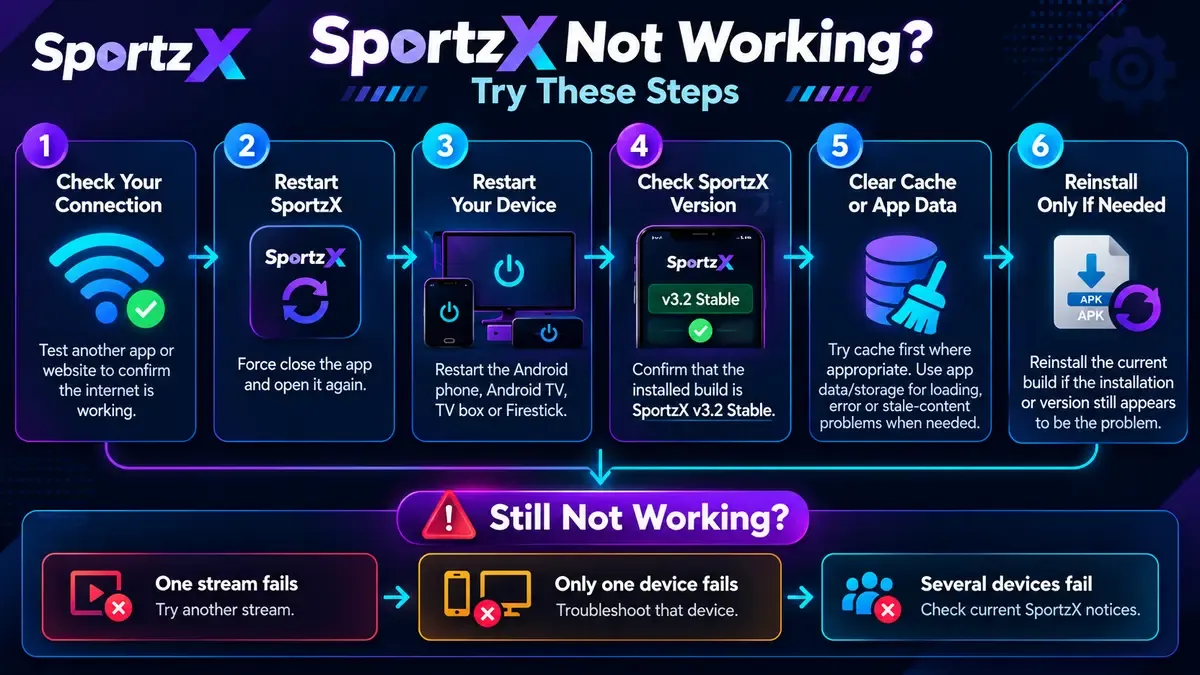
Start by checking whether other internet-connected applications work.
If several applications fail, investigate your internet connection.
If only SportzX has a problem, that narrows the possibilities, but it doesn't prove the server is down.
Next, look for reliable service announcements or reports from users experiencing similar problems.
Community reports can provide clues, but they shouldn't be treated as confirmation of a widespread outage.
Important: Reinstalling an app won't necessarily restore a remote service that is temporarily unavailable.
How to Check Your Firestick Internet Connection
Your Firestick may show that it's connected to Wi-Fi even when the connection is experiencing problems.
Try opening another application that requires internet access.
If other applications cannot load online content, investigate your network.
You can also check the network information in your Fire TV settings.
If your entire connection appears unstable, restarting the router may help.
However, don't immediately change DNS settings or install additional network tools.
These changes may complicate troubleshooting if you haven't identified the actual problem.
What if YouTube Works but SportzX Doesn't?
This is a common type of situation.
If YouTube or another internet-connected application works, your Firestick has at least some functioning network access.
But different applications communicate with different servers.
One application working doesn't guarantee that every external service is reachable.
You should continue checking the affected application rather than assuming your internet connection is completely responsible.
Restart Your Firestick Before Changing Anything Else
Temporary software problems can sometimes be resolved through a restart.
Amazon Fire TV provides a built-in restart option.
On many Firestick devices, follow these steps:
- Open Settings.
- Select My Fire TV.
- Choose Restart.
- Allow the device to restart.
- Open SportzX again.
The exact menu may vary by device model.
Restarting is generally less disruptive than uninstalling an application or deleting its data.
If SportzX still doesn't work, continue to the next check.
Clear SportzX Cache on Firestick
Android-based applications use cached files to store temporary information.
Sometimes these files contribute to loading issues or unexpected behavior.
Clearing the cache may help when the problem involves temporary local data.
On many Fire TV devices:
- Open Settings.
- Select Applications.
- Open Manage Installed Applications.
- Select SportzX, if it appears in the installed applications list.
- Choose Clear Cache.
Reopen the application afterward.
Should You Select Clear Data?
Not immediately.
Clearing application data is different from clearing cache.
It can remove local settings, stored preferences, and other application information.
Only use this option after considering what you might lose.
Also remember that clearing cache won't necessarily resolve a problem caused by an unavailable remote server.
SportzX Keeps Crashing: What Should You Check?
An application crash is different from a server connection failure.
If SportzX closes unexpectedly, investigate your device's software environment.
Check Available Storage
Streaming devices often have limited internal storage.
When storage becomes very low, some applications may experience installation or performance problems.
Open your device settings and review available space.
Remove unnecessary files or applications only when appropriate.
Check Operating System Compatibility
Different Fire TV devices run different versions of Fire OS.
An application that works on one model may not behave identically on another.
Check whether your installed SportzX version supports your particular device.
Restart the Application
Close the affected application and reopen it.
If the problem continues, restart the entire device.
Investigate Recent Changes
Ask yourself whether the problem started after an application update or operating-system change.
That information can help identify a possible compatibility issue.
However, timing alone doesn't prove that an update caused the problem.
SportzX Not Loading on Android TV
Android TV users may experience similar symptoms, but the settings interface differs from Firestick.
If the application won't load:
Check Wi-Fi: Verify that your Android TV has working internet access.
Restart the television: Use the device's restart option.
Check for updates: Review the television's system software and the application's legitimate release information.
Clear cache: Locate the application under your Android TV's app settings and clear its temporary data if appropriate.
Check compatibility: Make sure the application supports your operating system and hardware.
Google's Android TV troubleshooting guidance recommends checking network connectivity, system updates, restarting the device, and reviewing application data when diagnosing certain playback problems.
These are general Android TV troubleshooting practices, not guaranteed fixes for SportzX.
How to Check Your SportzX APK Version
Application versions matter because developers may introduce changes that affect compatibility or performance.
Before trying another APK, identify the version already installed.
Depending on the interface, you may find version information in the application's settings or your device's application information screen.
SportzX version 3.2 was documented during 2026.
However, that doesn't establish which version will be the latest in 2027.
Before updating, confirm that the release information comes from a trustworthy source associated with the actual application.
Be cautious about unfamiliar websites claiming to provide a special version that fixes every error.
A newer-looking version number isn't proof that an APK is legitimate.
Should You Reinstall SportzX?
Reinstallation can help when an application's local installation is damaged or when a legitimate replacement is necessary.
However, it should usually come after simpler checks.
Before reinstalling, ask yourself:
Have I checked my internet connection?
Have I restarted the device?
Have I cleared the application cache?
Have I verified the installed version?
Is there evidence that the local installation is causing the problem?
Can I obtain a trustworthy replacement package?
If you cannot verify the download source, avoid installing an unfamiliar APK.
Remember that reinstalling may remove application settings or other locally stored information.
Are SportzX Downloader Codes Reliable?
Firestick users may encounter Downloader codes advertised as shortcuts to APK files.
A Downloader code points to a destination, but it doesn't establish that the destination is trustworthy.
Codes and their linked destinations can also change.
Before using one, investigate who controls the destination and whether the APK comes from a legitimate source.
Avoid trusting a download simply because its code has been shared widely.
The source of the installation file matters more than the convenience of the download method.
Is SportzX Safe to Install?
Application security should be considered separately from whether an app is working.
A file can install successfully and still present security risks.
Similarly, an application passing one malware scan doesn't establish that every copy is harmless.
Before installing an unfamiliar APK:
- Verify the developer and distribution source.
- Review the requested permissions.
- Keep relevant Android security protections enabled.
- Investigate unexpected warnings.
- Avoid modified application files from unverified sources.
If you cannot verify the file's origin, consider avoiding installation.
A Simple Way to Diagnose SportzX Problems
Here's a quick reference for common symptoms.
| Problem | What to Investigate First |
|---|---|
| Server connection error | Network access and service availability |
| Endless loading screen | Connectivity, cached data, and service response |
| App closes immediately | Compatibility, storage, and application stability |
| APK won't install | Android version, package compatibility, and file integrity |
| App stopped working after update | Version requirements and recent software changes |
| App works on one device but not another | Device specifications and compatibility |
| Content doesn't load | Network connection and availability of the relevant service |
These checks are intended to identify possible causes rather than guarantee a particular solution.
Where Can You Find More SportzX Guides?
If you're researching SportzX installation, Firestick compatibility, connection errors, or other Android-related problems, you can explore SportzXTV.
SportzXTV is an independent information website covering SportzX APK, Android TV, Firestick installation, updates, and troubleshooting.
The website provides practical guides designed to help readers understand common Android application issues.
It is not presented as the official developer or operator of the underlying SportzX application.
For additional information, visit:
SportzXTV — Android and Firestick Guides
Final Thoughts
If SportzX isn't working on your Firestick, don't rush to install another APK.
Start by identifying the problem.
An application that crashes immediately may need different troubleshooting from one that displays a server connection error.
Check your internet connection, restart the device, review cached data, and investigate compatibility.
If the problem involves an external service, changes to your local installation might not help.
Taking a few minutes to understand the symptoms can save you unnecessary troubleshooting.
Have you experienced a SportzX connection error on Firestick or Android TV?
What happened when you opened the application?
Share your device model and the error you encountered in the comments. That information may help others investigate similar issues.
















Sign in to leave a comment.