

Businesses, schools, hospitals, and public service organizations often rely on computers to perform specific tasks. However, when these devices are available to customers, students, or visitors, giving unrestricted access to the entire system can create unnecessary problems. Users may accidentally change settings, open unrelated applications, or access information they should not see.
A kiosk setup offers a practical way to avoid these issues. It allows administrators to prepare a computer for a particular purpose while keeping other system functions out of reach. With the right configuration, an ordinary Windows device can become a reliable workstation for tasks such as displaying information, collecting customer feedback, processing orders, or managing visitor registrations.
Why Do Businesses Use Kiosk Software?
Managing computers in shared environments requires more than simply installing the necessary applications. Organizations also need to make sure devices remain secure, easy to use, and available for their intended purpose.
Preventing Unwanted Changes
When multiple people use the same computer, there is always a chance that someone will change its settings or close an important application. Kiosk software limits the actions available to users, helping prevent accidental changes and keeping the device ready for the next person.
Protecting Important Information
Shared computers can present security risks if users can access system settings, personal files, or unrelated applications. Restricting access reduces these risks and gives administrators greater control over how each device is used.
Making Everyday Tasks Easier
A computer designed for one specific job is generally easier for people to use. Instead of navigating a full desktop, users can go directly to the application or service they need. This makes the experience more straightforward for both customers and employees.
What Security Features Should You Look For?
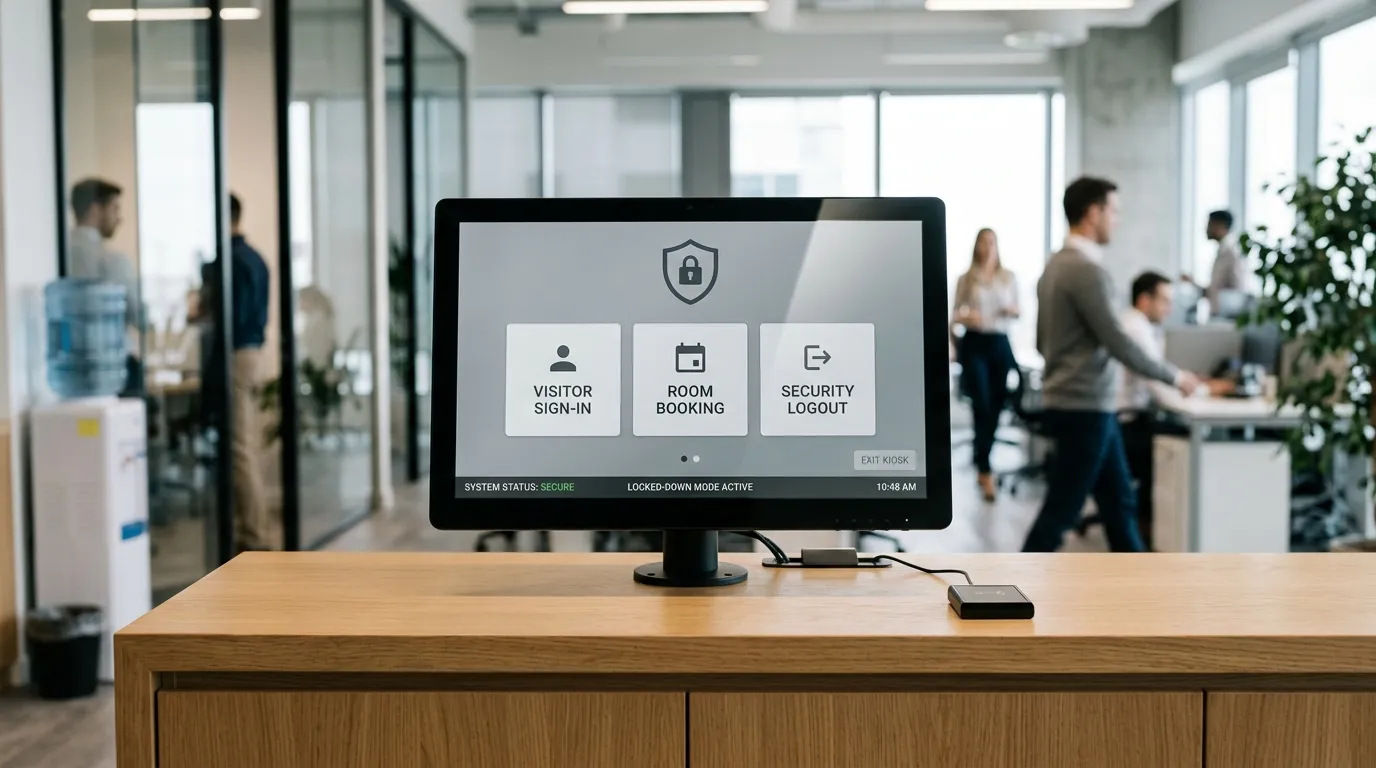
The effectiveness of a kiosk setup depends on how well it is configured and maintained. Before choosing a solution, organizations should consider several important features.
Application Restrictions
Administrators should be able to decide which applications users can open. Depending on the requirements, a device may run a single application or provide access to a limited selection of approved programs.
Protection Against Unauthorized Access
Restricting access to system settings, file management tools, and other administrative functions helps reduce the chances of misuse. Strong account permissions and appropriate security policies provide additional protection.
Centralized Device Management
Organizations managing several computers may benefit from a platform that allows IT teams to monitor devices, apply configuration changes, and manage updates remotely. This can reduce the need for staff to visit every workstation individually.
Reliable Updates and Maintenance
Security restrictions should not prevent essential maintenance. Administrators need a reliable way to install updates, review device performance, and resolve technical issues without disrupting normal operations.
Key Benefits of a Windows Kiosk Setup
A properly configured kiosk environment can improve both the user experience and the way an organization manages its devices.
Better usability: A simplified interface helps users complete their tasks without unnecessary steps or distractions.
Lower maintenance effort: Restricting access to important settings can reduce problems caused by accidental changes and unauthorized software installations.
Consistent performance: Running only the required applications can help keep the system focused on its intended workload, although actual performance depends on the hardware and software being used.
Flexible configuration: Different devices can be configured for different purposes, whether they are used for customer service, employee check-ins, or public information.
Easier administration: Remote management tools can help IT teams maintain consistent settings across multiple devices and respond to problems more efficiently.
How Does Kiosk Software Work?
Kiosk software combines user account controls, application restrictions, and system configuration to create a controlled computing environment.
The process usually begins with identifying the task the device needs to perform. Administrators then select the appropriate application, configure the user account, and apply restrictions that prevent access to unrelated features.

For example, a retail store might configure a computer to display its product catalog, while a reception desk might use a device for visitor registration. In both cases, the user sees the tools needed to complete the task rather than the full range of desktop functions.
Organizations can use built-in Windows capabilities or dedicated device management software, depending on their technical requirements.
Setting Up Windows 11 Kiosk Mode
Windows 11 includes a built-in feature called Windows Kiosk Mode that can be configured for supported applications and use cases. The exact setup options depend on the Windows edition, application type, and management requirements.
To get started, administrators should first check whether the intended application is supported by the available kiosk configuration.
Next, they can configure the device through the relevant Windows settings or supported management tools. This typically involves selecting an appropriate application, assigning a dedicated account, and defining the restrictions needed for the environment.
Before making the device available to the public, it is important to test the configuration. Administrators should verify that the application launches correctly, users cannot access restricted areas, and authorized staff can still perform maintenance when necessary.
For organizations managing multiple devices, a mobile device management platform may provide additional options for deploying configurations and monitoring systems remotely.
Where Are Kiosk Systems Commonly Used?
Kiosk computers are useful anywhere people need quick access to a specific digital service without using a complete desktop environment.
Retail Stores and Hotels
Retailers can use kiosks for product browsing, order placement, and customer feedback. Hotels may use them for guest check-in, booking information, or other self-service activities.
Schools and Training Centers
Educational institutions can provide controlled access to learning resources, digital libraries, and approved testing applications. Restrictions help keep students focused on the intended activity.
Hospitals and Clinics
Healthcare facilities can use kiosks for appointment check-ins, visitor information, and patient-facing services. Any system that handles personal or medical information requires additional privacy and security safeguards.
Airports and Public Facilities
Public-facing computers can provide directions, ticket information, registration services, and access to essential resources. A simplified interface helps visitors complete tasks without needing assistance from staff.
Choosing the Right Kiosk Management Solution
The best solution depends on the number of devices, the applications being used, and the level of control required.
For a small deployment, built-in Windows features may provide enough functionality. Larger organizations may need additional tools for remote configuration, application management, reporting, and security policy enforcement.
It is also worth considering how easily the system can be updated, how administrators will regain access for maintenance, and what happens if an application crashes or the device loses its network connection.
A careful evaluation of these requirements can help organizations avoid unnecessary complexity while ensuring their devices remain secure and dependable.
Conclusion
Kiosk systems provide a straightforward way to turn Windows computers into dedicated devices for business operations, education, healthcare, and public services. By limiting unnecessary access and giving users a clear path to the task they need to complete, organizations can create a more controlled and consistent experience.
The key is to choose a configuration that matches the intended use, apply appropriate security restrictions, and maintain the devices regularly. With the right planning, kiosk technology can simplify daily operations while making shared computers easier to manage.
























Sign in to leave a comment.