WooCommerce Refund Plugin Guide: How to Build a Return Process That Scales

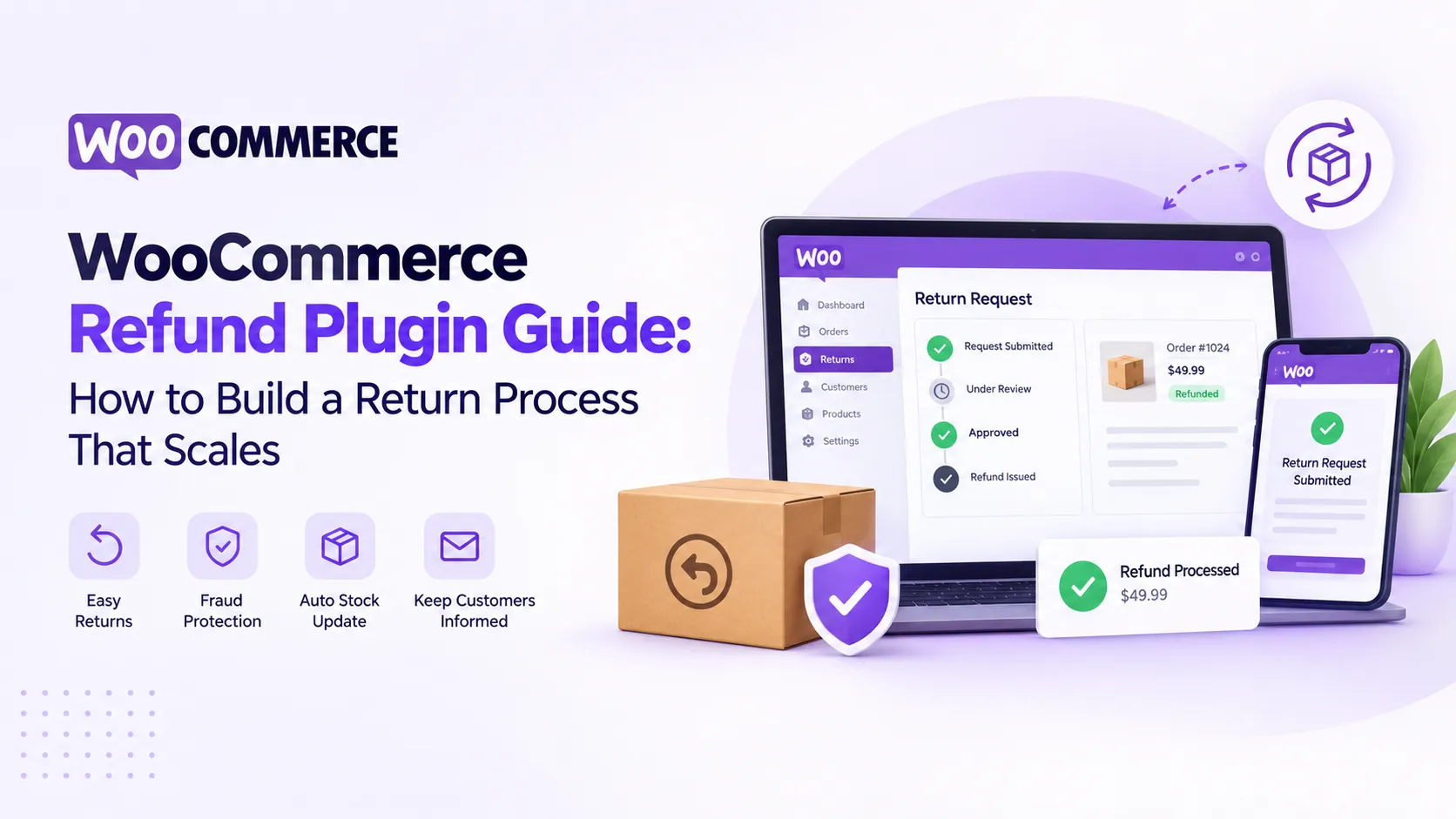
Returns start small. A customer emails, you reply, you issue a refund in WooCommerce, and you move on. Then you have 20 a week. Messages get lost, stock counts drift, and the same customer seems to return everything.
A WooCommerce refund plugin replaces that inbox chaos with a clear process. Customers submit requests from their account. You approve, reject, or ask for photos in one place. Stock and records update without manual work.
This guide explains how an RMA workflow works, what your return policy should cover, and how to set it up in WooCommerce.
What Is RMA and Why Does Your Store Need It?
RMA stands for Return Merchandise Authorization. It is simply the approval step before a return or refund happens.
Without RMA, every return is a one-off conversation. With RMA, every return follows the same steps:
- The customer submits a request with a reason.
- You review the request, photos, and order details.
- You approve or reject it.
- The refund is issued and stock is updated.
- Both sides get an email at every stage.
An RMA plugin builds that flow into WooCommerce, so you are not tracking it by hand.
Step 1: Write a Return Policy People Can Follow
Your plugin can only enforce rules you have decided. Settle these points first:
- Return window. How many days after purchase can customers ask for a refund?
- Eligible order statuses. Usually completed orders only.
- Valid reasons. Damaged, wrong item, not as described, changed mind.
- Proof required. Photos or video for damage claims.
- Shipping costs. Who pays for return shipping, and is the original shipping refunded?
- Exceptions. Final-sale items, personalised products, or used gift cards.
Show this policy on the refund form itself. Customers should not have to hunt for it.
Step 2: Give Customers a Simple Request Form
A good request form asks for the order, the products, a reason, and an optional attachment. Keep it short. Long forms lead to angry emails instead.
Let customers add images or videos. A photo of a cracked mug settles a claim in seconds. It also stops many false claims before they start.
Step 3: Protect Your Store From Refund Abuse
Most customers are honest. A few are not. Build in guardrails from day one:
- Limit refunds per user. Set a maximum number of refund requests per customer.
- Block repeat offenders. Restrict refund requests from specific email addresses.
- Use deadlines. Track a resolution deadline for every request so none go stale.
- Restrict by role. Turn off refunds for certain user roles, such as wholesale buyers.
Step 4: Decide When a Return Is Not Worth It
Some products cost more to ship back than they are worth. A $6 item with $8 return shipping is a loss either way.
For these cases, a "return-free" refund makes sense. You refund the customer and let them keep the item. The customer is happy, and you skip the logistics bill.
Setting Up Returns With a Free WooCommerce Refund Plugin
The free Return Refund and Exchange for WooCommerce plugin on WordPress.org covers the full request-to-refund flow. It includes:
- A refund request button and form on the customer's order page.
- Return windows and eligible order statuses.
- Image and video attachments, with an optional or mandatory toggle.
- Return-free refunds, where the customer keeps the item.
- Fraud controls: refund limits per user and blocked email addresses.
- Refund resolution deadlines.
- Automatic restocking when a refund is accepted.
- Shipping charge refunds and tax handling.
- Order messages between you and the customer, with email notifications.
- Bulk approve or reject, and CSV export of requests.
For a small to mid-sized store, that is a complete return refund and exchange for WooCommerce setup at no cost.
When to Upgrade to RMA Pro
As order volume grows, you need more flexibility. RMA Return Refund & Exchange for WooCommerce Pro adds:
- Partial refunds. Refund or exchange one product without touching the whole order.
- Exchange and cancellation windows. Set time frames for exchanges and cancellations, not just refunds.
- Wallet refunds. Send refunds to the customer's store wallet to keep the money in your store.
- Guest requests. Let guest buyers submit refund and exchange requests.
- Automated refund acceptance. Approve qualifying refunds and process payment automatically.
- SMS notifications. Alert customers and staff about refunds, exchanges, and messages.
Wallet refunds deserve special attention. When a customer chooses store credit instead of cash, the revenue stays with you and they come back to spend it.
Handling Gift Card Refunds
Gift cards need their own rule. If you sell them with the free Ultimate Gift Cards for WooCommerce plugin, the RMA plugin works with it. Customers can request a refund for a gift card product as long as the card has not expired and has not been used. State this clearly in your policy so there is no confusion later.
Keep Your Accounting in Sync
Refunds do not end in WooCommerce. Your accounts need to match.
If you use Zoho Books, the Integration with Zoho Books & Inventory can create a credit note in Zoho automatically when you issue a refund in WooCommerce. The credit note is linked to the original invoice, and you can choose which Zoho bank or cash account the refund comes from. Note that credit notes are only generated when the invoice status in Zoho is Sent or Approved.
This removes one of the most common month-end headaches: refunds that exist in the store but not in the books.
Return Process Checklist
- Write your return policy and add it to the refund form.
- Set the return window and eligible order statuses.
- Turn on attachments for damage claims.
- Set a refund limit per customer.
- Enable restocking on accepted refunds.
- Customise every email: request received, approved, rejected.
- Test a full request on a staging site.
- Review rejected and repeat requests every month.
Conclusion
A WooCommerce refund plugin turns returns from a messy inbox into a repeatable process. Write a clear policy, give customers a short request form, and protect yourself with refund limits and attachments. The free Return Refund and Exchange plugin handles the full workflow for most stores. RMA Pro adds partial refunds, exchanges, wallet refunds, and automation as you grow. Connect refunds to your accounting, and your store and your books will always tell the same story.
Frequently Asked Questions (FAQs)
1. What is an RMA plugin in WooCommerce?
An RMA plugin adds a return approval workflow to WooCommerce. Customers submit refund requests, and you approve or reject them from one dashboard.
2. Can customers attach photos to a refund request?
Yes. Return Refund and Exchange for WooCommerce lets customers attach images or videos. You can make attachments optional or mandatory.
3. Does stock update automatically after a refund?
Yes. Enable stock management in the plugin settings. Product stock increases when a refund request is accepted.
4. Can I refund customers to a store wallet instead of their card?
Yes, with RMA Pro. The advanced wallet feature sends the refunded amount to the customer's wallet in your store.
5. How do I stop customers abusing my refund policy?
Set a refund limit per user, block specific email addresses, require attachments, and use a fixed return window.





Sign in to leave a comment.