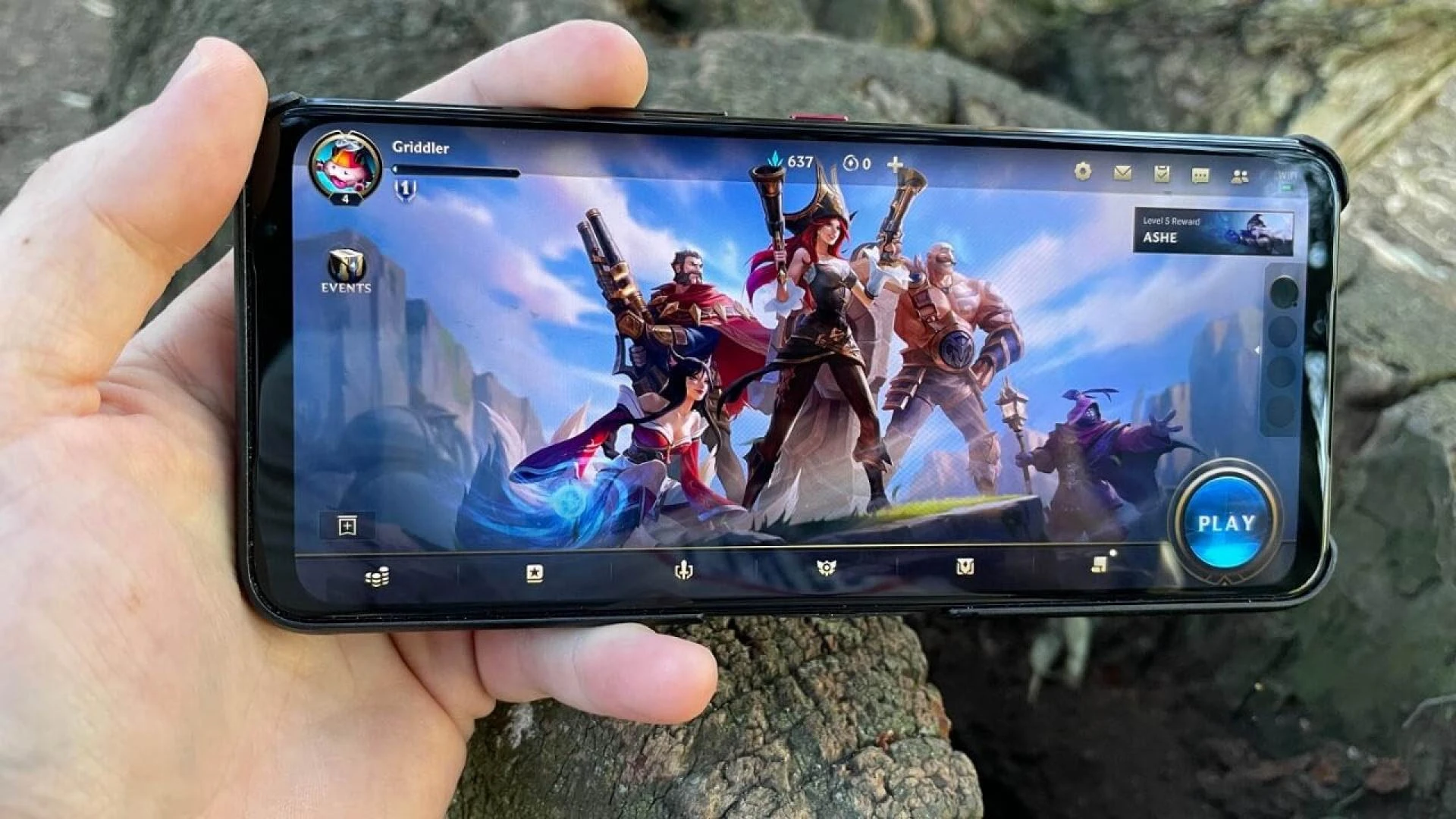

Mobile gaming has become more advanced in recent years, but many users still face lag, frame drops, overheating, and slow network issues during gameplay. Lag not only ruins the gaming experience but can also affect competitive performance in online games. The good news is that modern smartphones include settings and features that can significantly reduce lag if used correctly.
This guide explains the most effective methods to improve gaming performance on Android and iPhone.
1. Close Background Apps
Background apps consume RAM, CPU, and battery. Even social media apps running silently can slow down performance.
Steps:
- Clear all background apps before starting a game
- Avoid minimizing games too often
- Disable background activity for heavy apps such as Facebook, Instagram, and Chrome
This frees up memory and reduces lag.
2. Turn On Game Mode or Game Booster
Most smartphones now include built-in gaming optimization tools.
Android
Brands like Samsung, Xiaomi, Realme, Vivo, and OnePlus provide Game Mode or Game Booster. These tools:
- Prioritize CPU and GPU for gaming
- Block background notifications
- Improve touch response
- Stabilize frame rate
- Boost network performance
iPhone
The iPhone’s system automatically optimizes game performance, but you can improve it by:
- Enabling Low Power Mode off
- Allowing full performance by disabling unnecessary background tasks
Game Mode is one of the fastest ways to reduce lag.
3. Lower Your Graphics Settings
High graphics require more GPU power.
In competitive games such as BGMI, PUBG Mobile, Free Fire, and Call of Duty Mobile, lower graphics often result in better performance.
Recommended settings:
- Graphics: Smooth or Low
- Frame Rate: High or Ultra
- Disable shadows
- Disable anti-aliasing
- Reduce effects
This improves FPS stability and prevents overheating.
4. Keep Your Phone Cool
Overheating causes thermal throttling, reducing CPU and GPU performance automatically.
Tips to keep your phone cool:
- Avoid playing while charging
- Remove the phone case during gaming
- Play in a cool environment
- Reduce screen brightness
- Avoid direct sunlight
Keeping your device cool helps maintain stable frame rates.
5. Use a Stable Network Connection
Lag during online games is often caused by network problems, not device performance.
Tips to improve network stability:
- Switch from mobile data to Wi-Fi if possible
- If using mobile data, stay in an area with strong signal
- Use a 5 GHz Wi-Fi band instead of 2.4 GHz
- Keep your router away from walls
- Turn on Mobile Data Boost or Wi-Fi Boost from Game Mode
- Turn off other devices connected to the same Wi-Fi
A stable ping reduces lag dramatically.
6. Clear Cache of Heavy Apps
Apps like Instagram, Chrome, Facebook, and system apps store large cache files that slow down the phone.
Steps:
- Go to Settings
- Open Apps
- Select heavy apps
- Tap Storage
- Clear cache
Do not clear data unless necessary.
Clearing cache helps free resources for gaming.
7. Disable Power Saving Mode
Power saving mode reduces performance to save battery.
When enabled, it slows down the CPU, lowers screen refresh rate, and restricts background functions.
Always turn off Power Saving Mode while gaming.
8. Update Your Game and Software
Game developers release updates to fix bugs and improve performance.
Similarly, system updates optimize stability, graphics, and GPU drivers.
Make sure you update:
- Game version
- System software
- GPU driver updates (supported on some Android devices)
Updating ensures smoother gameplay.
9. Free Up Storage Space
Low storage can cause stuttering, lag, and slow device response.
Try to keep at least 10 to 20 percent storage free.
You can delete:
- Unused apps
- Old videos
- Large downloads
- Temporary files
More storage improves system speed.
10. Turn Off Animations (Developer Options)
Developer options include settings that reduce visual load on the system.
Steps:
- Go to Settings
- Tap About Phone
- Tap Build Number seven times to enable Developer Mode
- Go to Developer Options
- Set Animation Scale values to 0.5 or 0
This increases system responsiveness.
11. Use a High Refresh Rate
If your phone supports 90 Hz, 120 Hz, or higher refresh rate:
- Use the highest available refresh rate
- Ensure the game supports high FPS
- Enable high frame rate mode inside game settings
Higher refresh rate improves smoothness and reduces motion blur.
12. Uninstall or Disable Unused Apps
Unused apps consume storage, RAM, and background resources.
Removing them will make your device faster overall.
13. Enable Force 4x MSAA (Optional)
This setting improves graphics but may increase heating.
Not recommended for low-end devices.
Steps:
- Enable Developer Options
- Turn on Force 4x MSAA
Use only if your phone has strong hardware.
Final Thoughts
Reducing lag while gaming on mobile requires a combination of system optimization, network improvements, and adjusting game settings. By using game mode, freeing up RAM, lowering graphics, keeping the device cool, and ensuring stable network connection, you can significantly improve your gaming experience.





















Sign in to leave a comment.