



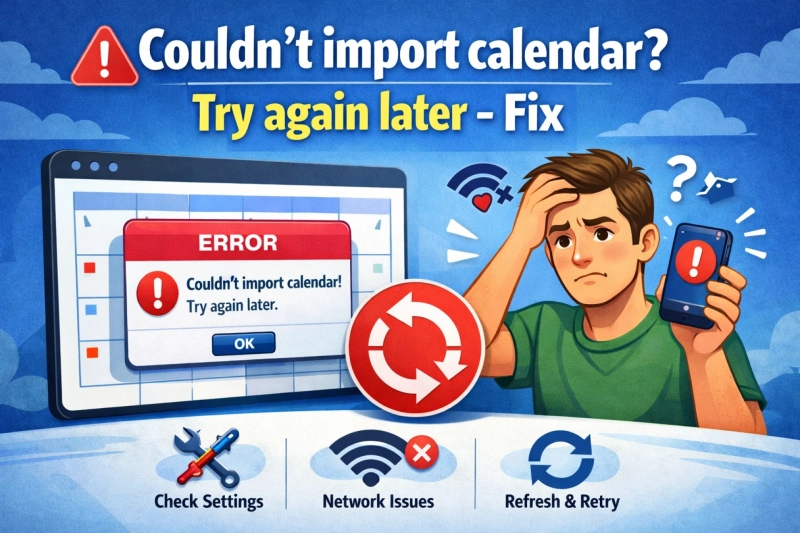
Nowadays, users want to import their calendar data into Outlook, but they face a lot of problems like Outlook couldn’t import Calendar due to incomplete structures and oversized file size. These errors usually appear when the service of the calendar fails to process an ICS file during the import process, which results in couldn’t import Calendar try again later error.
In this guide, we will learn the manual methods as well as an expert-oriented solution to solve this problem.
Common Reasons Behind Outlook Couldnot Import Calendar
Before going into the solutions, it’s important for you to understand what causes this issue to choose the right way.
- When the structure of the ICS file is damaged or missing the required calendar properties, then the import process fails and shows the error of couldn't import Calendar try again later.
- When an ICS file contains thousands of events due to this reason the imports may fail silently.
- It contains incorrect time zone definitions or unsupported date ranges which cause Outlook couldn't import calendar and similar errors.
- Whe the error occurs due to a temporary service outage, especially when you are importing calendars online.
- If the ICS file has overlapping or duplicate event IDs, then the calendar services may reject the ICS file.
Method 1: Re-Import the Calendar After Waiting
This is the simplest way to fix the couldn't import calendar try again later error but only when the issue is caused by temporary server synchronization problems. Fix this problem using the methods given below:
- First, wait for 10–15 minutes.
- Then, you need to refresh your calendar platform.
- Attempt the import process again.
- At last, ensure you are using a stable internet connection.
Method 2: Check the ICS File Structure
An improperly formatted ICS file is one of the leading causes of the couldn't import calendar try again later error. This solution also helps when Outlook couldn't import calendar due to format inconsistencies.
Steps:
- Open the ICS file using a text editor.
- Check for mandatory fields like:
- BEGIN: VCALENDAR
- BEGIN: V EVENT
- DTSTART and DTEND
- END: VCALENDAR
- Remove incomplete or corrupted events.
- Save the file and retry importing.
Method 3: Import the Calendar into a Different Platform First
This method re-encodes the file, often resolving couldn't import calendar try again later errors caused by encoding conflicts. If one platform refuses to import the file, try another calendar service.
Steps:
- Import the ICS file into Google Calendar or Apple Calendar.
- Export the calendar again as a new ICS file.
- Import the newly exported file into your desired platform.
Method 4: Couldn't Import Calendar Try Again Later Error - Pro Solution
Large ICS files with event histories often cause the Outlook could not import calendar error due to platform limitations. For that, SysTools ICS Splitter Tool is an effective automated solution that is designed to handle large and complex ICS files. It allows users to split calendar files by date range, year, or event count making imports smooth and error-free.
- Download and install the Software.
- Click on the split ICS file from the tab.
- Then, select the Add file option and then add the ICS file.
- Now, choose the splitting option like size, count, categories, etc.
- After choosing, select the destination path to save the output file.
- Once the splitting is completed, click on the OK button.
- After this, click on view report option to see the result report.
- At last, save the splitted ICS file.
Key Features of This Tool
- It easily divides oversized ICS calendar files into smaller, manageable parts to avoid the Couldn't import calendar try again later error.
- This tool allows you to split ICS files by date range, year, month, or number of events, and gives users full control over calendar segmentation.
- Helps to maintains the original calendar properties such as event titles, descriptions, reminders, time zones, and recurrence rules without data loss.
- It is designed for both technical and non-technical users, requiring no manual editing of ICS file content.
- This tool works independently without requiring the need of internet access, while ensuring the data privacy and secure calendar processing.
Conclusion
In this blog, we have discussed about the error of couldn’t import calendar try again later, the common reasons why this issue arises with its fixing solutions that includes both manual and automated solution with its advantages to solve the problem hassle-freely.