




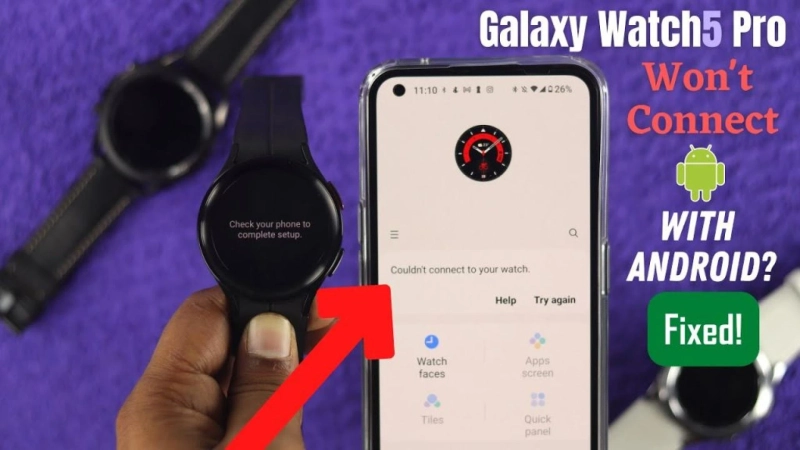
Are you experiencing issues with your Galaxy Watch not connecting to Samsung Galaxy Phones? This can be frustrating, especially when you're trying to sync your notifications, fitness data, or other features. Software glitches, Bluetooth connectivity issues, or incorrect settings could cause the problem. Luckily, you can try several troubleshooting methods to resolve the issue and restore the seamless connection between your Galaxy Watch and your phone. In this guide by ITMediatv, we’ll explore effective fixes to get your devices working together again.
1. Ensure Bluetooth Is Enabled
One of the primary reasons your Galaxy Watch may not connect is that Bluetooth isn’t enabled on your phone or watch. To check and enable it:
On your Samsung Galaxy phone, swipe down to open the quick settings panel and ensure Bluetooth is turned on.
On the Galaxy Watch, go to Settings > Connections > Bluetooth and ensure it’s enabled.
After enabling Bluetooth on both devices, try reconnecting them via the Galaxy Wearable app.
2. Update the Galaxy Wearable App
Compatibility problems may emerge if the Galaxy Wearable app becomes outdated. Go to the Google Play Store or Galaxy Store to check for the most recent updates - the app is not the latest version. Updating the app can fix certain bugs and enhance watch and phone linking.
3. Restart Both Devices
A simple restart can resolve minor software glitches that might be preventing the connection. Restart your Galaxy Watch by holding the power button until the reboot option appears. For your Samsung Galaxy phone, hold the power button and select "Restart." Once both devices are powered back on, try reconnecting them.
4. Re-pair the Devices
Sometimes, re-pairing the devices can resolve persistent connectivity issues. Here’s how to do it:
Open the Galaxy Wearable app on your phone.
Select your watch and tap "Unpair" or "Disconnect."
On your Galaxy Watch, go to Settings > Connections > Bluetooth and forget the phone from the list of paired devices.
Restart both devices, then re-pair them using the Galaxy Wearable app.
5. Check for Software Updates
Outdated software on either your watch or phone can cause compatibility problems. To check for updates:
On Your Samsung Galaxy Phone:
Go to Settings > Software Update > Download and Install.
If an update is available, install it and restart your phone.
On Your Galaxy Watch:
Open the Galaxy Wearable app on your phone.
Go to Watch Software Update and install any pending updates.
Keeping both devices up-to-date ensures better performance and fewer connection problems.
6. Clear Cache in the Galaxy Wearable App
Clearing the app cache can remove corrupted data that might be interfering with the connection. To clear the cache:
Go to Settings > Apps on your phone.
Find and select the Galaxy Wearable app.
Tap Storage > Clear Cache.
Once cleared, restart the app and attempt to reconnect your watch.
7. Reset Network Settings on Your Phone
If Bluetooth and Wi-Fi are not functioning correctly, resetting the network settings on your phone can help:
Open Settings > General Management > Reset.
Tap Reset Network Settings and confirm.
This action will reset all network settings, including Bluetooth, Wi-Fi, and mobile data. You’ll need to reconfigure your network preferences afterward.
8. Factory Reset the Galaxy Watch
If all else fails, a factory reset on your Galaxy Watch may resolve deeper software issues. Before proceeding, ensure you’ve backed up your data. To reset your watch:
Open Settings > General > Reset on the Galaxy Watch.
Confirm the reset and follow the on-screen instructions.
After resetting, re-pair the watch with your phone through the Galaxy Wearable app.
9. Check Device Compatibility
Verify that your Galaxy Watch can work with your Samsung Galaxy phone. Most Samsung devices are built to provide seamless connectivity for users but older models of the Galaxy Watch may not be able to support the new phones or OSes. Please check the official compatibility list of Samsung if you have a reason to assert this.
10. Contact Samsung Support
If none of the above solutions solve your issue, consider reaching out to Samsung Support. Your problem might be caused by some hardware defect or a more complicated software problem, which can only be resolved with professional assistance.
Tips for Maintaining a Strong Connection
Keep Devices Close: Ensure your phone and watch are within Bluetooth range to avoid disconnections.
Disable Battery Optimization: Battery-saving modes can restrict app functionality, so disable them for the Galaxy Wearable app.
Monitor Interference: Avoid environments with heavy Bluetooth interference, like those with multiple active devices.
Final Thoughts
Resolving the connectivity problems between your Galaxy Watch and your Samsung Galaxy phone doesn't have to be hard. Using the steps outlined above, correcting most issues becomes easy and you can take advantage of almost all the capabilities of your devices. For more tips and other useful guidelines, check out other resources on itmediatv, your ultimate site for useful tech tips.
You can maintain smooth connectivity and keep making the best out of all the options available on your Galaxy Watch by ensuring that your devices are updated and that the best practices are adhered to. For more information open this link: Fixes for Galaxy Watch Not Connecting to Samsung Galaxy Phones