




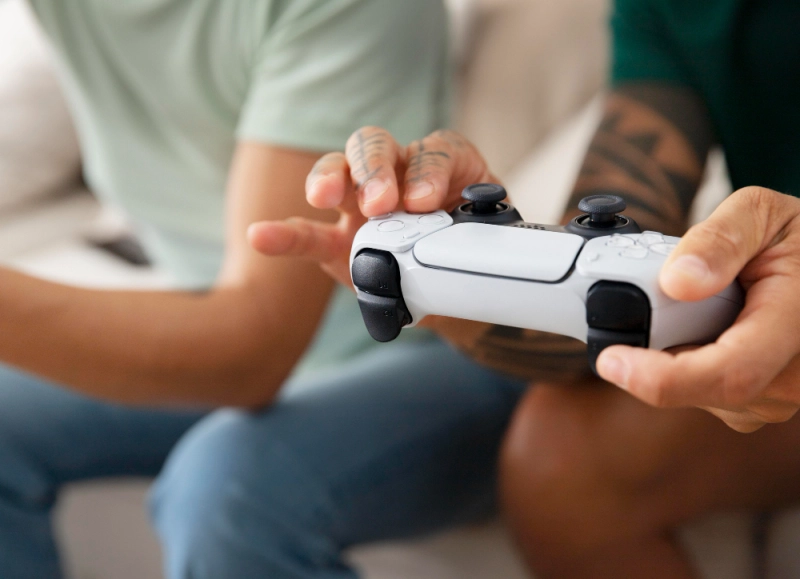
Joystick drift is one of the most frustrating problems gamers face. Whether you own a PlayStation, Xbox, Nintendo Switch, or a third-party controller, drift can make your character move on its own, ruin precision aiming, and destroy your overall gameplay experience.
But the good news is you can detect drift early and confirm if your controller needs calibration, cleaning, or even replacement. In this guide, we’ll explain what joystick drift is, why it happens, how to check it, and what solutions you can try.
What is Joystick Drift?
Joystick drift occurs when your controller registers movement without you touching the analog stick. For example, in a game, your character might slowly walk forward or your aim may shift by itself.
This happens due to:
- Wear and tear of the analog stick sensors.
- Dust or dirt inside the mechanism.
- Calibration errors in the operating system.
- Manufacturing defects in certain models.
Drift is common in both high-end controllers like the DualShock, DualSense, and Xbox Elite, as well as budget controllers.
Why Checking for Drift is Important
If you ignore joystick drift, it only gets worse. Early detection allows you to:
- Confirm if the issue is hardware or software related.
- Apply quick fixes like recalibration or cleaning.
- Avoid unnecessary repairs by knowing the exact problem.
- Extend the life of your gamepad.
Running a test is simple. You can use an online joystick drift checker that shows whether your analog stick is sending signals when untouched.
How to Test Joystick Drift Online
The fastest way to check drift is by using a browser-based tester. Here’s how:
Step 1: Connect Your Controller
- Plug in your wired controller via USB.
- For wireless controllers, enable Bluetooth and pair with your PC or laptop.
Step 2: Open a Reliable Tester
Visit a tool like this controller drift testing website. It instantly detects most gamepads.
Step 3: Keep the Sticks Still
Without touching anything, look at the on-screen axis indicators.
- If the sticks show movement while resting, your controller has drift.
- If everything stays centered, the joystick is healthy.
Step 4: Rotate the Sticks
Move them in full circles. Check if the movement is smooth or if there are dead zones where inputs don’t register.
Step 5: Confirm with Buttons
Run a full button test as well. Sometimes what feels like drift may be caused by a faulty D-pad or button sending wrong signals.
This quick process with a free gamepad input tester lets you identify drift within seconds.
Other Methods to Detect Joystick Drift
Apart from online testing, you can use:
Console Calibration Tools
- PlayStation: Go to Settings → Accessories → Controllers → Adjust Analog Stick Dead Zone.
- Xbox: Use Xbox Accessories app to test sticks.
- Nintendo Switch: Settings → Controllers and Sensors → Calibrate Control Sticks.
In-Game Testing
Open a game with free camera movement. Leave the sticks untouched. If the camera moves or your character walks, drift exists.
While console calibration helps, online testing on a PC with an analog stick tester is more precise.
How to Fix Joystick Drift
Once you detect drift, you can try these fixes:
1. Recalibrate the Controller
Resetting the stick sensitivity can sometimes remove drift. Use your system’s calibration options or reset settings.
2. Clean the Joystick
Dust often causes false inputs. Gently lift the joystick cover and clean with compressed air or isopropyl alcohol.
3. Adjust Dead Zones
Some games and emulators allow adjusting dead zones. Increasing this range ignores small unwanted movements caused by drift.
4. Update Firmware or Drivers
Outdated drivers may misread stick inputs. Always keep your controller and system updated.
5. Replace the Stick Module
If nothing works, the internal sensor may be worn out. Replacement kits are available for popular controllers.
After every fix, retest using a joystick drift tester online to confirm the problem is resolved.
Preventing Joystick Drift in the Future
While drift cannot be avoided completely, you can minimize risks by:
- Storing the controller in a dust-free environment.
- Avoiding unnecessary pressure on sticks.
- Cleaning the controller regularly.
- Using a case for portable devices like the Switch.
- Testing controllers monthly with a game controller drift checker.
When to Replace Your Controller
Sometimes drift is beyond repair. You may need a new controller if:
- The joystick registers random movement even after cleaning.
- Dead zones are so large that precision is impossible.
- Replacement parts are unavailable or too costly.
Testing beforehand ensures you don’t waste money replacing a controller that could be fixed with simple maintenance.
Final Thoughts
Joystick drift is frustrating but manageable. With early testing, you can confirm the issue and decide whether recalibration, cleaning, or replacement is needed. Tools like this online gamepad drift tester give you accurate results in seconds, helping you take the right action.
For gamers, maintaining a responsive controller is essential for competitive and casual play alike. By testing regularly and applying preventive care, you can extend the life of your controller and enjoy smooth, drift-free gaming.