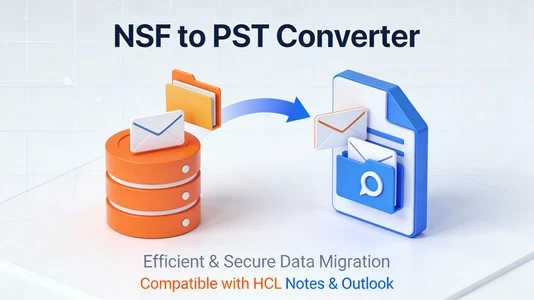

Moving from HCL Notes (Lotus Notes) to Microsoft Outlook is a major step for any organization, because it changes the underlying email platform, file formats, and long‑term data management strategy. A successful migration hinges on understanding how NSF and PST files work and choosing the right method to convert between them safely and efficiently.
NSF vs PST: what changes?
HCL Notes stores mailbox data in NSF (Notes Storage Facility) files, while Outlook uses PST (Personal Storage Table) files for local data. This means Outlook cannot open NSF files directly, so a conversion step is always required before you can access Notes data in Outlook.
Beyond file formats, the two platforms differ in how they handle folders, rich text, encryption, and application‑level features like Notes databases and custom workflows. During migration, the focus is usually on core items—emails, folders, attachments, contacts, and calendars—because some Notes‑specific applications cannot be replicated 1:1 inside Outlook.
Why move from HCL Notes to Outlook?
Many organizations move from HCL Notes to Outlook to standardize on the Microsoft 365 ecosystem, reduce licensing and maintenance costs, or simplify user training. Outlook’s integration with Teams, OneDrive, SharePoint, and mobile clients often becomes a strong driver for change.
On the IT side, consolidating on Exchange or Microsoft 365 makes backup, compliance, and security policies easier to manage than maintaining separate Notes and Microsoft environments. For end users, Outlook usually offers a more familiar interface, better search, and smoother integration with modern productivity tools.
High-level migration approaches
There are three broad ways to move data from NSF to PST: manual export/import, scripted or connector‑based migrations, and professional NSF to PST converter tools. Each approach comes with trade‑offs in terms of speed, control, and risk.
Manual methods typically involve exporting NSF data to intermediate formats like CSV, then importing those files into Outlook. This can work for small mailboxes or contact lists, but often leads to loss of metadata, broken formatting, and missing attachments, so it is rarely suitable for large or business‑critical migrations.
Manual export: when it makes sense
In smaller scenarios—such as a single user or limited sets of contacts and calendars—manual export is sometimes enough. You export selected items from Notes to CSV or ICS, then use Outlook’s Import/Export wizard to bring them into PST.
However, this process is slow, repetitive, and prone to human error. It usually cannot preserve full folder structures, read/unread status, rich text, inline images, and complex Notes features. Because of this, manual export is best treated as a fallback method or a quick test, not a long‑term migration strategy.
Why are NSF to PST converter tools popular?
Purpose‑built vMail NSF to PST converter software is designed to bridge the gap between Notes and Outlook in a controlled, automated way. These tools read NSF files directly and create one or more PST files that Outlook can open, while trying to maintain folder hierarchy, item properties, and attachments.
A good converter lets you load multiple NSF files, preview mailbox content, and then export emails, contacts, calendars, tasks, and journals into PST with minimal user intervention. For IT teams, this turns a complex project into a repeatable workflow that can be applied across departments or entire organizations.
Key features to look for in a converter
When evaluating NSF to PST converters, the most important factors are accuracy, stability, and control over the migration scope. The tool should preserve folder structures, timestamps, sender/recipient details, and embedded attachments without corrupting or truncating data.
Advanced options such as selective folder export, date and item filters, and support for large NSF files help keep PST sizes manageable and focus on relevant data only. Batch conversion, detailed logging, and the ability to split large PSTs into smaller chunks are also valuable in enterprise scenarios.
Typical NSF to PST migration workflow
A standard migration project usually follows a few predictable stages: planning, test conversion, full migration, and validation. Planning involves inventorying Notes mailboxes, deciding which data must be moved, and defining retention rules and folder mapping.
During test conversion, you pick a few representative NSF files, run them through the converter, and open the resulting PSTs in Outlook to review folder layout, item counts, and formatting. Once the test phase is satisfactory, you move on to batch processing, generate PSTs for all users, and import them into Outlook profiles or Exchange/Microsoft 365 mailboxes, then verify with end users.
Best practices for a safe migration
Before any conversion, always create backups of NSF files so you can roll back if needed. It is also wise to clean up mailboxes—delete obvious junk, old drafts, and large, unnecessary items—to reduce migration time and PST size.
Run migrations in phases instead of a single “big bang,” starting with pilot groups and gradually expanding once the process is stable. Document your end‑to‑end steps, including tool settings, folder mappings, and validation checks, so that the migration can be repeated consistently for the remaining users and future projects.
Final thoughts
From a search-and-user-experience perspective, articles about “Move from HCL Notes to Outlook: NSF to PST Explained” perform best when they blend technical clarity with practical decision‑making advice. Readers want to understand both the “why” and the “how,” including high‑level steps, risks of manual methods, and the role of dedicated converter tools.
























Sign in to leave a comment.