
The following advice is arranged from the simplest and most frequent scenarios to the most difficult and expensive ones in order to help you deal with an iPhone that just won\'t charge. I hope that making a few small tweaks would solve the problem of your iPhone not charging.
1. When charging your iPhone, try using a different power source.
This experiment might seem too simple to be true, but before doing anything else, make sure that power banks and outlets that are malfunctioning are the source of the problem. If your iPhone isn\'t charging when plugged into a power socket, try another one.
Try charging your phone via your computer\'s USB port or your car charger.
2. Inspect the adapter and charging cable for the iPhone.
The likelihood of your iPhone charging cord breaking down is far higher than that of your real iPhone. Keep an eye out for any indications of cable damage, such as fraying, exposed wires, or dark patches around the connectors. Try charging your iPhone with a different cable to see if it resolves your charging problems, even if there are no obvious indications of damage to the original cord.
Are the charging cord and adapter you\'re using from Apple? While purchasing cheap charging cords could be alluring in an effort to save money, keep in mind that they do not always work perfectly with iPhones and might even break your device. Apple charging cords and adapters are a luxury that you should not pass up if you are prepared to shell out the additional cash for an iPhone.
Have you not been lucky? Is the charger for your iPhone broken? The next action is to replace your adaptor and give it another go.
3. Make sure the charging port is clean.
Your iPhone\'s tiny charging port attracts dust and particles no matter where you store it—in a pocket, handbag, holster, or backpack. The accumulation of lint within this tiny aperture may impede the communication between your iPhone and charging cord. Using a wooden toothpick, carefully clean the charging port and blast out any dirt by spraying compressed air into the port. The sensitive pins in the charging port could be harmed if you use a paperclip. Don\'t use alcohol-containing beverages either.
4. Verify the functionality for optimised battery charging.
There\'s no reason to worry if your iPhone stops charging at 80%. Optimised Battery Charging is a function that has been available since iOS 13 and is designed to increase battery life. Go to Settings > Battery > Battery Health & Charging to check it out.
5. Attempt wireless charging of your iPhone.
You should be able to charge your iPhone wirelessly if it\'s an iPhone 8 or later model. Here are the steps to connect your iPhone to a wireless charger:
Attach your charger to an electrical outlet.
Place the charger on a level surface or in another area that the manufacturer suggests.
Position your iPhone so that the display is facing up on the charger. The process of charging your iPhone ought to take a few seconds.
6. Turn on your iPhone again.
Occasionally, all your iPhone needs to fix any software bugs and get back on track is a quick reboot. Until the "Slide to Power Off" option shows up on your screen, press and hold the power and volume buttons. Press the right slider to switch off your phone. To restart your iPhone, wait a few minutes and then press and hold the power button.
7. Verify that the software on your iPhone is current.
Although rare, out-of-date software might occasionally prevent your iPhone from performing simple functions like charging when it is plugged in. Make sure your iPhone is running the most recent version of the iOS operating system to rule out this problem.
8. Give Your iPhone a Hard Reset.
If the charging issue persists, you may try a hard reset on your iPhone. There\'s a little more to this than just shutting down and restarting your iPhone. A hard reset takes a little longer than a normal reset and involves a complete CPU reboot.
Following these instructions will allow you to hard reset your iPhone running iOS 16 or later:
- Press and hold the volume up button for a brief moment.
- Press and hold the volume down button for a brief moment.
- Hold down the side button.
- Release the side button when you see the Apple logo.
- Try charging your iPhone once more when it has finished rebooting.
- See Apple\'s guide if you have an iPhone with a home button or are using an iOS version older than 16.
9. Clear the settings on your iPhone.
Even after you\'ve tried resetting and wiping your iPhone, it refuses to charge when plugged in. Resetting your iPhone\'s settings is the final step before contacting a professional. Yes, your iPhone\'s customised settings will be removed, but nothing will affect your data—including pictures, apps, videos, and music. Here\'s how to change the settings on your iPhone:
- When your iPhone opens, select "Settings."
- Click "General."
- Choose "Reset All Settings" after tapping "Reset."
- Try charging your iPhone once more after giving it a chance to reset.
10. Examine any Bodily Harm and Get Help From an Expert.
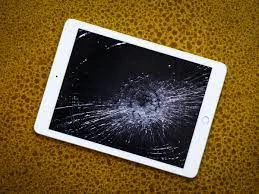
There\'s a significant probability that your battery is broken or your iPhone has been damaged if you\'ve tried all of the above solutions and you still can\'t get it to charge. It\'s possible that your phone has experienced water damage, been dropped excessively, or that the connecting pins have bent.
It\'s time to get an expert in if you think your iPhone may have been harmed. To get your iPhone professionally diagnosed and repaired, visit an authorised Apple service centre, call Apple Support, or visit a nearby Apple Store.
Yes, it can be annoying to live with an iPhone that won\'t charge, but chances are strong that a few tests and adjustments will find a workaround. One by one, try the above-described steps. You should take your iPhone to a professional to get it checked and fixed if none of the troubleshooting techniques work.
If you are need iPhone repair services in Dubai. Contact MobileRepairsDubai for best iPhone repair in Dubai. For more information dial our toll free number at: +97145864033









Sign in to leave a comment.