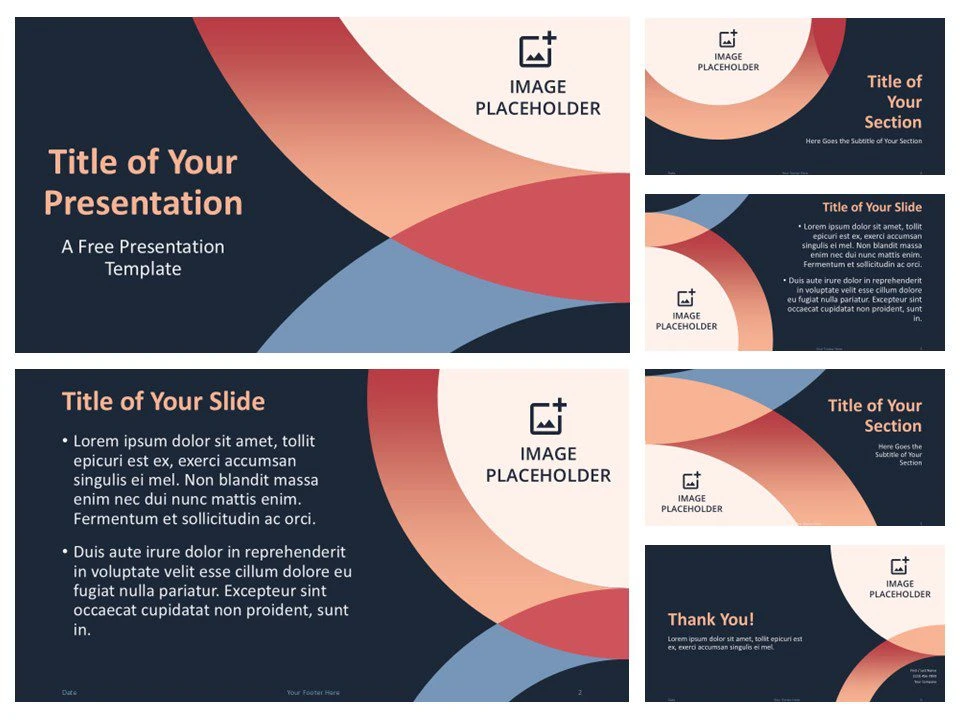

PowerPoint templates offer a solid starting point for creating presentations, but to truly make your slides impactful, you need to go beyond the basics. Customizing templates ensures your presentation feels unique, aligns with your brand identity, and keeps your audience engaged from beginning to end. Whether you're building a pitch, teaching a class, or running a conference, customizing a PowerPoint template properly can elevate the entire experience.
Here are twelve practical and creative design tips to help you personalize PowerPoint templates while maintaining clarity, professionalism, and visual consistency.
1. Start with a Clear Brand Identity
Before diving into customization, make sure you have a clear understanding of your brand's visual identity. This includes your logo, color palette, fonts, and tone. Customizing a template becomes far more coherent when every design choice reflects a defined brand. Apply your primary and secondary brand colors to key slide elements like titles, backgrounds, and shapes. Use your brand’s typography throughout to make the slides feel integrated with your other visual materials.
2. Use Master Slides to Your Advantage
The Slide Master is a powerful tool in PowerPoint that allows you to make universal changes across the presentation. Instead of adjusting each slide individually, use the Slide Master to set fonts, background styles, colors, and placeholders. This creates consistency and saves you valuable time. It also minimizes the risk of errors like mismatched fonts or off-brand colors that break the visual rhythm of your deck.
3. Limit Your Color Palette
Avoid the temptation to use too many colors. Stick to two or three main hues — ideally your brand colors — and one or two accent colors for highlights. This keeps your design clean and avoids visual clutter. PowerPoint templates often come with pre-set color themes, but feel free to replace those with your own swatches. Just make sure that text remains legible against background colors and that contrast is sufficient.
4. Customize Typography Thoughtfully
Typography says a lot about your brand and message. Replace default fonts with those that match your company’s typeface or your presentation’s tone. Use one font for headings and another for body text, but limit your font combinations to two or three maximum. When selecting fonts, focus on readability — sans-serif fonts like Helvetica, Calibri, or Open Sans work well for digital presentations.
Pay attention to font size and hierarchy as well. Make sure titles, subheadings, and content are clearly distinguishable. Maintain spacing and alignment throughout to ensure a clean layout.
5. Choose or Replace Imagery with Purpose
Images enhance storytelling but only if they’re relevant and high-quality. Replace stock or placeholder images with ones that represent your message, team, services, or audience. Use original photography when possible. If you're working with stock photos, ensure they align stylistically — avoid mixing overly staged images with natural, candid ones.
Maintain consistent sizing and placement of images to create visual harmony. Also, consider using shapes or masks to add visual interest without overwhelming the slide content.
6. Design Custom Icons and Graphics
Icons play a subtle but important role in guiding attention and simplifying information. While many PowerPoint templates include generic icons, you can replace them with custom iconography that reflects your industry or topic more accurately. Use flat, minimalist icons to maintain a modern aesthetic.
If you have design skills or access to a designer, consider creating a custom icon set. Alternatively, choose a consistent style from a professional icon library. Match icon colors to your palette and avoid mixing styles like 3D, outline, and filled icons in the same slide.
7. Use Animations and Transitions Sparingly
While animations can add life to your presentation, overusing them is distracting. Stick to simple transitions like “Fade” or “Push” between slides, and use object animations only when they enhance understanding — such as revealing bullet points one by one during a discussion.
Avoid flashy or unpredictable transitions that don’t support your message. Always preview animations in presenter mode to ensure they function smoothly and look professional.
8. Incorporate Data Visualization Thoughtfully
Replace basic charts with customized data visualizations that reflect your brand style. PowerPoint offers many built-in chart options — bar graphs, pie charts, and line graphs — but you can also import charts from Excel or use external design tools for more control.
Customize every chart by applying your color palette, adjusting fonts, and simplifying labels. Make sure each visualization is easy to interpret — don't clutter slides with too much data. Instead, focus on one insight per chart and use callouts to highlight key takeaways.
9. Keep Slide Layouts Consistent
Consistency across slides reinforces structure and makes your presentation easier to follow. Use layout grids and align elements such as text boxes, images, and titles so they match slide to slide. PowerPoint’s “Align” and “Distribute” tools are helpful for precision.
Even when using different layout types — such as comparison slides, image-only slides, or bullet lists — retain similar spacing, margins, and visual weight. This visual consistency improves readability and reflects attention to detail.
10. Simplify Slide Content
When customizing templates, resist the urge to overcrowd slides. The goal is to support your spoken message, not replicate it. Stick to one core idea per slide. Limit text to concise bullet points or quotes, and use visuals to illustrate complex ideas.
White space is your friend — it helps highlight important content and avoids overwhelming the audience. Break longer sections into multiple slides to maintain focus and pacing.
11. Add Branded Cover and Closing Slides
The first and last impression matter. Design a customized title slide that includes your logo, tagline, or event title in a visually appealing way. Likewise, create a strong closing slide that includes contact information, a thank-you message, or a final call to action.
While PowerPoint templates often include basic versions of these slides, customizing them ensures your audience walks away with a strong and professional impression. These slides also offer an opportunity to showcase your design creativity and brand identity.
12. Test Across Devices and Environments
Before finalizing your customized presentation, test it across different screen sizes and devices. What looks great on your laptop may appear cramped or pixelated on a projector or mobile device. Avoid small text, and check image resolution on larger displays.
Additionally, make sure fonts and multimedia elements like videos are embedded or linked properly. You don’t want to discover during a live presentation that your animations didn’t load or your charts appear skewed.
Conclusion
Customizing PowerPoint templates is both an art and a science. It requires a balance between creativity, clarity, and consistency. When done right, a customized template can make your presentation not only more visually appealing but also more aligned with your message and brand.
Remember, your goal is to enhance communication — not distract with visuals or over-design the slides. With the right design principles in mind, even a basic template can become a memorable, effective storytelling tool. Take the time to customize thoughtfully, and your audience will notice the difference. Whether you're presenting in a boardroom or online, a well-crafted slide deck can elevate your credibility and command attention.
By applying these twelve design tips, you can transform any presentation into a professional and polished experience using PowerPoint templates as your creative canvas.





























Sign in to leave a comment.