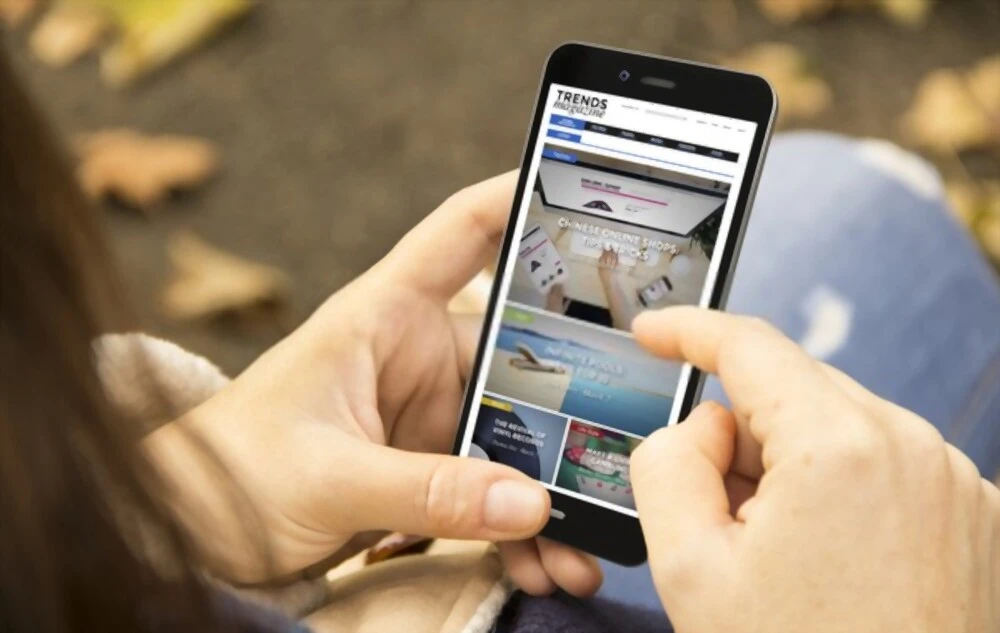

When creating a Mobile website, keep a few things in mind to maximize the user experience. First, navigation should mirror the desktop experience, avoiding serif fonts. Typography should be large, and CTAs should be easy to spot. So, go now and test your site and make adjustments accordingly. It's also important to include a "mobile-friendly" button or arrow on the side of every page.
Forms should be as short as possible
As more users browse the web on their mobile devices, it's important to keep forms simple and short. In addition to keeping the form as short as possible, make sure the text in the form is easy to read. You can also make use of autocomplete for long lists. Avoid sideways scrolling, which can prevent users from completing their forms and increase typos. Use fonts that are proportional to the size of the form. Ideally, all fields and buttons on a mobile site should be at least 48 pixels wide.
For a mobile-friendly form, the length of each input field should match the size of the field that contains it. Using the same length of text in different input fields is counter-productive. If, for instance, an email input field contains 40 characters, but a zip code input field only contains five, users could end up getting confused as they try to fill out the form. The field length is therefore a very important affordance, and should be used to tell users how long they can enter text.
Another thing to keep in mind is that people are increasingly concerned about security and privacy. They are hesitant to provide sensitive information without understanding why. Therefore, if you need to ask them for sensitive information, explain why. Without a clear explanation, they are likely to abandon the form and find another option. When people are on the go, a short form will ensure that everyone stays on your mobile website.
If your form is long, consider splitting it into multiple pages. Use conditionals to make it shorter or add fields based on the user's selection. The shorter the form, the easier it is for the user to navigate through it. Further, you can also use interactive elements in the form. However, make sure that you don't overdo it with too many fields. The more complex the form is, the less likely it is for the user to complete it.
Make sure you make labels above the field where the user is entering the information. It may be tempting to place labels inside the field, but users tend to scroll down to see them. In this way, they may complete the form faster. A simple label will be the best choice when it comes to mobile forms. The user will not have to look up the labels when they're typing, which will make it more user-friendly.
Read more: https://www.espwebzing.com/
Navigation should reflect the desktop experience
A good website should mirror the experience of its desktop counterpart. Navigation items, such as the home page, should be clear and consistent on mobile devices. In the case of museums, for example, the home page should clearly label the Collections section. Users should be guided through the museum website using a clear and consistent navigation on their phones. A researcher from Nielsen Norman Group says that deviations from learned routines can lead to errors, so it is important to design navigation in a way that preserves user experience.
When creating the mobile version of your site, make sure the navigation is consistent across all devices. Make sure that your navigation on mobile doesn't cover most of the mobile screen, or obstruct top navigation elements. Make sure that you don't show closed forms again. You may want to create a separate navigation on desktop for mobile, and this can make it easier for users to navigate on mobile. Make sure that the mobile version has a consistent visual theme, but don't use the same design elements.
Make sure that the primary navigation items link to the homepage and are section headers for secondary navigation links. If you use non-links for these items, people will try to click on them, only to be disappointed when no page loads. Make sure your breadcrumbs are not too small or too close to one another. Some sites try to make the breadcrumbs smaller by making them more compact, and some try to compress the breadcrumbs so that they will take up less screen space.
If your mobile site uses breadcrumbs, consider making them more specific. They'll make it easier for users to find nearby content. A breadcrumb trail will be particularly useful when visitors arrive from a link outside the site. On mobile devices, however, breadcrumbs take up too much space and make it difficult to tap. You may want to consider shortened breadcrumbs for mobile users. You can also try using a hamburger menu on mobile.
Typography should be large
If you want to make a good first impression on mobile devices, you should use bigger typography on your website. It can help bring out the design nuances of a typeface or highlight a poor one. Listed below are some examples of websites that use larger typography in their body text. These sizes vary depending on the typeface, background color, and viewport size. Read on to learn more about this important consideration when designing a mobile website.
Choose display fonts in the right sizes. Display fonts will not be readable on smaller screens, so choose a different font for those elements. For example, you might want to use League Script in your headers. On mobile devices, your reader will have trouble reading this font. You don't want your readers to be frustrated by reading your small type. Therefore, you should choose a typeface that looks great on desktop computers, but won't look good on smaller screens.
Make sure the font size is appropriate for the screen size of mobile visitors. Body text should be large (16px) but it can be reduced to 14px. Headings should be 1.3 times larger than body text. A 16px body font will be 21px on a mobile screen. Using a large size for the body text will make the text more readable on smaller devices. If you don't use large fonts for your website, you might want to consider going with a more readable version.
The color and contrast of your fonts should be appropriate for the screen size of your audience. A white font against a busy background won't bother some users but too much contrast is not advisable on any screen. When styling typography for mobile, color and contrast should be the main factors. A simple 18-point font can have a contrast of three to one if it's not active, but if it's active, it may not need a large contrast.
CTAs should be obvious
A clear call-to-action button (CTA) is a powerful design element. Not only are they helpful for businesses, but they are also helpful for consumers. Today's time-strapped consumer is less inclined to spend time browsing through a site. They'd rather find what they're looking for right away. Interactive elements such as CTAs allow companies to give consumers exactly what they want right away.
A good CTA should be prominent and obvious on a mobile website design. It should be large enough to be clicked easily and should stretch the full width of the screen. That way, it's harder for a visitor to miss and more likely to get focused on it. The more prominent a CTA is on a mobile website, the more likely it is that it will be clicked. This is especially true for the CTA in the header of the mobile version of a website.
If the page is too cluttered, it may make it hard for the user to find the CTA. The user may accidentally hit other links instead of the link to make the first website. The CTA should also be visible while scrolling. Using scrolling CTAs is another way to maximize conversions. Scrolling CTAs are visible on mobile web design and will encourage your visitors to take the desired action.
Rather than hiding a primary CTA in the header, a company should make sure that it's always visible. For example, MoEngage displays their primary CTA twice on their home page. This makes it unrecognizable in white and deviate from the visitor's expectation. In other words, the visitor expects the CTA to show up after the fold, which can be confusing.
One effective strategy is to test multiple CTAs side by side. A/B testing, as it is also known, is a way to test the effectiveness of a CTA button in different settings. The creative team divides the users into two groups. One group views the A version while the other receives the B version. The difference between the two versions is usually small, but significant. Once the results are known, it's time to optimize the CTA on your mobile website design.









Sign in to leave a comment.