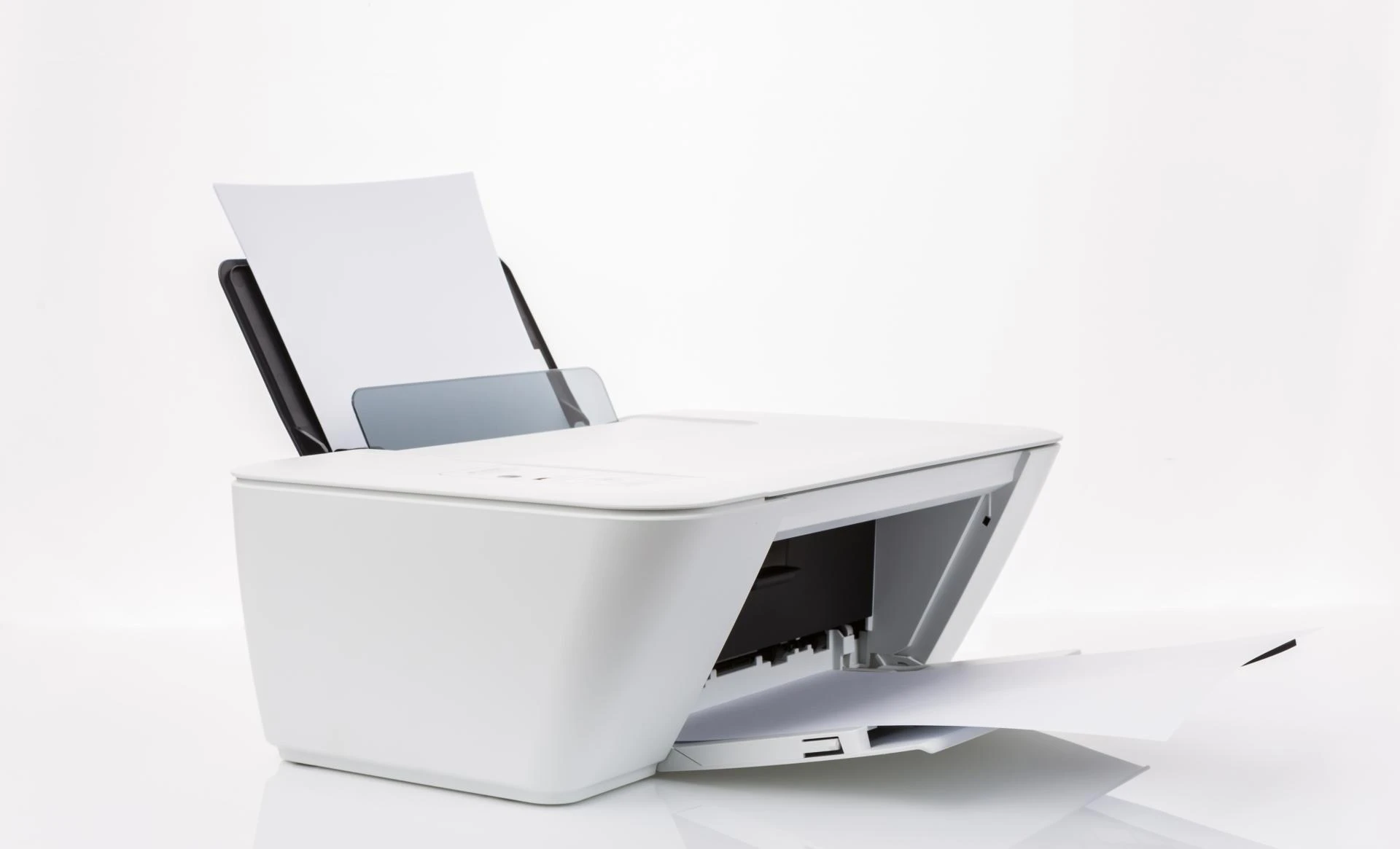

Firmware, a specialized type of software embedded within hardware devices like printers, plays a crucial role in controlling their functions. Keeping your printer's firmware up to date is essential to address known issues and unlock new features throughout the device's support lifecycle. This comprehensive guide will walk you through the firmware update process for different printer models, ensuring you get the most out of your printing equipment.
Updating Firmware for HP Printers
HP printers offer several methods to update their firmware, catering to various user preferences and printer states. Below are the available options:
- HP Smart App: If you're looking for a user-friendly approach, the HP Smart app provides an effortless way to update firmware.
- Directly from the Printer: Some HP printers allow you to update firmware directly from the printer's control panel.
- HP Website: Visit the HP website to download the latest firmware updates for your specific printer model. This method works for both Windows and Mac users.
- HP Enterprise and HP Managed Printers: For these models, you have four supported methods based on the printer's state:
- USB Flash Drive - Maintenance Menu (Ready State): Locally update firmware via a USB flash drive.
- Embedded Web Server (EWS) (Ready State): Remotely update firmware using the Embedded Web Server.
- USB Flash Drive - Preboot Menu (Error State): In case of errors, update firmware locally through the Preboot menu.
- Web Jetadmin (Ready State): Manage multiple printer updates simultaneously using Web Jetadmin.
Before initiating the firmware update, consider these prerequisites:
- Ensure your HP printer has a network connection or a compatible USB flash drive.
- Confirm internet access for downloading updates.
- If you use third-party solutions, verify their compatibility with the new firmware version. Contact the solution provider for guidance.
- Note that device resets during the update process may necessitate reinstalling or reconfiguring certain solutions. HP recommends updating your solutions before the printer firmware.
Updating Firmware for Other Printer Models
For printers from manufacturers other than HP, follow these general steps:
- Identify Your Printer Model: Determine your printer's model and firmware version. This information is usually available in the printer's settings menu or on the manufacturer's website.
- Check for Updates: Visit the manufacturer's website or official support page to check if there are firmware updates available for your specific printer model.
- Backup Current Firmware: Before proceeding with the update, consider backing up your printer's current firmware. This precaution can be invaluable if any issues arise during the update process.
If you're located in Dubai or Sharjah and find yourself unable to resolve your printer issues, it's advisable to seek assistance from a skilled printer repair expert.
Conclusion
In conclusion, keeping your printer's firmware up to date is vital for ensuring its continued functionality and performance. Always follow the manufacturer's instructions and guidelines when performing a firmware update, as the process can vary between printer models. If you encounter any issues or have questions, do not hesitate to reach out to customer support for professional assistance.










Sign in to leave a comment.