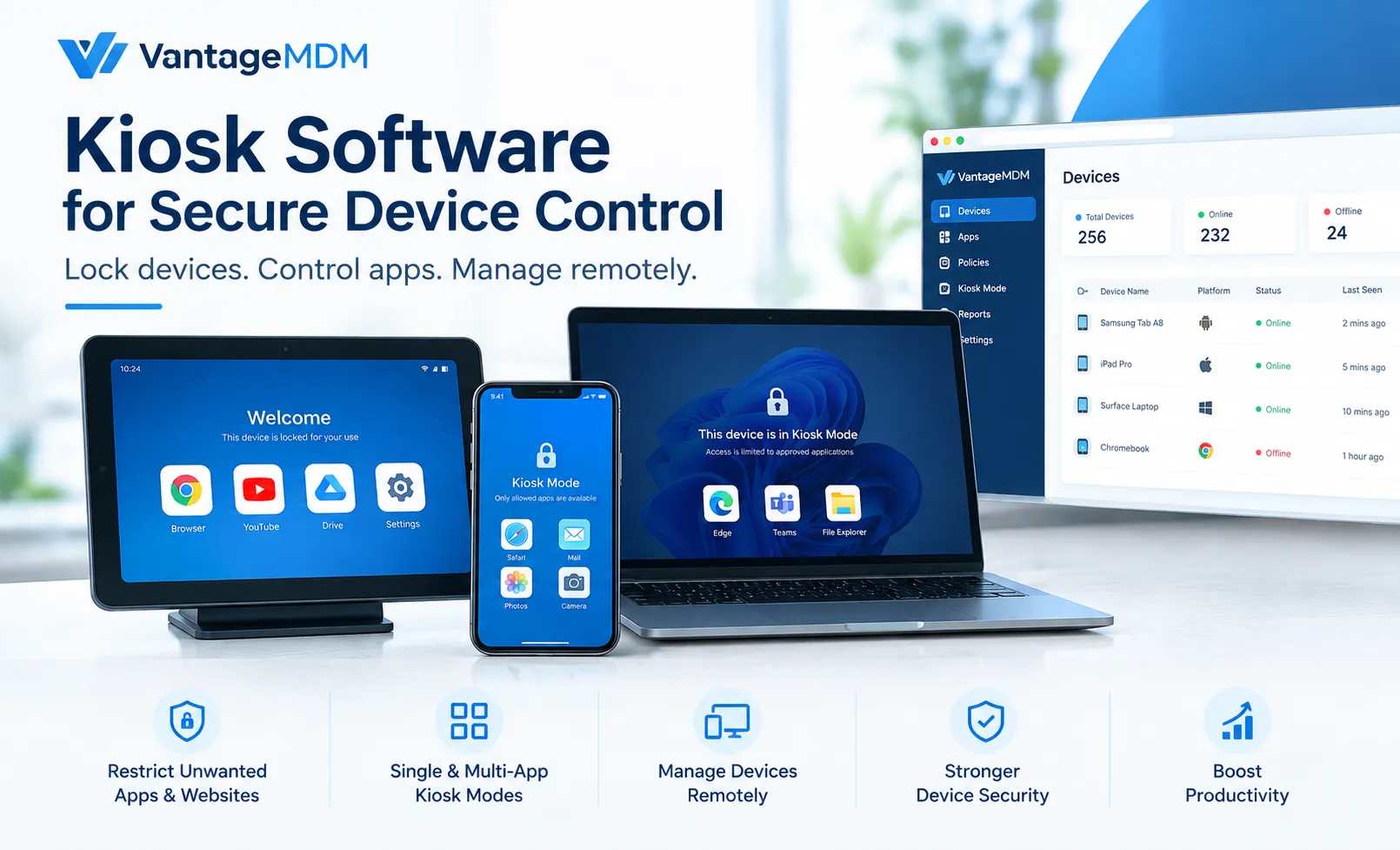

Complete Guide for Secure Device Management
Android devices are widely used in businesses, schools, retail stores, healthcare facilities, logistics companies, and other organizations. However, when a tablet or smartphone is assigned to a specific business task, unrestricted access to apps, settings, and websites can create security and productivity concerns.
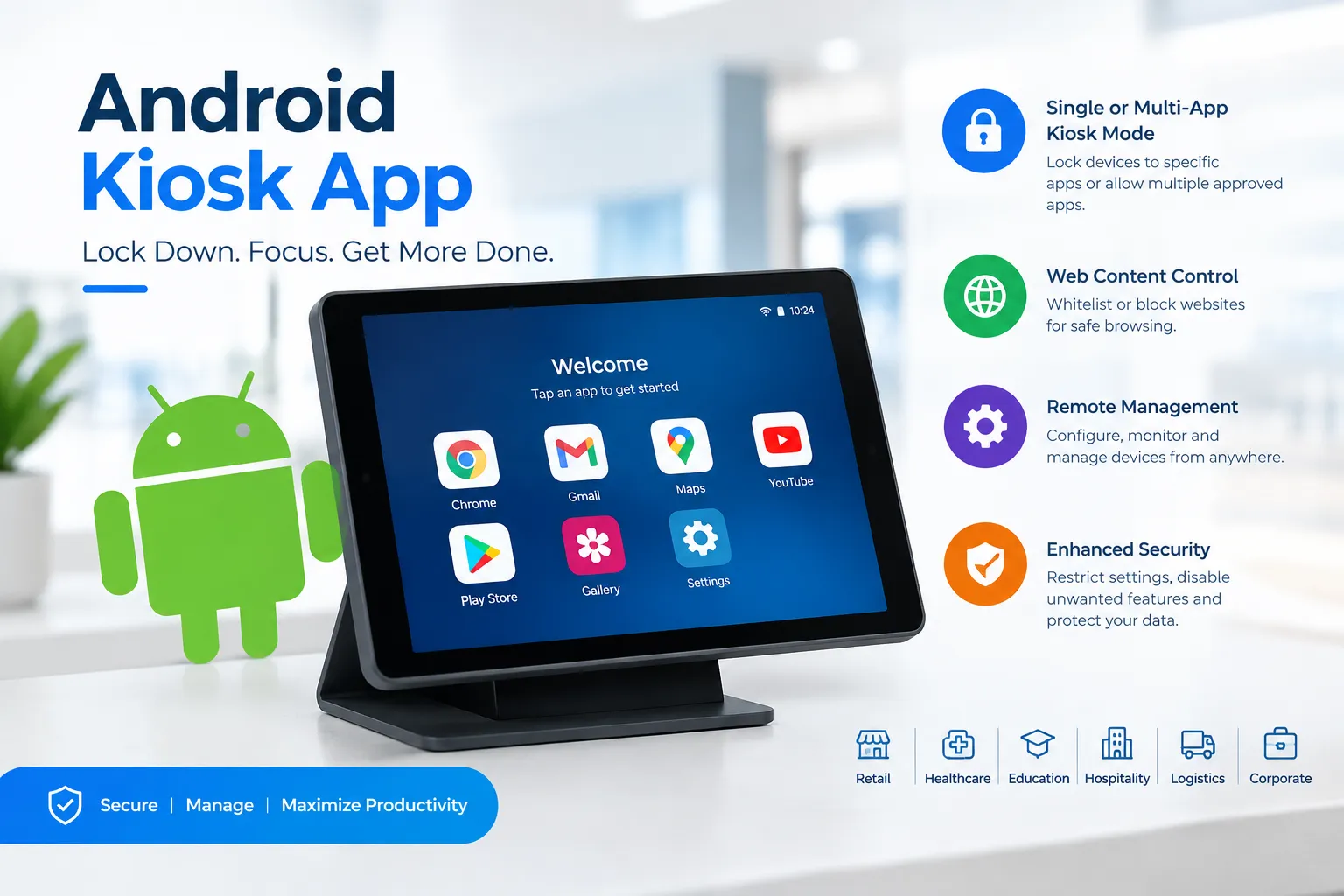
Android MDM Kiosk Mode provides a practical solution by transforming an Android device into a dedicated-purpose device. Organizations can control which applications users can access, restrict unwanted websites, prevent unauthorized changes, and manage devices remotely through a centralized Mobile Device Management (MDM) platform.
With the right Android MDM solution, businesses can deploy and maintain large numbers of Android devices while keeping them focused on their intended purpose.
What is Android MDM Kiosk Mode?
Android MDM Kiosk Mode is a device-management feature that restricts an Android smartphone or tablet to specific applications, websites, or functions. Instead of allowing users to freely access the entire operating system, administrators can determine exactly what the device should be used for.
For example, a retail store may configure a tablet as a self-service ordering kiosk. Employees or customers can access the required application while other apps, settings, and system functions remain restricted.
An Android MDM platform adds centralized management capabilities to kiosk mode. Administrators can configure devices, apply policies, install applications, monitor device status, and make changes remotely.
There are generally two common kiosk configurations:
Single-app kiosk mode: The device is locked to one specific application. This is useful for point-of-sale systems, digital signage, check-in applications, self-service terminals, and dedicated business applications.
Multi-app kiosk mode: Users can access a selected group of approved applications while other apps and device functions remain restricted. This approach works well when employees need several tools to perform their jobs.
Android MDM kiosk mode can therefore help organizations maintain control without requiring administrators to physically access every device.
Benefits of Implementing Kiosk Mode
Implementing kiosk mode can provide several operational, security, and productivity benefits.
1. Improved Device Security
Unrestricted devices can be exposed to unauthorized changes, inappropriate applications, and potentially unsafe websites. Kiosk policies allow administrators to limit access to approved resources.
Organizations can create a controlled environment where users interact only with the applications and features necessary for their role.
2. Reduced Employee Distractions
Business-owned tablets and smartphones are often deployed for specific tasks. Unnecessary applications, social media platforms, games, and unrelated websites can reduce productivity.
Android kiosk software can restrict these distractions and keep employees focused on approved business applications.
3. Easier Device Management
Managing a few devices manually may be possible, but maintaining hundreds or thousands of Android devices can quickly become difficult.
An MDM platform allows administrators to manage devices from a centralized dashboard. Policies and configurations can be applied without visiting every location.
4. Better Customer Experiences
Kiosk devices are frequently used for self-service experiences. Customers may use tablets to place orders, complete forms, browse product catalogs, register for services, or check in at a location.
By limiting the device to the required application, organizations can create a consistent and focused customer experience.
5. Lower Operational Overhead
Remote device management can reduce the need for technicians to physically troubleshoot every device. Administrators can monitor device status and make configuration changes remotely.
This can be particularly useful for organizations with devices distributed across multiple offices, stores, classrooms, warehouses, or healthcare locations.
6. Greater Control Over Applications
Administrators can determine which applications are available on managed devices. This helps organizations maintain standardized configurations and reduce the possibility of unauthorized software being installed.
How to Set Up Android MDM Kiosk Mode
The exact setup process depends on the MDM platform and Android device configuration. However, a typical deployment follows several steps.
Step 1: Enroll Android Devices
The first step is to enroll the organization's Android smartphones or tablets into an MDM platform.
Device enrollment establishes the relationship between the device and the centralized management system. Once enrolled, administrators can begin applying policies and configurations.
Step 2: Create a Kiosk Policy
Administrators can create a dedicated kiosk policy based on the intended use of the device.
The policy may specify:
- Approved applications
- Restricted applications
- Allowed websites
- Blocked websites
- Device settings
- Screen behavior
- Connectivity options
- User restrictions
- System-level controls
The goal is to create a configuration that provides users with everything they need while preventing unnecessary access.
Step 3: Select Single-App or Multi-App Mode
Choose the kiosk configuration according to the business requirement.
A single-app configuration is appropriate when a device has one primary purpose. Multi-app mode is better when employees need access to several approved applications.
Step 4: Configure Restrictions
Administrators can apply restrictions to prevent users from accessing system settings or other functions that could interfere with the intended purpose of the device.
For example, organizations may restrict access to settings, application installation, browser functions, or other system features depending on their requirements.
Step 5: Deploy the Policy
After configuring the kiosk policy, administrators can apply it to selected Android devices or device groups.
A centralized MDM platform makes it easier to manage configurations across multiple devices instead of setting up each device manually.
Step 6: Monitor and Maintain Devices
Kiosk management should not end after deployment. Administrators should regularly monitor device health, application status, connectivity, and compliance.
Remote management capabilities can help organizations identify issues and update configurations without requiring physical access to every device.
Key Features of Android MDM Solutions
A comprehensive Android MDM solution can provide much more than basic kiosk functionality. Organizations should consider the following capabilities when evaluating an MDM platform.
Centralized Device Management
Administrators should be able to manage multiple Android devices from a single dashboard. Centralized management simplifies configuration, monitoring, and policy enforcement.
Application Management
Application management allows administrators to control which applications are installed and available on managed devices.
This is especially important in kiosk deployments where only business-approved applications should be accessible.
Remote Device Management
Remote management allows IT teams to perform administrative tasks without physically handling the device.
This capability can be particularly valuable for distributed deployments where devices operate across different locations.
Website Filtering
Website restrictions can help organizations prevent users from accessing unrelated or potentially inappropriate websites.
For dedicated-purpose devices, website filtering can ensure that users remain within approved digital resources.
Security Policies
MDM platforms can provide policies designed to improve device security and maintain organizational standards.
Administrators can configure restrictions based on device requirements, user roles, and business policies.
Device Monitoring
Monitoring capabilities provide visibility into managed devices. Administrators can identify devices that are offline, require attention, or are not operating according to organizational policies.
Remote Troubleshooting
When a kiosk device encounters an issue, remote administration can help IT teams investigate and resolve problems without sending a technician to the device location.
Comparing Different Android MDM Kiosk Solutions
Choosing the right Android MDM kiosk solution requires more than comparing the number of features. Organizations should evaluate how well a platform fits their actual deployment requirements.
Ease of Deployment
Look for an MDM platform that simplifies device enrollment and policy deployment. A complicated setup process can increase deployment time, particularly when hundreds of devices are involved.
Kiosk Flexibility
Different organizations have different requirements. A good kiosk platform should support both single-app and multi-app use cases where appropriate.
Remote Management Capabilities
Remote administration is an important consideration for distributed Android deployments. Check whether administrators can manage configurations, applications, restrictions, and other device functions remotely.
Application and Website Control
The solution should provide sufficient control over applications and websites. This helps organizations maintain a focused and secure kiosk environment.
Scalability
Consider how the platform will perform as the organization grows. A solution suitable for 20 devices may not provide the same management experience for 2,000 devices.
Reporting and Monitoring
Visibility into device status is essential for large deployments. Look for useful reporting and monitoring capabilities that help IT teams identify issues quickly.
Cross-Platform Management
Organizations using Android alongside other operating systems may benefit from an MDM platform capable of managing multiple device types from a centralized environment.
For businesses looking for centralized device administration, VantageMDM provides mobile device management capabilities designed to help organizations manage and secure devices across different platforms, including Android.
Best Practices for Managing Kiosk Mode
Successful kiosk deployment requires more than simply locking a device to an application. Organizations should establish management practices that keep devices secure, reliable, and easy to maintain.
Use the Least-Access Principle
Only provide users with the applications, websites, and functions required for their specific task.
Reducing unnecessary access can help improve both security and productivity.
Keep Applications Updated
Outdated applications may create operational and security problems. Establish a process for monitoring and updating applications on managed devices.
Monitor Device Health
Regular monitoring can help identify devices that are offline, experiencing connectivity problems, or behaving unexpectedly.
Early detection can prevent minor issues from becoming major operational disruptions.
Group Devices by Use Case
Instead of managing every device individually, consider organizing devices into logical groups.
For example:
- Retail kiosks
- Employee tablets
- Warehouse devices
- Classroom tablets
- Healthcare devices
- Point-of-sale devices
Different groups can receive different policies based on their requirements.
Protect Administrative Access
MDM administrators have significant control over managed devices. Administrative accounts should therefore be protected using strong authentication and appropriate access controls.
Test Policies Before Large-Scale Deployment
Before applying a new kiosk policy to hundreds of devices, test it on a small group.
Testing can help identify application compatibility issues, missing permissions, or restrictions that unintentionally prevent employees from completing their tasks.
Have a Recovery Plan
Organizations should establish procedures for handling lost devices, damaged hardware, application failures, connectivity problems, and other common issues.
A well-designed MDM environment can make recovery and reconfiguration easier.
Common Challenges and Solutions in Kiosk Management
Although kiosk mode simplifies device control, organizations may encounter several challenges during deployment.
Challenge 1: Users Attempting to Exit Kiosk Mode
Users may attempt to access settings or other parts of the Android operating system.
Solution: Configure appropriate kiosk restrictions and limit access to system functions that are unnecessary for the device's purpose.
Challenge 2: Application Compatibility
Some applications may not work correctly under kiosk restrictions or may require permissions that are blocked by the device policy.
Solution: Test applications before deployment and ensure that required permissions and configurations are included in the policy.
Challenge 3: Remote Devices Going Offline
A kiosk located in a remote store or facility may occasionally lose network connectivity.
Solution: Monitor device connectivity and establish procedures for handling offline devices. Where possible, configure devices so their core function can continue during temporary connectivity interruptions.
Challenge 4: Managing Large Numbers of Devices
Manual configuration becomes increasingly difficult as the device fleet grows.
Solution: Use centralized Android device management to deploy policies, applications, and configurations across groups of devices.
Challenge 5: Maintaining Consistent Configurations
Different devices may gradually develop different configurations if they are managed manually.
Solution: Use standardized MDM policies and device groups to maintain consistent configurations across the organization.
Challenge 6: Device Theft or Loss
Portable Android tablets and smartphones can be lost or stolen.
Solution: Establish security policies for managed devices and use available remote-management capabilities to protect organizational data and control compromised devices.
Future Trends in Android MDM and Kiosk Mode
The role of Android devices in business environments continues to expand. As organizations deploy more connected devices, centralized device management is becoming increasingly important.
Increased Remote Management
Distributed workforces and multi-location businesses are likely to increase demand for remote Android device management. IT teams need ways to maintain devices without physically visiting every location.
More Automated Device Deployment
Organizations are increasingly looking for ways to reduce manual configuration. Automated enrollment and policy deployment can help speed up device provisioning.
Greater Security Focus
As business devices access more organizational data and services, security will remain a major consideration. MDM platforms will continue to play an important role in enforcing device policies and maintaining controlled environments.
Expansion of Self-Service Devices
Retail, hospitality, healthcare, education, transportation, and other industries are increasingly using tablets and touchscreen devices for self-service applications.
This creates additional demand for reliable kiosk software capable of keeping devices focused on their intended functions.
Unified Device Management
Organizations often use a mixture of Android, iOS, Windows, macOS, and ChromeOS devices. Platforms capable of providing centralized management across different operating systems can simplify IT administration.
Smarter Monitoring and Automation
Future MDM environments are likely to place greater emphasis on automated monitoring, policy enforcement, alerts, and device-health management.
Conclusion
Android MDM Kiosk Mode gives organizations greater control over how Android smartphones and tablets are used. By restricting devices to approved applications and functions, businesses can create focused environments for retail, education, healthcare, logistics, hospitality, point-of-sale systems, digital signage, and self-service applications.
A complete Android MDM solution can take kiosk management further by providing centralized enrollment, application management, website restrictions, security policies, remote administration, monitoring, and reporting.
For organizations managing Android devices at scale, selecting the right Android kiosk software is an important step toward improving device security, simplifying administration, and maintaining consistent configurations.
VantageMDM provides a centralized platform for organizations that need to manage and secure their device fleets remotely, making it a relevant option for businesses looking to combine mobile device management and kiosk functionality in one management environment.
FAQs
What is Android MDM Kiosk Mode?
Android MDM Kiosk Mode restricts an Android device to specific applications, websites, or functions while allowing administrators to manage the device through a centralized MDM platform.
What is the difference between single-app and multi-app kiosk mode?
Single-app kiosk mode limits a device to one application, while multi-app kiosk mode allows users to access a predefined collection of approved applications.
Why do businesses use Android kiosk software?
Businesses use kiosk software to control device access, reduce distractions, protect devices, simplify management, and keep Android tablets or smartphones focused on specific business tasks.
Can Android kiosk devices be managed remotely?
Yes. Android MDM platforms can provide remote management capabilities that allow administrators to monitor and manage enrolled devices without physically accessing them.
Which industries can use Android MDM kiosk mode?
Android kiosk mode can be used in retail, healthcare, education, hospitality, logistics, transportation, manufacturing, point-of-sale environments, and many other industries.
Is Android MDM useful for large device fleets?
Yes. Centralized MDM can simplify the management of large numbers of Android devices by allowing administrators to apply policies, manage applications, monitor devices, and perform administrative tasks from a central platform.
























Sign in to leave a comment.