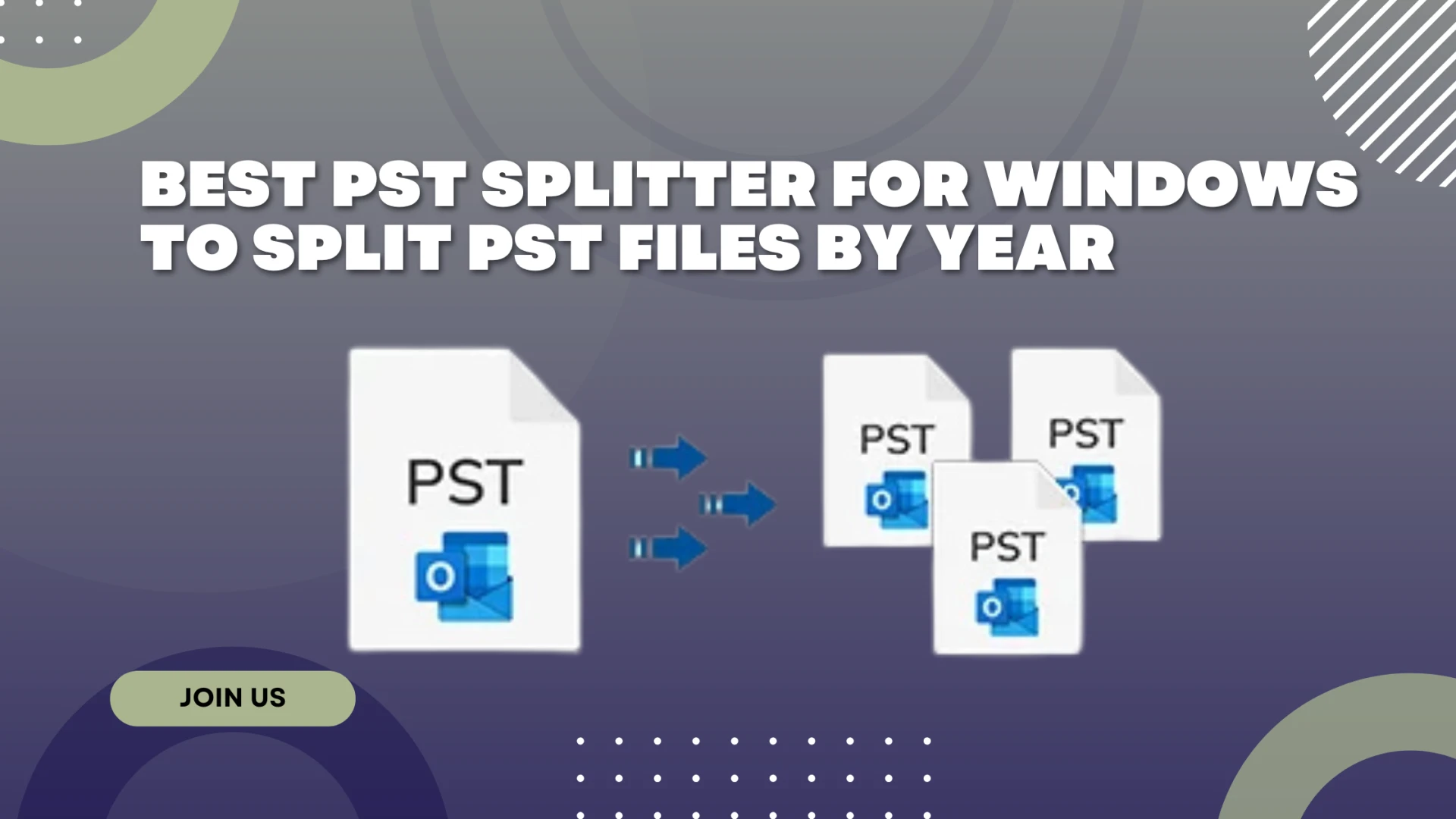

Microsoft Outlook is a popular email management application over the world, but it can slow down when its data (.pst file) gets too big. Large PST files can cause problems like slow performance, crashes, or even data loss. Splitting PST files into smaller parts is a smart way to keep Outlook running smoothly. In this article, we’ll explore the best PST splitter for Windows to help you break large PST files by year.
We’ll also explain both manual and advanced solutions to divide large PST files without losing any data.
Why Split Large PST Files?
PST files store emails, contacts, calendars, and more. Over time, they can grow huge, especially if you’ve been using Outlook for years. Here’s why you should split PST files:
- Better Performance: Big PST files slow down Outlook, making it lag when you search or open emails. Smaller files speed things up.
- Less Risk of Corruption: Oversized PST files are more likely to get damaged, which can lead to losing important emails.
- Easier Management: Splitting files by year makes it simple to find old emails or archive data.
- Backup Friendly: Smaller PST files are easier to back up and restore if something goes wrong.
By using a PST file splitter, you can break large PST files into smaller, organized chunks, like one file for each year.
Manual Ways to Split PST Files
Before diving into advanced tools, let’s look at how to split PST files manually using Outlook’s built-in features. These methods are free but have some limitations.
Method 1: Using the Archive Feature
Outlook’s Archive feature lets you move older emails to a separate PST file, which can help split files by year. Here’s how:
- Open Outlook and go to File > Info > Tools > Clean Up Old Items.
- Choose Archive this folder and all subfolders.
- Select the folder you want to archive (like your Inbox).
- Pick a date under Archive items older than (e.g., December 31, 2024, to archive 2024 emails).
- Choose a location to save the new PST file and click OK.
This creates a new PST file for older emails, but it’s not always precise for splitting by exact years.
Method 2: Import/Export Wizard
Another manual method is using Outlook’s Import/Export feature:
- Open Outlook and go to File > Open & Export > Import/Export.
- Select Export to a file and click Next.
- Choose Outlook Data File (.pst) and click Next.
- Pick the folder you want to export (like emails from 2025).
- Select a location to save the new PST file and click Finish.
This method lets you export specific folders, but you’ll need to manually sort emails by year, which can take a lot of time.
Limitations of Manual Methods
Manual methods sound simple, but they have drawbacks:
- Time-Consuming: Sorting and exporting emails by year takes a lot of effort, especially for large files.
- Risk of Data Loss: Mistakes during the process could lead to missing emails.
- No Automation: You can’t split files automatically by year with precise control.
- Requires Outlook: You need Outlook installed, and it doesn’t work for corrupted or password-protected files.
For a faster, safer, and more accurate solution, you’ll want an advanced PST split tool like MailsDaddy PST Splitter.
Why Choose MailsDaddy PST Splitter Tool?
When it comes to splitting PST files by year, MailsDaddy PST Splitter Software stands out as one of the best tools for Windows. It’s easy to use, reliable, and packed with features that make it perfect for both beginners and professionals. Here’s why it’s the top choice:
Key Features of MailsDaddy PST File Splitter
- Split by Year: MailsDaddy lets you split large PST files into separate files for each year with just a few clicks. You can choose a date range to organize emails perfectly.
- Supports All PST Types: It works with both ANSI and Unicode PST files, including corrupted, damaged, or password-protected ones.
- Multiple Splitting Options: Besides splitting by year, you can break large PST files by size, folder, or email ID, giving you flexibility.
- Keeps Data Safe: The tool ensures no data is lost, and it preserves email properties like To, From, CC, and attachments.
- No Outlook Needed: You can split files without installing Outlook, making it super convenient.
- User-Friendly: The simple interface is easy for anyone to use, even if you’re not tech-savvy.
- Works on All Windows: It supports Windows 11, 10, 8, 7, and older versions, as well as all Outlook versions (2019, 2016, 2013, etc.).
- Free Demo: You can try splitting the first 20 items per folder for free to test the tool.
How to Split PST Files by Year with MailsDaddy
Using MailsDaddy Outlook PST Splitter to divide oversized PST files by year is super easy. Follow these steps:
- Download and Install: Get the MailsDaddy PST Splitter from their official website and install it on your Windows PC.
- Add PST File: Open the tool and click Add File to select the PST file you want to split.
- Choose Split by Year: Select the Split by Date option and set the date range to split by year (e.g., January 1, 2023, to December 31, 2023).
- Set Destination: Pick a folder on your computer to save the new PST files.
- Start Splitting: Click Split to begin the process. The tool will create a new PST file for each year’s data.
In just a few minutes, you’ll have smaller, organized PST files that are easy to manage.
Conclusion
Splitting large PST files is a great way to keep Outlook fast, organized, and safe from corruption. While manual methods like Outlook’s Archive or Import/Export features can work, they’re slow and risky. For the best results, use a professional PST split tool like MailsDaddy PST Splitter. It’s easy, fast, and reliable.


























Sign in to leave a comment.