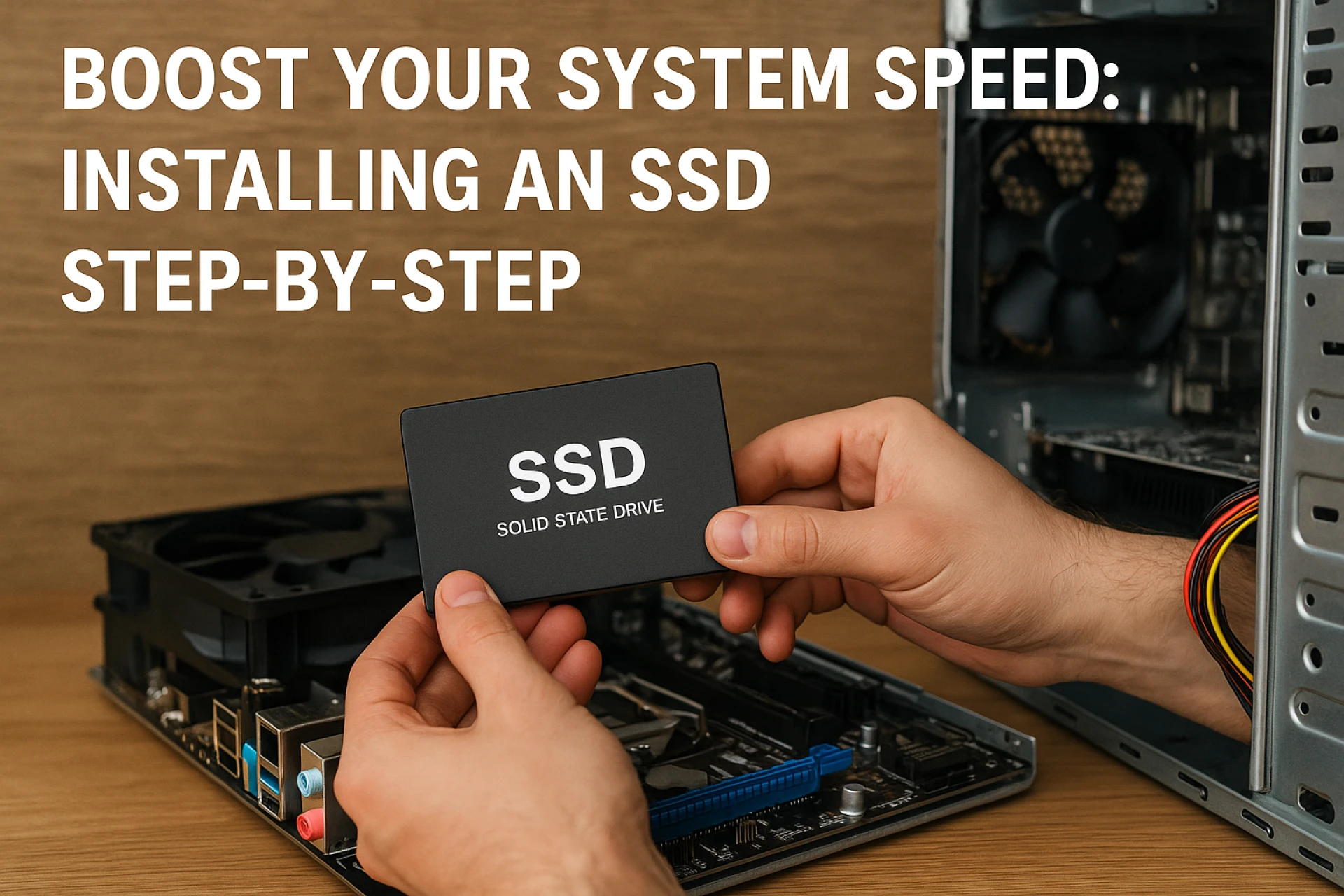
Upgrading your system’s internal hard drive to a Solid State Drive (SSD) is one of the most effective ways to significantly boost system speed, improve performance, and enhance overall responsiveness. Whether you're using a laptop or a desktop, replacing a traditional internal hard drive with an SSD will result in faster boot times, quicker application loading, and smoother multitasking. In this comprehensive guide, we will walk you through a step-by-step SSD installation process to help you transform your computing experience.
Why Choose an SSD Over an Internal Hard Drive?
Solid State Drives offer blazing-fast read and write speeds because they use flash memory rather than spinning platters like a traditional internal hard drive (HDD). The benefits include:
- Faster boot times (typically under 15 seconds)
- Improved file transfer speeds
- Enhanced system responsiveness
- Lower power consumption
- No moving parts, making SSDs more durable and quieter
While an internal hard drive is suitable for bulk data storage at a lower cost, SSDs are ideal for speed-critical tasks such as running the operating system and software.
Step 1: Choose the Right SSD for Your System
Before you install an SSD, you need to choose one that matches your system’s hardware. Here’s what you should consider:
- Form Factor:
- 2.5-inch SATA SSD (most common and widely compatible)
- M.2 SSD (compact and used in modern laptops/desktops)
- PCIe/NVMe SSD (ultra-fast, suitable for newer motherboards)
- Capacity:
- For general use, 500GB is sufficient, but for gaming, design, or content creation, opt for 1TB or more.
- Interface Compatibility:
- Check your motherboard or laptop’s specifications to ensure support for SATA, M.2, or PCIe interfaces.
If your goal is to replace or upgrade your internal hard drive, make sure the SSD form factor is supported by your system's storage slot.
Step 2: Back Up Your Data to an External Hard Drive
Backing up your data is essential before making any hardware changes. Use an external hard drive or cloud storage service to securely store:
- Documents
- Photos and videos
- Application settings
- Browser data
Also, consider creating a full system image on an external hard drive if you plan to clone your operating system onto the SSD.
Step 3: Gather the Necessary Tools
To perform a smooth SSD installation, make sure you have:
- A Philips-head screwdriver
- The SSD (SATA, M.2, or PCIe)
- A cloning tool (if migrating data from the old internal hard drive)
- Data transfer cable or adapter (for laptops)
- Mounting bracket or spacer (if necessary)
Step 4: Clone Your Existing Internal Hard Drive (Optional)
If you want to keep your current operating system, apps, and settings, cloning your existing internal hard drive is a great option. Here's how:
- Connect the SSD via a USB-to-SATA adapter (for SATA drives).
- Use disk cloning software like Macrium Reflect, EaseUS Todo Backup, or Acronis True Image.
- Select the source drive (internal hard drive) and target drive (SSD).
- Begin the cloning process — it may take a while based on data size.
- Once finished, shut down your PC and prepare for installation.
You may want to store the old cloned data on an external hard drive as a precaution.
Step 5: Physically Install the SSD
For 2.5-Inch SATA SSDs:
- Turn off your PC or laptop and unplug it from power.
- Open the case (desktop) or back panel (laptop).
- Locate the internal hard drive bay and remove the existing drive.
- Mount the SSD using screws or a bracket (if needed).
- Connect the SATA data cable and SATA power cable.
- Reassemble the case and boot the system.
For M.2 or PCIe SSDs:
- Locate the M.2 or PCIe slot on your motherboard.
- Gently insert the SSD at an angle into the slot.
- Secure it using the provided screw.
- Close your case and reconnect power.
Step 6: Configure BIOS and Boot Settings
After installation, you need to ensure your system recognizes the new SSD:
- Enter BIOS/UEFI by pressing DEL, F2, or ESC during startup.
- Navigate to the Boot Order section.
- Set the SSD as the primary boot device.
- Save changes and exit.
If you cloned your OS, your system should boot from the SSD immediately and not the old internal hard drive.
Step 7: Initialize and Format SSD (If It's New and Blank)
If you're using the SSD as a secondary drive:
- Go to Disk Management (Windows: right-click Start > Disk Management).
- Locate the new SSD (listed as “Unallocated”).
- Right-click and select "Initialize Disk".
- Choose GPT (for UEFI systems) or MBR (for legacy BIOS).
- Create a New Simple Volume, assign a letter, and format it using NTFS.
Use your external hard drive to transfer files onto the new SSD once it’s formatted and ready.
Step 8: Optimize Your System for SSD Performance
To get the best performance from your SSD:
- Enable TRIM Command
- Open CMD as administrator and type:
-
fsutil behavior query DisableDeleteNotify - If the result is 0, TRIM is enabled.
- Disable Disk Defragmentation
- SSDs don’t need defragmentation and doing so may reduce lifespan.
- Turn Off Indexing (Optional)
- Right-click SSD drive > Properties > Uncheck “Allow files to have contents indexed…”
- Adjust Virtual Memory
- Let Windows manage the paging file, or move it to another internal hard drive if SSD space is limited.
Step 9: Enjoy the Speed Boost
After installation, you’ll immediately notice:
- Faster system boot-up (as low as 10 seconds)
- Rapid application launches
- Smoother file transfers and multitasking
- Quieter and cooler operation
An SSD upgrade—especially when replacing an internal hard drive—is a cost-effective and impactful way to rejuvenate an aging PC or supercharge a new one.
Frequently Asked Questions (FAQs)
Q1: Can I install an SSD without reinstalling Windows?
Yes, by cloning your existing internal hard drive.
Q2: How long does an SSD last?
Typically 5–10 years or more, depending on usage and quality.
Q3: Can I use SSD alongside HDD?
Absolutely. Use SSD for the OS and internal or external hard drives for large data storage.
Q4: Is NVMe faster than SATA SSD?
Yes, NVMe drives offer much faster speeds, ideal for gaming and professional workloads.
Conclusion
Installing an SSD is one of the smartest upgrades you can make to your computer. Replacing a traditional internal hard drive with an SSD not only dramatically increases speed but also improves reliability and energy efficiency. Whether you store your backup data on an external hard drive or run your OS from a high-speed SSD, this step-by-step installation guide will help you maximize your system's potential.

























Sign in to leave a comment.