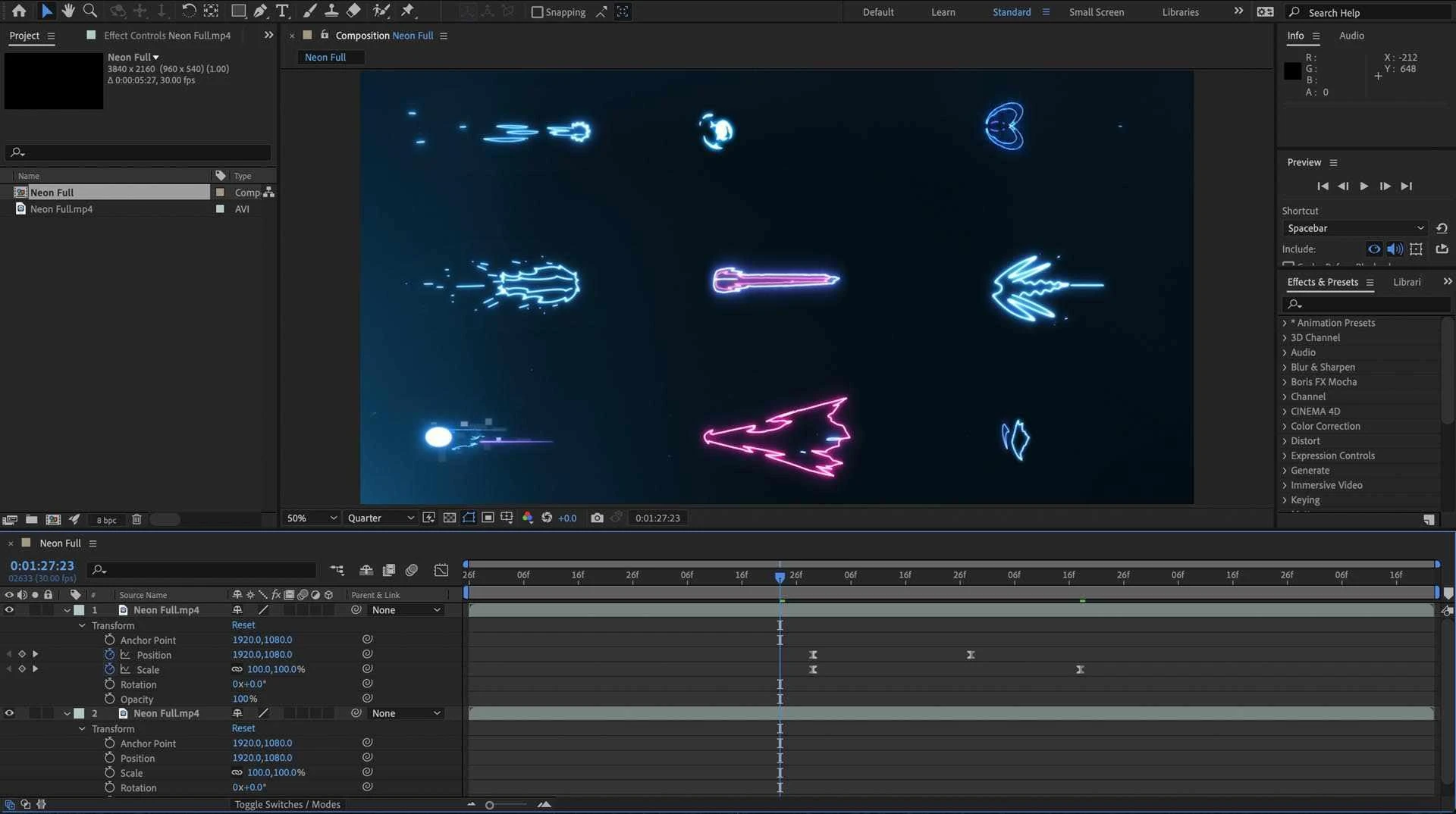

Adobe after effects is designed in such a way to provide motion graphics and visual effects to your designs with a lot of options, so to get the best output it is very important to structuring and preparing your files in Photoshop before sending them to After Effects,
SAVE A COPY OF YOUR FILE
First, save a new version of your file with adding AE to the file name so that it gets easier to distinguish versions in your folder and you’ll still have the older copy if things don’t work out properly.
ADJUST THE DIMENSIONS OF YOUR FILE
Check out the current dimensions of your design. It should not be way bigger than needed and also check the resolution, higher resolutions make sense for print work, but anything above 72 ppi is totally unnecessary for screens.
CHANGE FROM CMYK TO RGB
After Effects or any other video creation app mainly works with RGB, so if your file is in any other format first change it to RGB.
For example- if your file is in CMYK change it to RGB. RGB (red, green, blue) uses white as a combination of all primary colours and black as the absence of light—these are generally better for digital images and designs meant for screens. CMYK (cyan, magenta, yellow, black) uses white as the natural colour and black as combination of all colours; these are better for designs if it will be printed out.
Now after you have made the necessary changes you are ready to add animation to your design.
Just make sure that your Photoshop layers are well arranged and grouped, properly named as After Effects will import these layers as they are.
Adobe after effects is designed in such a way to provide motion graphics and visual effects to your designs with a lot of options, so to get the best output it is very important to structuring and preparing your files in Photoshop before sending them to After Effects,
·Working with PSD files
After Effects supports PSD files (those are converted to RGB, for a clear import). When importing a file, you get the option to import as Footage, Composition or Retain Layer Styles. Importing it as Footage will flatten your PSD to a single-layer image. The Composition option will make it individual Photoshop Layers. Composition – Retain Layer Styles keeps individual Photoshop Layers and the original dimensions with anchor points of each Layer. This is useful when you are animating different Layers of the image separately.
Import Your Graphics
In After Effects, go to File > Import > File or simply hit Command+I.
Now you will get a dialogue window where you can browse and find your PSD. Before you click OK, make sure to select Import As: Composition, as well as check the Photoshop Sequence box.
The other two choices Footage and Composition –As mentioned above, Retain Layer Sizes allow users to import a series of images that act as a single frame in a sequence, or those which are imported at the same resolution and size as the image in Photoshop.
Another box will appear giving you options for importing the layers, simply leave this as it is and click OK. Once you do this, it will take some time for your comp to be created based on the size of the PSD file.
Basically, any Photoshop file format with multiple layers can be imported into After Effects with all of the layers separated but there are few things to keep in mind before attempting this process. If you don't properly organize, name your project files and the layers correctly, you may end up with real trouble!
While creating your Photoshop layers, be sure to name them sequentially like (1, 2, 3, etc...) or alphabetically (a, b, c, etc...), This will ensure that the layers will remain in the correct sequence when you import the file into After Effects. Correct naming will make sure that your project's layers will remain in the correct order when transferred.
Transferring Layers with Style Effects
It is very important to know how to transfer layers and keep the applied effects in place because After Effects doesn't utilize layer styles like Photoshop does. In most cases, you can simply merge the layer with the style effect applied to a new blank layer this may save your time.
After importing the Photoshop file into After Effects as a composition, it will give you all of the actual Photoshop layers, plus a composition layer for each layer with an effect applied to it. Additionally, it will also give you a composition layer for every layer set you have in your file though all of the layers in the layer set composition are movable separately.
Animate Your Graphics
Once you have imported your graphics, you can double-click the created composition in the Project Panel. This will open the composition for editing. From here you can explore different ways to animate your graphics by using the puppet tool or keyframing the layers.
Displacement Maps Static Layers in Motion
One way to animate your static image is to apply a moving displacement map layer to the image layer. By applying this technique, you can make static flags, still water ripples, or trees in the background sway in the wind. A grayscale displacement map is required to achieve this animation and will be animated in a loop which you can use in whatever image you want.
Creating a Displacement Map
The Displacement Map Effect plug-in in After Effects uses different levels of gray in the map image. Lighter areas will move the image up and to the right, while the darker areas will move parts of the image down and to the left. How much it gets moved is not only controlled by the effect settings in After Effects but also by how much contrast is there in the displacement map source image.
For example, you apply the Clouds filter to the image (Filter > Render > Clouds). This will create the contrasting light-to-dark areas in a random pattern.
We will need to tile this image horizontally for use as a moving displacement map. To get a seamless tile, apply the Offset filter (Filter > Other > Offset), and set the Horizontal offset to +350 pixels by selecting the wrap around option There will be a sharp vertical division line down in the center of the image that needs to be edited. With a large soft-edged brush use the clone stamp tool and select areas of the image that will most likely cover up the hard edge line and blend them in with the rest of the image.
Note :-An alternative method to normalizing an image used in a displacement map would be to adjust the midtone marker in Levels, this also gives you a real-time preview of the amount of contrast you have in the image. However, this method will not smoothen the edges of transition from the contrasting shapes, as a Gaussian Blur will do.
0









Sign in to leave a comment.