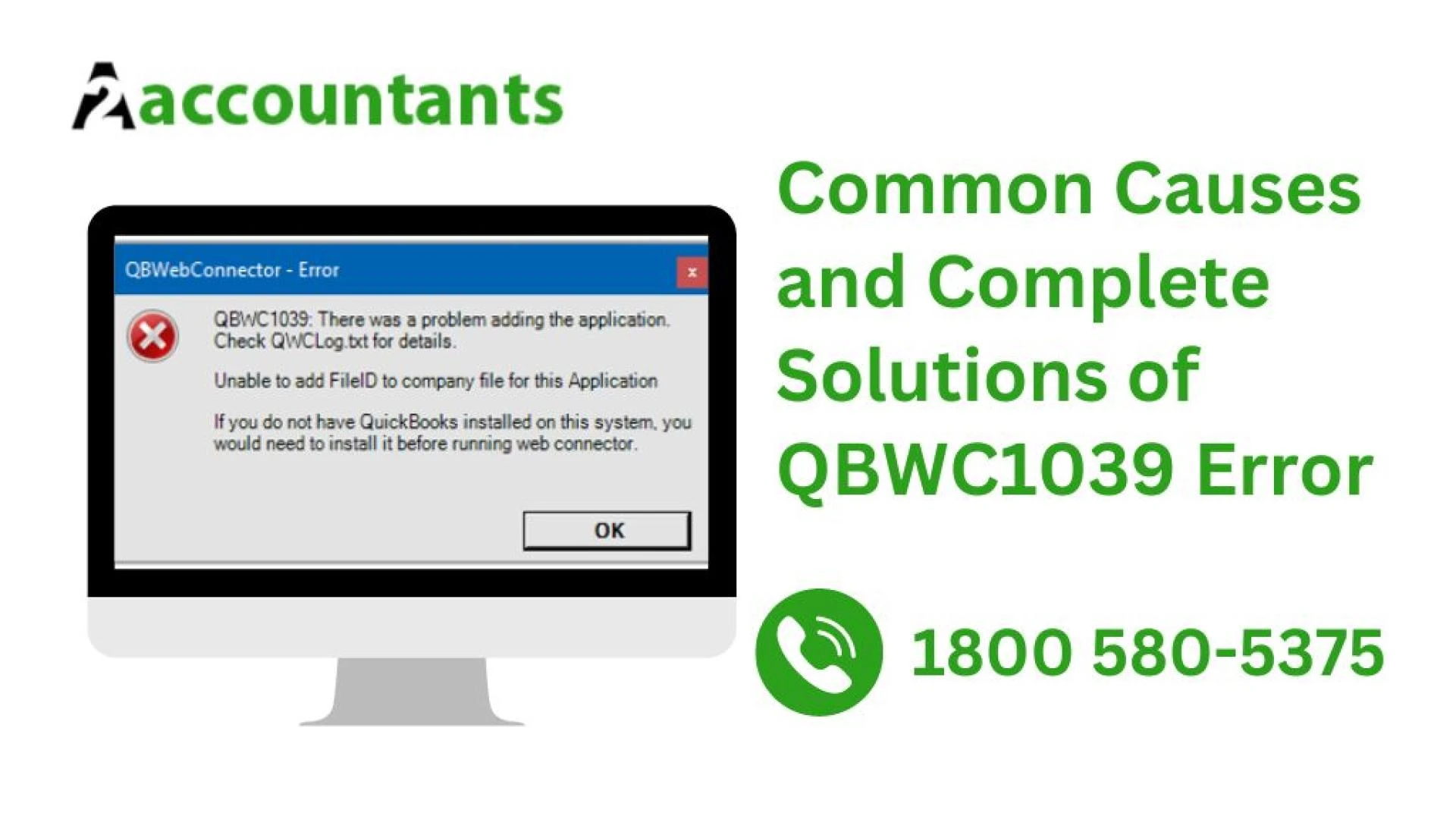

Are you encountering the notorious QBWC1039 error in your QuickBooks software? Don't worry, you're not alone. This article is here to help you understand and resolve this frustrating error message. QBWC1039 is an error that arises when the QuickBooks Web Connector encounters an issue with the third-party application it’s trying to connect with.
Whether you're a QuickBooks user or a developer working with QuickBooks integration, this error can disrupt your workflow and cause unnecessary stress. But fear not! In this article, we will explain what QBWC1039 is, why it occurs, and most importantly, how to fix it.
We will provide you with step-by-step instructions to troubleshoot the QBWC1039 error and get your QuickBooks and third-party integration back on track. By the end of this article, you'll be equipped with the knowledge and solutions needed to overcome this roadblock and prevent it from happening in the future.
So, let's dive in and unravel the mysteries of the QBWC1039 error together!
What is QBWC1039?
QBWC1039 is an error code that is associated with the QuickBooks Web Connector. This error occurs when the Web Connector is unable to establish a connection with a third-party application. The error message, QBWC1039, is displayed to inform users that there is an issue with the integration between QuickBooks and the third-party software.
The QuickBooks Web Connector is a tool that allows developers to integrate their applications with QuickBooks. It acts as a bridge between QuickBooks and the third-party software, facilitating data synchronization and automation. When the QBWC1039 error occurs, it indicates that there is a problem with this connection.
Common causes of QBWC1039 error
There are several common causes of the QBWC1039 error. Understanding these causes can help you troubleshoot and resolve the issue more effectively. Here are some of the most common causes:
Invalid or expired security certificate: The security certificate used by the third-party application may be invalid or expired, causing the Web Connector to reject the connection.Incorrect or outdated application configuration: If the configuration settings of the third-party application are incorrect or outdated, it can lead to the QBWC1039 error. This can include incorrect URLs, incorrect username and password, or outdated connection settings.Firewall or antivirus blocking the connection: Sometimes, the QBWC1039 error can be caused by the firewall or antivirus software blocking the connection between QuickBooks and the third-party application. In such cases, you may need to configure your firewall or antivirus settings to allow the connection.Network connectivity issues: Network connectivity issues, such as a weak internet connection or network interruptions, can also trigger the QBWC1039 error. It's important to ensure that your network connection is stable and reliable.Incompatible QuickBooks version: The QBWC1039 error can occur if you're using an incompatible version of QuickBooks with the third-party application. Make sure that your QuickBooks version is compatible with the integration requirements.How to troubleshoot QBWC1039 error
Now that we have a better understanding of what QBWC1039 is and its common causes, let's explore the steps to troubleshoot and resolve this error. Follow these step-by-step instructions to get your QuickBooks and third-party integration back on track:
Restarting the QuickBooks Web Connector
The first step in troubleshooting the QBWC1039 error is to restart the QuickBooks Web Connector. This simple action can often resolve minor connection issues and glitches. Here's how to restart the Web Connector:
Close QuickBooks and any other applications running on your computer.Press the Windows key on your keyboard to open the Start menu.Type "Services" and click on the "Services" app in the search results.In the Services window, locate "QuickBooks Web Connector" in the list of services.Right-click on "QuickBooks Web Connector" and select "Restart" from the context menu.Wait for the Web Connector to restart and then open QuickBooks again.Updating the QuickBooks Web Connector
If restarting the Web Connector doesn't resolve the QBWC1039 error, you may need to update the Web Connector to the latest version. Outdated versions of the Web Connector can sometimes cause compatibility issues with the third-party application. Follow these steps to update the Web Connector:
Close QuickBooks and any other applications running on your computer.Open a web browser and visit the official QuickBooks website.Search for "QuickBooks Web Connector" and navigate to the download page.Download the latest version of the Web Connector compatible with your QuickBooks version.Once the download is complete, run the installer file and follow the on-screen instructions to update the Web Connector.After the update is finished, open QuickBooks again and check if the QBWC1039 error persists.Checking the QBWC log file
The QBWC log file can provide valuable information about the QBWC1039 error and help you identify the root cause. By analyzing the log file, you can gain insights into the specific error codes and messages associated with the connection issue. Here's how to check the QBWC log file:
Close QuickBooks and any other applications running on your computer.Press the Windows key + R on your keyboard to open the Run dialog box.Type "%ProgramData%IntuitQBWebConnectorlog" and click "OK".In the log folder, locate the "QWCLOG.TXT" file and open it using a text editor.Look for any error messages or codes related to the QBWC1039 error.Based on the information in the log file, you can further troubleshoot and resolve the specific issues causing the QBWC1039 error.Resolving issues with third-party applications
If the QBWC1039 error persists after restarting and updating the Web Connector, the issue may lie with the third-party application itself. Here are some steps you can take to resolve issues with the third-party application:
Check for updates: Visit the official website of the third-party application and check if there are any updates available. Download and install the latest version of the application to ensure compatibility with QuickBooks.Verify configuration settings: Double-check the configuration settings of the third-party application, including the URLs, username and password, and connection settings. Make sure they are correct and up-to-date.Contact the application developer: If you're still experiencing the QBWC1039 error, reach out to the developer of the third-party application for assistance. They may be able to provide specific guidance on troubleshooting the integration issue.Contacting QuickBooks support for assistance
If all else fails and you're unable to resolve the QBWC1039 error on your own, it's time to reach out to QuickBooks support for further assistance. The QuickBooks support team is trained to handle various technical issues, including integration errors like QBWC1039. Here's how to contact QuickBooks support:
Open QuickBooks and go to the "Help" menu.Select "QuickBooks Desktop Help" from the drop-down menu.In the QuickBooks Help window, click on "Contact Us" at the bottom.Choose the method of contact that suits you best, such as phone or chat support.Explain the QBWC1039 error to the support representative and provide any relevant information or error codes.Preventing QBWC1039 error in the future
Once you have successfully resolved the QBWC1039 error, it's important to take preventive measures to avoid encountering the error in the future. Here are some tips to help you prevent the QBWC1039 error:
Keep your software up to date: Regularly update both QuickBooks and the third-party applications to the latest versions. This ensures compatibility and helps prevent integration issues.Verify security certificates: If the QBWC1039 error was caused by an invalid or expired security certificate, make it a habit to regularly check and update the security certificates of third-party applications.Test connections before deployment: Before deploying a new integration or updating an existing one, thoroughly test the connection between QuickBooks and the third-party application in a controlled environment. This can help identify any potential issues before they affect your live data.Monitor logs and error messages: Keep an eye on the QBWC log file and any error messages related to the integration. Regularly review these logs to catch and address any errors or warnings promptly.Conclusion
The QBWC1039 error can be frustrating, but with the right knowledge and troubleshooting steps, you can overcome it. In this article, we've explained what QBWC1039 is, its common causes, and how to troubleshoot and resolve it. By following the step-by-step instructions provided, you can get your QuickBooks and third-party integration back on track.
Remember to restart and update the QuickBooks Web Connector, check the QBWC log file, and resolve any issues with the third-party application. If needed, don't hesitate to reach out to QuickBooks support for further assistance. By implementing preventive measures and staying proactive, you can minimize the chances of encountering the QBWC1039 error in the future.
Don't let the QBWC1039 error hold you back. Take control of your QuickBooks integration and streamline your workflow today!







Sign in to leave a comment.