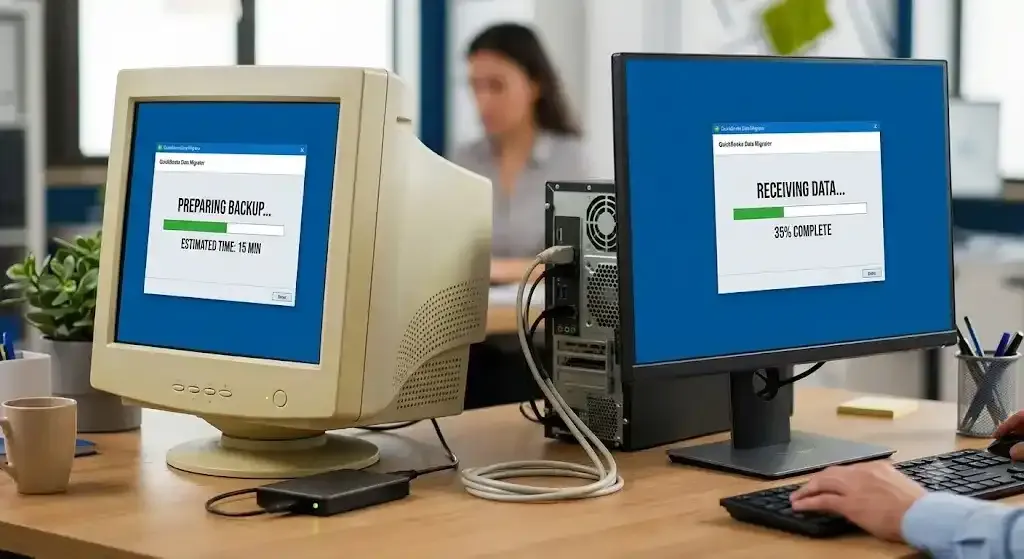

QuickBooks Desktop is a popular accounting solution for businesses that need to manage invoices, expenses, payroll, reports, and financial records. One of its useful features is multi-user mode, which allows several employees to work with the same company file from different computers on a network.
However, multi-user mode depends on several components working correctly. If the server, workstation, firewall, hosting settings, folder permissions, or QuickBooks Database Server Manager is not configured properly, users may experience network connection problems. One of the most common examples is QuickBooks Desktop H202, which usually indicates that the workstation cannot communicate with the computer hosting the company file.
The good news is that most network-related problems can be diagnosed by checking the network setup step by step. This guide explains the common causes and practical solutions for fixing QuickBooks Desktop multi-user connection problems.
What Is a QuickBooks Desktop Multi-User Network Problem?
In a multi-user environment, the company file is generally stored on a server or host computer. Other computers, known as workstations, connect to that computer to access the same company file.
For this setup to work correctly, QuickBooks needs communication between the workstations and the server. Windows permissions, the QuickBooks database service, hosting settings, and firewall configuration all play a role.
Intuit explains that QuickBooks Desktop requires several conditions for company-file access, including appropriate Windows file permissions, a functioning database server, and valid QuickBooks user credentials.
When one of these components fails, QuickBooks may display an H-series error or report that it cannot connect to the company file.
Common Symptoms of Multi-User Network Problems
A network problem can appear in several ways. You may notice:
- QuickBooks cannot open the company file.
- One workstation cannot access the company file.
- Multi-user mode does not work.
- QuickBooks displays H202, H101, H303, or H505.
- The connection to the company file is lost.
- QuickBooks works on the server but not on workstations.
- Users cannot switch to multi-user mode.
- The company file opens in single-user mode but not multi-user mode.
- QuickBooks repeatedly disconnects from the company file.
- The server cannot be found by a workstation.
The exact symptom can help identify which part of the network configuration needs attention.
What Causes QuickBooks H202 Network Issues?
QuickBooks Desktop H202 generally occurs when something blocks communication between a workstation and the server hosting the company file.
According to Intuit, H202 and H505, along with H101 and H303, can occur when something prevents the multi-user connection to the server.
Common causes include:
- Incorrect hosting configuration
- QuickBooks Database Server Manager problems
- Windows firewall restrictions
- Incorrect folder permissions
- Network connectivity problems
- Damaged or incorrect .ND files
- Incorrect company-file location
- Multiple computers configured as hosts
- Outdated QuickBooks components
- Problems with Windows network discovery
Understanding these possible causes makes troubleshooting much easier.
1. Check the Network Connection
Start with the simplest step: check whether the workstation can communicate with the server.
On the workstation, open Windows File Explorer and try to access a shared folder on the server.
You can also test the server connection using Command Prompt.
Press Windows + R, type cmd, and press Enter.
Then enter:
ping ServerName
Replace ServerName with the actual name of the computer hosting the QuickBooks company file.
If the server responds normally, the basic network connection may be working. If the request times out or cannot find the server, investigate the Windows network connection before changing QuickBooks settings.
Also confirm that the server computer is powered on and connected to the same business network.
2. Verify Which Computer Hosts the Company File
The computer that stores the company file should be properly configured as the host.
Workstations should connect to the host rather than trying to host the same company file themselves.
Open QuickBooks Desktop on a workstation and go to:
File → Utilities
If you see Stop Hosting Multi-User Access, the workstation is currently hosting the company file. Select the option to stop hosting.
If you see Host Multi-User Access, do not select it on a workstation.
On the server computer, open QuickBooks and go to the same menu. The server should be configured to host the company file.
Intuit specifically recommends checking hosting settings when troubleshooting H101, H202, H303, and H505 errors.
3. Check QuickBooks Database Server Manager
QuickBooks Database Server Manager is an important component of a multi-user network.
It allows QuickBooks Desktop users on workstations to access company files stored on the server.
If this service is not installed or working properly, users may have difficulty connecting to the company file.
To check it:
- Open QuickBooks Tool Hub on the server.
- Select Network Issues.
- Open QuickBooks Database Server Manager.
- Locate the folder containing the company file.
- Select Start Scan.
If the company-file folder is not listed, browse to its location and add it.
Intuit recommends using Database Server Manager from the Network Issues section of Tool Hub when troubleshooting H202 and other network problems.
4. Use QuickBooks Tool Hub
QuickBooks Tool Hub provides tools for diagnosing several common QuickBooks Desktop problems.
For network problems, open Tool Hub and select Network Issues.
The Network Issues section can help troubleshoot problems such as H202. Intuit recommends running these network tools from the server computer.
If Tool Hub is not installed, download the current version from Intuit's official QuickBooks website and install it on the appropriate computer.
Close QuickBooks Desktop before running the troubleshooting tools.
5. Check Windows Firewall Settings
A firewall can block the communication QuickBooks needs for multi-user access.
If QuickBooks works normally on the server but a workstation cannot connect, firewall configuration is one area worth checking.
Make sure QuickBooks and its required network services are permitted through the Windows firewall.
Do not permanently disable the firewall just to test the connection. Instead, configure appropriate exceptions according to your QuickBooks version and network setup.
Intuit recommends checking firewall permissions when QuickBooks cannot communicate with the company file.
After making firewall changes, restart QuickBooks on the server and workstation and test the connection again.
6. Check Company-File Folder Permissions
The folder containing the QuickBooks company file must have appropriate Windows permissions.
If users cannot access the folder or modify files within it, QuickBooks may not be able to establish a proper multi-user connection.
Check the folder where the .QBW file is stored.
Make sure the appropriate users have the required permissions to access the shared folder.
Intuit notes that the correct Windows permissions are necessary for folders used with QuickBooks Desktop multi-user mode.
If you recently moved the company file to another folder, review the sharing and security settings again.
7. Check the .ND File
QuickBooks Desktop uses a Network Data file with the .ND extension to identify network information associated with a company file.
For example:
CompanyFile.qbw
may have a corresponding:
CompanyFile.qbw.nd
The .ND file contains information QuickBooks uses to identify the database server, server address, port, and hosting information.
Intuit explains that QuickBooks uses the .ND file to determine which database server it should communicate with in a network or multi-user environment.
If the .ND file is damaged or contains outdated information, recreating it may resolve certain connection problems.
Before changing network configuration files, close QuickBooks on all computers accessing the company file.
8. Restart QuickBooks Database Services
Temporary problems with the database service can prevent workstations from connecting.
Restart the server computer and then restart the workstations.
After the server is running again, open QuickBooks Desktop on the server first.
Then open QuickBooks on the workstations and try to access the company file.
Intuit also recommends restarting the server and workstations as part of troubleshooting certain company-file access errors.
9. Verify the Company File Location
The company file should be stored in an appropriate location on the host computer.
Avoid moving QuickBooks company files between computers while users are working on them.
Also avoid storing active QuickBooks company files on unsuitable locations such as removable drives or unsupported network storage configurations.
If the file was recently moved, verify that all workstations are pointing to the correct location.
For businesses using a standard Windows server-based network, keeping the company file on the designated server can simplify network administration.
10. Check Network Discovery
Windows network discovery can affect whether computers can see each other on a local network.
On the server and workstations, review the Windows network settings and make sure the computers can communicate with one another.
If users cannot browse to the server, verify that network discovery and appropriate sharing settings are configured.
Intuit's guidance for accessing a company file from another computer also discusses network discovery and shared access settings.
11. Update QuickBooks Desktop
An outdated QuickBooks installation can cause compatibility problems.
Check whether QuickBooks Desktop has available updates and install the appropriate update for your version.
After updating, restart the computer and test multi-user mode again.
If every workstation is using the same QuickBooks version and release level, troubleshooting can be easier.
12. Test the Company File Locally
If the network connection still fails, testing the company file locally can help determine whether the issue is related to the network or the file itself.
Close QuickBooks and make sure other users are not working in the company file.
Create a safe copy of the company file and open it from a local location for testing.
If the file opens locally but cannot be accessed through the network, the network configuration is more likely to be responsible.
If the file fails even locally, the company file may require additional troubleshooting.
13. Check for Connection Loss
Some users may initially connect successfully but later receive a message that the connection to the company file has been lost.
This can happen because of network instability, server problems, firewall interference, or other system issues.
Intuit recommends steps such as restarting Database Server Manager, reviewing the file location, and checking power-saving settings when troubleshooting connection-loss problems.
Make sure the server does not automatically enter sleep mode during business hours.
Quick Troubleshooting Checklist
If QuickBooks Desktop multi-user mode is not connecting, work through this checklist:
- Confirm the server is powered on.
- Confirm all computers are connected to the same network.
- Check the server name and shared folder.
- Verify the company file location.
- Check hosting settings.
- Make sure only the appropriate computer hosts the files.
- Run QuickBooks Database Server Manager.
- Scan the company-file folder.
- Check Windows firewall permissions.
- Verify folder-sharing permissions.
- Check the .ND file.
- Update QuickBooks Desktop.
- Restart the server and workstations.
- Run QuickBooks Tool Hub.
- Test the company file locally if necessary.
How to Prevent Future Multi-User Network Problems
Preventive maintenance can reduce the chance of recurring QuickBooks network errors.
Keep QuickBooks Desktop updated on all computers. Make sure the server is reliable and remains connected to the network. Avoid moving company files without updating the network configuration.
Regularly verify that users have the correct folder permissions and that firewall rules have not changed after Windows or security-software updates.
It is also important to maintain reliable backups of QuickBooks company data. A network connection problem is usually easier to resolve when a recent backup is available.
Businesses should also avoid making unnecessary changes to the server or network configuration without documenting them. Keeping a record of the company-file location, server name, QuickBooks version, and network setup can make future troubleshooting much faster.
Final Thoughts
QuickBooks Desktop multi-user network problems can interrupt accounting work, but many issues can be resolved by systematically checking the network, hosting configuration, database services, firewall, folder permissions, and company-file settings.
The H202 error is particularly associated with problems communicating between a workstation and the server. Start by confirming that the server is available and that the workstation can communicate with it. Then check hosting settings, Database Server Manager, firewall permissions, and the company-file folder.
If you are specifically dealing with a QuickBooks Desktop H202 network issue, following these troubleshooting steps can help identify whether the problem is caused by the server, workstation, network, firewall, or QuickBooks configuration.
If the problem continues after completing the standard troubleshooting steps, avoid making major changes to the company file without a backup. For persistent network or data problems, contacting a qualified IT professional or QuickBooks support can help protect your accounting data while the underlying issue is investigated.


























Sign in to leave a comment.