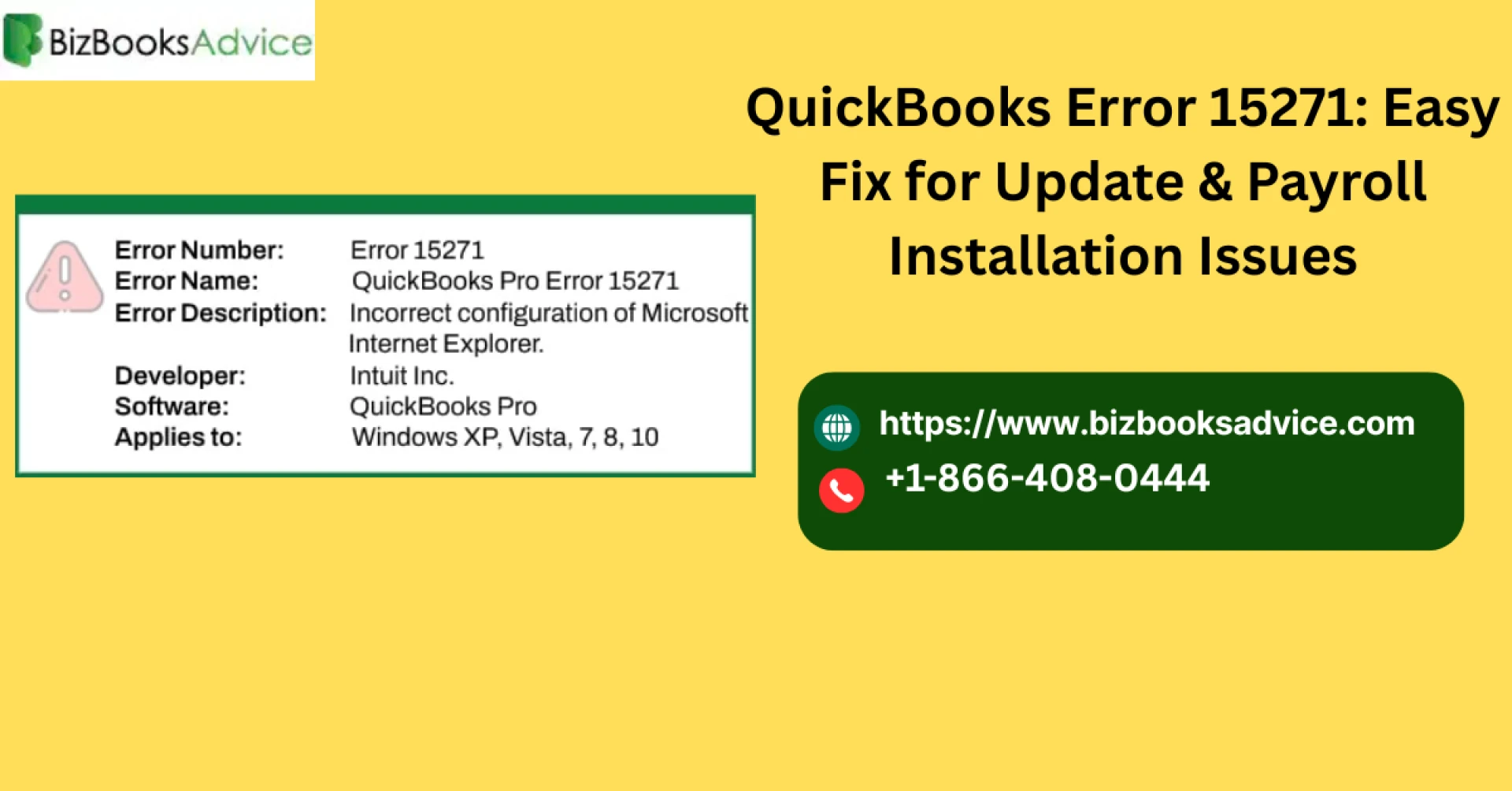

QuickBooks is one of the most widely used accounting tools that simplifies bookkeeping, payroll, and financial management. However, while updating QuickBooks Desktop or installing payroll updates, users often encounter an error that disrupts workflow. One of the most common issues is QuickBooks Error 15271.
This error usually appears when a file required for payroll update or QuickBooks Desktop update is missing or damaged. If not resolved quickly, it can prevent you from accessing essential features, payroll processing, and tax table updates.
In this guide, we’ll explain what Error 15271 is, why it occurs, and the most effective ways to fix it.
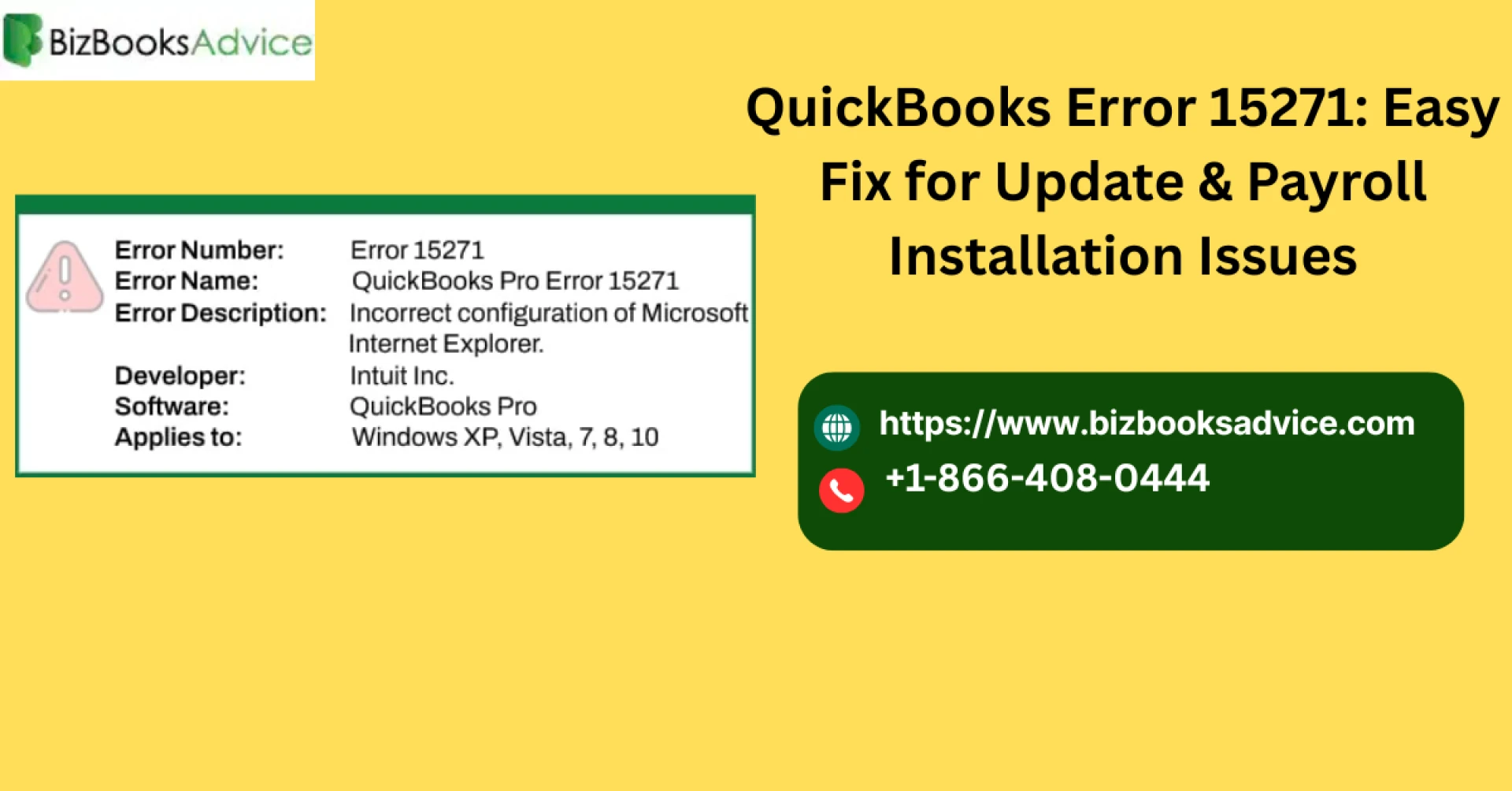
What is QuickBooks Error 15271?
QuickBooks Error 15271 is a payroll or update error that occurs during the installation of updates. The error message usually states:
- “Error 15271: The payroll update did not complete successfully. A file cannot be validated.”
- “Error 15271: The update did not complete successfully. A file cannot be validated.”
This error primarily appears in two situations:
- When downloading or installing QuickBooks Desktop updates.
- When updating QuickBooks Payroll.
Causes of QuickBooks Error 15271
There are multiple reasons why this error may show up. Some common causes include:
- Corrupted or damaged QuickBooks update files.
- Incorrect system settings or outdated Windows components.
- Disabled File Copy service (FCS) on your system.
- Incomplete QuickBooks installation or damaged program files.
- User Account Control (UAC) restrictions blocking updates.
- Network issues leading to incomplete payroll update downloads.
Understanding the cause helps in applying the right troubleshooting steps.
Methods to Fix QuickBooks Error 15271
Here are some proven solutions to resolve this error:
1. Restart Your System and Update Again
Sometimes, a simple restart clears temporary system glitches that cause update failures. After rebooting, re-run the QuickBooks or payroll update.
2. Turn Off User Account Control (UAC)
User Account Control settings may block the QuickBooks update process. Disabling it temporarily can help.
- Press Windows + R, type Control Panel, and press Enter.
- Go to User Accounts → Change User Account Control Settings.
- Move the slider to Never Notify.
- Click OK and restart your computer.
- Try updating QuickBooks again.
(Once the issue is resolved, you can enable UAC for security.)
3. Run QuickBooks Desktop as Administrator
Running QuickBooks with admin rights gives it permission to apply updates.
- Close QuickBooks completely.
- Right-click the QuickBooks Desktop icon.
- Select Run as Administrator.
- Try downloading and installing updates.
4. Enable File Copy Service (FCS)
QuickBooks requires File Copy Service to install updates properly. If disabled, it triggers Error 15271.
- Press Windows + R, type
services.msc, and hit Enter. - Scroll down and find Intuit QuickBooks FCS.
- Right-click and select Start (or Restart).
- Change startup type to Manual.
- Re-run the update process.
5. Update Windows and QuickBooks
Outdated Windows components can conflict with QuickBooks updates.
- Go to Settings → Update & Security → Windows Update.
- Install all available updates.
- Open QuickBooks and go to Help → Update QuickBooks Desktop.
- Install the latest QuickBooks release and payroll updates.
6. Clean Install QuickBooks Desktop
If none of the above methods work, reinstalling QuickBooks may be necessary.
- Uninstall QuickBooks from Control Panel → Programs and Features.
- Download the latest version from Intuit’s official website.
- Reinstall QuickBooks Desktop and restore your company file.
Preventing QuickBooks Error 15271 in the Future
To avoid facing this error repeatedly, follow these tips:
- Keep Windows and QuickBooks updated regularly.
- Ensure a stable internet connection during updates.
- Always run QuickBooks with administrator rights.
- Avoid third-party software interruptions during updates.
- Regularly back up your QuickBooks company files.
When to Contact QuickBooks Experts
While most users can fix QuickBooks Error 15271 with the methods above, some cases may require expert assistance. If the error persists after multiple attempts, it could indicate a deeper issue with your QuickBooks installation or Windows system files.
👉 Call QuickBooks Support at +1-866-408-0444 for professional help. Experts can quickly identify and fix the issue so you can get back to managing your business without delays.
Final Thoughts
QuickBooks Error 15271 may look intimidating, but it’s usually caused by minor issues such as UAC restrictions, disabled FCS service, or corrupted update files. By following the solutions outlined above, you can quickly resolve the error and continue using QuickBooks without interruptions.
If the problem still continues, don’t hesitate to seek expert assistance by calling the QuickBooks helpline at +1-866-408-0444.
FAQs on QuickBooks Error 15271
1. What does QuickBooks Error 15271 mean?
QuickBooks Error 15271 occurs when payroll or software updates fail due to missing or damaged files. It prevents you from completing payroll updates or installing QuickBooks Desktop updates.
2. Can I ignore QuickBooks Error 15271?
No. Ignoring this error means you won’t get the latest updates, payroll tax tables, and security patches. This could lead to incorrect payroll processing and software vulnerabilities.
3. Does reinstalling QuickBooks fix Error 15271?
Yes, in many cases, performing a clean install of QuickBooks resolves the error. However, it’s recommended to try simpler fixes like disabling UAC or enabling File Copy Service before reinstalling.
4. How do I enable File Copy Service (FCS) in QuickBooks?
Go to Run → services.msc → Intuit QuickBooks FCS. Right-click it, select Start, and set the startup type to Manual. This ensures QuickBooks can install updates properly.
5. Who should I contact if QuickBooks Error 15271 keeps appearing?
If the error persists after trying all solutions, you should contact QuickBooks support professionals at +1-866-408-0444. They can provide step-by-step guidance and advanced troubleshooting.








Sign in to leave a comment.