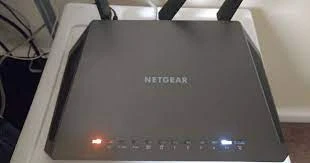

“Don't share your WiFipassword” is a digital form of “Don't talk to strangers”!Giving WiFi access to visitors or guests in your sweet home is agiven for most people. However, handing over the password of yourNighthawk router brings undesired risks. Who knows how much snoopingyour invitees might try if given the chance?
Obviously, you don't deny yourguests from using your WiFi network but simultaneously, you don'twant to share your WiFi password. So, is there a middle ground?
Of course, yes! You can createa guest WiFi network once you have properly performed the Nighthawk router setup. Thus, you don't have to share the main networkpassword with your invitees. This post will shed some light on how toset up a guest WiFi network on your Nighthawk WiFi router. Let's takethe plunge.
Setup a Guest WiFi Network on Nighthawk Router
There are two ways to set up aguest WiFi network on your Netgear Nighthawk WiFi router. They are:
Using routerlogin.net
Via Netgear Nighthawk app
You can use any method as peryour convenience.
1.Using Routerlogin.net
In order to set up a 2.4 GHzand 5 GHz network, you need to individually choose wireless andsecurity settings for every network. Go through the below-given stepsto set up a guest network on your Netgear Nighthawk WiFi router usingrouterlogin.net web GUI:
Power on your NetgearNighthawk router by plugging it into a wall socket.
Connect it to your modem usingan Ethernet cable.
Now, turn on your computer orlaptop.
Open an internet browser ofyour choice.
Type routerlogin.net in theURL bar and press the Enter key.
The Netgear router login page appears.
Insert the admin user ID andpassword into the given fields.
Click on the Log In button.
After logging in, thedashboard of your Nighthawk wireless router appears.
Navigate to the Settingssection.
Hit the Guest Network option.
Check the box that says EnableGuest Network.
In order to change the networkname, enter a new name in the Guest WiFi SSID field.
Check or clear the check box(as per your needs!) that says Allow guests to see each other andaccess my local network.
Thereafter, choose a securityoption.
In the event that you pickedup WPA/WPA2 Enterprise, WPA2-PSK [AES], or WPA-PSK [TKIP] + WPA-PSK[AES], type the password in the Password field.
At last, click on the Applybutton to save the changes made by you.
In this manner, you can set upa guest network on your Netgear Nighthawk wireless router.
2.Via Netgear Nighthawk App
If you find the aforementionedmethod quite hard for you, use the Netgear Nighthawk app to set up aguest WiFi network. Maintaining a different WiFi network for guestssafeguards all devices currently connected to your home network. Justin case a guest downloads a malicious file while connected to yourguest network, the devices on the main network are secured.
Essential Tip: Beforeproceeding, make sure that you have completed Netgear Nighthawk setup properly.
In order to set up a guest WiFinetwork using the Netgear Nighthawk app, walk through theinstructions mentioned below:
Download the Netgear Nighthawkapp from Google Play or App Store.
As soon as the app getsproperly installed on your smartphone, open it.
The basic home screen willdisplay.
Tap on the Guest WiFi tile.
Choose a WiFi band between 2.4GHz and 5 GHz.
Toggle the slider for GuestWiFi Enabled.
Choose a network name or SSIDand guest WiFi password.
Now, you can also select theTime Period to specify a time window for the guest WiFi network tobe enabled. The network will not be available to use after the timewindow closes.
If needed, you can selectShare WiFi with QR Code option to share guest WiFi access with a QRcode.
That's how you can set up aguest WiFi network on your Netgear Nighthawk router. Now, you caneasily offer WiFi access to your guests without disclosing the mainnetwork password.










Sign in to leave a comment.