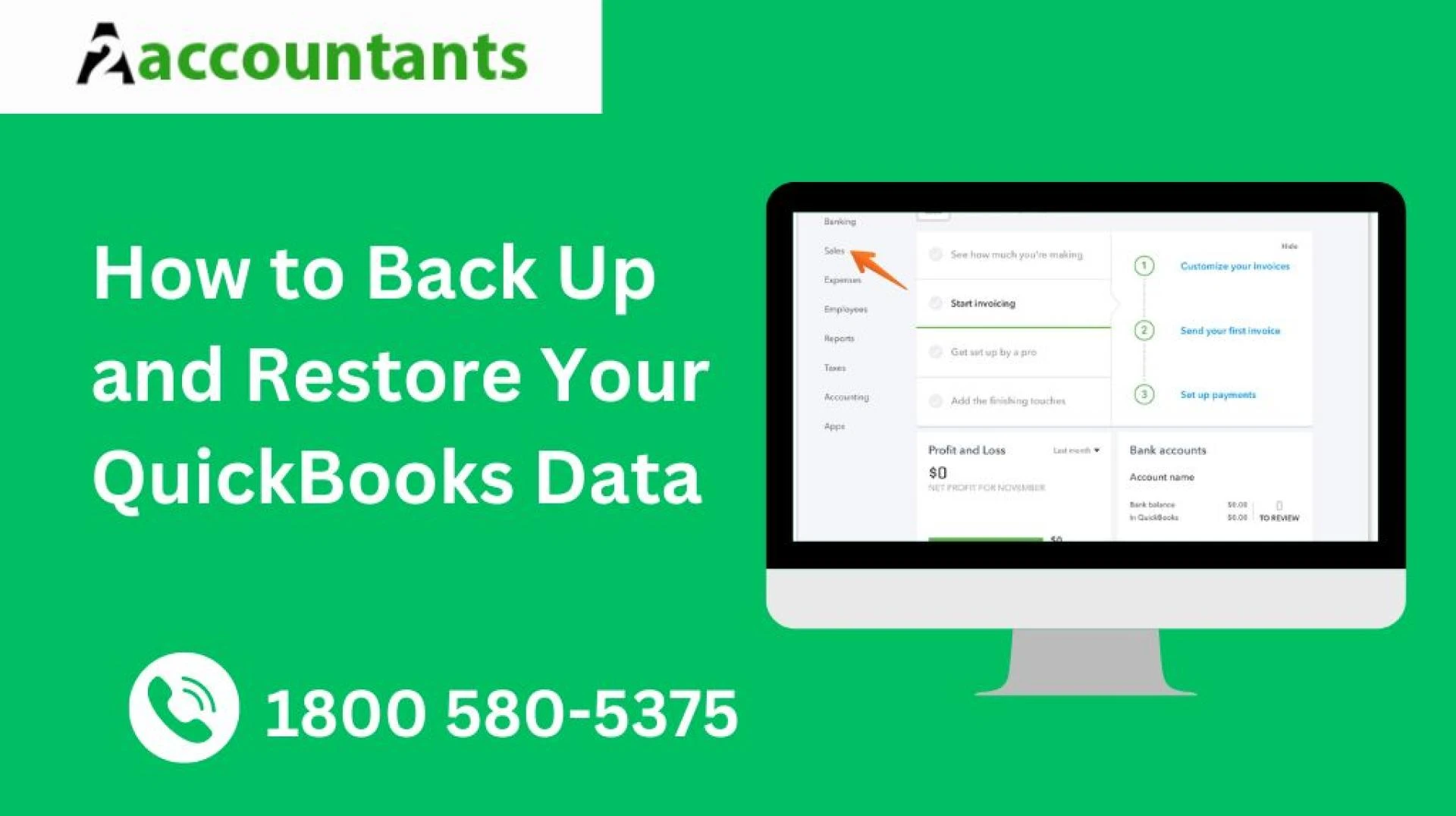

Maintaining the integrity and security of your financial data is crucial for any business, and QuickBooks.software handles a vast amount of sensitive financial information.
Regularly backing up your QuickBooks data is essential to protect your company from data loss, system failures, or other unexpected events that could compromise your financial records.
This comprehensive guide will discuss how to back up and restore your QuickBooks data.
Manual backup methods for QuickBooks data
QuickBooks offers several manual backup options for businesses that prefer a more hands-on approach to data backup. These methods allow you to create a snapshot of your financial data at a specific time, which can be particularly useful to archive QuickBooks data in case of a system failure or data loss.
QuickBooks Backup to a Local Drive: QuickBooks provides a built-in backup feature that allows you to save your data to a local storage device, such as an external hard drive or a network-attached storage (NAS) device. This straightforward option can be customized to fit your backup schedule and preferences.QuickBooks Backup to a Network Location: If your business has a shared network infrastructure, you can configure QuickBooks to back up your data to a designated network location. This approach can provide an additional layer of protection by storing your backups on a separate system from your primary QuickBooks workstation.QuickBooks Backup to a USB Drive: For added portability and convenience, you can also back up your QuickBooks data on a USB flash drive or external hard drive. This method allows you to easily transport your backup files to a secure offsite location, further enhancing the overall resilience of your data backup strategy.QuickBooks Backup to a Cloud Storage Service: While not a true manual backup method, you can integrate QuickBooks with cloud storage services, such as Dropbox or Google Drive, to automatically sync your backup files to the cloud. This hybrid approach combines the convenience of automatic backups with the flexibility of accessing your data from any internet-connected device.Regardless of the manual backup method you choose, it's essential to establish a consistent backup routine, label your backup files clearly, and store them in a secure location to ensure the long-term integrity and accessibility of your QuickBooks data.
Automatic backup options for QuickBooks data
In addition to manual backup methods, QuickBooks offers automatic backup solutions that can help streamline your data protection efforts and reduce the risk of human error or forgetfulness.
QuickBooks Automatic Backup: QuickBooks' built-in automatic backup feature allows you to schedule regular data backups, either to a local storage device or a network location. This option ensures that your financial information is backed up consistently without manual intervention.QuickBooks Online Backup: For businesses using the cloud-based QuickBooks Online platform, the service offers an automatic backup solution that stores data securely on remote servers. This approach eliminates the need of manual backups and provides the added benefit of accessing your data from anywhere with an internet connection.Third-Party Backup Solutions: Numerous third-party backup services and software solutions integrate with QuickBooks and offer advanced automatic backup features. These solutions may provide additional functionality, such as creating incremental backups, performing scheduled backups, or even automatically restoring your data in the event of a system failure.Hybrid Backup Strategies: To further enhance the reliability and redundancy of your backup strategy, consider implementing a hybrid approach that combines both manual and automatic backup methods. For example, you could use QuickBooks' automatic backup feature to create regular backups while periodically backing up your data to an external storage device.When selecting an automatic backup solution, consider factors such as the frequency of backups, the storage location, and the ease of restoring your data. Additionally, ensure that your automatic backup settings are configured correctly and that you regularly test the restoration process to verify the integrity of your backed-up data.
How to restore your QuickBooks data from a backup
If you need to restore your QuickBooks data from a backup, the process can vary depending on the backup method you use. However, QuickBooks provides a straightforward and intuitive restoration process that can help you recover your financial data quickly and efficiently.
Restoring from a Local or Network Backup: If you have created a backup file on a local storage device or a network location, the restoration process typically involves navigating to the backup file, selecting the appropriate file, and following the on-screen instructions to restore your data. QuickBooks will guide you through the steps, ensuring that your financial information is accurately imported back into the software.Restoring from a Cloud-based Backup: If you have been using a cloud-based backup solution, the restoration process may involve logging into your cloud storage account, locating the backup file, and initiating the restoration process within QuickBooks. Restoring from an External Storage Device: The restoration process for backups stored on external storage devices, such as USB drives or external hard drives, is similar to that of a local or network backup. You'll need to connect the external storage device to your computer, locate the backup file, and then follow the on-screen instructions to restore your QuickBooks data.Verifying the Restoration Process: Regardless of the backup method you have used, it's essential to thoroughly test the restored data to ensure that all your financial information has been accurately recovered. This may involve reconciling your accounts, verifying the integrity of your transactions, and checking for any discrepancies or missing data.By following the steps mentioned in the above section, you can back up and restore your QuickBooks data and effectively recover if your system fails or you experience data loss.
Conclusion
Protecting the integrity and security of your QuickBooks data is a critical responsibility for any business owner or financial professional. By implementing a comprehensive backup and restoration strategy provided in this guide, you can back up and restore your QuickBooks data to safeguard your financial information and ensure the continued smooth operation of your organization.









Sign in to leave a comment.