
Zimbra Desktop is popular and most used email client known for sending/receiving data globally. The application allows to create and manage multiple Zimbra user accounts in a single environment. However, these days many users are taking backup of their desktop database and storing them in cloud account. Thus, in the further segment we are going to discuss the reasons and solution of how to backup Zimbra accounts to Office 365.
How to Backup Zimbra Emails, Contacts, Briefcase & Calendar to Office 365?
To backup Zimbra database, first user need to extract the entire items from Zimbra Desktop into TGZ zip file. Follow the process to extract Zimbra data types to TGZ file:
Extract Data Types from Zimbra Desktop to TGZ
Run Zimbra Desktop email app >> Click Preferences tab >> Select option of Import/Export.Export window with multiple options appear, click option of Advanced Setting. Also, choose the data items to export in TGZ file such as emails, calendar, briefcase, contacts etc.Click Export button to continue.Another window will appear, click on the option of Save File and hit OK.Browse the location where you want to save TGZ file and click Save button.Once you are done with the process, navigate to the selected location and check the new created TGZ file. Now, download the tool and backup Zimbra to Office 365 directly. Moreover, there is no need to extract TGZ file, the tool is capable to load TGZ file directly and automatically extract all its items & list them on the software pane directly.
Zimbra to Office 365 Tool to Backup Zimbra Account to O365
For Zimbra Desktop backup to Office 365, no manual method available. Thus, experts launched cost-effective yet reliable and secure utility for direct backup i.e. CubexSoft Zimbra to Office 365 Migration Tool. It enables to backup unlimited Zimbra user accounts to Office 365 at once without accurate formatting properties and folder structure. The application has simple operational steps that are easily clickable and opted by both professional and home users to backup Zimbra Desktop to Office 365 account. Follow the steps to directly backup Zimbra mailboxes to O365 account:
Step 1. Run Zimbra to Office 365 Tool on any Windows machine. Click on First option.
Step 2. Move cursor to Add File(s) button and use Add File/Add Folder button or Add Extracted TGZ Files to load TGZ file/folder/extracted TGZ items on the software accordingly for backup in Office 365.
Step 3. Software will scan TGZ file items and list them with checkboxes on left software pane. These checkboxes can be used for selective Zimbra data backup.
Step 4. Click on desired loaded folder whose information you want to view in Preview window.
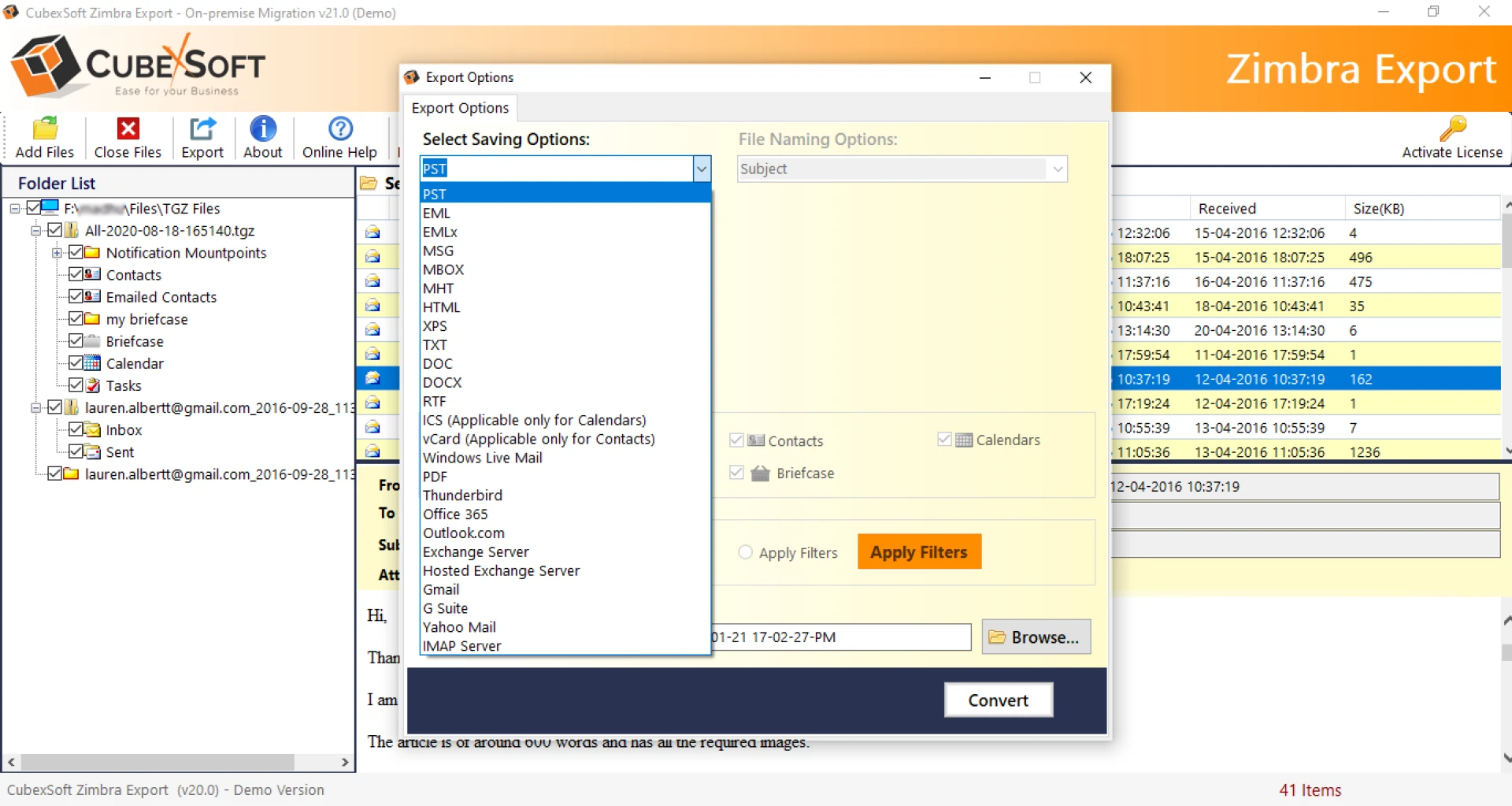
Step 5. Go to Export button and select Office 365 option.
Step 6. Provide Office 365 email address. You can choose I am Admin option if you want to backup Zimbra mailboxes in batch and carrying Office 365 administrator account.
Step 7. You can simultaneously set categories and filters as per need and then click on Connect.
Step 8. The tool will open Microsoft login screen where you need to provide the password of Office 365 account. When done, click Next.
Quick Note. If you have provided admin account details, then after clicking on Connect you will see Mailbox Mapping screen. Here you can upload the CSV file of multiple Office 365 users and send Zimbra database accordingly. After that click on Export to start the process. If single user details are provided, then click on Connect will straightaway start the migration process.
Step 9. Now, the process will start and show the current progress on the screen to users.
Step 10. The entire procedure will successfully finishes with a message “Conversion Done Successfully”. You can now click on OK and go to specified Office 365 account to check resultant files. The output will be correct and accurate.
With the help of these steps, a user can successfully backup Zimbra user account data items to Office 365 directly without facing any data loss or data alteration trouble.
Features of Zimbra to Office 365 Tool
Direct Zimbra user account backup to Office 365 profile.Batch backup of Zimbra mailboxes to O365 account at once.Maintains email formatting and folder structure throughout process.Capable to backup Zimbra account to Office 365 without Zimbra Desktop installation.Select File/Select Folder options to backup desired TGZ files or entire TGZ folder.Advance Date Filters to backup Zimbra data of specific date.Backup Zimbra to Office 365 with emails, contacts, calendar, briefcase and more.Downloadable on entire range of Windows OS including Win 10.Why to Backup Zimbra Accounts to Office 365?
The below section has mentioned few reasons that clear out the query of “why to backup Zimbra accounts to Office 365?”
Connectivity of Zimbra with Server is SlowTakes time in Zimbra Account ConfigurationDelivers Slow Synchronization ProcessStopped updating its earlier versionsReason to Opt Office 365 Cloud App
A user is capable to open and modify emails, documents, contacts and other data from any location at any time. One can access the O365 services from desktop, mobile phones, laptops or notebooks.Deliver easy communication and collaboration with colleagues, partners and employees.Office 365 product is developed for enterprises, business and home users. Offers complete bundle of Word, Excel, Spreadsheet, PowerPoint, OneNote etc.Office 365 is a cloud version of MS Office Suite for desktop. It is proved one of the best cloud services than Zimbra Desktop. It is more secure that offers large storage space and flexible emailing services.
Conclusion:
Zimbra to Office 365 Migration Tool is useful app to directly backup Zimbra accounts to Office 365 environment. Download the free demo of CubexSoft Zimbra Converter now that allows to backup first 25 files from each Zimbra TGZ folder to Office 365 at one time. Apart from Office 365, you can also check the process of Zimbra to Exchange, Gmail, G Suite and more.









Sign in to leave a comment.