

You know what's frustrating? Wanting to add events to your WordPress site and realizing you'd need to learn coding just to make it happen. Been there. The whole thing feels unnecessarily complicated when all you want is a simple way to show people what's coming up.
But here's the thing—it doesn't have to be that hard anymore.
I'm going to show you how to set up a calendar of events for WordPress that actually works, looks decent, and won't require you to touch a single line of code. Promise.
Why Bother With an Event Calendar Anyway?
Look, if you're running any kind of business or community group, people need to know when stuff is happening. A basic list of dates buried in a blog post? That's not cutting it in 2025.
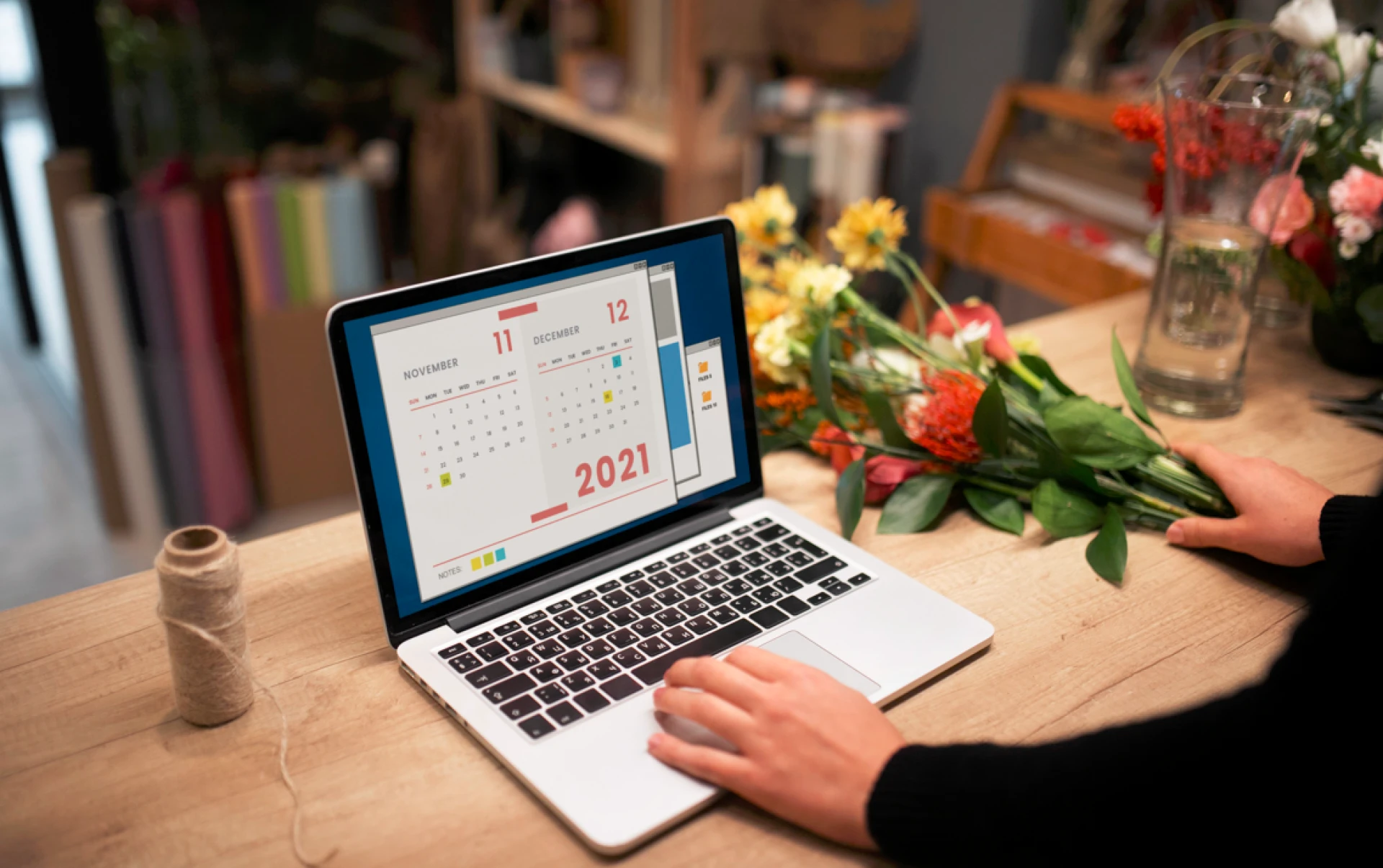
A proper event calendar does something better—it gives visitors a visual way to browse what's available. They can see everything at a glance, click through for details, and maybe even register right there. It's just... easier for everyone involved.
Plus it makes your site look like you actually update it regularly. Which, let's be honest, matters more than we'd like to admit.
Finding a Plugin That Won't Drive You Crazy
Okay, so WordPress has about a million event plugins. Some are great. Others will make you want to throw your laptop out the window.
What you're looking for:
- Something that doesn't require a PhD to figure out
- Options to customize without needing technical knowledge
- Works on mobile (because that's where everyone is)
- Handles bookings if you need people to sign up
The Events Calendar, Events Manager, Modern Events Calendar—these are solid choices. Most have free versions that'll do everything you need starting out. You can always upgrade later if you want fancy features.
Don't overthink this part. Pick one that has good reviews and just start.
Actually Setting the Thing Up
Alright, here's where we get into it.
Getting the Plugin Installed
Go to your WordPress dashboard. Find Plugins, click Add New. Search for whichever event plugin you chose. Install it, activate it. That's literally it—no configuration files, no FTP nonsense.

Creating Your First Event
Once it's active, you'll see a new section in your dashboard menu. Usually says "Events" or something equally obvious.
Fill in what you need:
- What's the event called?
- When's it happening?
- Where? (Could be an address or a Zoom link)
- What should people know about it?
Most plugins let you throw in a photo, maybe categorize things if you're running different types of events. Do that if it helps keep things organized. Or don't—your call.
Making It Look the Way You Want
This part's actually kind of fun. You get to decide how your calendar shows up on your site.
Want that classic monthly grid view where people can see the whole month? Done. Prefer just listing events in order? Also fine.
You'll usually get a shortcode—looks something like [events_calendar]—that you paste into whatever page you want the calendar to appear on. No messing with templates or diving into theme files.
The plugin settings let you adjust colors and layouts through dropdown menus and checkboxes. It's pretty straightforward. Click around, preview what changes, adjust until it looks right.
Getting People to Actually Sign Up
If you need registration or RSVP functionality for your events, here's where WordPress event booking comes into play.
Check if your plugin includes:
- Basic RSVP forms
- Ticket options (free or paid)
- Automatic confirmation emails
- A way to manage who's coming
Some plugins handle all this internally. Others might need you to connect with something like WooCommerce for payments, or you could integrate a service like Survv to manage the booking flow better.
Either way, most of these integrations take maybe ten minutes to set up. You're not coding anything—just connecting things that already exist.
Don't Forget About Mobile Users
Real talk: most people will check your calendar on their phones. If it looks broken on mobile, they're probably not going to bother figuring it out.
Good news is that modern plugins usually handle this automatically. But you should still check. Pull up your site on your phone and actually try using the calendar. Can you tap buttons easily? Does everything load? Is the text readable without zooming in?
If something's wonky, there's usually a mobile-specific setting in your plugin you can adjust.
Keep Things Current (Seriously)
This sounds obvious but you'd be surprised how many sites have events from last year still listed. Nothing kills credibility faster.
Set yourself a weekly reminder. Go in, delete past events, add new ones, update anything that's changed. Takes maybe five minutes and keeps your site from looking abandoned.
People notice when things are up to date. They also notice when they're not.
Bottom Line
Setting up a calendar of events for WordPress really isn't the headache it used to be. With a decent plugin and maybe an hour of your time, you can have something professional-looking that actually helps people find and register for your events.
No developer required. No mysterious code. Just a tool that does what you need it to do.
Pick a plugin, add your events, tweak it until it looks good. That's the whole process. And honestly? Your visitors will appreciate having an easy way to see what you've got coming up.
Now go build that calendar.




























Sign in to leave a comment.