
Keeping your iPhone running smoothly is essential, especially as apps, websites, and system data build up over time. One of the most effective ways to improve performance is clearing unnecessary stored information. When you clear cache on iPhone, you free up space, fix slowdowns, and remove outdated temporary files that no longer serve a purpose.
In this guide, you'll learn how caching works on iPhones, why clearing it can boost performance, and the safest ways to remove cached data without losing important information.
What Is Cache and Why Does Your iPhone Store It?
Cache is temporary data stored by apps and websites to help them load faster. For example, browsers remember images and page layouts, while social media apps store thumbnails and login data.
Over time, this stored information piles up and begins to slow down your device. While caching is useful, excessive buildup leads to:
- Reduced storage space
- Lag or freezing
- App glitches
- Slow browsing
This is why many users decide to clear cache on iPhone periodically to keep everything running efficiently.
Benefits of Clearing Cache on Your iPhone
Cleaning up temporary files offers multiple performance benefits:
1. Free Up Storage Space
Cached data can take up gigabytes over time. Clearing it instantly gives your device more breathing room.
2. Improve App Performance
Apps load smoother and stop freezing due to outdated saved data.
3. Speed Up Browsing
Safari, Chrome, and other browsers respond faster with a fresh start.
4. Fix Minor Software Bugs
Errors caused by corrupt or old cache files usually disappear after cleanup.
5. Enhance Battery Life
A device that works more efficiently drains less power.
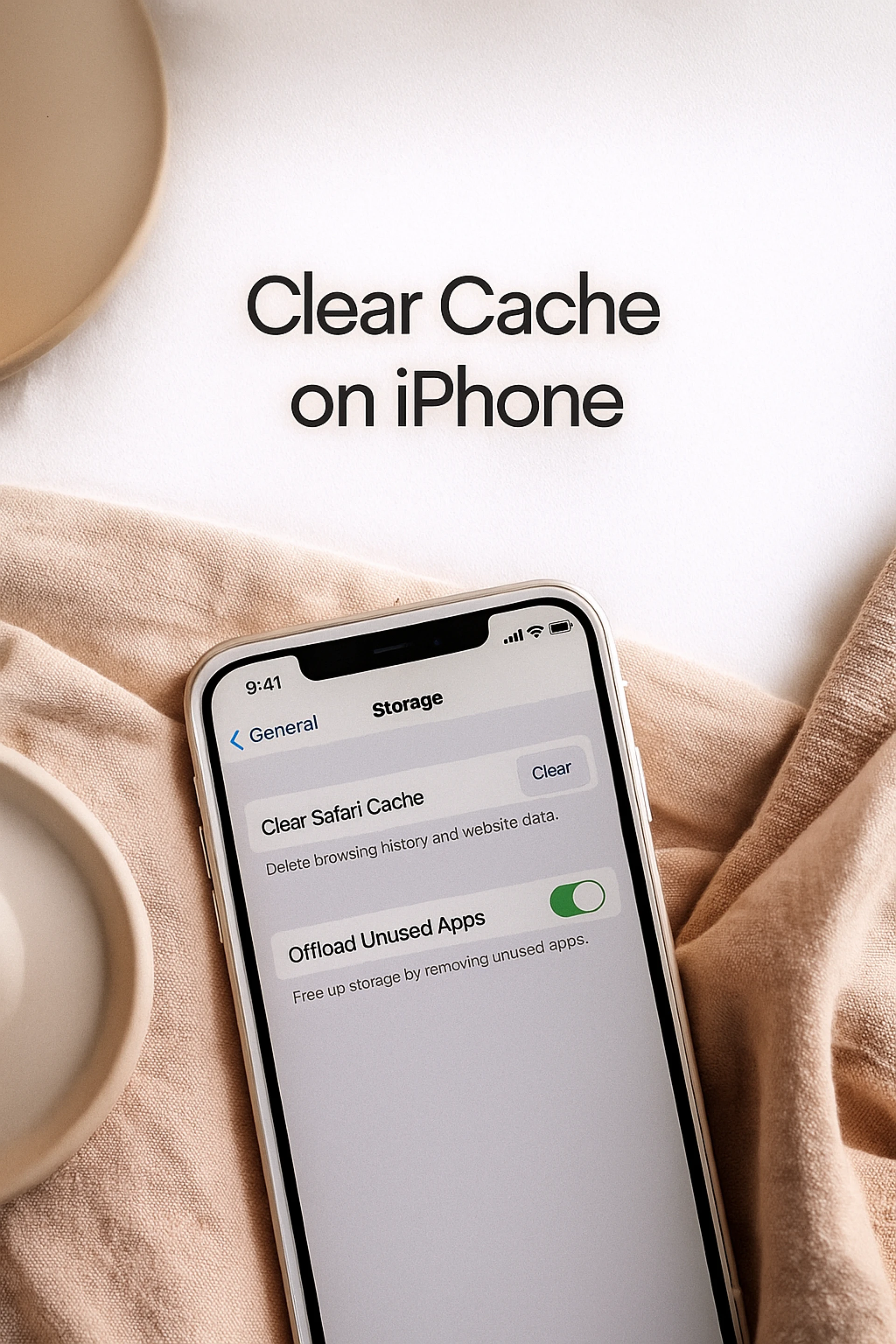
How to Clear Safari Cache on iPhone
Safari is the default browser on iPhone, and it stores a lot of temporary data. Removing Safari’s cache is simple:
- Open Settings
- Scroll to Safari
- Tap Clear History and Website Data
- Confirm the action
This removes cookies, browsing history, and site data. If Safari feels slow or websites are not loading correctly, this process usually fixes the issue.
How to Clear App Cache Without Deleting Apps
Unlike Android, iPhone doesn’t offer a single “Clear Cache” button for all apps. However, you can still clean storage safely.
Method 1: Offload Unused Apps
This removes app data but keeps personal files intact.
- Go to Settings
- Tap General
- Select iPhone Storage
- Choose an app
- Tap Offload App
Your documents stay untouched, and the app cleans itself when reinstalled.
Method 2: Delete and Reinstall the App
Some apps—like Facebook or Snapchat—store heavy cache files. Deleting and reinstalling them refreshes everything.
How to Reduce System Cache and Improve Overall Speed
System cache includes logs, background processes, and hidden files. While you can’t delete them manually, the following steps refresh your device:
Restart Your iPhone
A simple reboot clears temporary system files automatically.
Update iOS
New updates often optimize storage and performance.
Close Background Apps You Don’t Use
This helps prevent unnecessary data buildup.
When Should You Clear Cache on Your iPhone?
You don’t need to do it daily, but occasional cleaning helps:
- If your storage is nearly full
- When apps crash or freeze
- If Safari becomes slow
- When your device feels sluggish
Doing this once every few weeks is enough to maintain peak performance. Most users who clear cache on iPhone notice an immediate speed boost after cleanup.
Common Mistakes to Avoid
While the process is simple, avoid these mistakes:
- Do not delete essential apps just to remove cache
- Avoid using third-party “cleaner” apps—they are unnecessary and unsafe
- Do not clear data without checking if you need saved files or logins
- Avoid resetting your device unless you must
A careful approach ensures your iPhone stays fast without losing important data.
Conclusion
Clearing out temporary data is an easy yet powerful way to make your device run like new again. Whether you're struggling with slow apps, storage warnings, or browser issues, choosing to clear cache on iPhone helps restore performance in minutes. With the methods above, you can safely remove unwanted files, free up space, and keep your device running smoothly—no tech expertise required.


























Sign in to leave a comment.