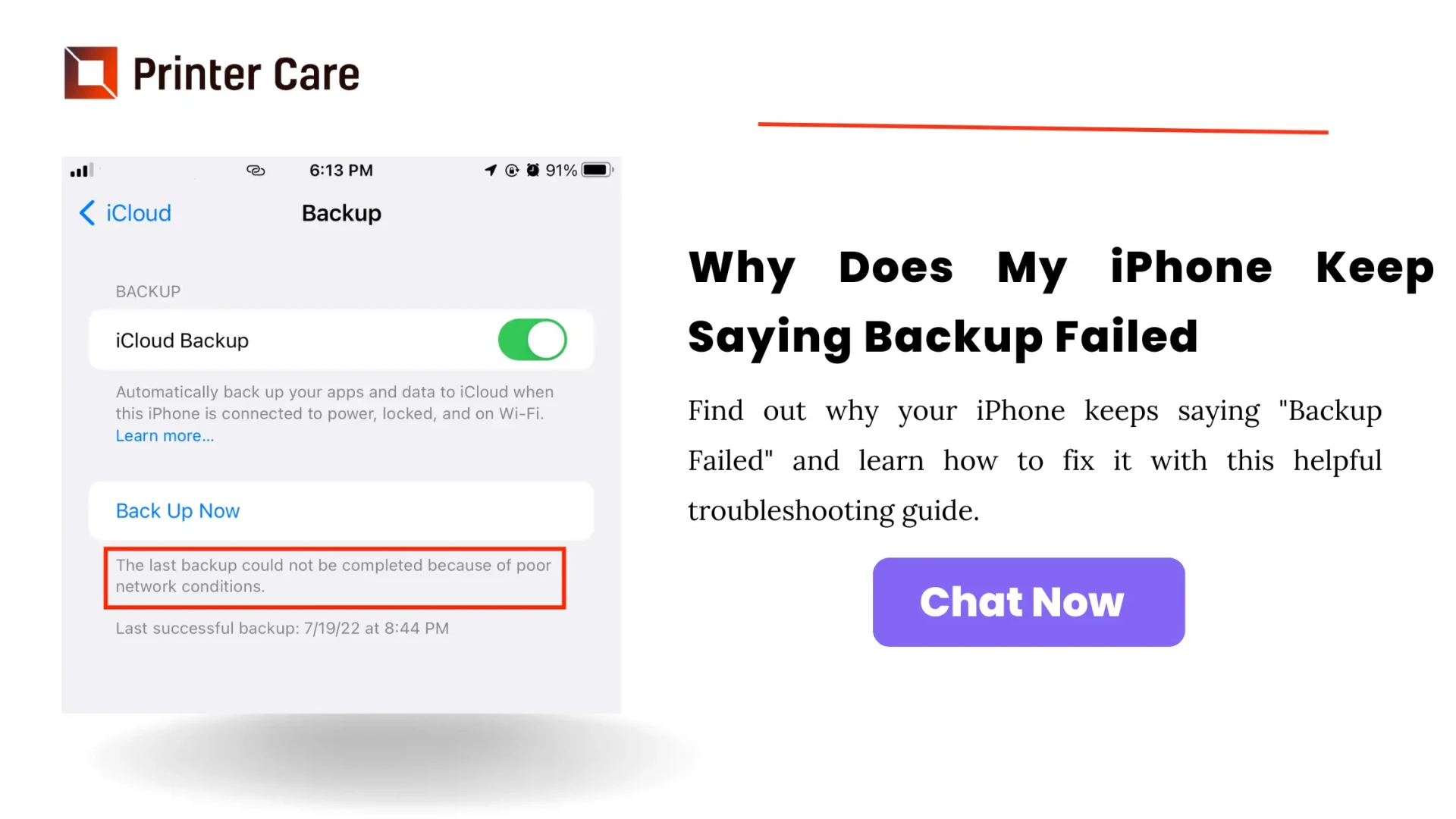

iPhone Backup Failed: How to Troubleshoot and Resolve the Issue
Backing up your iPhone is crucial to ensure that your data is safe and secure. However, there are times when the backup process can fail, leaving you concerned about losing your important information. If you’re facing an "iPhone Backup Failed" error, don’t worry. Here’s a human-friendly guide to help you troubleshoot and resolve this issue.
1. Check Your Storage Space
One of the most common reasons for a failed backup is insufficient storage space. Your iPhone backups can be stored either on iCloud or your computer. Here\'s how to check and manage your storage:
iCloud Storage:
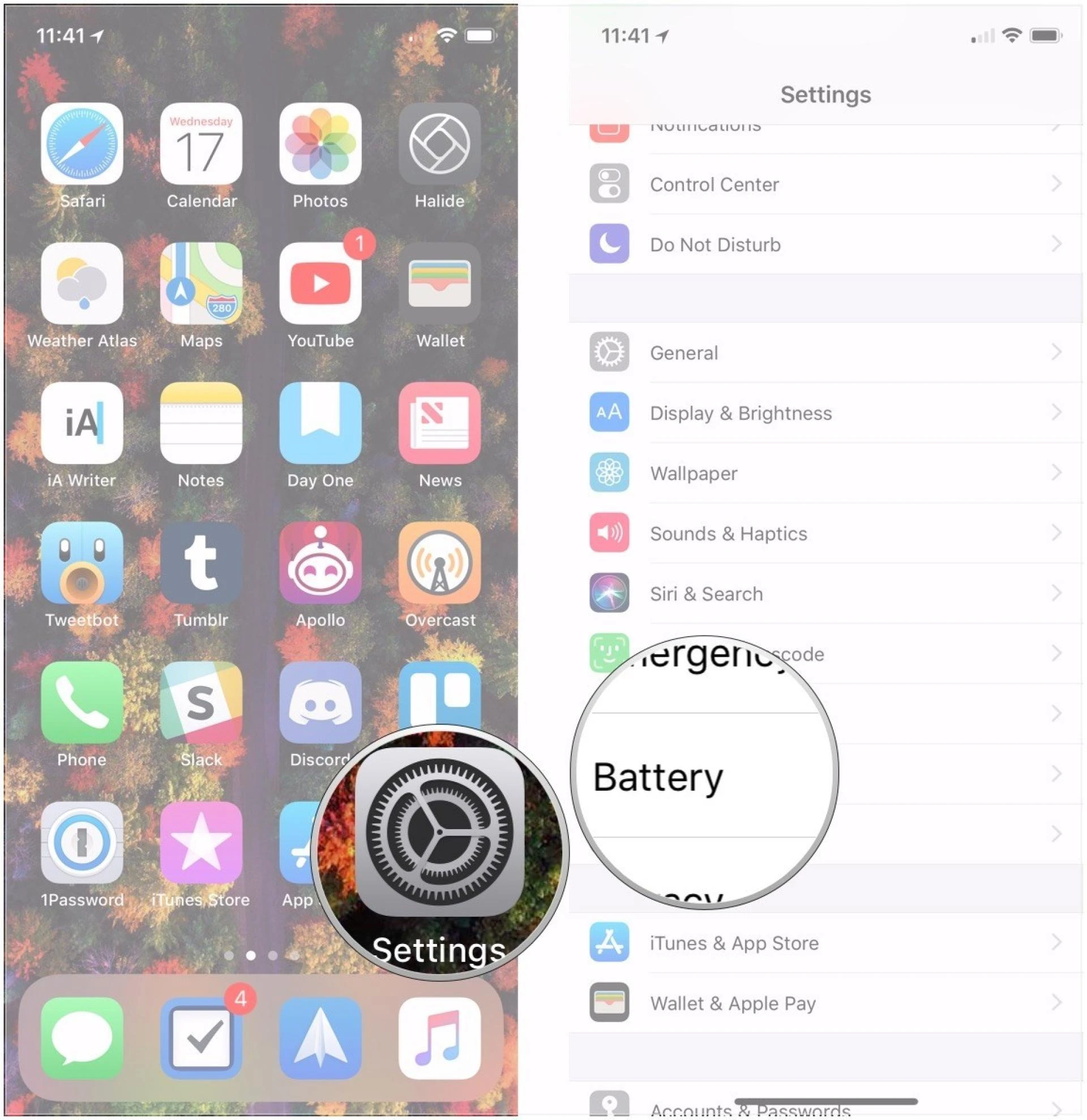
- Go to Settings > [Your Name] > iCloud > Manage Storage.
- Review the available space. If you\'re running low, you might need to free up some space or upgrade your iCloud storage plan.
Computer Storage:
- If you\'re backing up to your computer, ensure that there is enough free space on your hard drive.
2. Update Your Software
Outdated software can cause backup failures. Ensure that both your iPhone and your computer are running the latest versions of their respective operating systems.
iPhone
- Go to Settings > General > Software Update to check for and install any available updates.
iTunes/Finder (Mac):
- Make sure you have the latest version of iTunes if you’re using a Windows PC or an older Mac. For macOS Catalina and later, use Finder.
3. Restart Your Devices
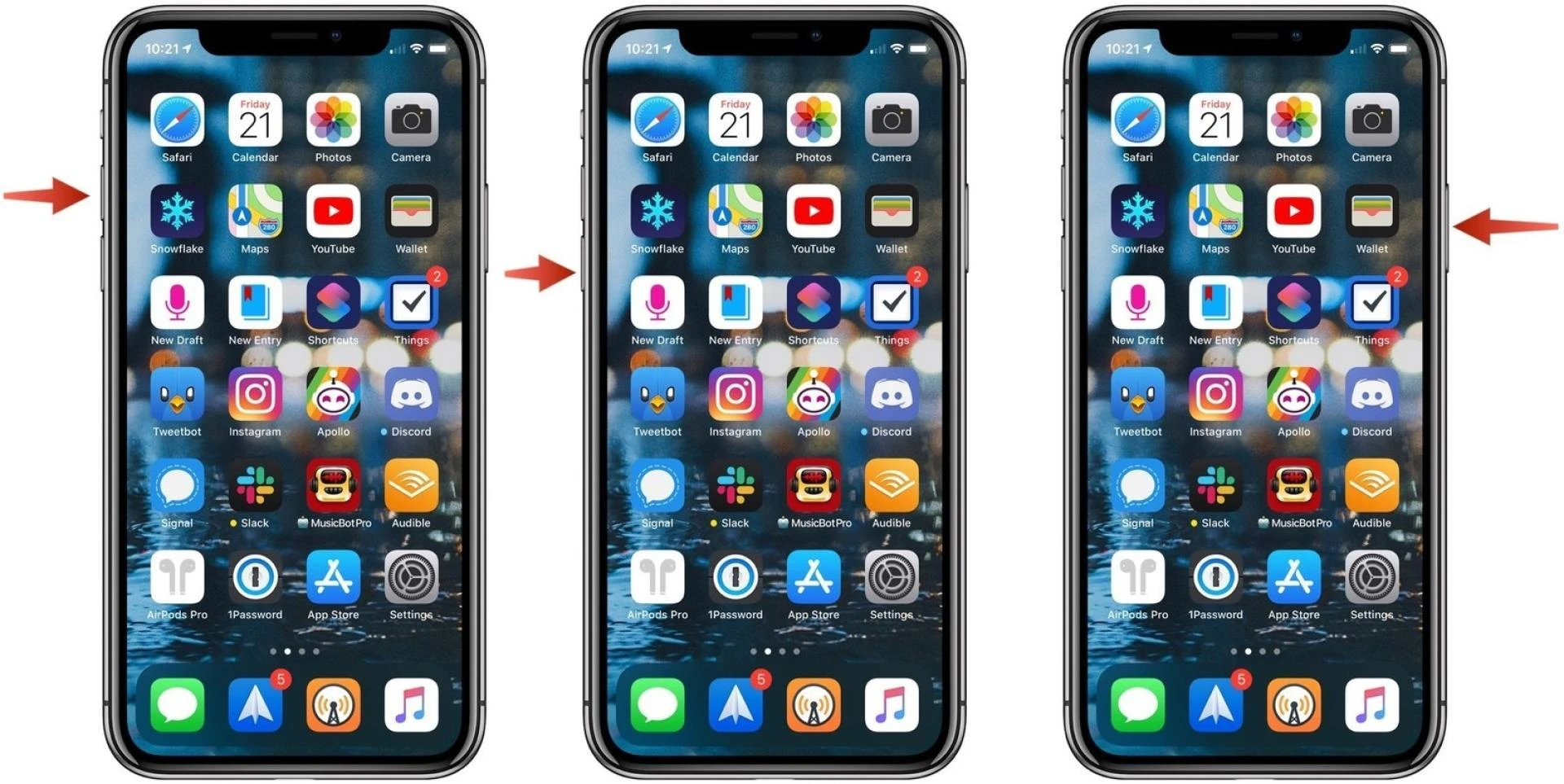
Sometimes, simply restarting your devices can fix backup issues. Restart your iPhone and your computer to refresh their systems.
- iPhone:
- Press and hold the power button (and volume button on some models) until the "slide to power off" slider appears. Slide it to turn off, then press and hold the power button again to turn it back on.
- Computer:
- Restart your computer through the Start menu (Windows) or the Apple menu (Mac).
4. Check Your Internet Connection
A stable internet connection is necessary for iCloud backups. Make sure your Wi-Fi is strong and reliable. You can reset your network settings if you encounter persistent connectivity issues:
- Reset Network Settings:
- Go to Settings > General > Reset > Reset Network Settings. Note that this will remove saved Wi-Fi passwords.
5. Manage Backup Settings
Ensure that you have selected the right content to back up. Sometimes, trying to back up too much data can cause failures.
- Customize iCloud Backup:
- Go to Settings > [Your Name] > iCloud > Manage Storage > Backups.
- Select your device and manage the data being backed up. Toggle off apps that you don’t need to back up to reduce the backup size.
6. Use a Different USB Cable or Port
If you\'re backing up to your computer, the issue might be with the USB cable or port. Try using a different cable or port to see if that resolves the problem.
7. Sign Out and Back In
Signing out and back into your iCloud account can sometimes resolve backup issues.
- Sign Out of iCloud:
- Go to Settings > [Your Name] > Sign Out. Follow the prompts and sign back in.
8. Contact Apple Support
If you’ve tried all the above steps and still can’t back up your iPhone, it might be time to contact Apple Support. They can provide additional troubleshooting steps or identify if there’s a hardware issue with your device.
Conclusion
Experiencing an "iPhone Backup Failed" error can be frustrating, but with these steps, you can troubleshoot and resolve the issue. Ensuring adequate storage, keeping software updated, and checking your connections are all key steps in resolving backup problems. If all else fails, don’t hesitate to reach out to Apple Support for assistance.







Sign in to leave a comment.