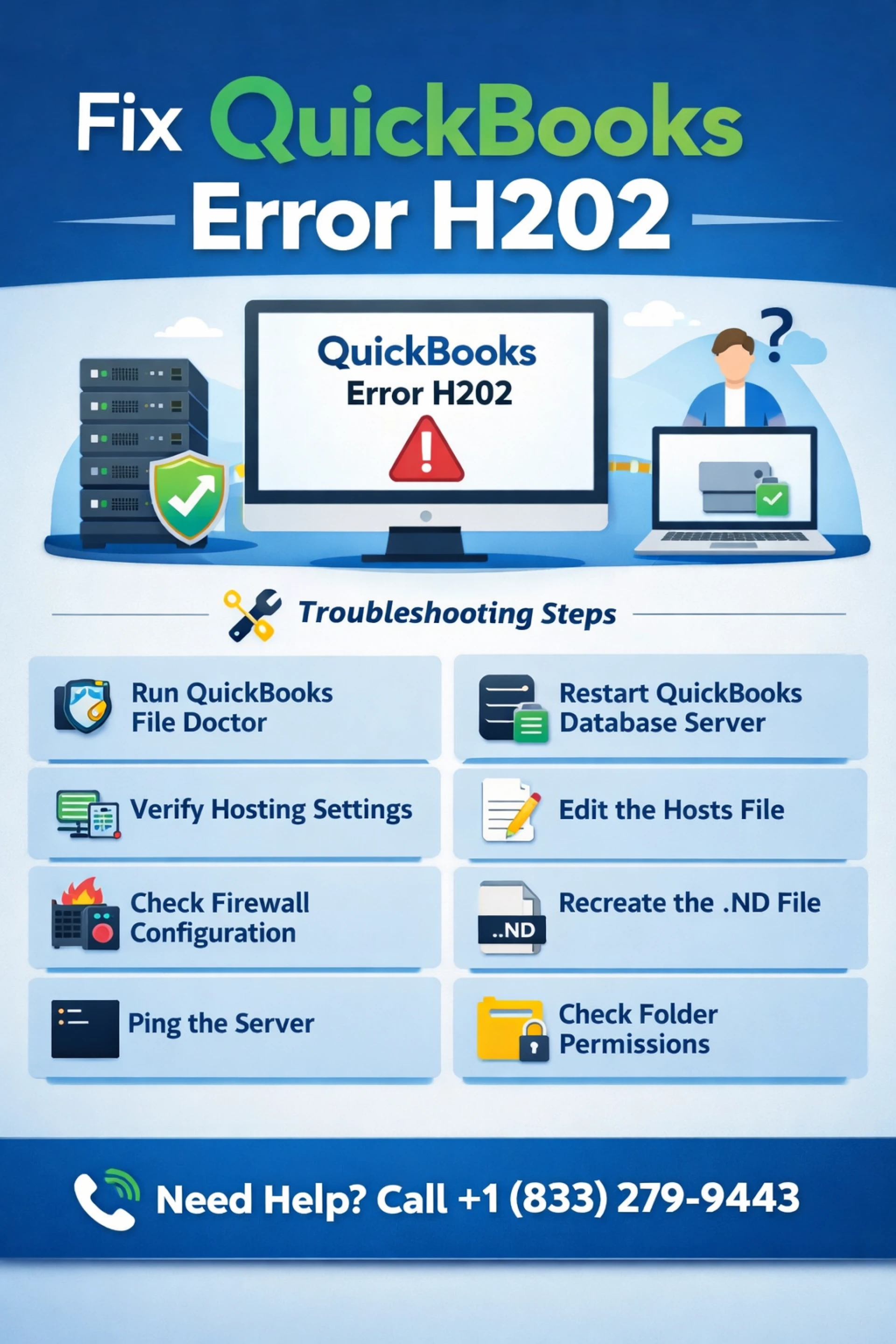

How to Fix QuickBooks Error H202: A Complete Step-by-Step Guide
QuickBooks is one of the most widely used accounting software solutions for small and medium-sized businesses. It allows multiple users to access the same company file over a network, which greatly improves collaboration and productivity. However, like any complex software, QuickBooks can sometimes encounter technical issues. One of the most common and frustrating problems users face in multi-user mode is QuickBooks Error H202.
If you are seeing Error H202 while trying to access your company file, it means QuickBooks is having trouble communicating with the server that hosts the file. This error usually prevents users from switching to multi-user mode and can disrupt daily accounting operations.
In this detailed guide, we will explain what QuickBooks Error H202 is, why it occurs, and—most importantly—how to fix it step by step.
What Is QuickBooks Error H202?
QuickBooks Error H202 occurs when a workstation (client computer) cannot establish a connection with the server computer where the company file is stored. This error typically appears when you try to open a company file that is located on another system or when you switch from single-user mode to multi-user mode.
Common Error Message You May See:
“Error H202: This company file is on another computer, and QuickBooks needs some help connecting.”
This indicates a network-related issue rather than a problem with the company file itself.
When Does QuickBooks Error H202 Occur?
QuickBooks Error H202 usually appears under the following circumstances:
·When opening a company file stored on a server
·When switching to multi-user mode
·When network settings are misconfigured
·When QuickBooks Database Server Manager is not running
·When firewall or antivirus software blocks QuickBooks communication
·When DNS or IP configuration issues exist
Primary Causes of QuickBooks Error H202
Understanding the root cause of the error helps in choosing the right troubleshooting method. Below are the most common reasons why Error H202 occurs:
1. Incorrect Hosting Configuration
If hosting is enabled on workstations instead of the server, QuickBooks may fail to connect properly.
2. Firewall or Security Software Blocking Access
Firewalls or antivirus programs may block QuickBooks services or required ports, preventing communication between systems.
3. QuickBooks Database Server Manager Not Running
The Database Server Manager is responsible for managing multi-user access. If it’s not running, QuickBooks cannot connect to the company file.
4. Network Connectivity Issues
Problems with DNS settings, IP address resolution, or unstable network connections can trigger Error H202.
5. Damaged or Incorrect .ND File
The Network Descriptor (.ND) file allows QuickBooks to access the company file over a network. If it’s damaged or incorrectly configured, Error H202 may occur.
Important Things to Do Before Troubleshooting
Before you start fixing QuickBooks Error H202, keep these points in mind:
·Make sure QuickBooks is updated to the latest version
·Ensure all computers are connected to the same network
·Log in with Windows administrator rights
·Back up your company file
Solution 1: Use QuickBooks File Doctor Tool
QuickBooks File Doctor is a built-in diagnostic tool that automatically detects and fixes common network and company file issues.
Steps to Use QuickBooks File Doctor:
1.Download and install QuickBooks Tool Hub
2.Open Tool Hub and select Company File Issues
3.Click Run QuickBooks File Doctor
4.Select your company file
5.Choose Check your file and network
6.Enter QuickBooks admin credentials
7.Let the tool complete the scan
This tool can resolve many H-series errors, including H202.
Solution 2: Verify Hosting Settings on All Computers
Incorrect hosting configuration is one of the leading causes of Error H202.
On Workstations:
1.Open QuickBooks
2.Go to File > Utilities
3.If you see Stop Hosting Multi-User Access, click it
4.Confirm the action
5.Restart QuickBooks
On Server Computer:
1.Open QuickBooks
2.Go to File > Utilities
3.Ensure Host Multi-User Access is enabled
Only the server should host the company file.
Solution 3: Check QuickBooks Database Server Manager
The Database Server Manager must be running on the server computer.
Steps:
1.Press Windows + R
2.Type services.msc and press Enter
3.Locate QuickBooksDBXX (XX represents your version)
4.Ensure the status is Running
5.If not, right-click and select Start
6.Set Startup Type to Automatic
Restart the server after making changes.
Solution 4: Configure Firewall Settings Manually
Firewalls often block QuickBooks communication ports, leading to Error H202.
Required Ports (Examples):
·QuickBooks 2024: 8019, 56728, 55378–55382
·QuickBooks 2023: 8019, 56727, 55373–55377
Steps:
1.Open Windows Defender Firewall
2.Go to Advanced Settings
3.Create Inbound and Outbound Rules
4.Allow the required ports
5.Add QuickBooks executable files to firewall exceptions
Repeat this on both server and workstations.
Solution 5: Ping the Server from Workstations
Testing network connectivity helps identify DNS or IP issues.
Steps:
1.Press Windows + R
2.Type cmd and press Enter
3.Type ping [ServerName]
4.Press Enter
If you see packet loss or request timeouts, there is a network issue that must be resolved.
Solution 6: Edit the Hosts File
Incorrect DNS resolution can prevent QuickBooks from locating the server.
Steps:
1.Open Notepad as administrator
2.Go to:
C:\Windows\System32\drivers\etc
3.Open the hosts file
4.Add the server’s IP address and name
5.Save changes
6.Restart the computer
Solution 7: Recreate the .ND File
The .ND file helps QuickBooks locate the company file over the network.
Steps:
1.Go to the folder containing your company file
2.Locate the .ND file
3.Rename it to .ND.old
4.Open QuickBooks Database Server Manager
5.Scan the company file folder
6.Restart QuickBooks
A new .ND file will be created automatically.
Solution 8: Disable Antivirus Temporarily
Some antivirus programs mistakenly block QuickBooks services.
·Temporarily disable antivirus software
·Open QuickBooks in multi-user mode
·If the error is resolved, add QuickBooks to antivirus exceptions
·Re-enable antivirus protection
Solution 9: Verify Folder Permissions
Ensure the company file folder has full permissions.
Required Permissions:
·Read/Write
·Modify
·Full Control (for QuickBooks users)
Apply permissions to both server and workstation users.
When to Contact QuickBooks Support
If none of the above solutions resolve QuickBooks Error H202, the issue may be more complex and require professional assistance. Network configuration problems, server conflicts, or advanced firewall rules often need expert handling.
For immediate help from experienced QuickBooks professionals, you can call +1(833)-279-9443 and get step-by-step assistance to resolve Error H202 quickly and safely.
Tips to Prevent QuickBooks Error H202 in the Future
·Always store the company file on a dedicated server
·Keep QuickBooks updated
·Regularly scan folders with Database Server Manager
·Configure firewall and antivirus correctly
·Avoid enabling hosting on workstations
·Use stable and secure network connections
Conclusion
QuickBooks Error H202 is a common multi-user mode issue, but it is completely fixable with the right approach. Whether the problem is related to hosting settings, firewall restrictions, network configuration, or damaged files, following the solutions outlined in this guide can help you restore smooth access to your company file.
If troubleshooting feels overwhelming or time-consuming, professional help is always a smart option. For expert QuickBooks Error H202 support, don’t hesitate to reach out at +1(833)-279-9443 and get your accounting system back on track without delay.






Sign in to leave a comment.