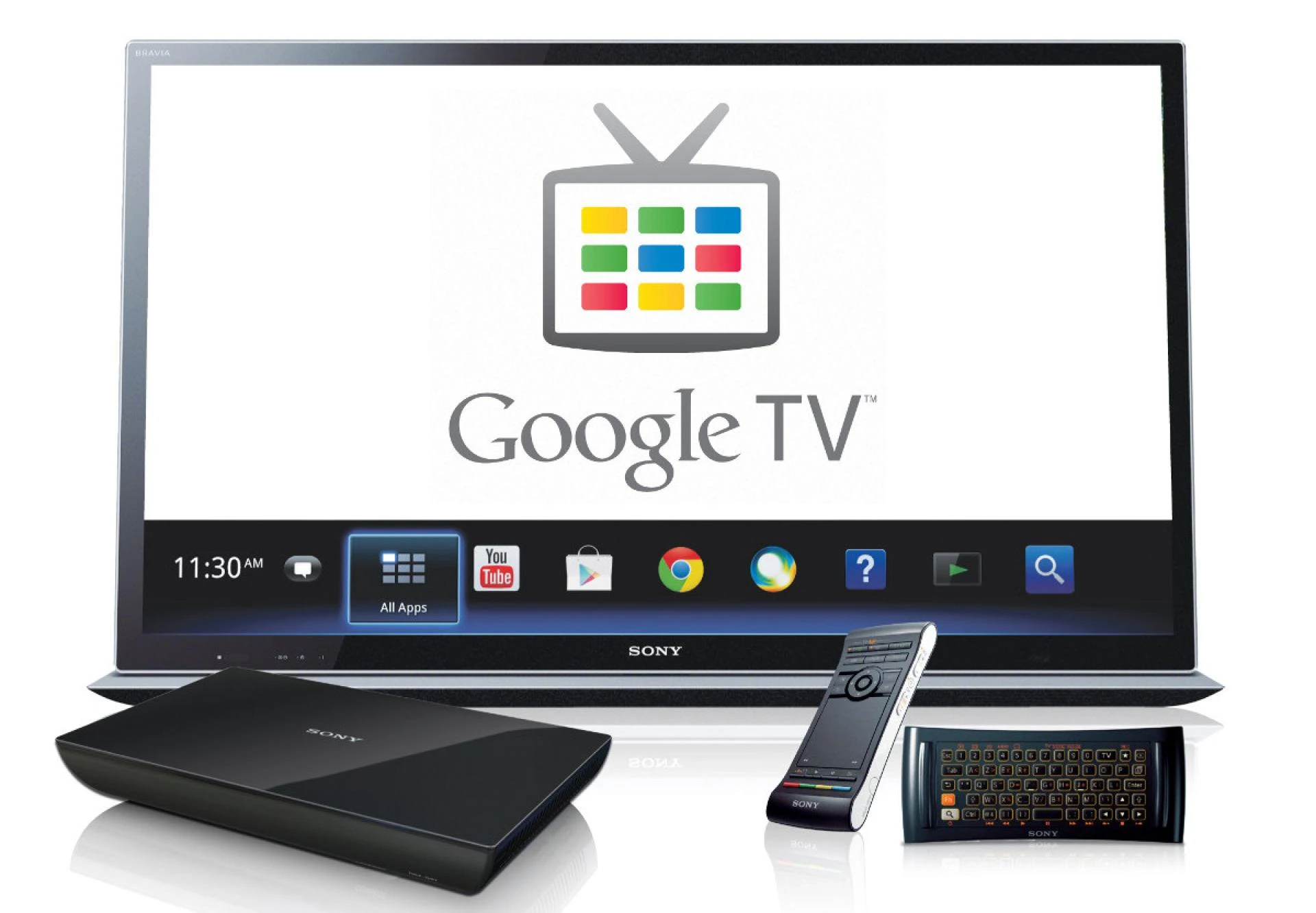

The latest Chromecast of Google has bought several new features for users. Now it offers an amazing remote and 4K HDR streaming only for $50. Plus, it also gives the whole interface of Google TV. These new features and easy interface are now available for users to watch their favorite movies and shows in a very straightforward way. However, numerous Android TV users are having a hard time finding the Google Play Store application, and if you’re also struggling with the same problem, here’s the guide for you.
How to Get Google Play Store App on Chromecast with the Google TV
The way Chromecast organizes the apps on Google TV could be slightly confusing for most of the users. You can browse all installed apps on the App tab, but it can also be used to find new apps to download.
Just browse over the app categories or search for your preferred app by using Google Assistant to find your preferred app. However, if you’re unable to find the Google Play Store, here are the ways to find it easily.
Tap and hold the Google Assistant key on the remote.Speak, Google Play Store.That’s all you have to do to find the Play Store. It is the easiest method you can try to find the Google Play Store. Over the App tab, you are allowed to browse all types of apps. However, if you don’t want streaming apps but games, you can switch to the games tab and find your preferred games to play. You can type on the search bar or can simply use your voice to find your preferred app easily.
Managing apps is also easier, you can simply move into the profile picture section and can manage all downloaded apps. If an update is available for any app, you can start downloading it directly from the profile section.
In case you can’t use your voice to find and open your preferred app on Chromecast with Google TV, you can try out the button remapper app to make things easier. Here’s how you can use the button remapper app:
Start downloading the application Button Mapper.Choose the remote button that you wish to remap.Toggle on the Customize.Choose any option among the three.Under the Action tab, select Applications.Pick Play Store.Make sure you follow the steps correctly. If you selected double-press, then by pressing double time the Home button will launch the Play Store.
Conclusion
Once there are multiple apps on Google TV, users will be able to experience getting entertained. Just because every streaming app has a different content, and if that’s not enough, then users can also play games after installing from Google Play Store.
Read Official Blog Post - HOW TO GET GOOGLE PLAY STORE APPS ON CHROMECAST WITH GOOGLE TV





















Sign in to leave a comment.