
iCloud keeps your files synced across all Apple devices, including iPhone, iPad and Mac. However, accidental deletion or syncing errors can result in the loss of your iCloud files, often leaving your iCloud folder empty.
When a user deletes a file from iCloud Drive (or any synced app like Photos, Numbers, Notes, Contacts, or Keynote), it doesn’t get erased right away. Instead, the deleted iCloud file gets transferred to the Recently Deleted folder, where it stays for 30 days.
However, when the 30-day time limitation is passed or the file is removed from Recently Deleted, it means that the deleted file is permanently removed from Apple’s servers and can’t be recovered.
6 Working Ways to Restore Deleted iCloud Files
Before you attempt to recover deleted files from iCloud, it's essential to understand that the iCloud service automatically syncs data across all your Apple devices. This means when you delete a file on one device, it’s also removed from iCloud and other connected devices. That’s why recovery of deleted files must be done through iCloud’s web portal or account settings within 30 days of data being lost. Let’s see how to restore iCloud deleted files depending on the device you’re using:
1. Recover Files from iCloud.com (Web Browser)
Do the following:
· Go to www.icloud.com on your web browser.
· Sign in with your Apple ID and password.
· Click on iCloud Drive >> Recently Deleted >> Select the files >> click Recover.
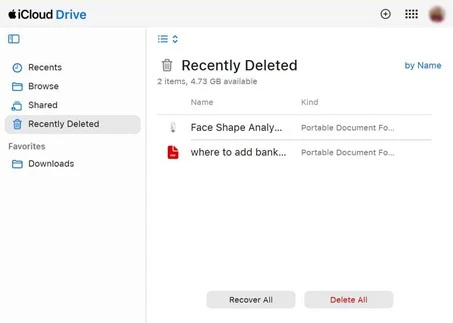
Important Tip: Can’t find the “Recently Deleted” option inside iCloud Drive? Then, go to Account Settings >> Advanced section > > Restore Files. From here, select the deleted files you want to restore and recover them.
2. Restore Files on a Mac via Finder or iCloud Drive
The following option is suitable for users who have synced their Mac with the iCloud Drive. Once you have synced them, any files saved in iCloud will be accessible on your Mac too. This gives you a few other ways to recover deleted iCloud files.
· Open Finder >> iCloud Drive to see all files currently stored in iCloud
· If you previously had the file stored locally, check the Mac’s Trash bin to restore it
· You can even check the Recently Deleted folder in the iCloud Drive on the web interface
3. Recover Files from iCloud for Windows
This option is available only for users who use iCloud Drive on a Windows PC:
· Check the Recycle Bin, as sometimes deleted files are transferred there if the files were previously synced locally
· Check iCloud for Windows or visit iCloud.com to retrieve deleted files from Recently Deleted.
4. Retrieve Deleted iCloud Files on iPhone or iPad
To recover data from Files App:
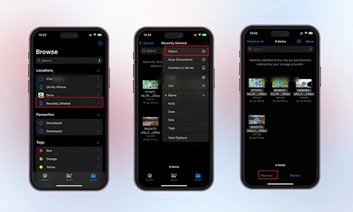
Open Files > Browse > iCloud Drive > Recently Deleted > Select your files > Recover.
Use the Recover from iCloud Backup Feature:
This feature can help restore iCloud deleted files, but will overwrite all the current settings and data of your iPhone/iPad. Thus, don’t forget to create a backup of your existing iOS data before using this method.
- Open the Settings → General → Transfer or reset iPhone → Erase All Contents and Settings and follow the prompts.
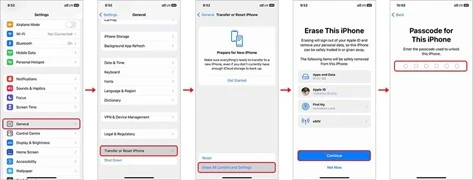
- Set up the iPhone or iPad again, and select Restore from iCloud Backup.
- Use your Apple ID to log in to the iCloud account and restore data.
5. Use iPhone Data Recovery Software
If you’re iCloud-synced data was ever stored locally on your iPhone or iPad, traces of that data may still exist on the device. When files are deleted, they’re not completely erased right away; instead, the storage space occupied by them is marked as available for new data.
This simply means that residual fragments of deleted iCloud data could be recoverable from an iPhone or iPad’s internal memory by using specialized recovery software like Stellar Data Recovery for iPhone. This tool scans the device deeply to locate and restore these lost files.
· Use the app and connect your iPhone to the computer, which will have the Stellar Data Recovery for iPhone software set up.
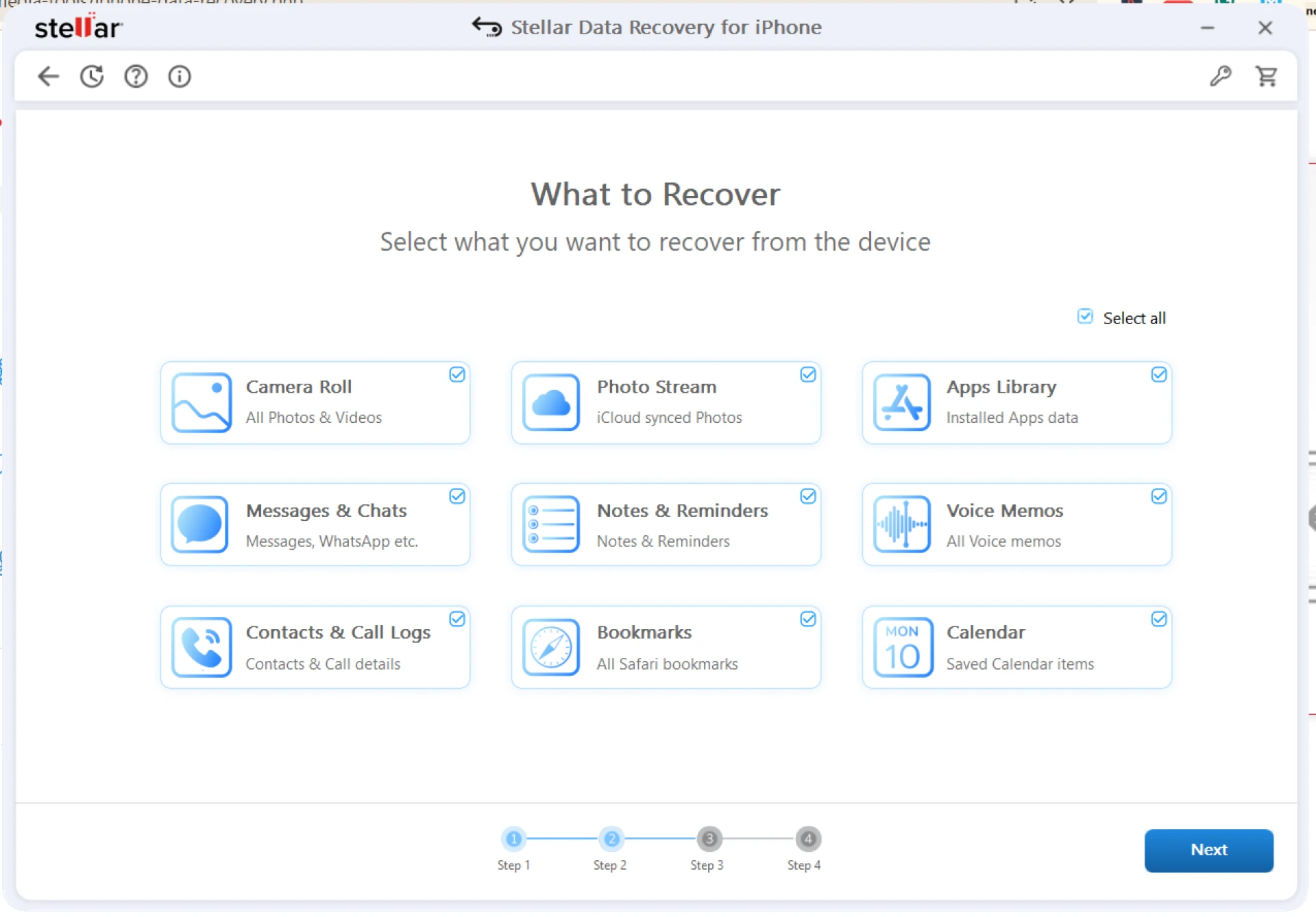
· Select Recover from iPhone and the type of data you want to retrieve.
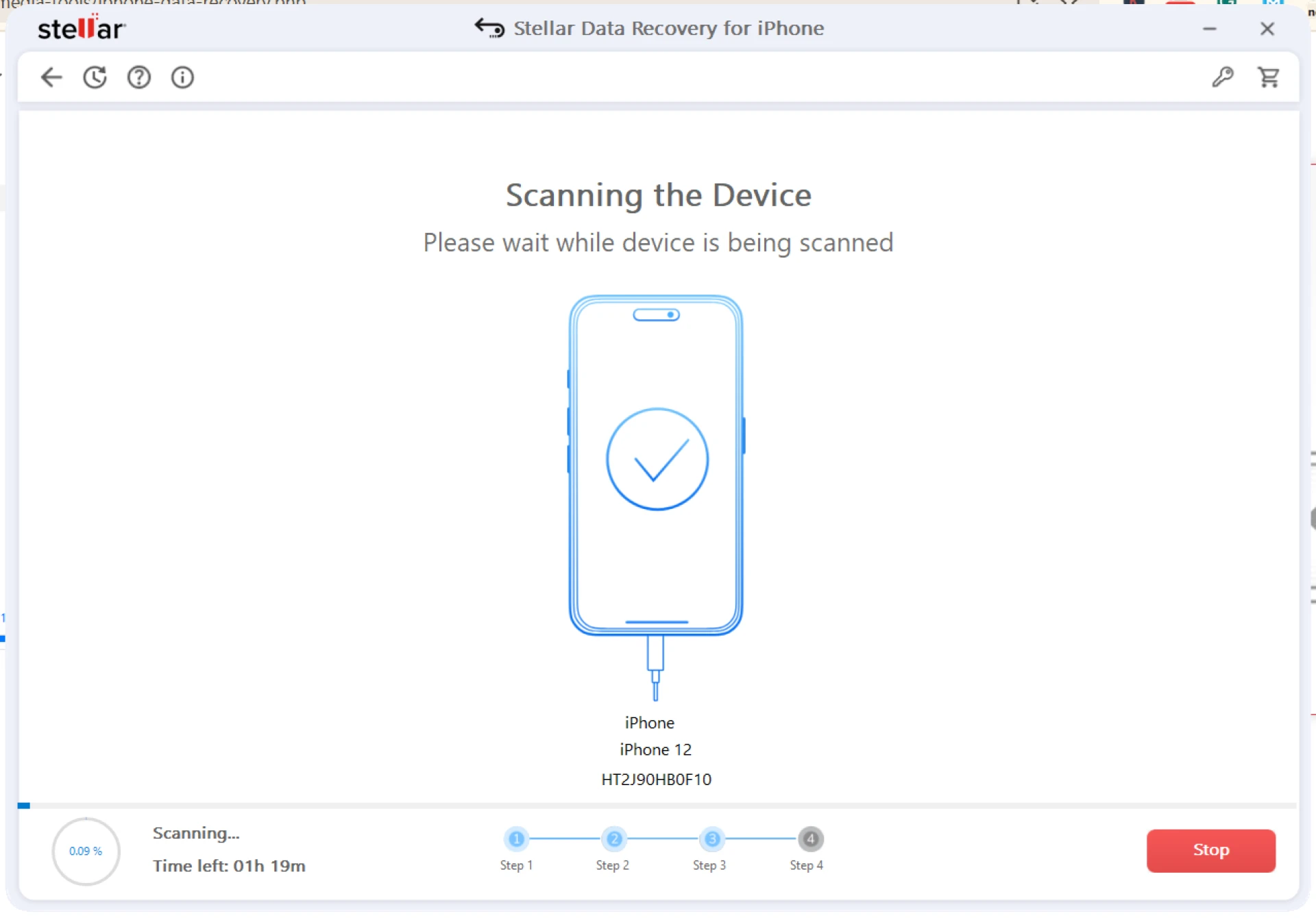
· Select your device and use the scan feature to look for any recoverable data.
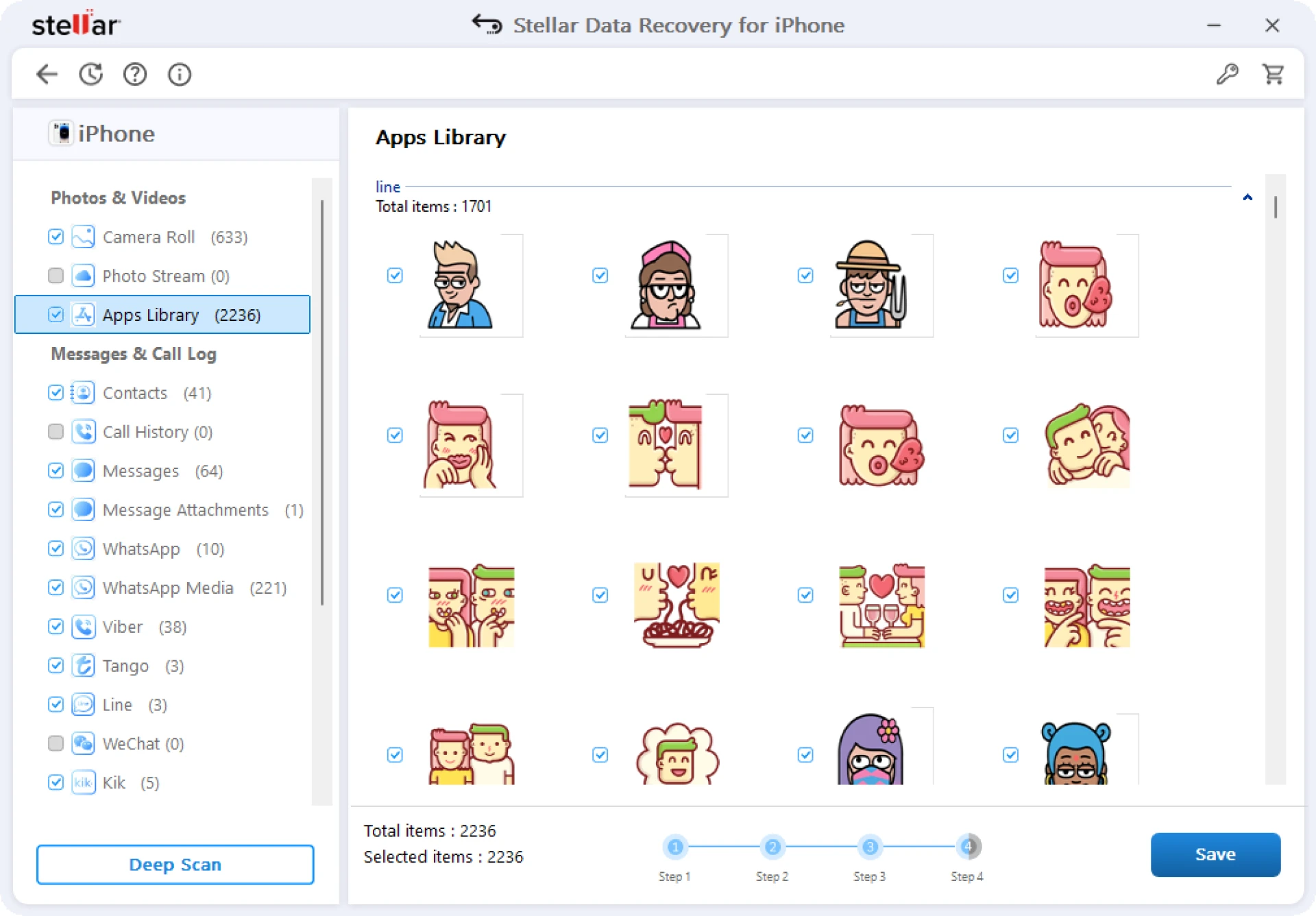
· Select the files you want to recover and save them to your computer.
6. Use Professional Data Recovery Services
You can contact professional data recovery services if previous iPhone data recovery methods fail. Such services specialize in retrieving lost files in all device failure scenarios. The price for such recovery will depend on the complexity of your case, but sometimes, this is the only option to access deleted iCloud data.
Real-World Example: When iCloud Deletion Goes Wrong
A recent user discussion on Apple’s support forum highlights how confusing the iCloud deletion process can be.
In the post, a MacBook and iPhone user had iCloud Drive with Desktop & Documents sharing enabled. She was under the false impression that iCloud served as a backup, keeping an extra copy of her files safe. While trying to clear out her iCloud storage space on her iPhone:
Apple ID >> iCloud >> iCloud Drive >> Manage Storage >> Delete from iCloud.
This step deleted all her files from iCloud Drive, including everything on her Mac’s desktop. To make matters worse, she:
· Didn’t have Time Machine backups, and
· Found nothing in Recently Deleted on iCloud or in the Mac Trash bin.
After contacting multiple Apple Advisors, she learned that once files are deleted this way, they may be permanently removed from Apple’s servers.
Key Lessons from This Case
· iCloud is for syncing, not for backup.
· Act fast. Once data is not found in the “Recently Deleted” folder, recovery options become limited. Contact Apple Support immediately for escalated help.
How to Prevent Permanent File Loss in the Future
The loss of files leads to stress, but you can prevent this situation by implementing basic safety measures:
· Enable automatic iCloud backup for all devices.
· Consider using a secondary backup service like Time Machine, Google Drive, or Dropbox.
· Check the Recently Deleted folder regularly. So you can avoid losing files deleted by mistake.
· Make sure you don’t run out of iCloud storage space.
iCloud Data Recovery Key Takeaways
Most people fail to consider backup strategies until they experience a critical loss. The process of creating an additional photocopy requires only a few minutes, but it protects your important data or files for years to come. The simple act of storing critical files or cherished photos on external drives or cloud services creates a substantial impact.










Sign in to leave a comment.