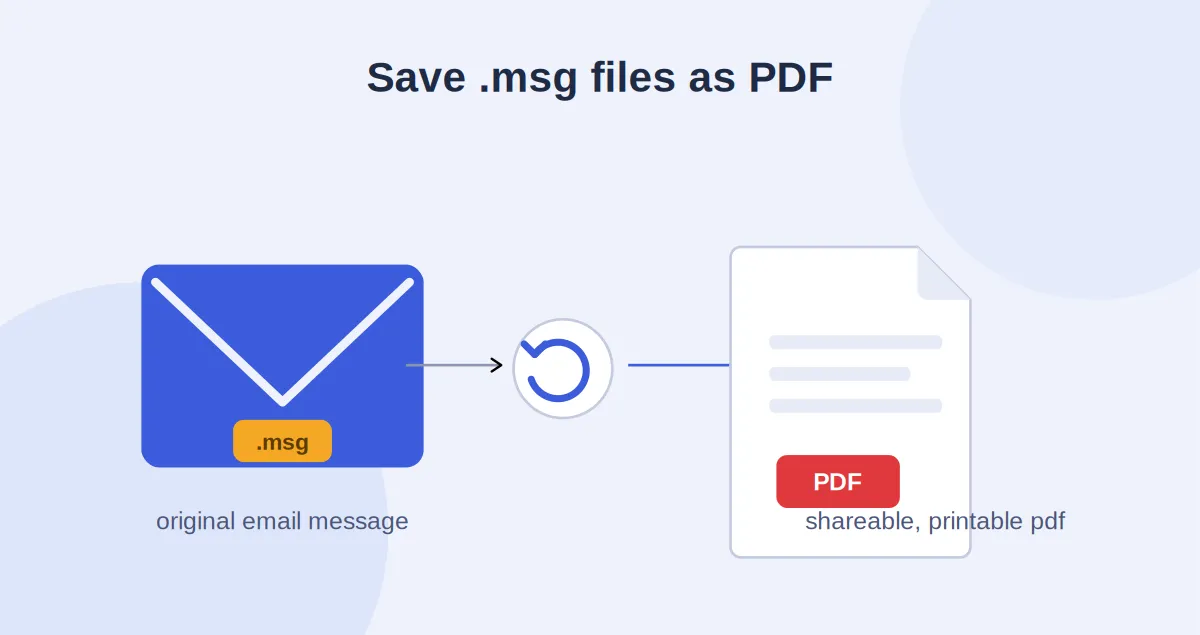

MSG files are commonly used to store individual Outlook emails along with information such as the sender, recipient, subject, message body, date, and attachments. While MSG is useful for preserving individual emails, sharing these files can sometimes be inconvenient because they are closely associated with Microsoft Outlook.
PDF is a more accessible format for sharing, printing, and archiving emails. It can be opened on almost any device without requiring the recipient to have Outlook installed. For this reason, many users search for How to save MSG files as PDF while trying to preserve the important content of their emails.
Fortunately, there are several ways to save MSG emails as PDF files. In this guide, we will explain three practical methods, including a manual Outlook method, an online approach, and an automated solution.
Why Save MSG Files as PDF?
Saving MSG emails as PDF can make them easier to access and share. Unlike MSG files, PDF documents are widely supported across operating systems, computers, smartphones, and other devices.
PDF can also be useful for maintaining email records, creating documentation, sharing business correspondence, and keeping important messages in a standardized format. However, the method used for conversion can affect how the email's formatting and attachments are handled.
Method 1: Save MSG as PDF Using Microsoft Outlook
If Microsoft Outlook is installed on your computer, you can use its built-in printing feature to save an MSG email as a PDF. This is a suitable option when you only need to convert a small number of files.
Steps to Save MSG Files as PDF
- Open Microsoft Outlook on your computer.
- Locate the MSG file that you want to save as a PDF.
- Double-click the MSG file to open it in Outlook.
- Review the email and make sure the required content is displayed correctly.
- Click File and select Print.
- From the printer list, select Microsoft Print to PDF.
- Review the available page and print settings.
- Click Print.
- Select the folder where you want to save the PDF.
- Enter a suitable file name.
- Click Save.
The email will now be saved as a PDF document in the selected location.
This is a straightforward way to save MSG files as PDF when Outlook is already available. However, the process can become tedious if you need to convert a large number of MSG files because each email generally has to be opened and printed separately.
Method 2: Use an Online MSG to PDF Converter
Online conversion services provide another way to convert MSG file into PDF without installing desktop software. Typically, you upload the MSG file, select PDF as the output format, and download the converted document.
Steps
- Open a reputable online MSG-to-PDF conversion service.
- Upload the MSG file from your computer.
- Select PDF as the desired output format.
- Start the conversion process.
- Wait for the website to process the MSG file.
- Download the resulting PDF.
- Open the PDF and verify that the email content has been converted correctly.
This approach may be convenient when you have only a few non-confidential MSG files. However, privacy should be considered before using an online service.
MSG files may contain private conversations, business correspondence, customer information, contact details, and confidential attachments. Uploading such files to a third-party website may not be appropriate for sensitive data. Users should therefore review the service's privacy and data-handling policies before uploading email files.
Method 3: Use MSG Converter
When you need to process multiple MSG files, an automated desktop solution can be more convenient than converting every email manually. SysTools MSG Converter can be used to convert MSG to PDF through an automated workflow.
Instead of opening and printing each MSG file individually, users can add multiple files or an entire folder and select PDF as the output format.
Steps to Convert MSG Files to PDF
- Download and install the tool on your Windows computer.
- Launch the software.
- Add the MSG files that you want to convert.
- If you have several files, select the folder containing the MSG files.
- Preview the emails to confirm that the correct files have been selected.
- Choose PDF as the output format.
- Select the destination folder where you want to save the converted files.
- Configure the available conversion options according to your requirements.
- Start the conversion process.
- Once the process is finished, open the output folder.
- Check the generated PDF files to confirm that the email information has been converted properly.
The automated approach can be particularly useful when working with a large collection of MSG files. It reduces the repetitive steps involved in opening, printing, and saving individual emails.
How to Save Multiple MSG Files as PDF?
The process becomes more challenging when you have dozens or hundreds of MSG files. Using Outlook's print option for every individual email can require considerable time and manual effort.
Users can add multiple MSG files or an entire folder containing MSG emails. After selecting PDF as the output format, the software can process the selected files through a single conversion workflow.
This approach can be useful for email archiving, business documentation, record management, and other situations where a large number of MSG emails need to be maintained in PDF format.
Limitations of Manual MSG to PDF Conversion
Before deciding How to save MSG files as PDF, it is important to understand the limitations of manual conversion.
- Time-consuming: Converting numerous emails individually requires repetitive actions.
- Outlook dependency: The traditional method requires an application capable of opening the MSG file, with Outlook being the most common option.
- Limited bulk processing: The built-in print feature is more suitable for individual emails than large MSG collections.
- Attachment handling: Saving an email as a PDF does not necessarily mean that its original attachments will automatically become part of the PDF.
- Formatting differences: The appearance of the PDF can depend on the email application and printing configuration.
These limitations make an automated converter worth considering when you have a substantial number of MSG files.
Things to Check After Saving MSG as PDF
After following How to save MSG files as PDF, always check the resulting PDF files. Open a few converted documents and verify that important details such as the sender, recipient, subject, date, and message body are displayed correctly.
If the original MSG files contain attachments, check how those attachments have been handled. You should also make sure that the PDF is readable and that no important email content has been omitted.
For important business or legal records, retaining the original MSG files alongside the converted PDFs can also be useful for future reference.
Conclusion
In this guide, we covered How to save MSG files as PDF using three different approaches. If you only have a few MSG files and Microsoft Outlook is available, the built-in Print to PDF feature provides a straightforward manual option.
Online converters can offer another convenient approach, but users should consider data privacy before uploading confidential email files. For larger collections, MSG Converter provides an automated way to convert MSG to PDF, reducing the repetitive work involved in manually processing individual emails.
The most suitable method depends on the number of MSG files, whether Outlook is available, your privacy requirements, and whether you need individual or bulk conversion.
This version removes the duplicated “Microsoft Print to PDF” method and keeps the article structure focused on three genuinely different approaches.



















Sign in to leave a comment.