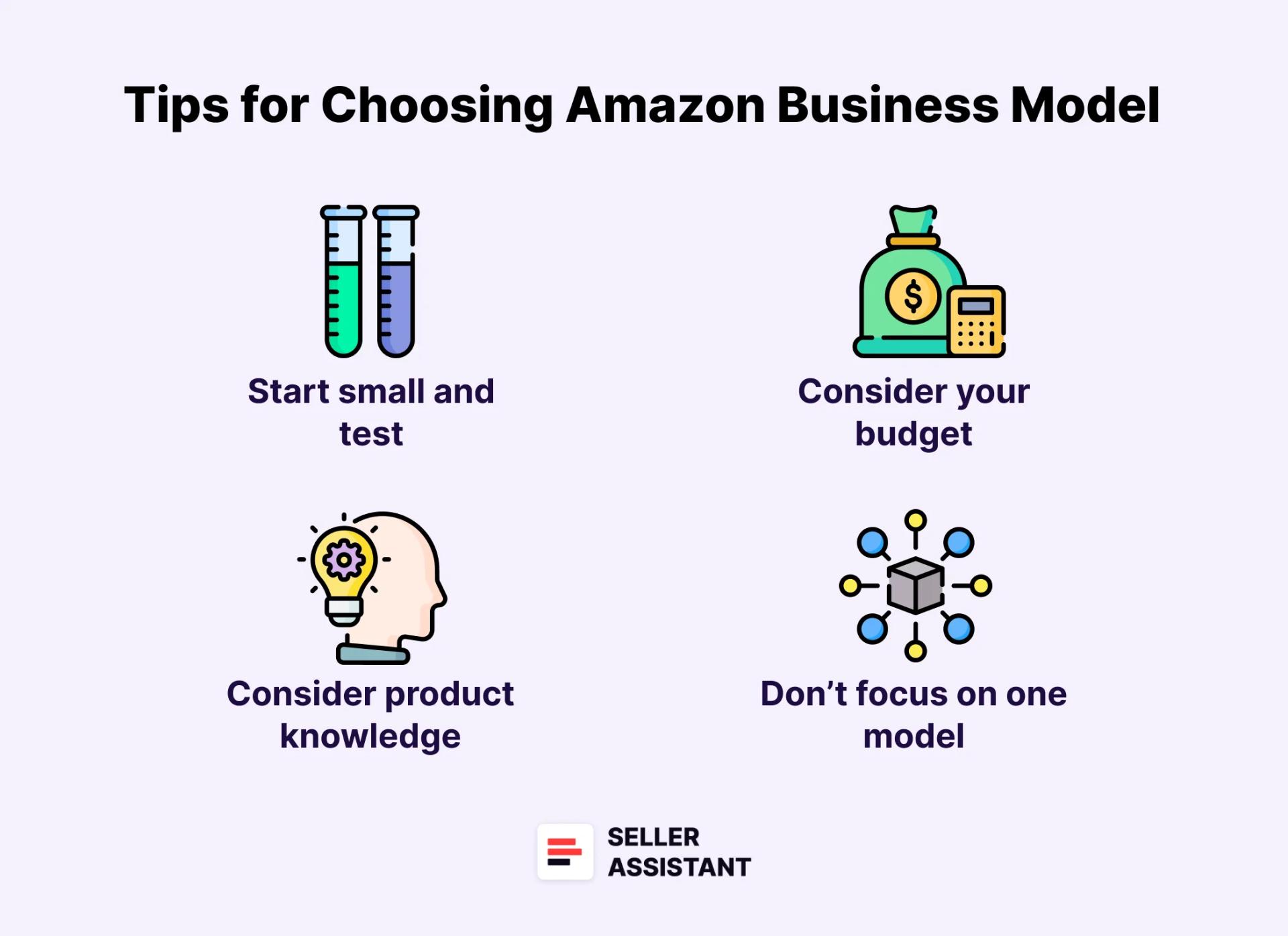
Your choice of a business model must be individual, and depend on your resources, sales experience, and product type. Below you can find some tips to help you select the one that fits you.
How to choose a model for your Amazon business_
Tip 1. Start small and test
Start selling with one of the business models that are easy to set up and don’t require a high upfront investment. That will help learn to sell on Amazon without much risk. Dropshipping or online arbitrage are good options if you want to start selling on Amazon.
Tip 2. Consider your budget
Look at the startup costs associated with each model. Private label and wholesale models require more upfront capital than online arbitrage, retail arbitrage, and dropshipping models.
Tip 3. Consider your product knowledge
Assess your product research skills. While online arbitrage and dropshipping require product research, product sourcing tool Seller Assistant, can essentially simplify this task. Wholesale sellers can also use it to validate wholesale products. On the other hand, with the private label, you need to do extensive market analysis and understand the product manufacturing process, branding, and marketing.
Tip 4. Don’t focus on one model
Choosing the right business model is an ongoing process. As you gain experience and scale your business, you can adapt your business model type to your new needs and goals. For example, many successful Amazon sellers have grown their online arbitrage business to wholesale.Related: Amazon Business Models: How to Choose the Right One?
What to Sell on Amazon?
Choosing what to sell is one of the most important tasks of any Amazon seller. Ultimately, the right product makes you money, while with a problematic item, you can lose all you invested. But how do I select what to sell? What should I look at?
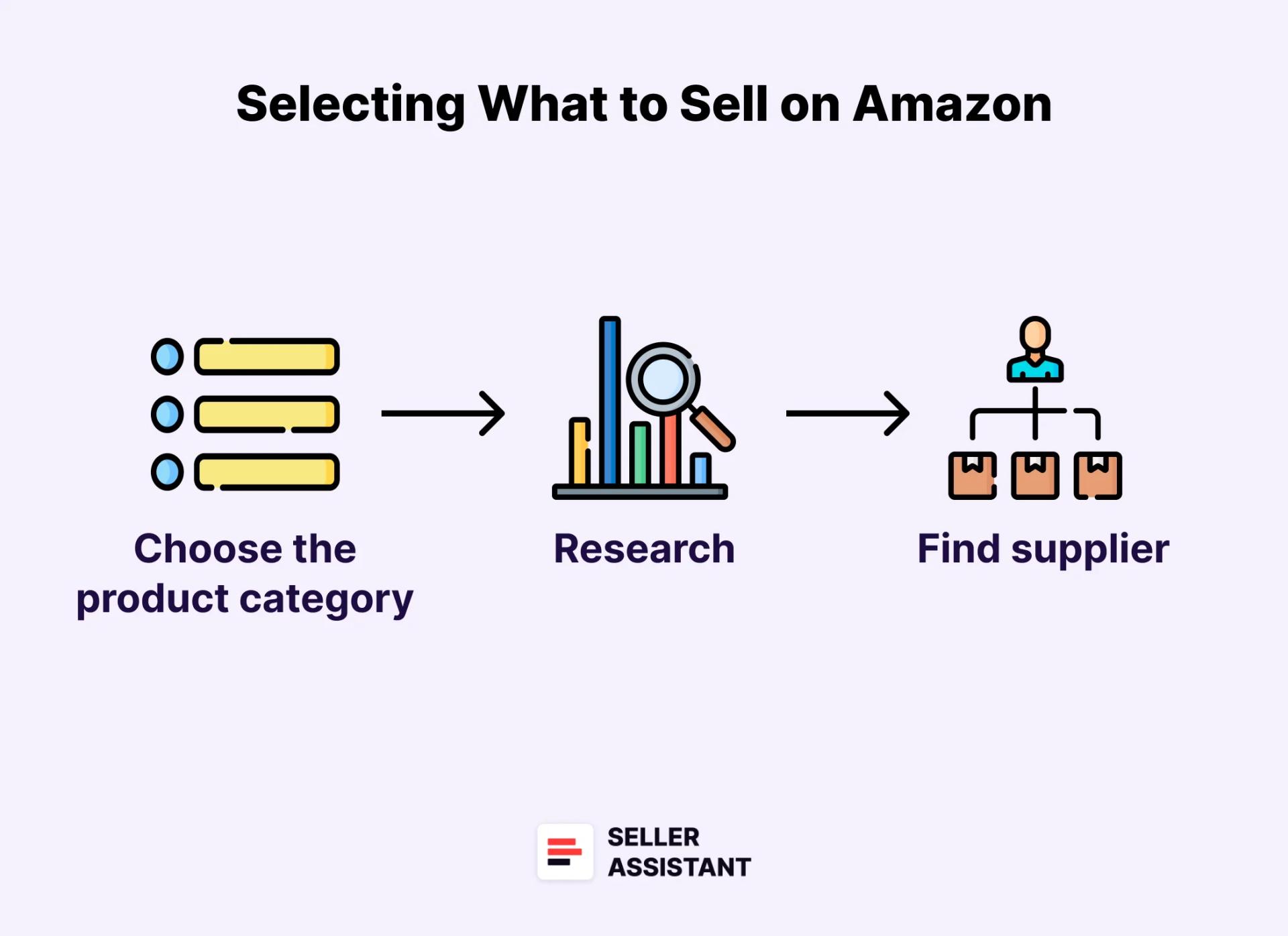
What to Sell on AmazonSelecting what to sell involves 3 parts: choosing a product category, product research (checking the product for the criteria we will discuss below), and finding a product supplier.
Note. In some business models, the process will look differently, however, you will still need to do product research. For example, wholesale sellers start by finding a supplier, then research the list of products they get from that supplier, and choose the most profitable of them to sell (direct sourcing, discussed below).
How to choose an Amazon product category to sell?
Amazon uses categories to group similar items together. This makes it easier for shoppers to find what they\'re looking for and for sellers to list their products in the right place. Amazon divides products into main categories and subcategories.
Example: If you sell a smartphone, you must list it in the "Cell Phones & Accessories" subcategory under the larger "Electronics" category.
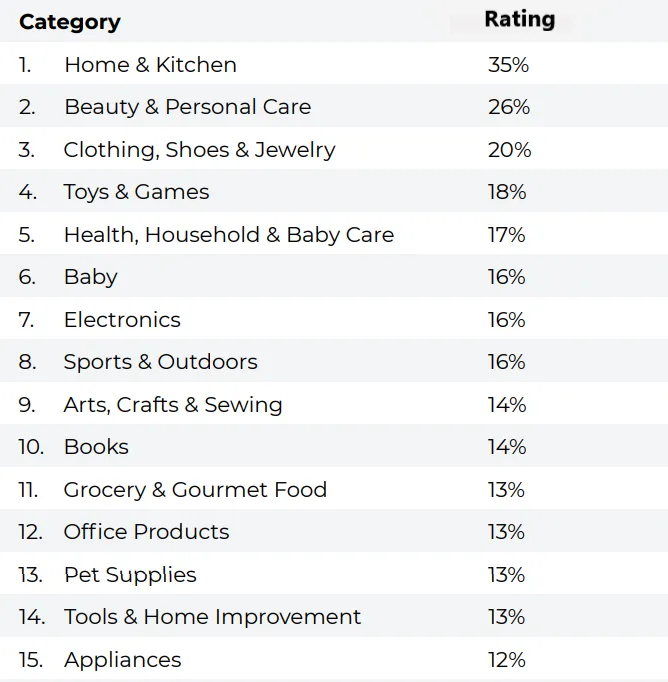
Some product categories are more popular than others, and you must remember that when choosing a product. Below you can find the categories rated by popularity among sellers.
Top Amazon product categories
Top Amazon product categories
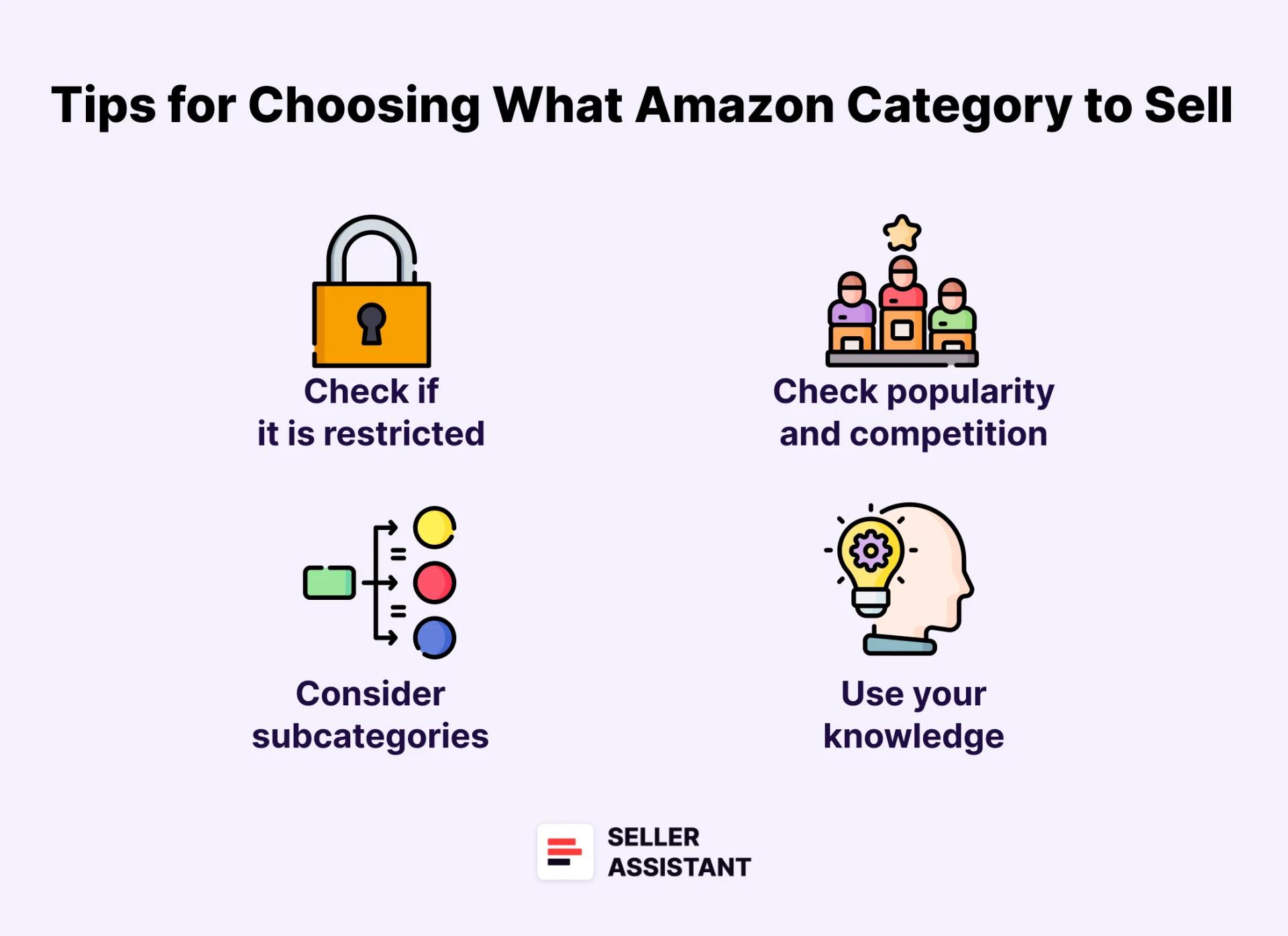
Tips for choosing what Amazon category to sell
If you are not sure how to make your category choice, you can use our tips below.
Tips for choosing what Amazon category to sell
Tip 1. Check if the category is restricted
Start by finding out if the category you\'re considering is restricted (gated). Gated categories require Amazon\'s approval to sell. That may mean additional steps like submitting invoices to Amazon and other document verification. In addition, as a new seller, Amazon may not approve you to sell in a restricted category, so it’s better to avoid such categories.
Tip 2. Look for a balance between popularity and competition
Some categories are more popular than others. However, selling in popular categories often means higher competition because everyone wants to sell popular products. Look for categories with a good balance of demand and competition
Tip 3. Consider subcategories
Don\'t just focus on the main category, explore subcategories. A subcategory might offer a more targeted audience – customers looking for products of your kind.
Tip 4. Use your knowledge and experience
Start selling with what you are interested in and know about. That will be easier for you to handle and get involved with.Related: Top Amazon Product Categories
How to choose your first product?
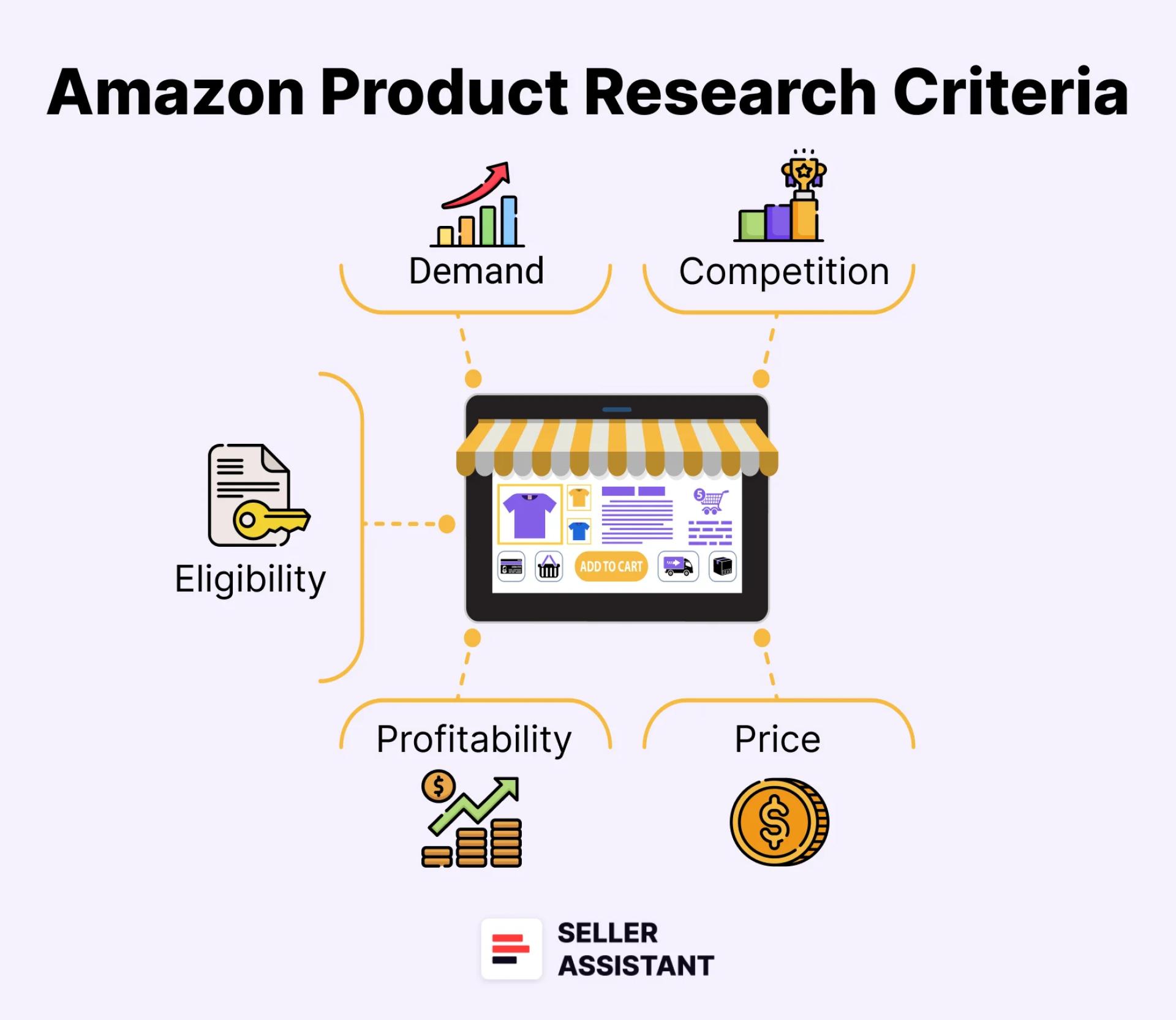
When you’ve chosen the category for your products, it’s time to start looking for your first product. In essence, that means you must ensure it meets specific criteria for best-selling products. This is called product sourcing.To simplify this process, sellers use a product research checklist and make sure the product meets that checklist. If it does, that’s a profitable deal you can sell without hesitation.
Amazon Product Research CriteriaTo research a product, we will use Seller Assistant, a popular and effective product-sourcing platform. It allows you to choose items with good profit potential and no issues. It also helps find reliable suppliers with competitive prices.
13 steps to choosing your Amazon product
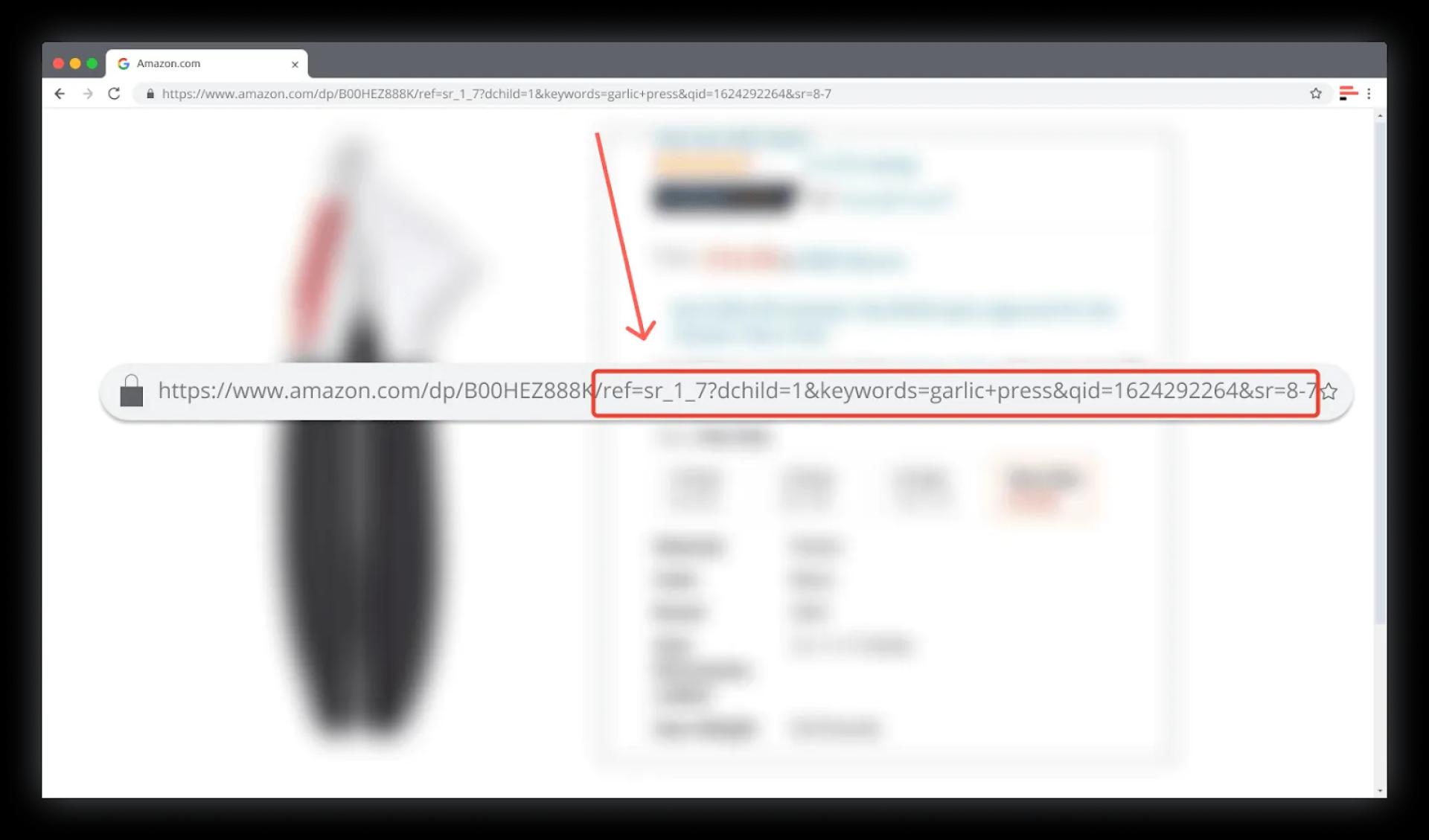
Step 1. Remove the referral from the product linkMake sure the product link you use doesn’t contain a referral (part of the link, starting with ref=). It can give you wrong information about the product. For example, you may not see all seller offers or product variations (different sizes and colors of the same product).How to do it. Delete the part of the link, starting with ref= and refresh the page.
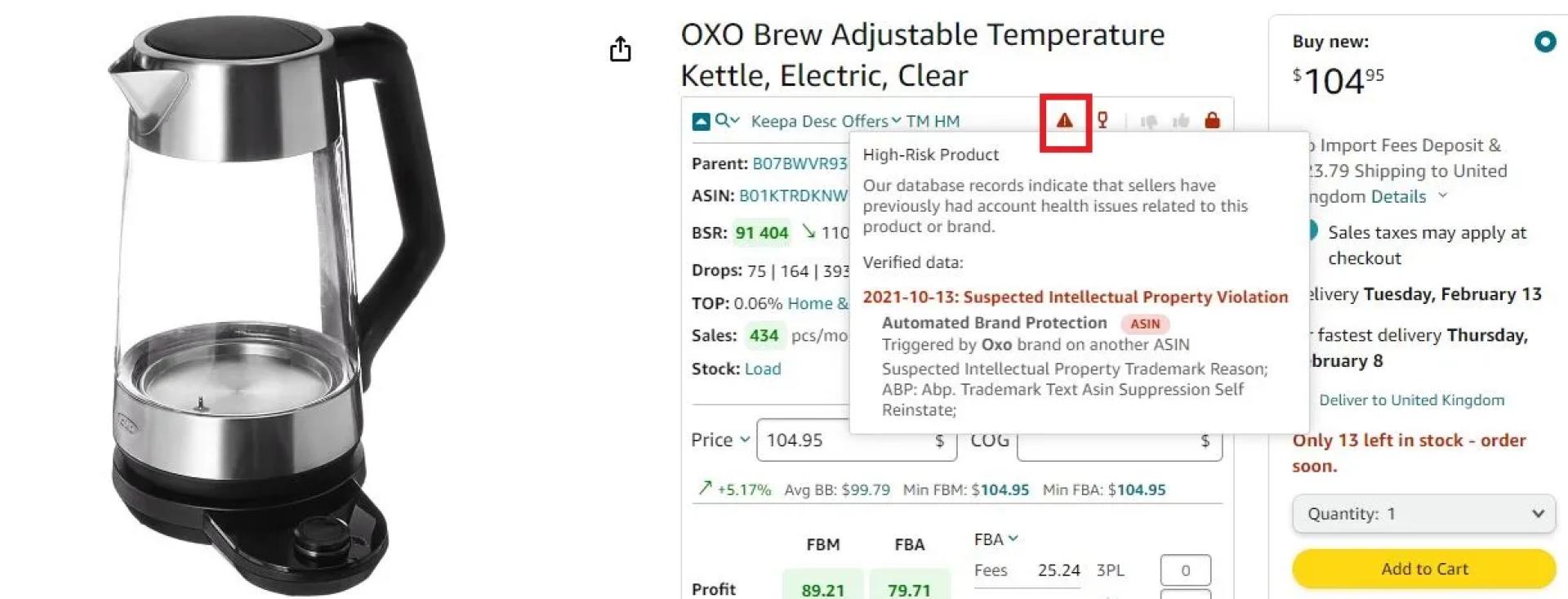
To get correct product data, you must remove the referral from the linkStep 2. Check a product for IP alertsBefore selling a product you must make sure it doesn’t have IP (intellectual property) complaints.IP complaints happen when brands complain to Amazon that other sellers resell that brand’s product without its permission. Amazon will not allow you to list such products because they are trademarked.How to do it. You can detect products with IP complaints with Seller Assistan’s IP Alert feature. It shows the red triangle icon if a product has IP complaints and the type of IP complaint. That means you must stay away from that product and brand.
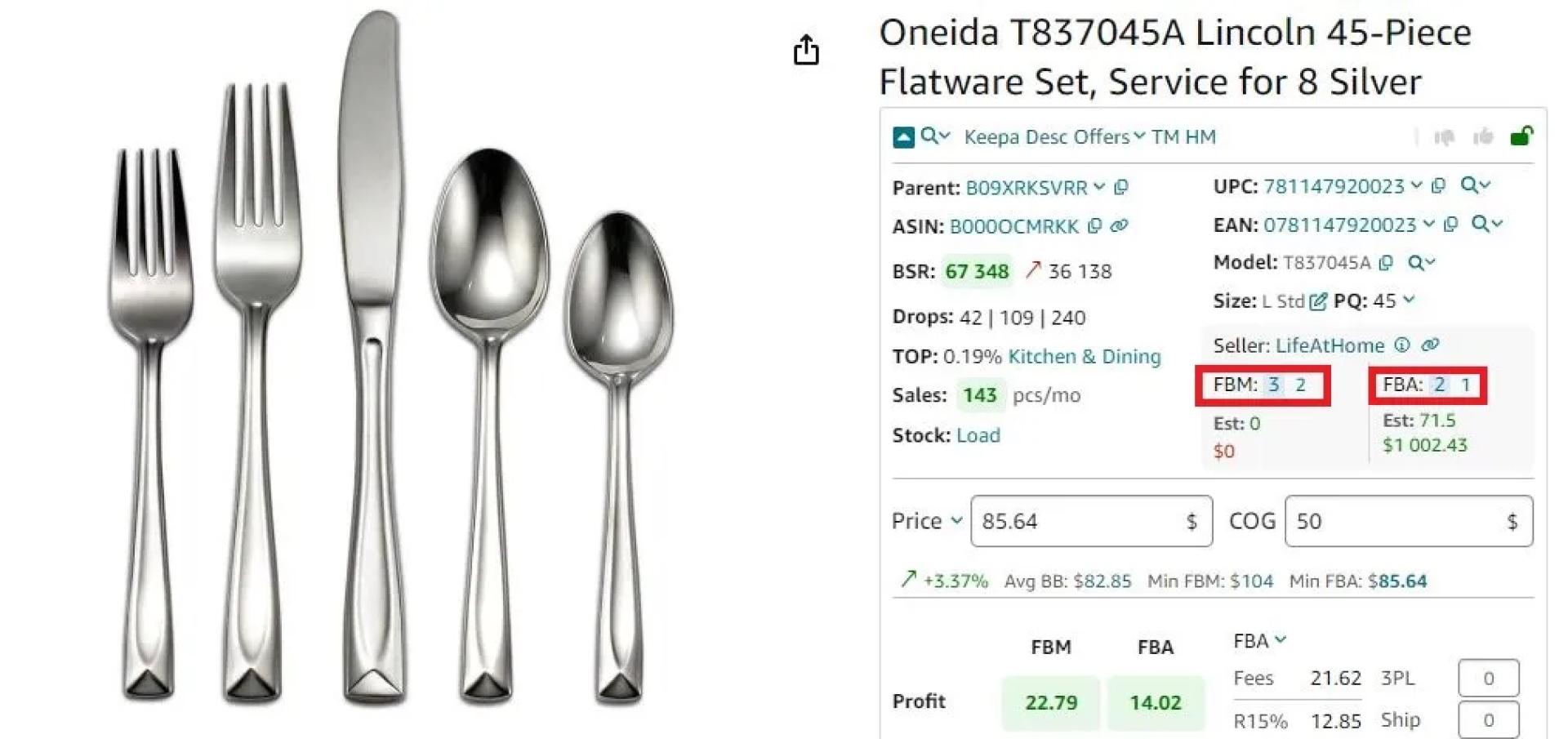
Seller Assistant App’s advanced IP Alert feature shows the red triangle icon if a product has IP complaints and explains whyStep 3. Check competition by FBA seller countThe next step helps avoid products with high competition. If many sellers compete, they drop the price and you can lose much of the profit.The «good» count of FBA seller offers must range from 2 to 15.
The minimum number of 2 sellers shows that a product is not sold by a brand owner and it doesn’t file IP complaints if someone else sells that brand’s products;
The maximum number of 15 sellers shows that the competition is too high. If that is the case, the product price can drop because the sellers engage in a price war. That means price dumping and low profits.
How to do it. You can see the count of FBA sellers with Seller Assistant. It shows the count of FBA and FBM sellers on the product and search pages. The number on a blue background is the count of all FBA or FBM sellers. The number on the white background next to it is the count of FBA or FBM sellers offering the Buy Box price +5% (your potential competitors).
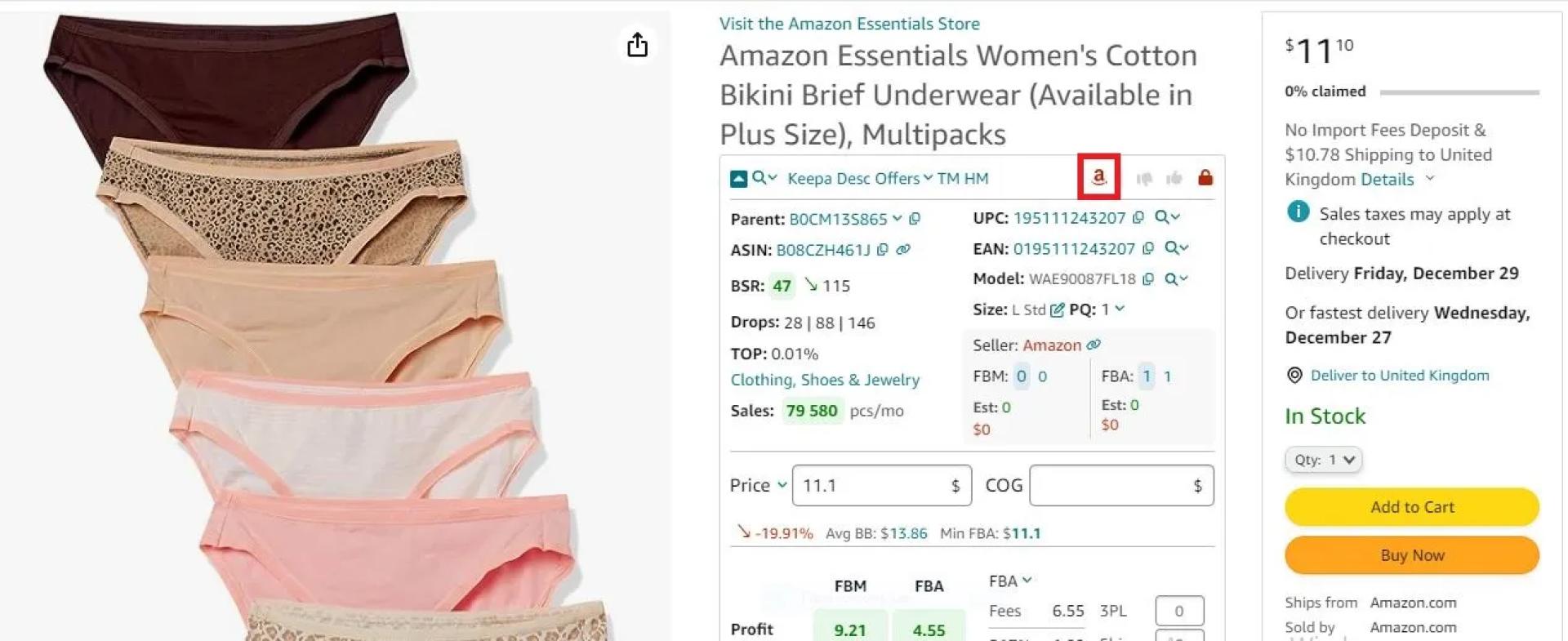
Seller Assistant App shows the number of FBA and FBM offersRelated: How to Avoid a Price War on AmazonStep 4. Check if Amazon is a sellerAmazon can sell some products as a seller in its own marketplace. If Amazon sells a product, it is not suitable for selling. That is because it is almost impossible to compete with them. As a huge retailer, they always get the best offer. Therefore, it’s better to find another product to sell.How to do it. You can see if Amazon is a Buy Box seller with Seller Assistant. It shows the Red Amazon icon on the product and search pages.
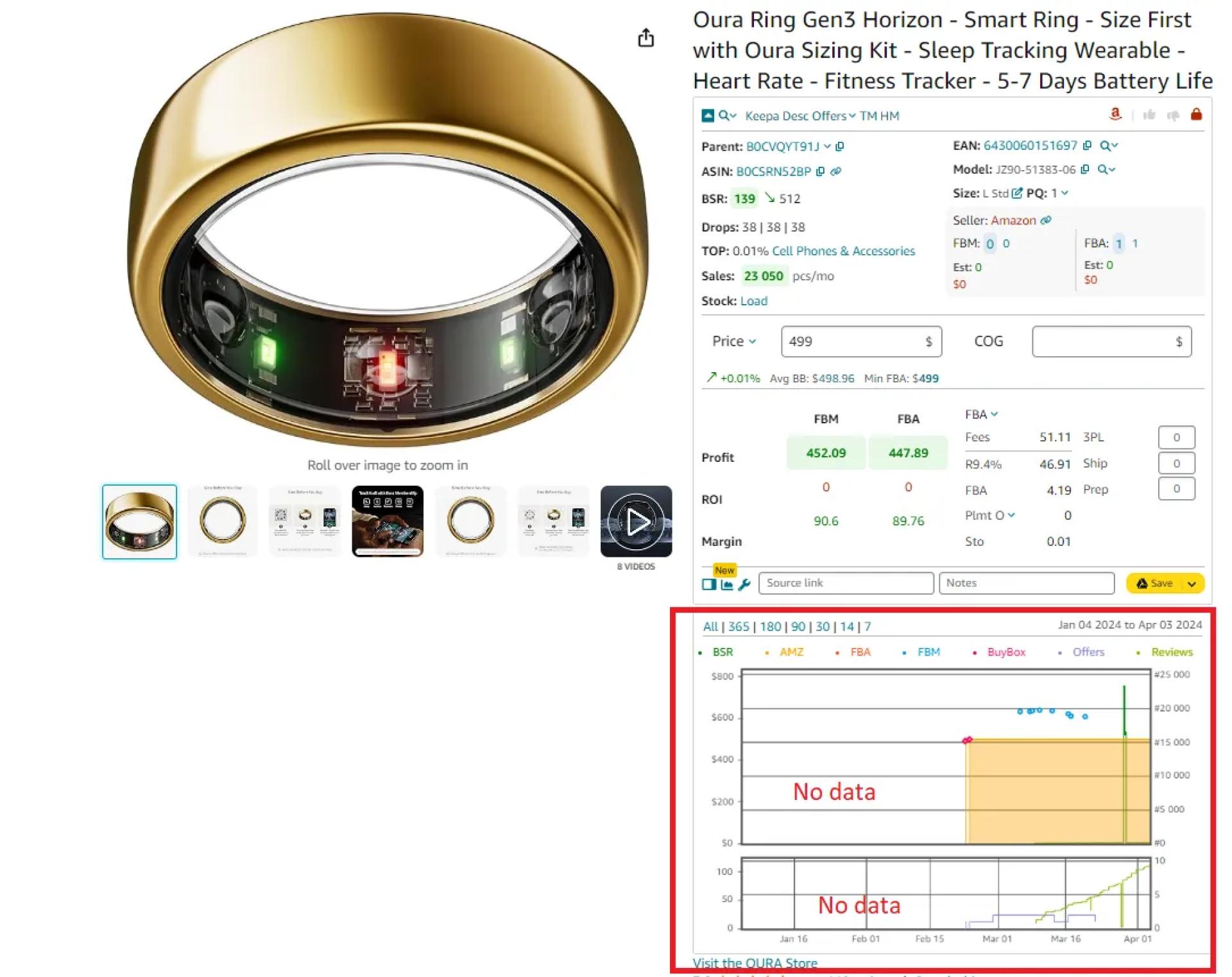
If Amazon is a seller, Seller Assistant App shows the red Amazon icon on the product pagesStep 5. Check out the listing ageThe product listing must be old enough so that you can see how the product sales and price behaved over time. The «good» listing age is half a year or more.How to do it. You can see that on the chart integrated within Seller Assistant (it’s called Keepa charts). If a product is new, the chart will not show you any data before a certain period.
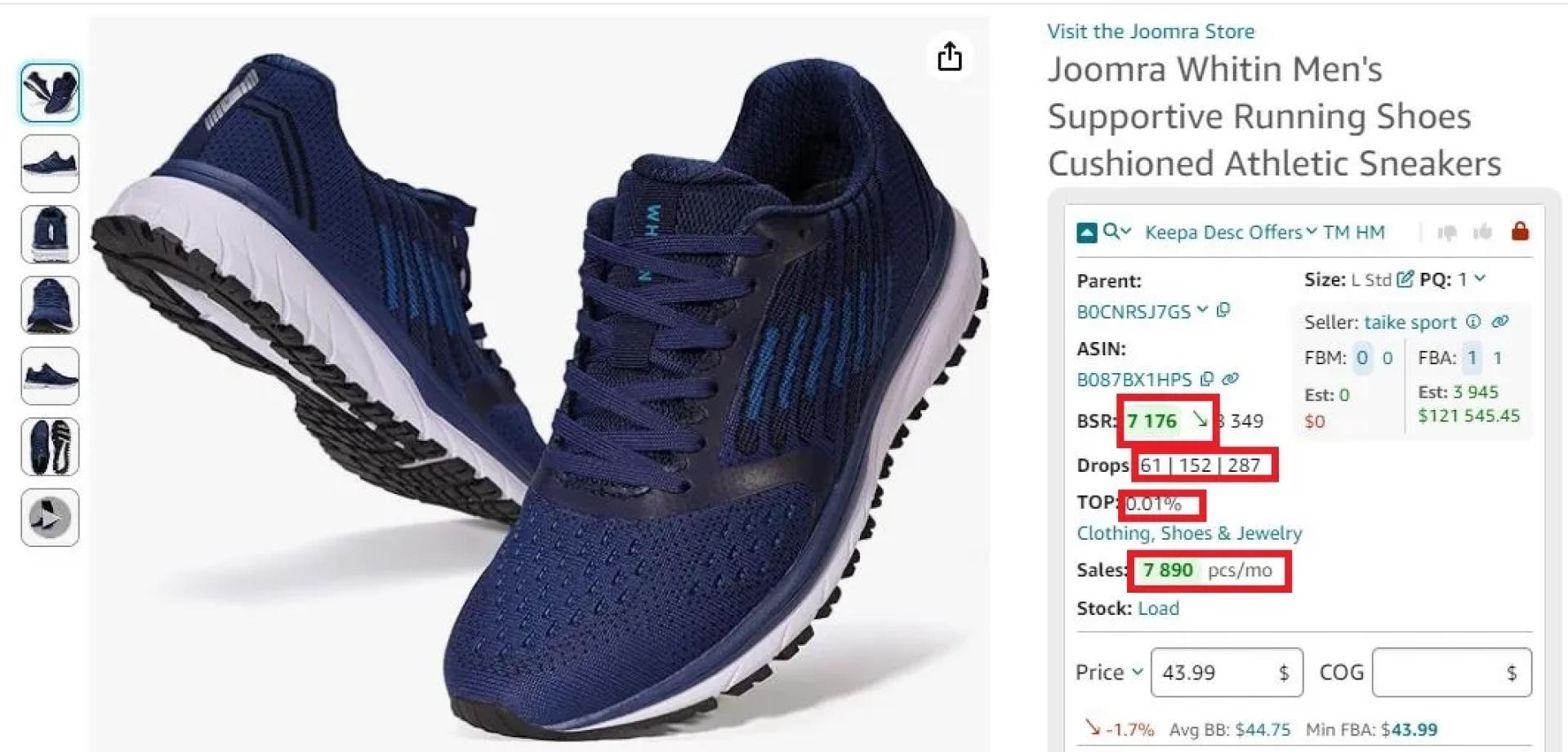
Check out the listing ageStep 6. Find out how well the product sellsAmazon doesn’t show how many products are sold per month. However, you must know how much you can sell.Amazon has a special indicator called Best Sellers Rank (BSR) to estimate how good (or bad) the product sells, but it doesn’t give you the number of sales. It shows the sales trend. The lower the rank, the better the product sells. It constantly changes, so you must look at the average BSR over 90 days.How to do it. Seller Assistant calculates how many products you can potentially sell per month in the Sales field. Drops (BSR drops) show how many products were sold during 30, 90, and 180 days.You can also see BSR figures with Seller Assistant. If the BSR number is green and the arrow beside it points down, the product is a good option for selling. If the BSR number is red and the arrow beside it points up, the product is not a good option for selling.
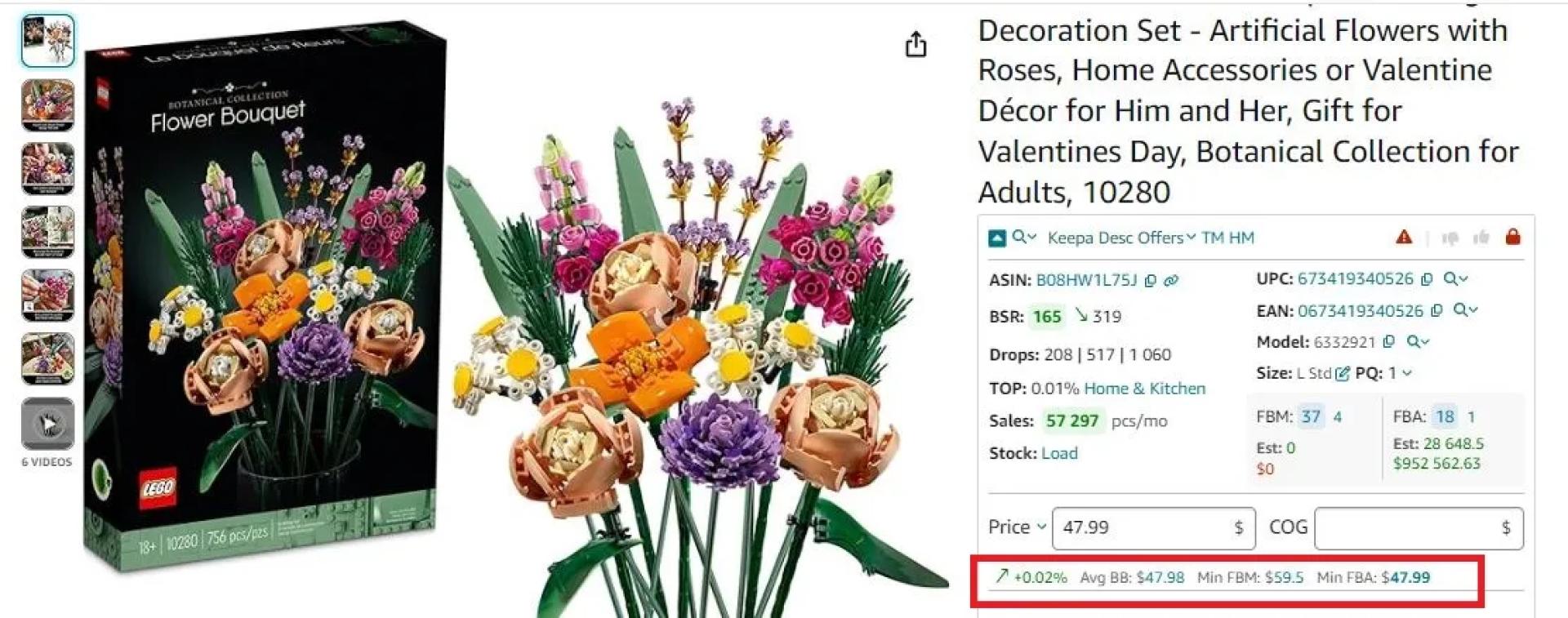
To estimate him well the product sells, look at BSR trend, drops, sales velocity, and sales based on BSRRelated: Amazon Best Sellers Rank – Everything You Need to Know Step 7. Estimate the selling priceLook at the maximum and minimum price and average Buy Box price (the offers Amazon considers the best and shows on the listing).How to do it. Seller Assistant shows the average Buy Box price (Avg BB), and if it goes up or down compared to a 90-day price (green arrow up or red arrow down). It also shows the lowest FBA (Min FBA) and lowest FBM (Min FBM) prices. You can set your price somewhere in between. You can use this price level to calculate if your product will bring profit.
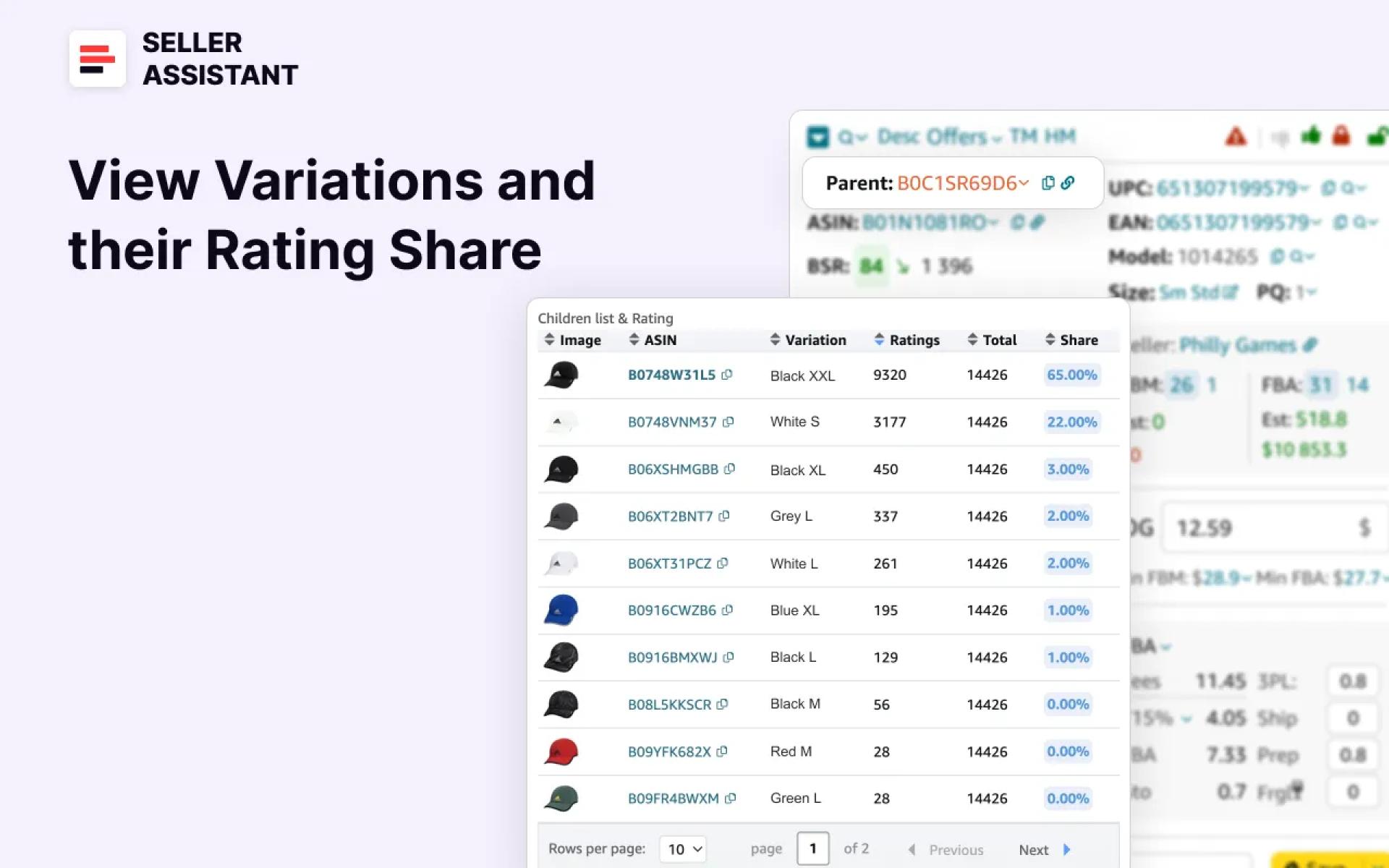
Buy BoxRelated: What is Buy Box? How to Win Buy Box on Amazon Step 8. Research if the product has variationsAmazon variations are different attributes of the same products such as size, color, style, etc. grouped on one listing.If a product has variations, not all of them will sell equally well. If you want to sell a product with variations, you must select one of the best-selling variations. However, the BSR doesn’t show which sells the best because it is calculated for the whole variation family (all variations together).How to do it. Seller Assistant’s Variation Viewer lets you quickly see all variations\' rating share, total ratings, and the rating percentage per variation (Share). The highest rating percentage indicates the most profitable variations. Variation Viewer also shows if a variation is out of stock.
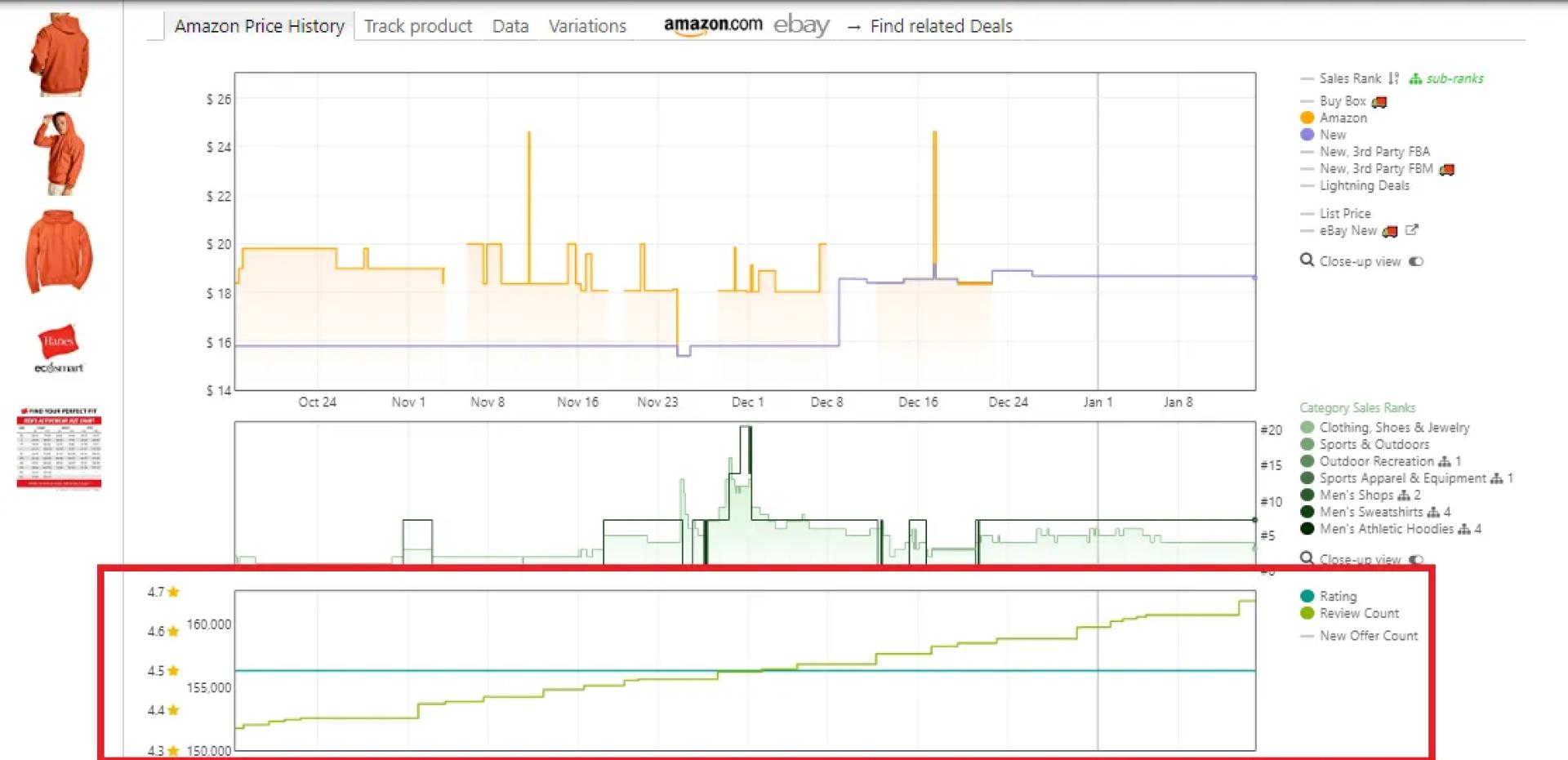
View VariationsRelated: How to Add a Variation to an Existing Amazon Listing — Сomplete GuideStep 9. Look at product reviewsReviews are buyer feedback about a product in the form of a star rating or a text. The rating ranges from 1 to 5 stars. If a shopper rated your product over three stars, it is a positive review. If the product has less than three stars, it’s a bad review.How to do it. Seller Assistant shows reviews on the separate Keepa chart. A «good» product must have reviews. If it doesn’t, it has too recent sales history or doesn’t sell. The average rating must be 4-5 stars, and it must not have many negative reviews.
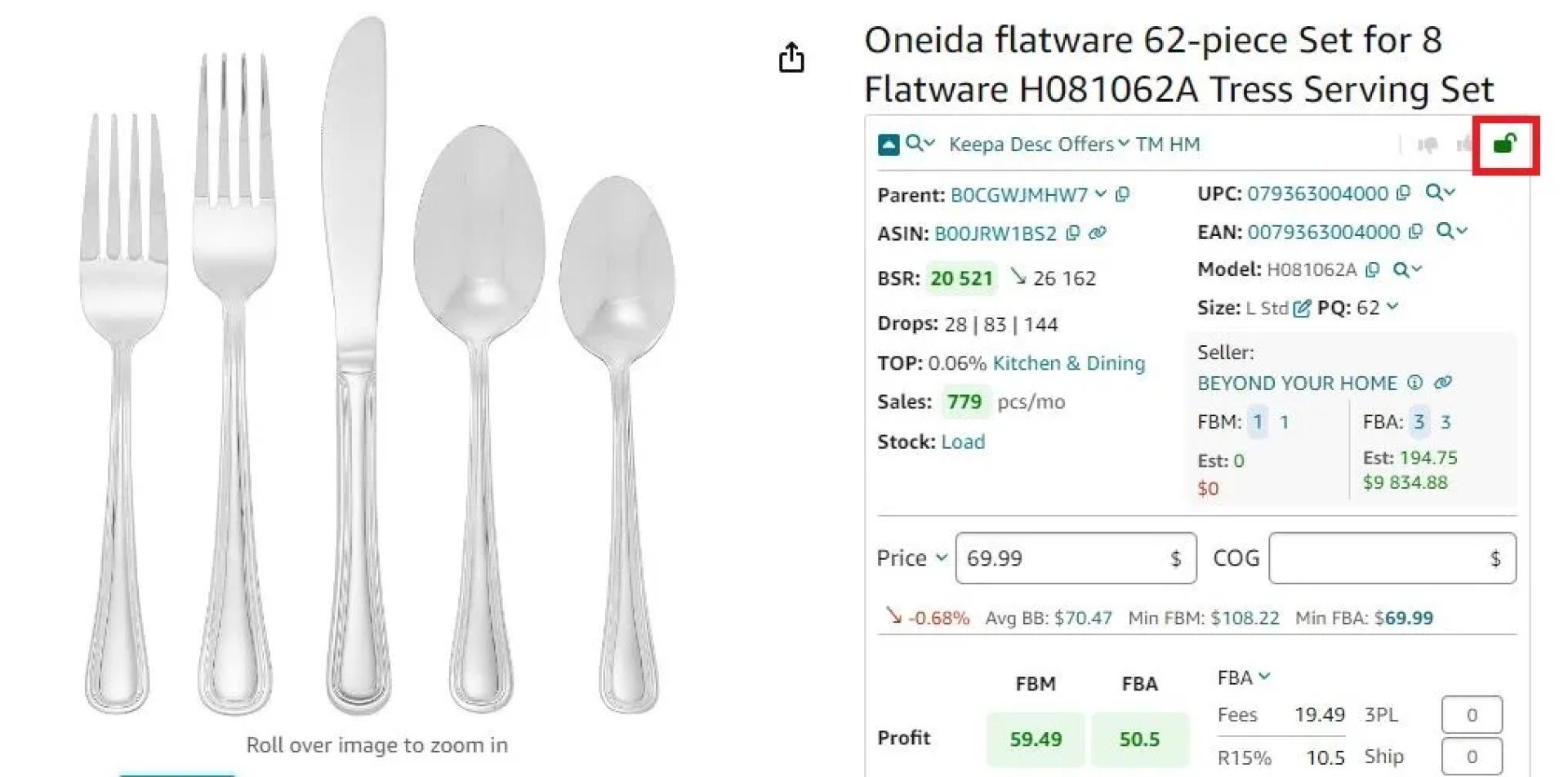
Reviews are available on the separate Keepa chart built into Seller Assistant AppStep 10. Verify selling eligibility and restrictionsCertain products require Amazon\'s approval for sale. You may not be eligible to sell some products on your account. You must check that before buying products because Amazon may not allow you to add them to the listing.How to do it. Seller Assistant shows a green open lock icon if you can sell a product and a red closed lock icon if you can’t.
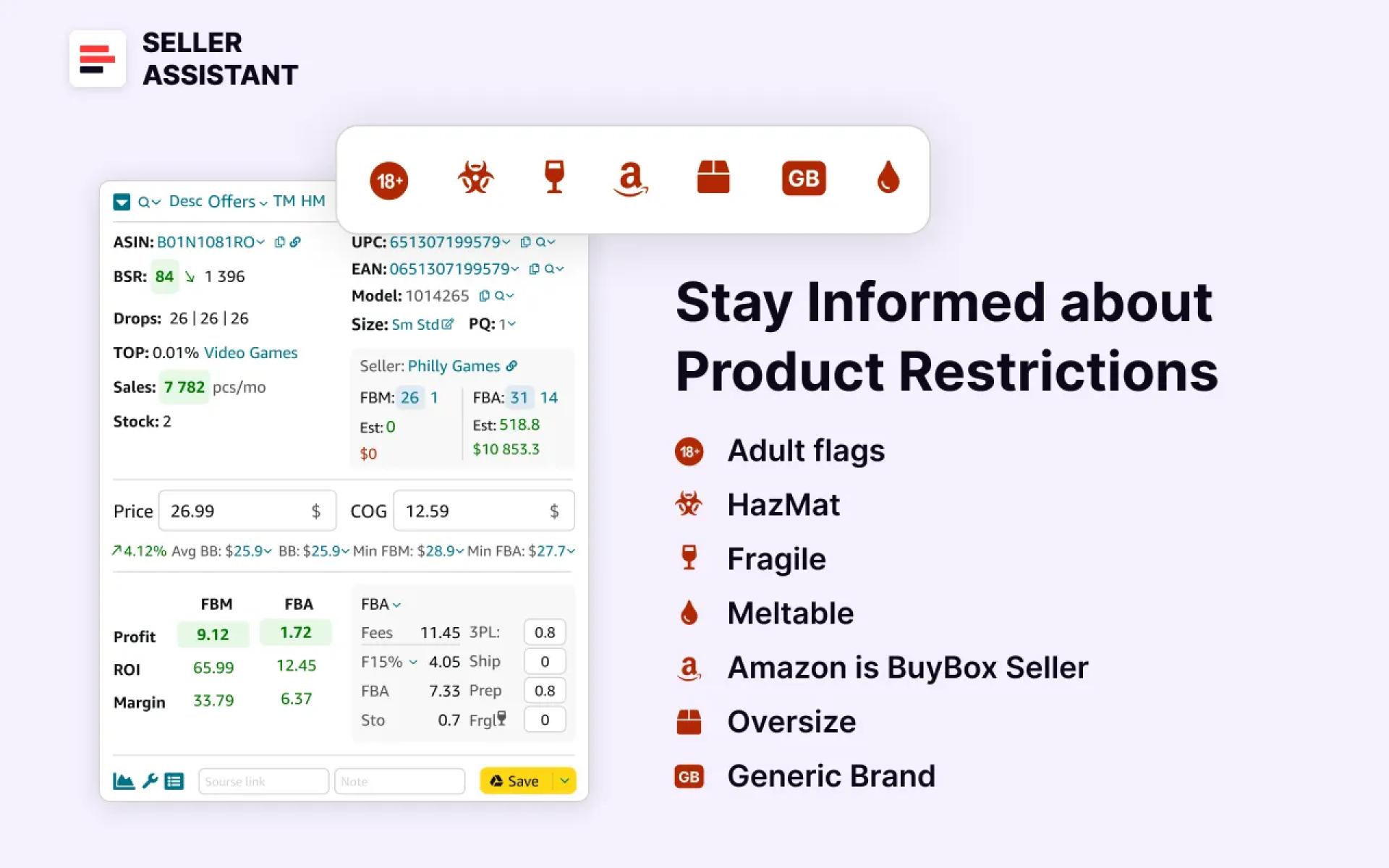
If you see a green open lock icon in Seller Assistant, you can sell a productStep 11. Check product for flagsProduct flags are alerts prompting that a product can create problems when you sell it on Amazon.Examples are oversize, fragile, meltable, hazmat, adult, and other products. Most of them are restricted categories. Even if not, they require extra shipping costs like heavy and bulky, hazmat, and fragile, or you can’t add your offer to the listing like with generic brands.Also, some are not sold all year round like meltables. Some categories are processed in special Amazon fulfillment centers, which delays shipment (oversize, hazmat).That means it’s better to avoid such products.How to do it. Seller Assistant shows all product flags directly on the Amazon product and search pages.Seller Assistant flag icons legend
Closed Red Lock icon — you can’t sell the product on your account, or it belongs to a restricted category;
Red Triangle icon — IP alert;
Red Box icon — a product is oversize;
Red Glass — a product is fragile;
Red Drop — a product is meltable;
Hazmat icon — a product belongs to the hazardous materials;
18+ — a product belongs to Adult goods;
Red Amazon icon — Amazon is a Buy Box seller;
GB — generic brand (you can’t add your offer to the listing).
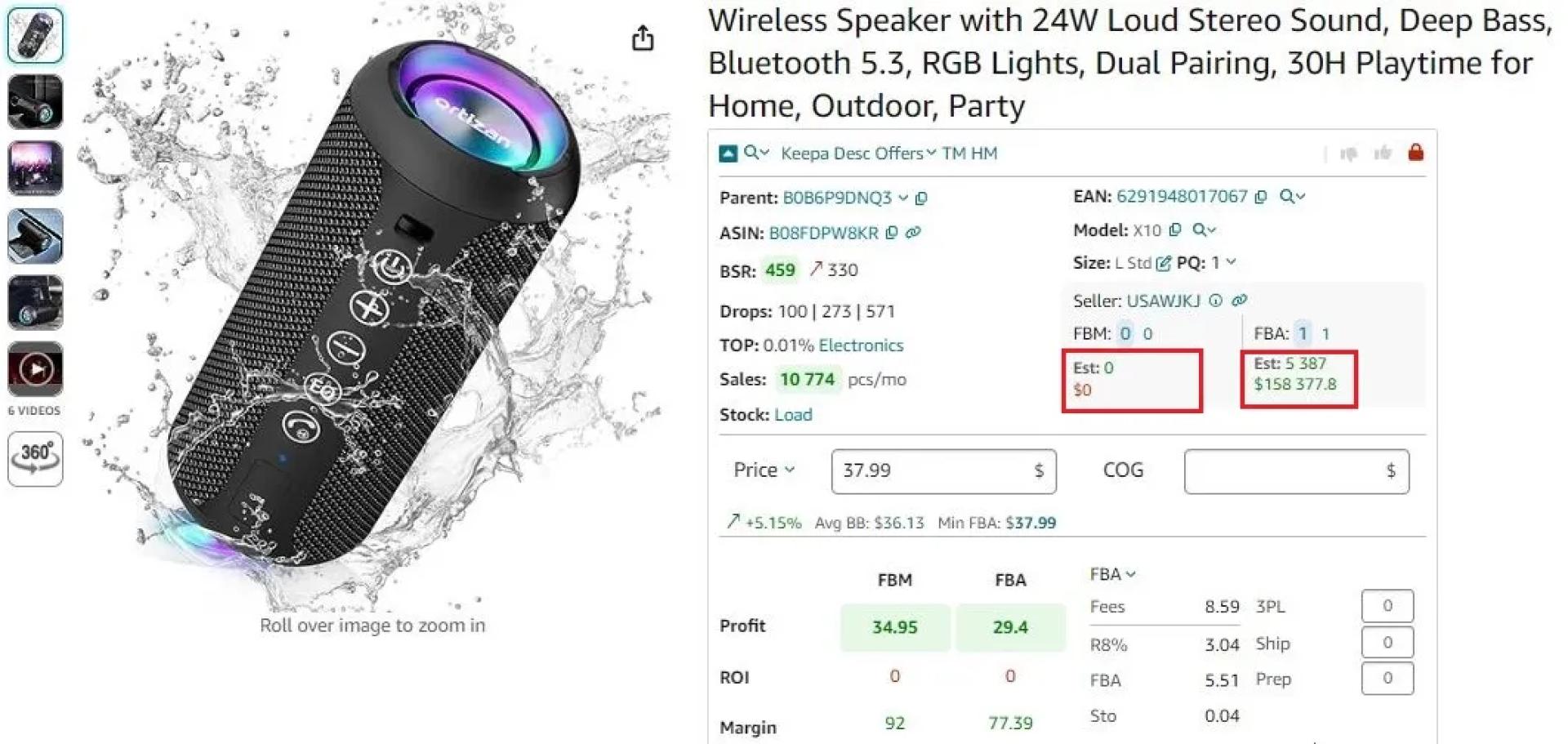
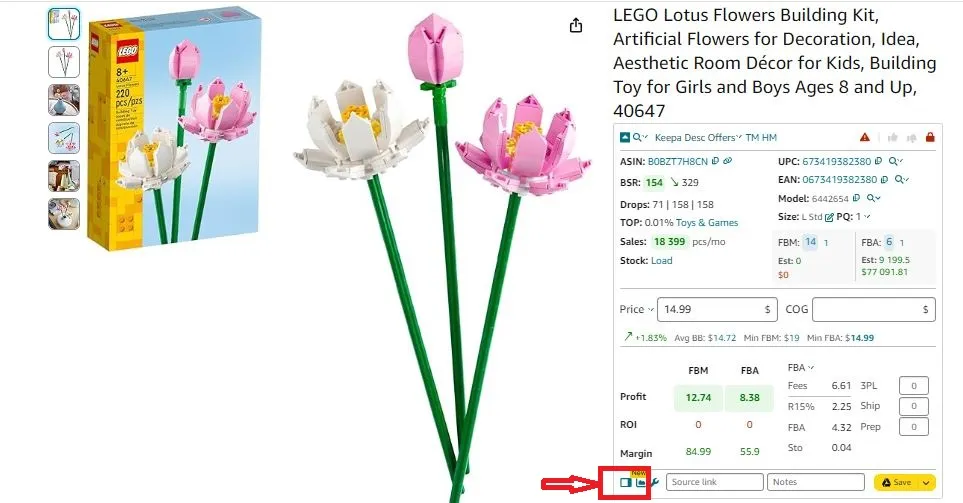
Product restrictionsRelated: Seller Assistant : What Products to Avoid Selling on Amazon?Step 12. Assess estimated salesEstimated sales are how many product units you can sell per month. Your target estimated sales depend on how much you plan to make to cover expenses and make enough profit.How to do it. Seller Assistant calculates estimated sales for each product if you become one more seller on the listing. The figure appears in the ‘Est’ line. This helps you understand if you can sell as many units as you expect.
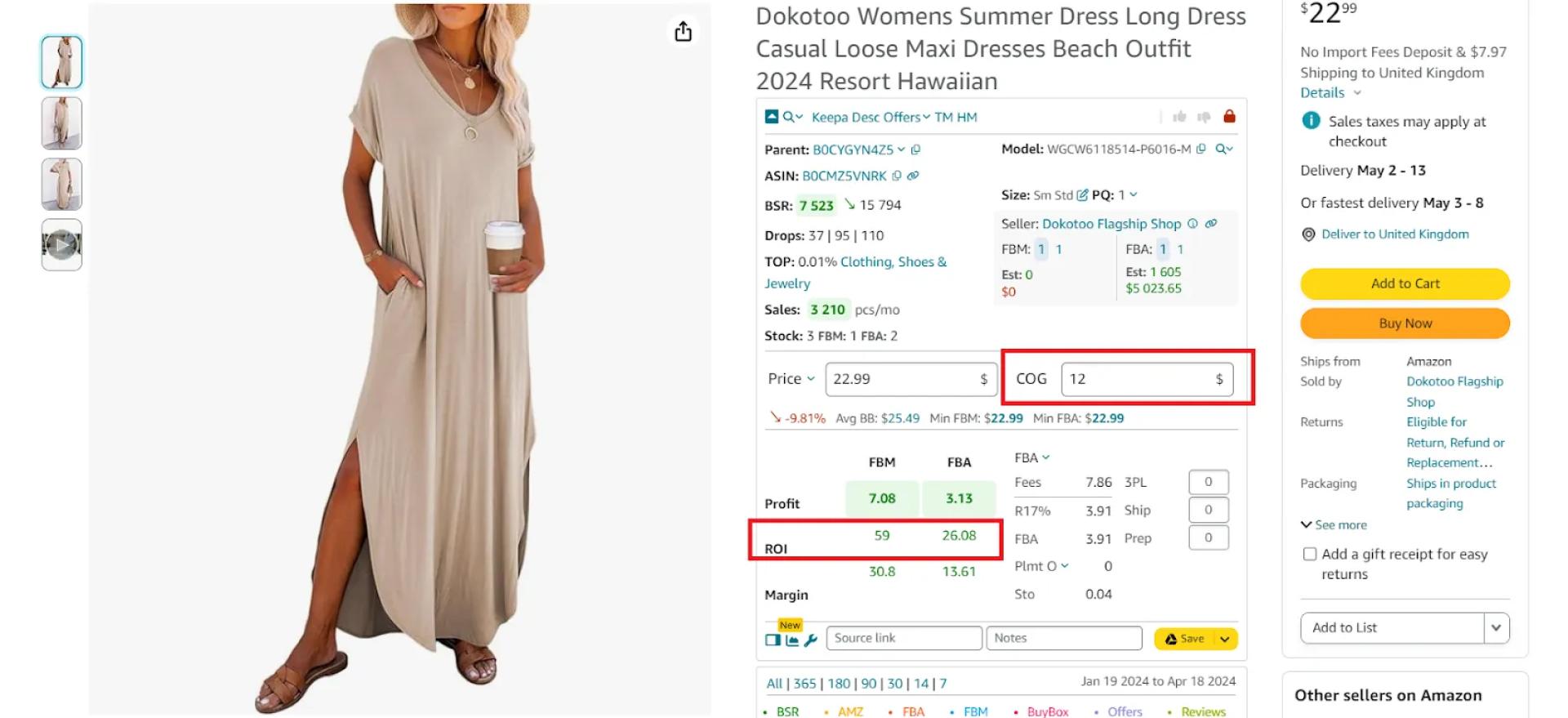
Seller Assistant calculates estimated sales for each productStep 13. Calculate product profitabilityROI (Return on Investment) shows how profitable your Amazon business is. Typically, anything above 10% is considered a “good” ROI for your Amazon business. If your ROI is more than 10%, the product is OK to sell. To calculate ROI, you must divide net profit by total investment.
Seller Assistant provides quick links to search products on different search enginesThen, you can quickly calculate ROI with Seller Assistant’s FBA&FBM profit calculator. It will be displayed on the Amazon product pages. Aim for Return on Investment (ROI) above 10% to ensure profitability.
FBA&FBM profit calculator
How to find your product supplier?
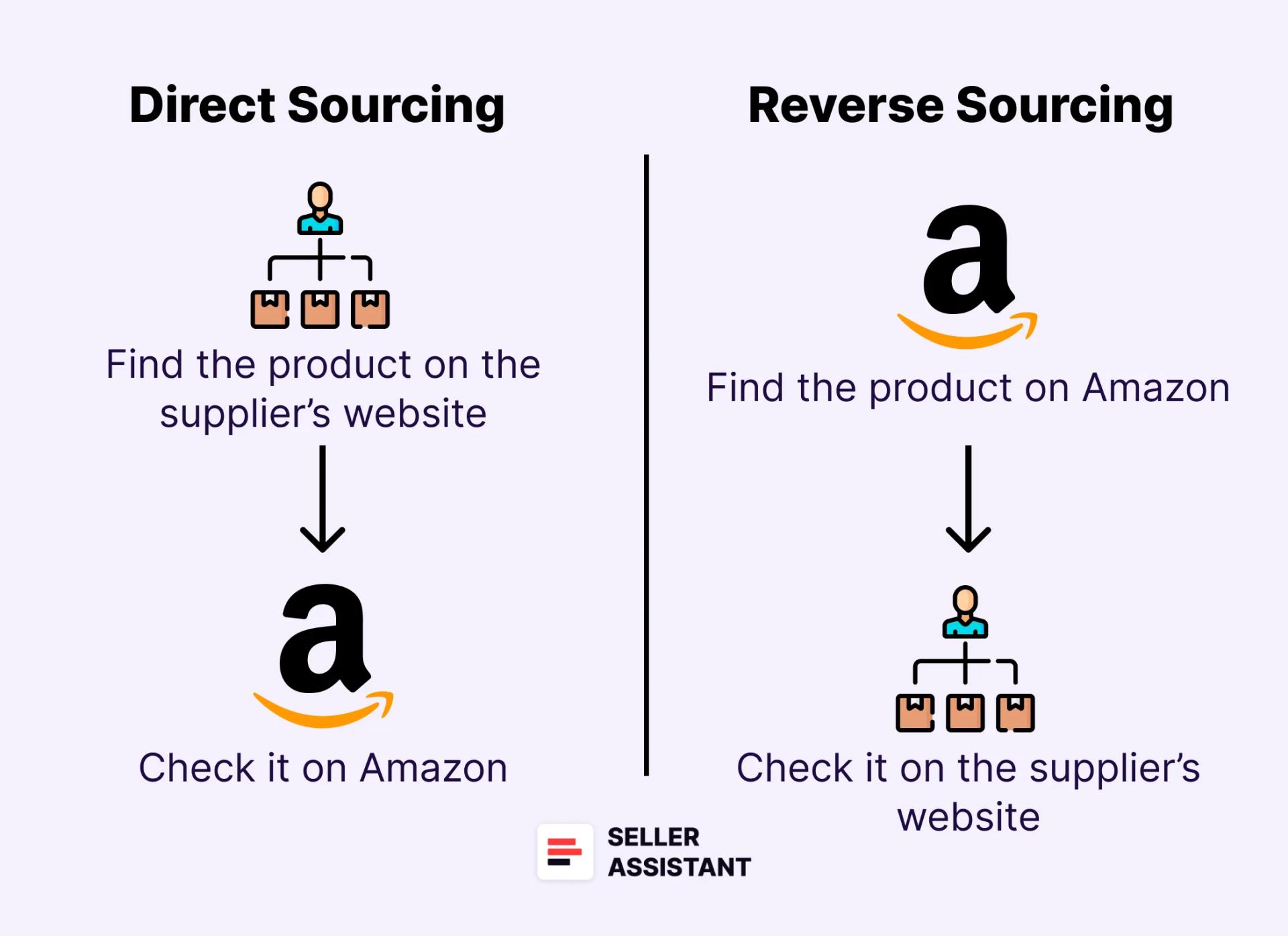
After you make sure a product you plan to sell meets all the above criteria, you must look for a reliable supplier who offers low prices for your product. That will give you a good profit when you sell your product on Amazon.Finding a product and its supplier for your chosen product is called product sourcing.You can do product sourcing in several ways. The two most popular are called – direct and reverse sourcing.
Direct and reverse sourcing
How to find a supplier with direct sourcing?
The first way to find a supplier is direct sourcing. With this method, you select a product from the supplier and find its match on Amazon. That means you find a product at a low price at a supplier that has a much higher price on Amazon.Direct sourcing is often used by wholesale sellers and those sellers who have existing suppliers. This is suitable if a supplier gives you a good discount and offers you a big price list of their products. You can select the items from that list to resell on Amazon for profit.Other reasons to use this method are if a supplier offers you large discounts for bulk deals, or if you know that the supplier is reliable and delivers orders to Amazon’s fulfillment centers fast.
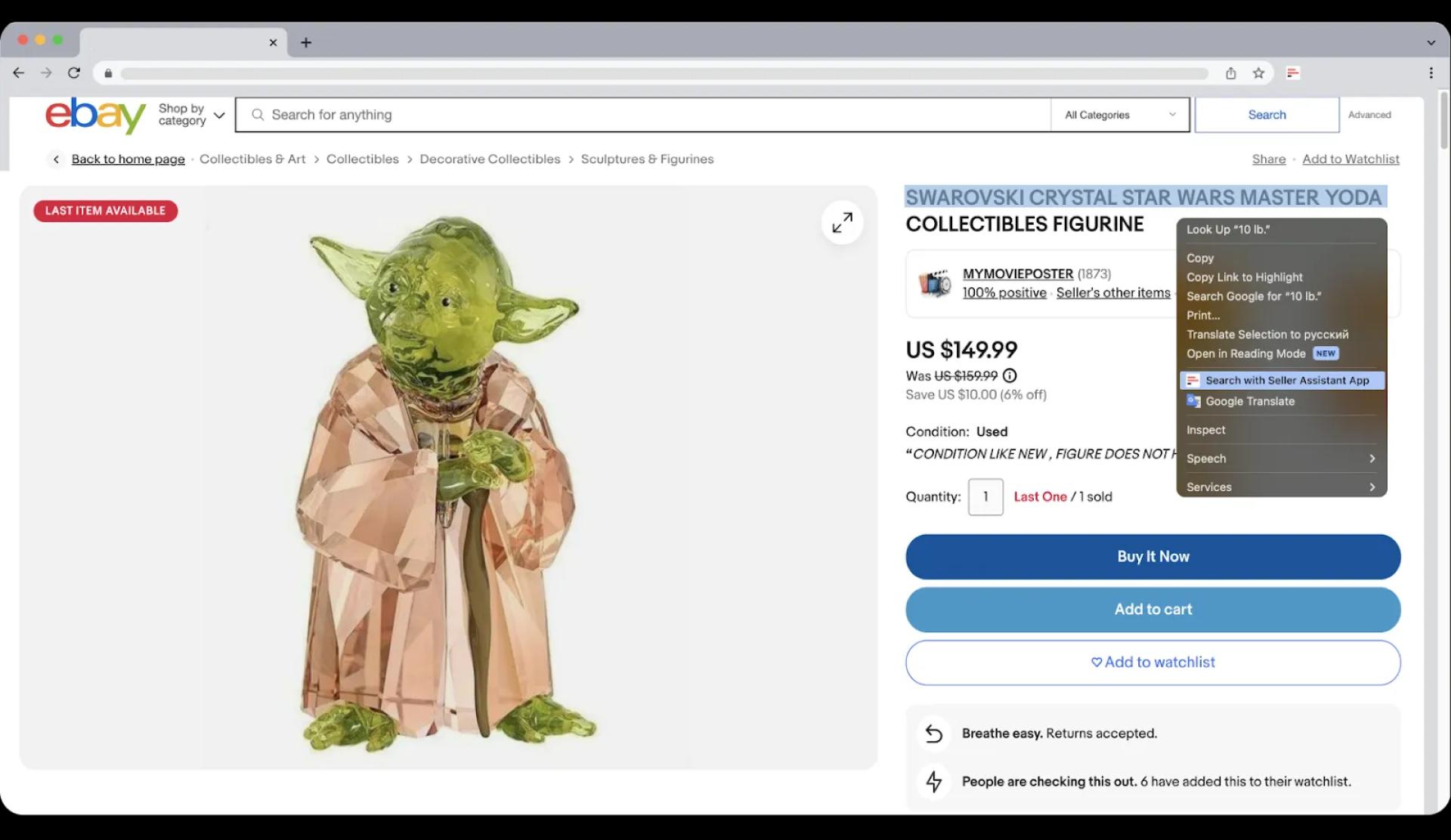
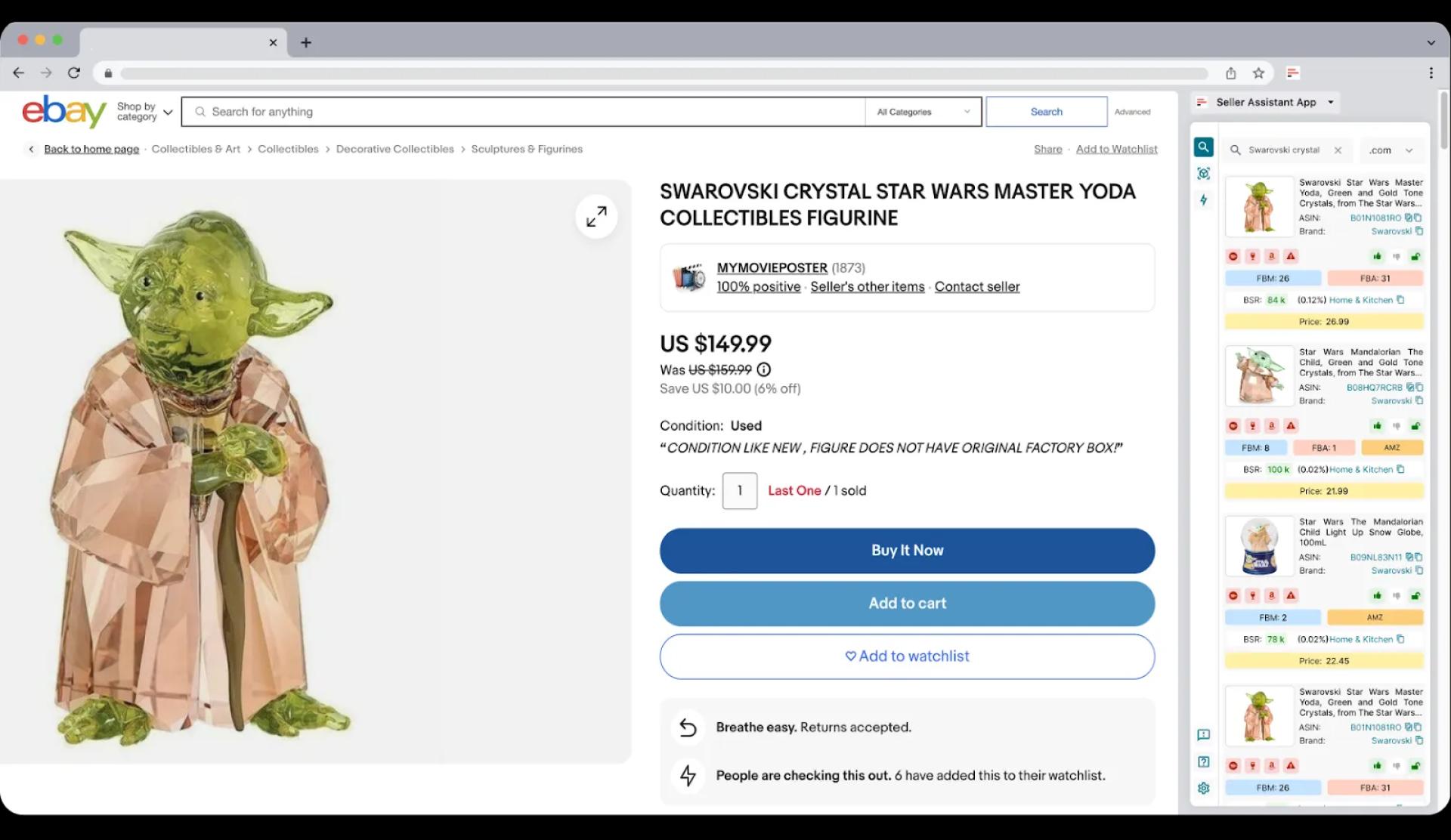
Side Panel View will appear on any website and show you a match on Amazon for the product you selected on that website. On your supplier website, select the text you want to search (product title, brand, or model), then right-click, and choose “Search with Seller Assistant”.
Open Seller Assistant’s Side Panel ViewStep 3. Find your product on AmazonSide Panel View will show you all available Amazon offers of similar products. Find the one you want to sell.
Side Panel View appears on any website and helps you find a match on Amazon for the product you selected on that websiteStep 4. Make sure the product at the supplier matches the item on AmazonOpen a product and make sure it exactly matches the one on the supplier’s website. Compare the brand name, model, size, color, materials, and pictures to make sure they are identical.Step 5. Do product researchBecause in this method we start by finding a supplier, we need to do product research afterward. Go through all 13 steps of product research we discussed above to make sure a product is suitable for selling. If you have permission from a brand to sell a product, skip step 2.Step 6. Calculate profit and ROI with Seller Assistant’s FBA&FBM profit calculatorEnter the Cost of Goods, choose the fulfillment method, add prep center or 3PL costs if you use these services, get the profit and ROI figures, and see if they meet our criteria.
Seller Assistant’s FBA&FBM profit calculatorStep 7. If everything looks fine, order a product from the supplier.
How to find a supplier with reverse sourcing?
The second way to find a supplier is reverse sourcing. With this method, you select a product on Amazon and find its match at the supplier. That means you find a suitable product on Amazon and look for the same product at a much lower price at the supplier.Reverse sourcing is often used by online arbitrage sellers and dropshippers because they source many products from different suppliers, and the decisive factor for a supplier choice is the low price.
Reverse sourcing step-by-step
Step 1. Open on Amazon a product you want to sell.
Step 2. Explore supplier options
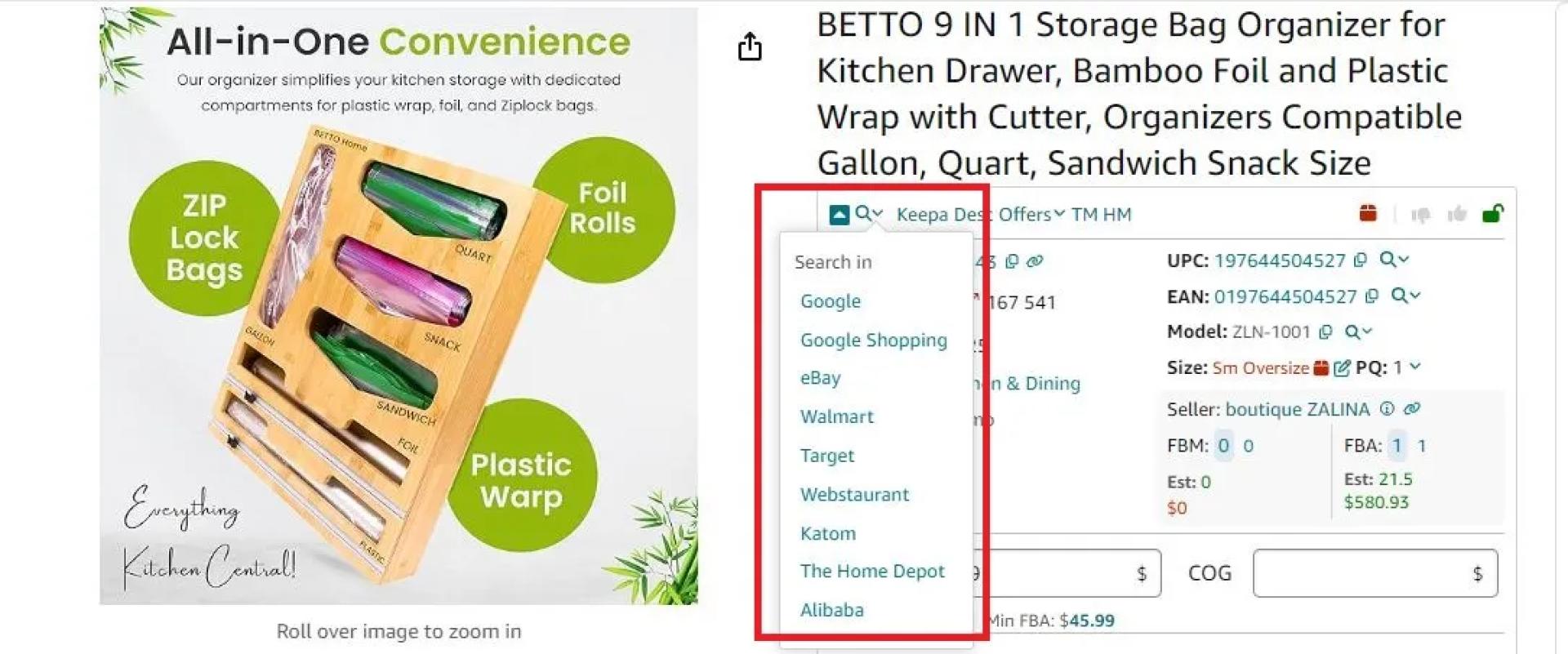
Open Seller Assistant and click the search icon in the top left corner. Seller Assistant will display a drop-down list with the most popular supplier websites.Seller Assistant App supplier links
Google Shopping;
eBay;
Walmart;
Target;
Webstaurant (Home and Kitchen supplies);
Katom;
The Home Depot;
Alibaba (for international sourcing).
Seller Assistant provides quick links to search products on different search enginesStep 3. Redirect to search resultsSelect a supplier website from the list and Seller Assistant will then redirect you to the search results page for that product on the chosen supplier\'s platform.Step 4. Make sure your product on Amazon matches the one at the supplierOpen the product with the best price. Activate the Seller Assistant’s Side Panel View icon. It will automatically appear on the supplier\'s website. Compare all product information on Amazon and at the supplier: brand name, model, size, color, materials, and pictures to check if they are identical.
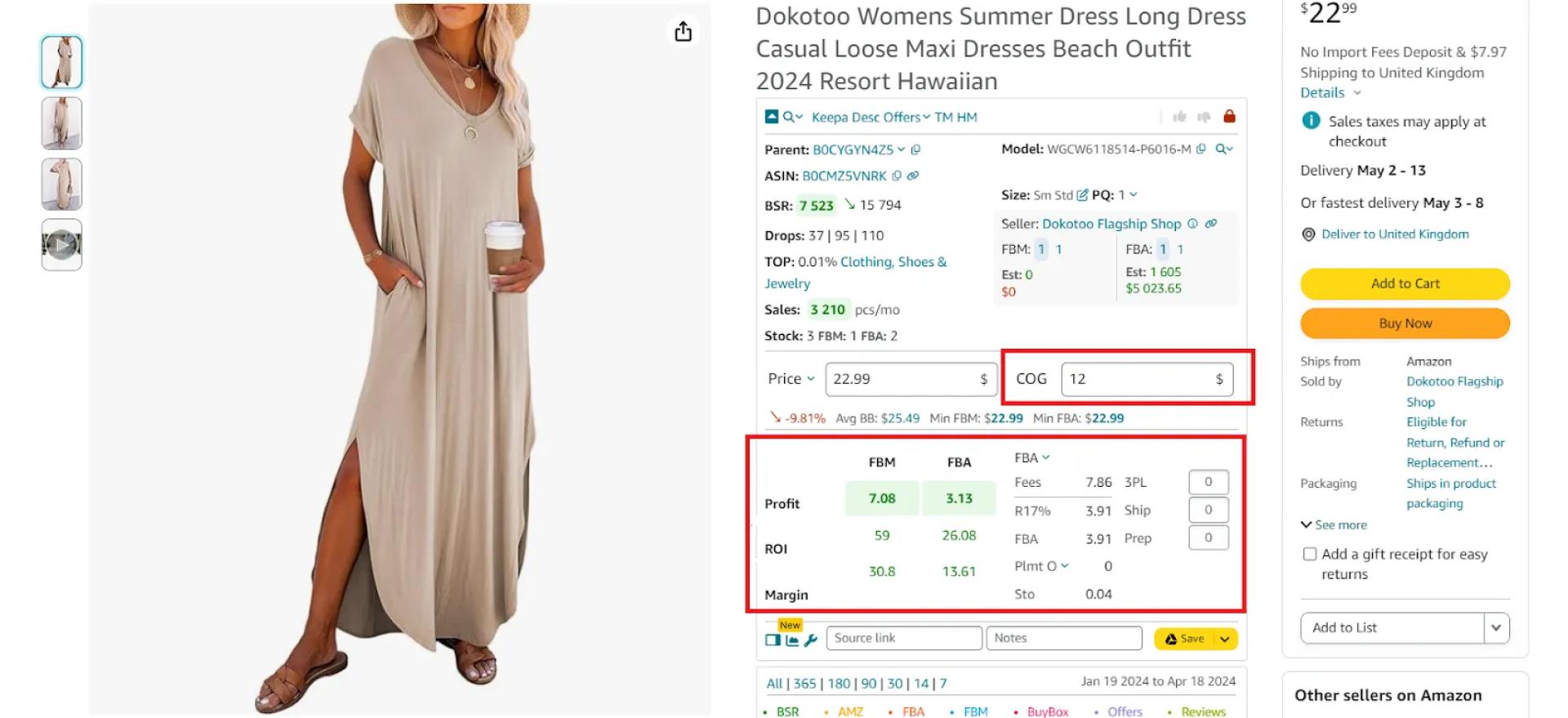
Side Panel View on the Amazon product pagesStep 5. Calculate profit and ROI with Seller Assistant’s FBA&FBM profit calculatorEnter the Cost of Goods (product price at the supplier), choose the fulfillment method, add prep center or 3PL costs if you use these services, get the profit and ROI figures, and see if they meet our criteria.
Seller Assistant’s FBA&FBM profit calculatorStep 6. If everything looks fine, order a product from the supplier.
How Many Products Should You Buy?
When you first sell a product, you don’t know how fast it will sell. However, you must determine how many products you need to buy. Here are several ways to do that.
How Many Products Should You Buy
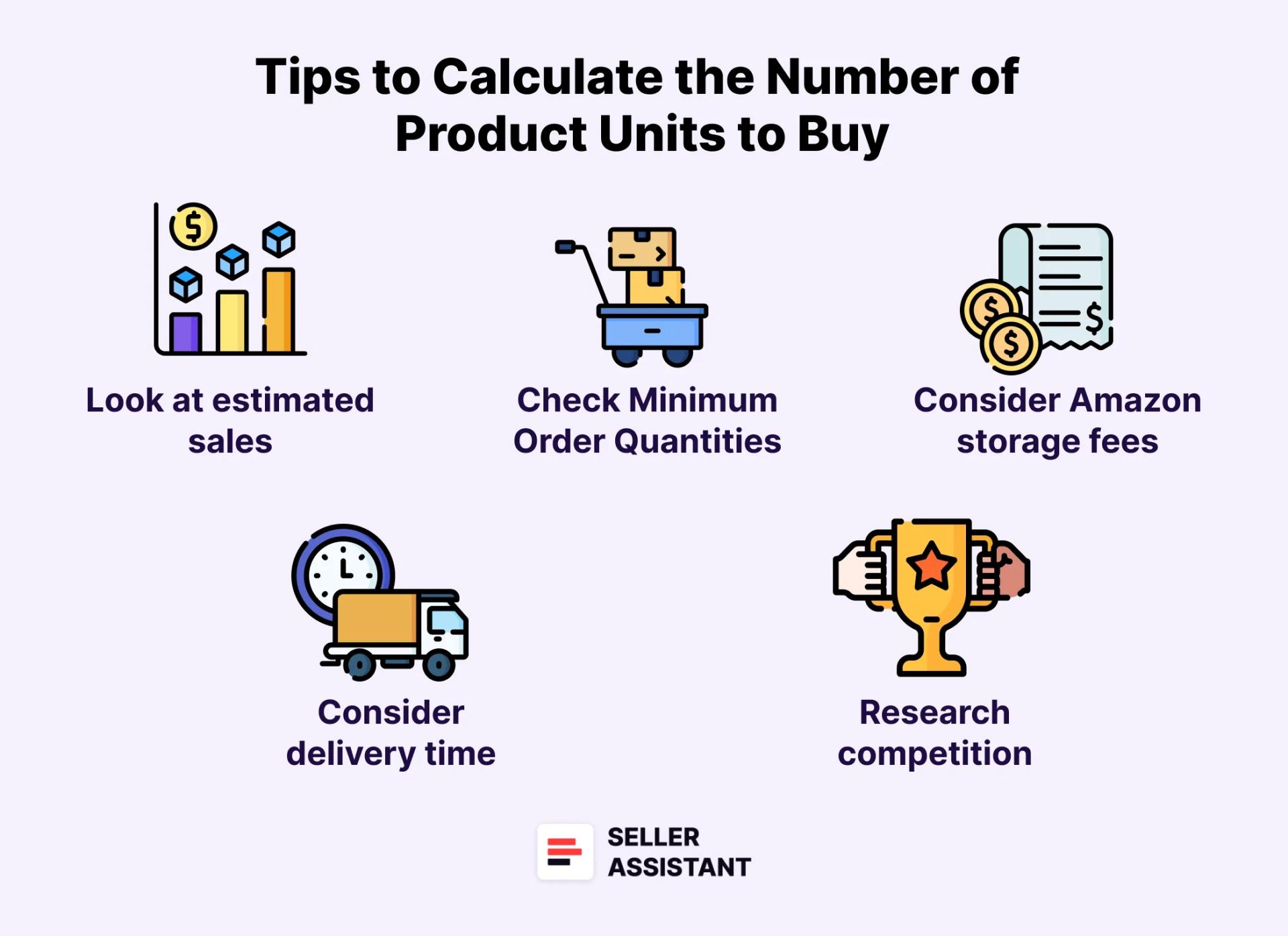
5 tips to calculate the number of product units to buy
Look at estimated sales and BSR drops
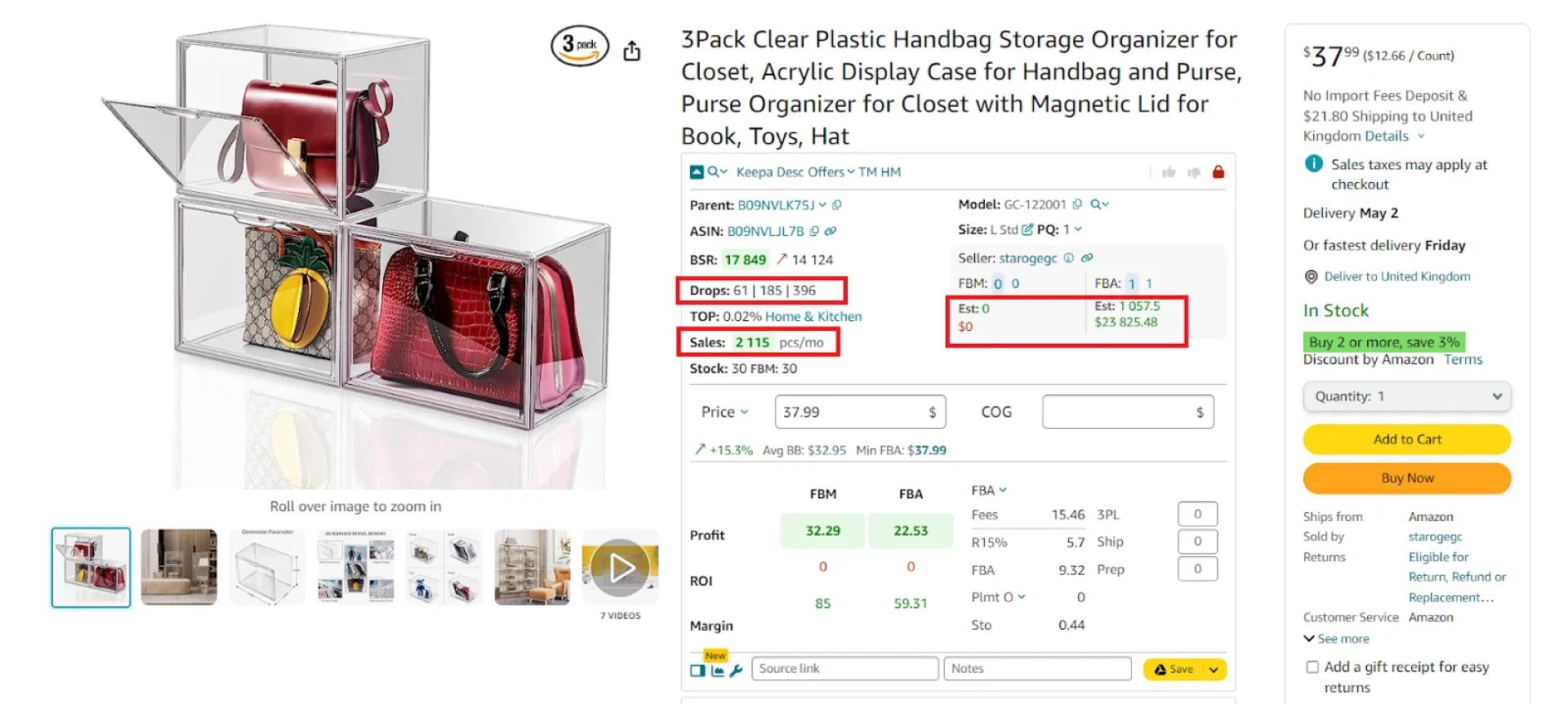
You can get guidance on how many units of a product you can sell from the estimated sales number in Seller Assistant. It shows 3 figures related to potential product sales: Est (your sales potential per month if you become one more seller on the listing), Drops (BSR drops during 30, 90, and 180 days, showing how many products were actually sold), and Sales (sales estimation based on BSR). Use them to understand how many products to buy. The general advice is not to buy too many products (inventory) at the start.
Seller Assistant shows 3 figures related to potential product sales
Check Minimum Order Quantities
Amazon wholesale sellers must often purchase the minimum number of units a supplier requires to purchase to fulfill an order – Minimum Order Quantities (MOQ). In that case, they must buy the number of units set by a supplier. However, the numbers are often negotiable.
Consider Amazon storage fees
Amazon charges storage fees based on product size and time in fulfillment centers. Aim for a balance between having enough stock to meet demand and avoiding high storage costs.
Delivery time
Consider how long it takes for your supplier to deliver new inventory. Factor this lead time into your calculations to avoid stockouts.Other factors:
Research competition
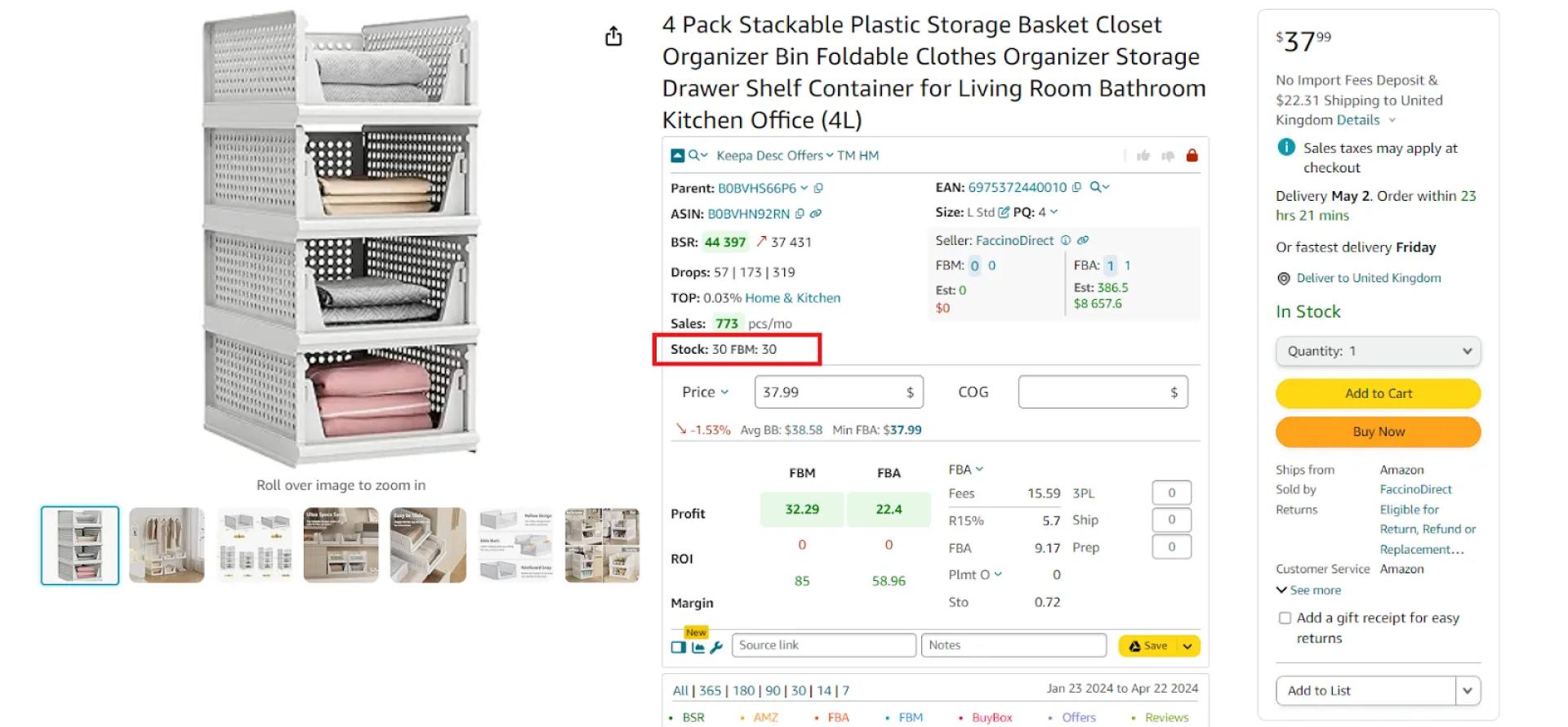
Analyze how many units competitors have in stock. This can help you determine a strategic amount to order without overstocking. Seller Assistant’s Stock Checker shows how many product units are available in stock.
Seller Assistant’s Stock Checker shows how many product units are available in stock
How to List a Product on Amazon?
There are two types of products on Amazon — those that already exist in the Amazon catalog and those that don’t exist on Amazon. You must list these types of products in different ways.
Listing existing Amazon products
Existing products are added to the listings already created on Amazon. If you resell other brands with online arbitrage, retail arbitrage, wholesale, or dropshipping, your products likely already exist on Amazon. According to Amazon rules, you can’t create duplicate listings of the same product. Your offer must be added to the same listing alongside other sellers’ offers.
Listing existing products step-by-step
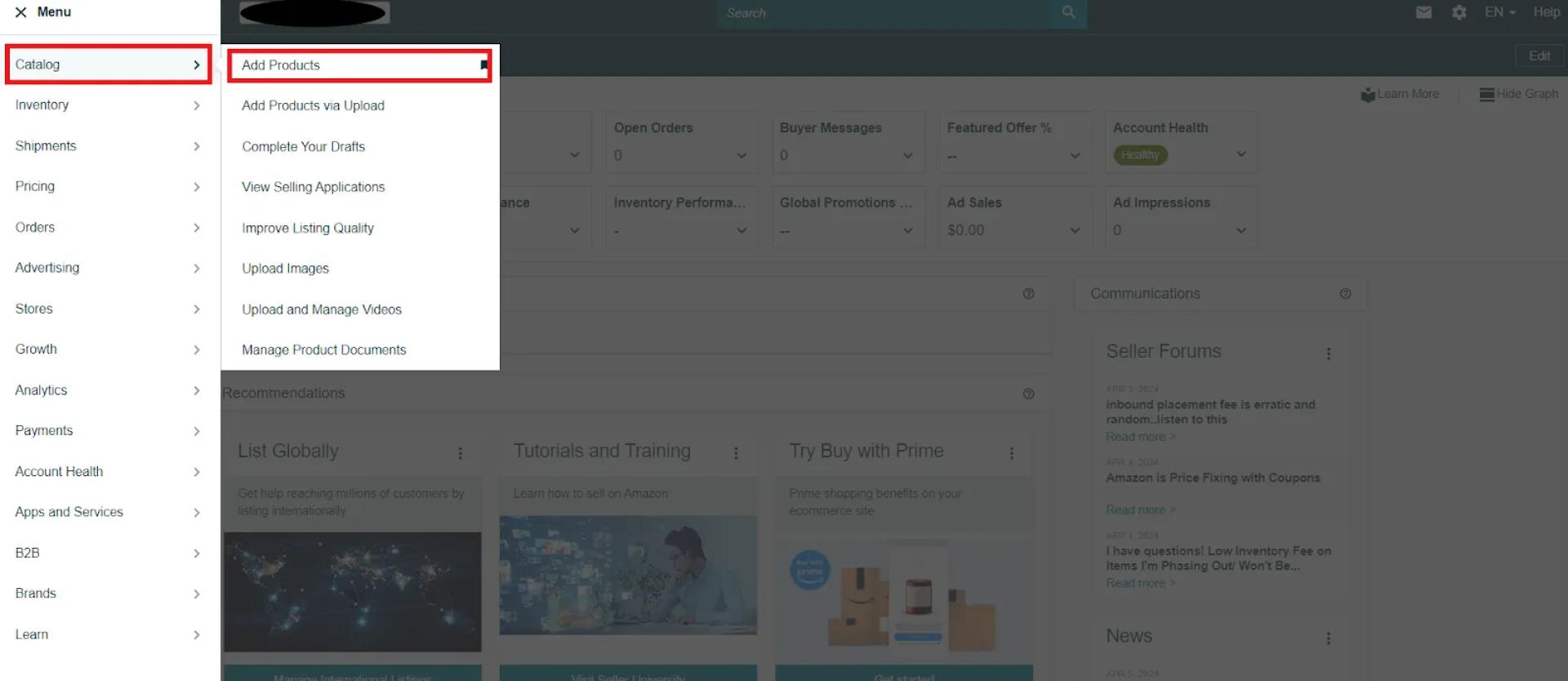
Step 1. Go to your Seller Central account. In the side navigation menu, select Catalog > Add Products.’
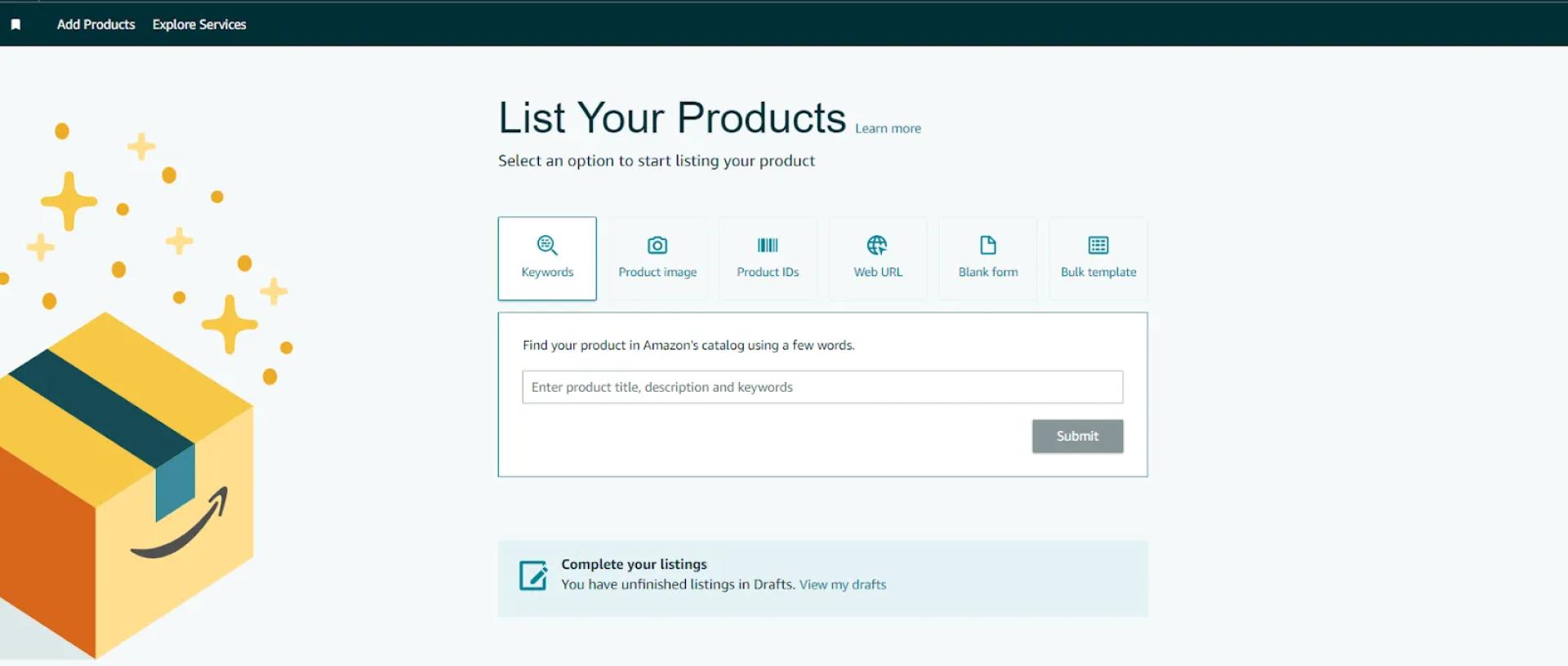
Go to your Seller Central account. In the menu, select Catalog > Add Products.’Step 2. In the search bar under ‘Find your products in Amazon’s catalog,’ find your product by title, description, or keywords.
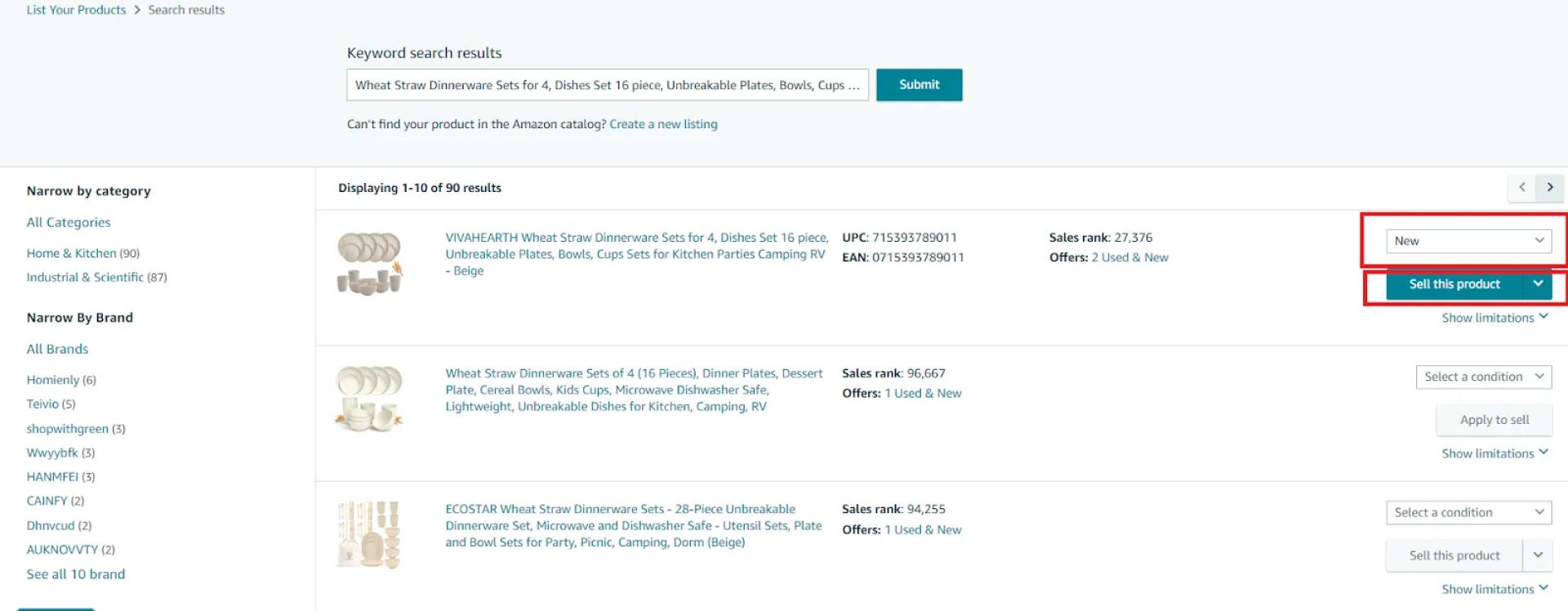
Find your products in Amazon’s catalogStep 3. Find your product in the list, select a condition, and click ‘Sell this product.’
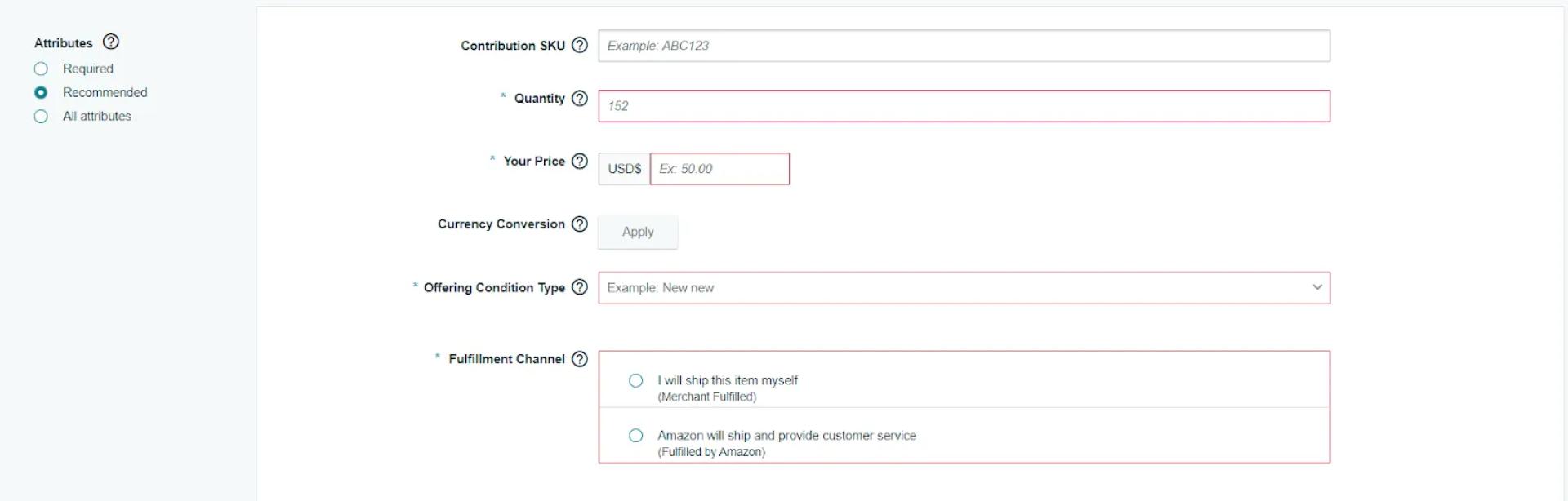
Find your product in the list, select a condition, and click ‘Sell this product.’Step 4: Create your offer: add your selling price (Standard Price), product condition (Offering Condition Type), and fulfillment channel (Fulfillment by Merchant — FBM, where you fulfill products yourself, or Fulfillment by Amazon — FBA, where Amazon picks, packs, and ships your products for a fee).
Create your offer by filling in all necessary fieldsStep 5. Click ‘Save and finish.’
How to list new products on Amazon?
If you’re going to sell a product that doesn’t exist on Amazon, you have to create a brand-new listing. Majorly, new products are private label.
Listing new products on Amazon step-by-step
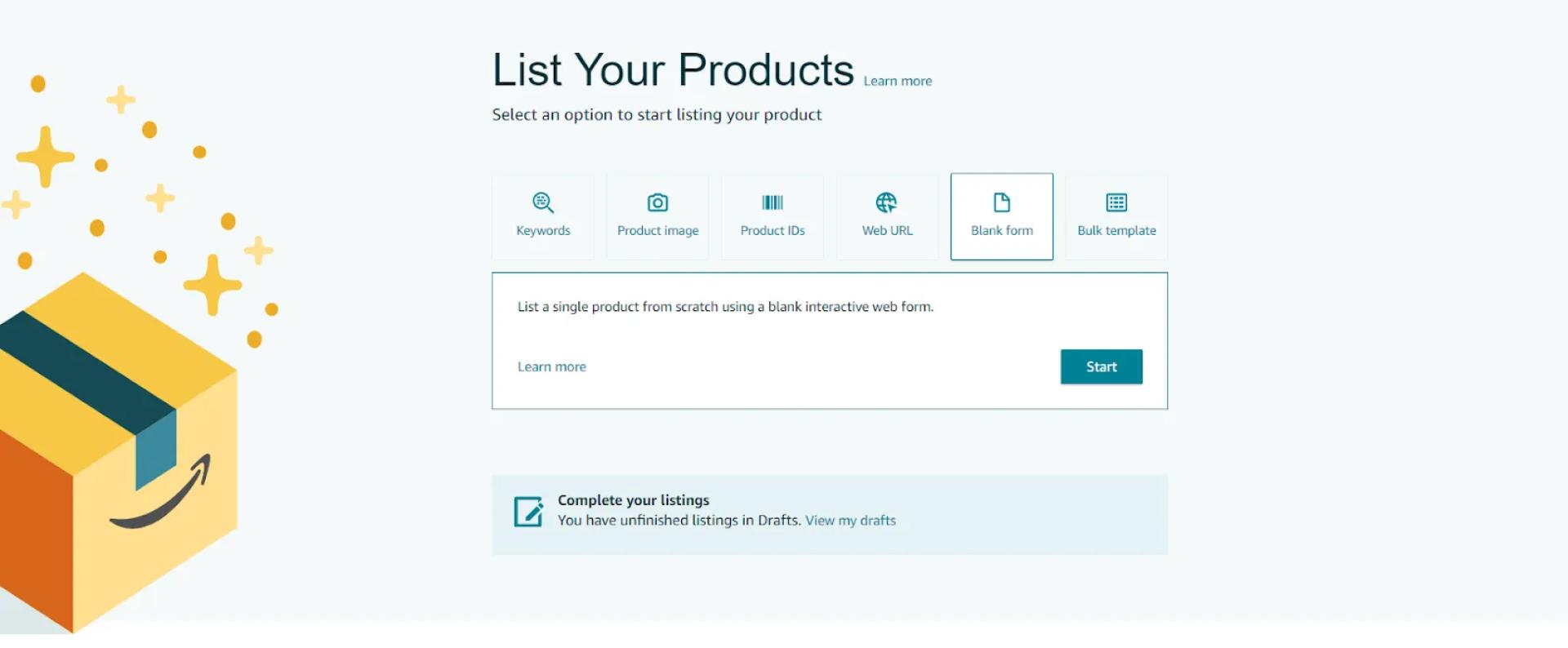
Step 1. Go to your Seller Central account. In the side navigation menu, select ‘Catalog’ > ‘Add Products’ > ‘List Your Products.’ Click the ‘Blank form’ button above the search bar and the ‘Start’ button below.
Go to your Seller Central account. In the menu, select ‘Catalog’ > ‘Add Products’ > ‘List Your Products.’ Click the ‘Blank form’ button above the search barStep 2: Enter the product name and confirm the primary product category specified by Amazon (or change it).
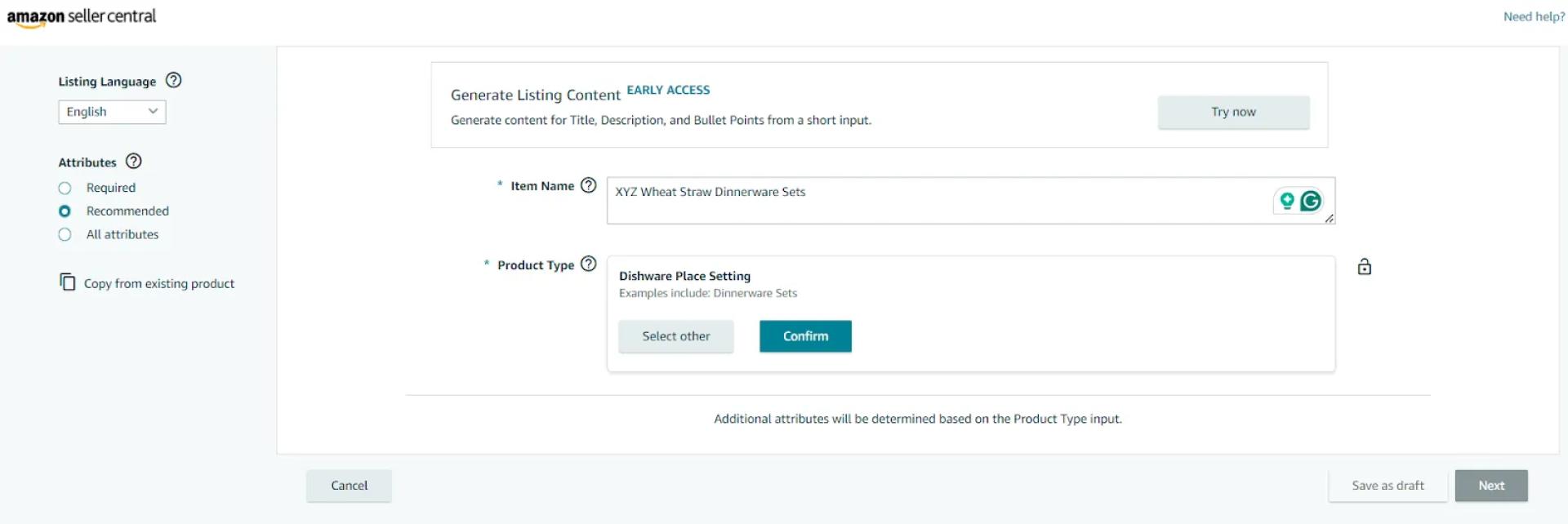
Enter the product name and confirm the primary product category specified by Amazon (or change it)Step 3. Add a brand and product ID, and click ‘Next.’
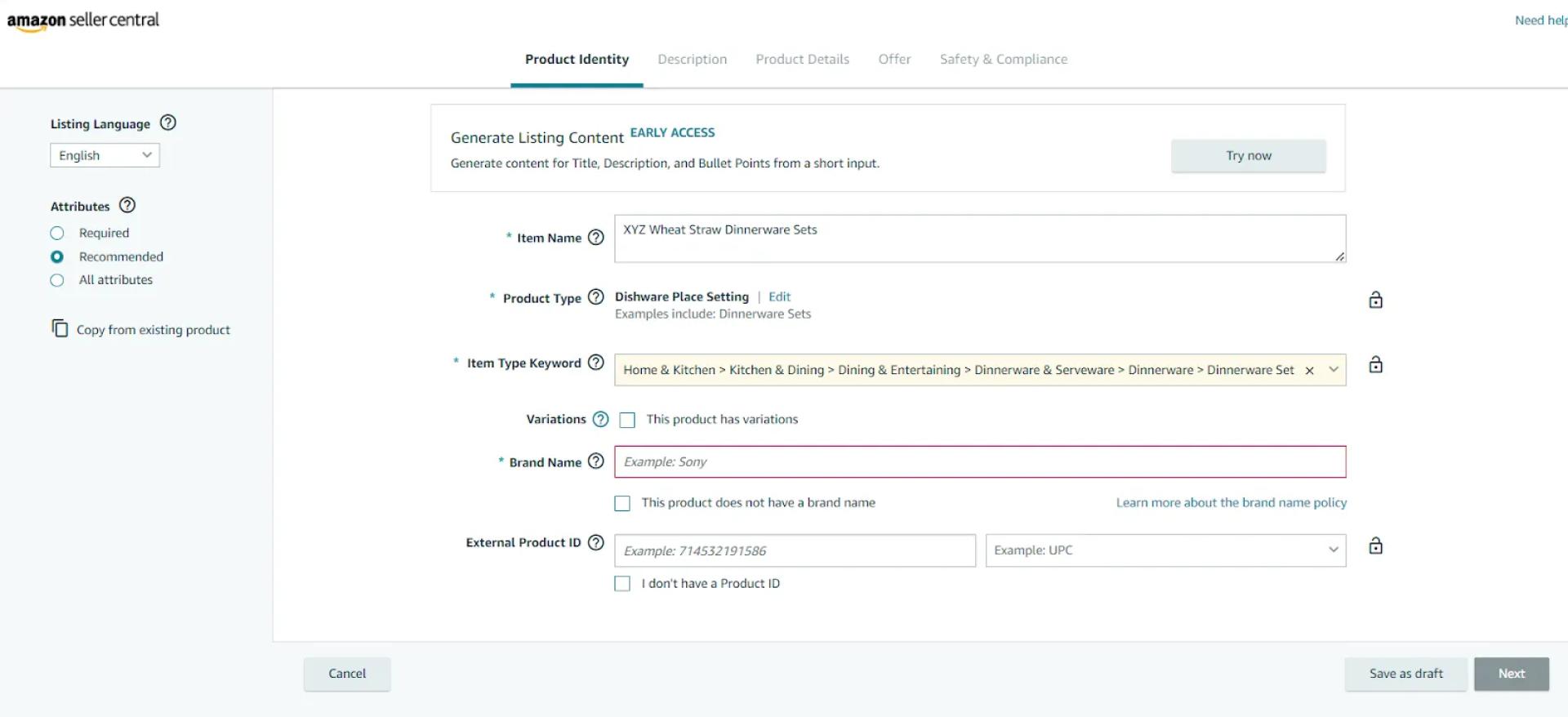
Add a brand and product ID, and click ‘Next.’Step 4. Amazon will ask you to get brand authorization. Click ‘Apply to Sell’ and provide the necessary information. Wait for approval.
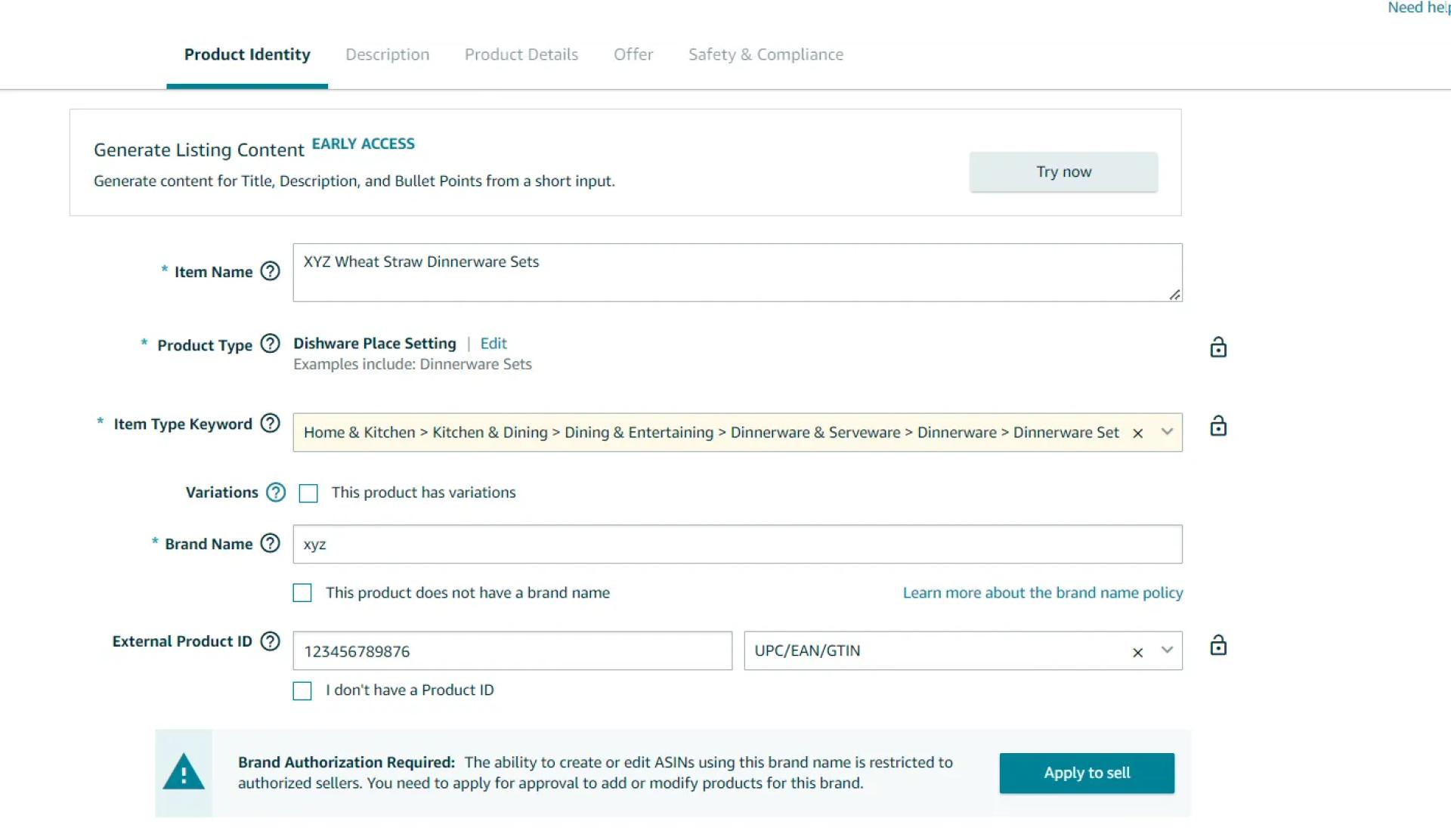
Amazon will ask you to get brand authorization. Click ‘Apply to Sell’ and provide the necessary information. Wait for approval.Step 5. When you get the approval, fill in the description, product, and offer details, and add safety and compliance documents, if necessary.Step 6. Click ‘Save and finish.’Related: How to List Products on Amazon in 2024 - Complete Guide
How to Ship Your Amazon Orders to Customers?
When you add your products to Amazon, you must specify how you will ship orders to the customers. Delivering your orders to customers is called fulfillment.On Amazon, there are two most popular fulfillment methods: FBM, or Fulfillment by Merchant, and FBA, or Fulfillment by Amazon.
Fulfillment by Merchant
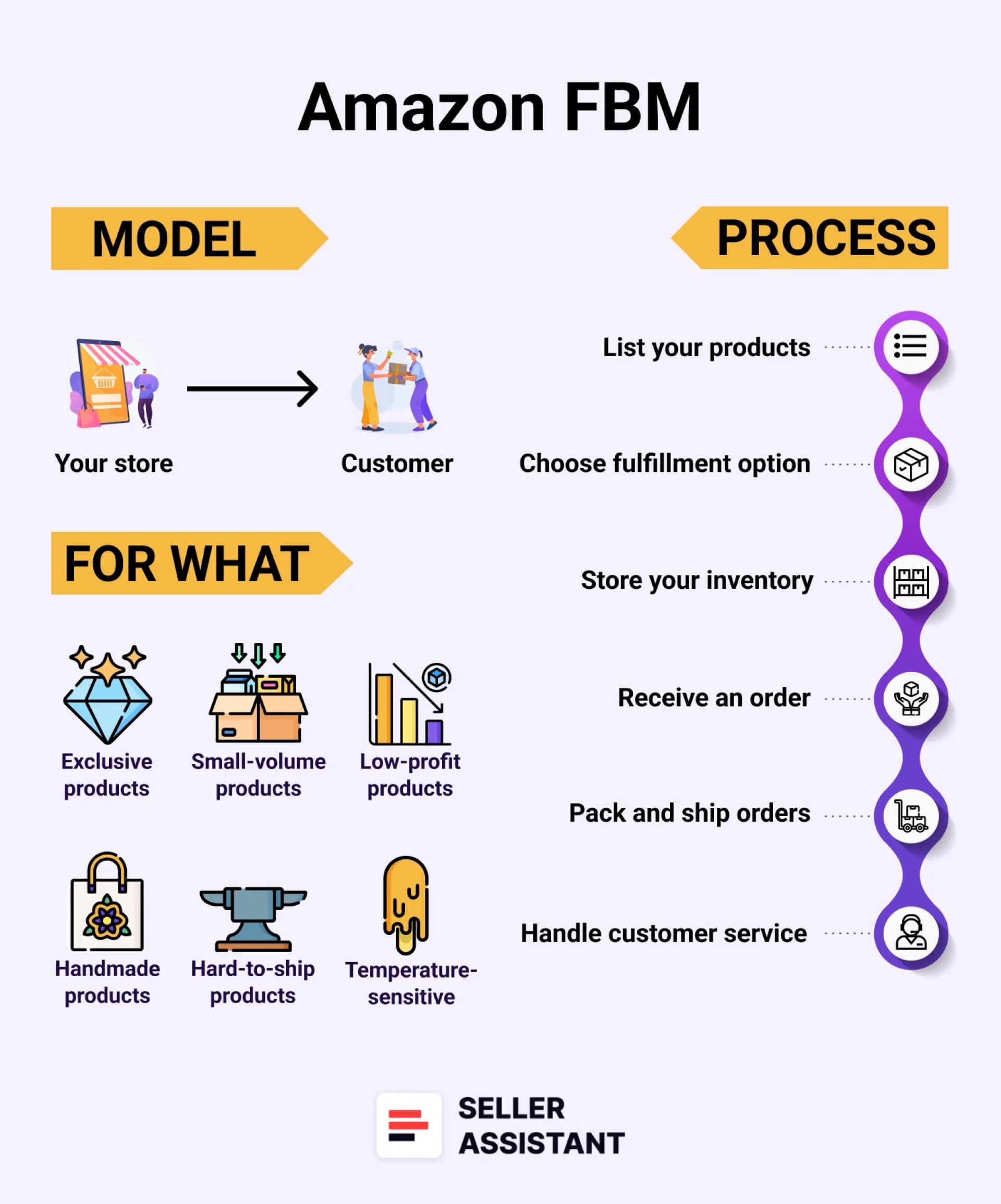
Amazon FBM, also called self-fulfillment, is when you, as the seller, handle the packing and shipping of orders yourself. FBM puts you, the seller, in control of all aspects of the fulfillment process.
Amazon FBMThis method works well for sellers who don’t have many orders and can take care of packaging and sending them on their own. However, you must remember to package (prepare) your orders securely and add all necessary barcodes and labels. Another common reason to use FBM is when you sell bulk or other non-standard products and Amazon fees are high.When you use the FBM fulfillment method, it is essential to ship orders out as soon as possible to avoid delays or negative customer feedback.
How Amazon FBM Works
Step 1. Choosing FBMWhen adding a product offer in Seller Central, under "Inventory > Add a Product," select "I will ship the item myself" in the Fulfillment Channel section. This indicates you\'ll handle shipping instead of Amazon\'s FBA service.Step 2. Inventory storageWith FBM, you\'re responsible for storing your products. This could be a dedicated warehouse, a spare room, or even your garage.Step 3. Packing and shippingOnce a customer buys your product, you\'re responsible for securely packaging and shipping it to them. Ensure you use appropriate packaging materials and choose reliable shipping carriers.Step 4. Customer serviceYou\'ll need to handle all customer inquiries and issues, from answering questions about the product to resolving any problems that might arise after the sale.Related: What is Amazon FBM and How Does it Work?
Fulfillment by Amazon
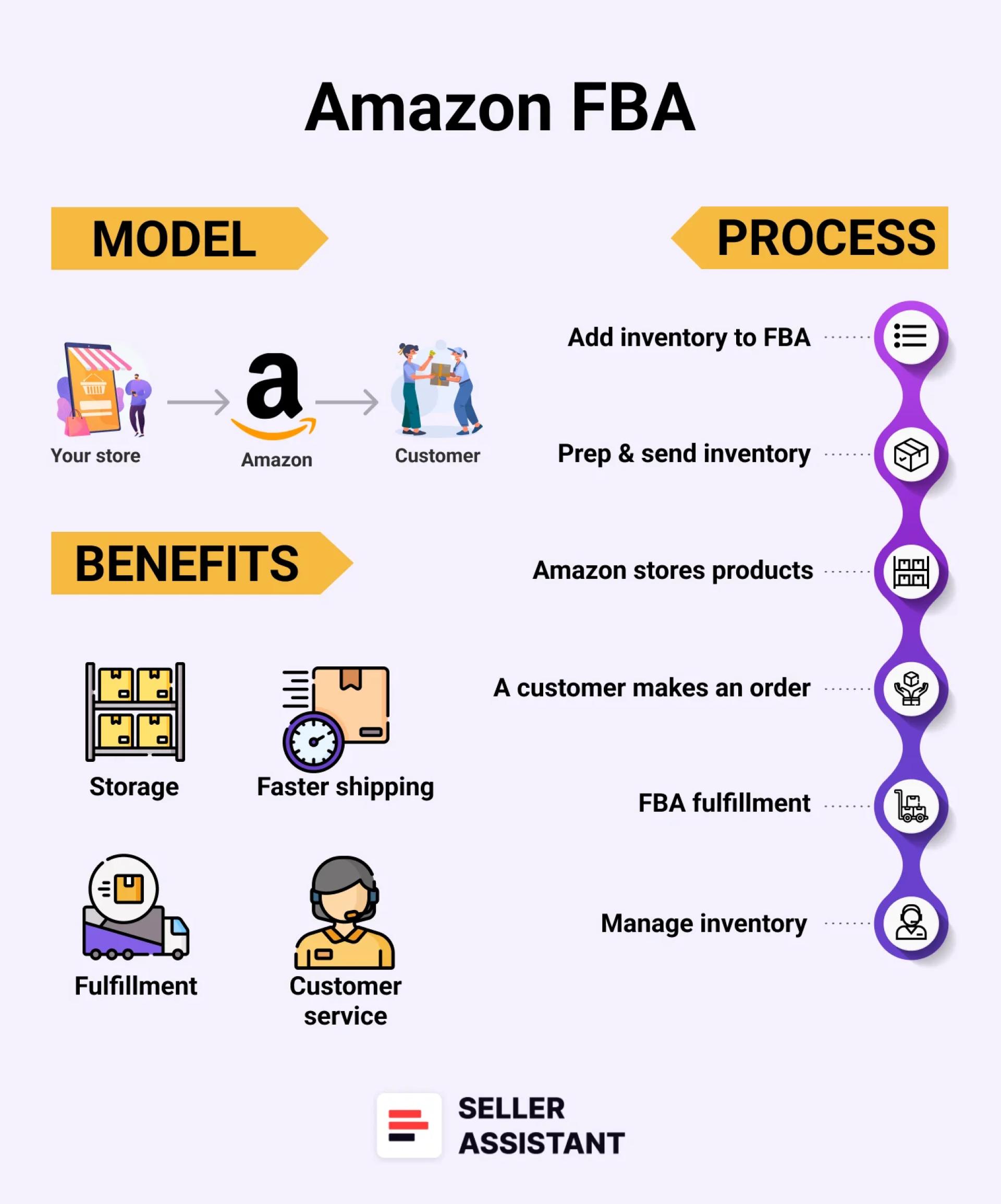
FBA is when you send your inventory to Amazon\'s warehouses, and the platform handles the picking, packing, order shipping, and customer service on your behalf for a fee.
Amazon FBAWith FBA, Amazon handles your logistics, saving you time and hassle. However, keeping track of your inventory levels and ensuring you\'re sending enough stock to Amazon\'s warehouses to replenish your stock is still important. Also, you must take care of shipping inventory to Amazon’s fulfillment centers.
How Amazon FBA Works
Step 1. Selecting FBAWhen you list a product on Amazon, in Seller Central, under "Inventory > Add a Product," choose "Fulfillment by Amazon" in the Fulfillment Channel section. This puts Amazon in charge of fulfillment.Step 2. Sending inventory to AmazonOnce you have products ready, you\'ll create a shipment plan in Seller Central and send your inventory to Amazon fulfillment centers. Make sure to follow Amazon’s detailed instructions on packaging and labeling requirements.Step 3. Storage, picking, packing, and shippingAmazon stores your products in their warehouses until a customer orders your FBA product. Then they pick, pack, and ship it directly to the customer. They handle packaging materials, shipping costs, and carrier selection, for a fee.Step 4. Customer serviceAmazon manages most customer service inquiries related to FBA orders, including questions about delivery or returns. You can set preferences for how you want to handle specific issues.Step 5. Inventory managementYou must track your FBA inventory levels and manage product reordering. Remember that with FBA you\'ll have to pay Amazon storage fees based on product size and storage duration.
Note. Amazon will ask you a question about your fulfillment method when you list your products, and it’s necessary to select FBA or FBM. You can change it at any time if you need.
If you are not sure what is better for you: FBA or FBM, look at these factors to pick the best fit for your business.
How to choose between FBA and FBM
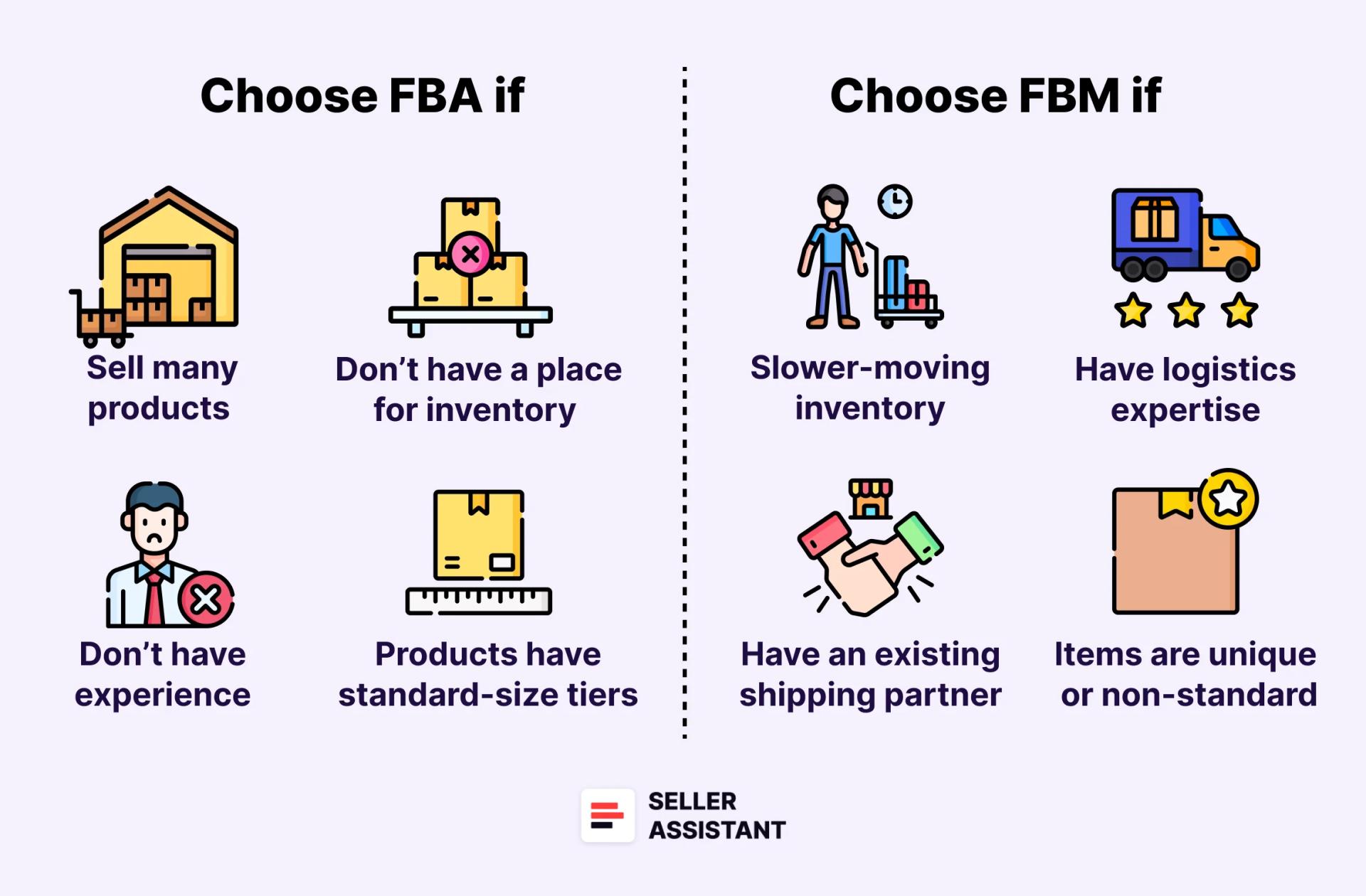
Go for FBA
If you sell many products
FBA can help you handle large order quantities you can’t manage yourself. Amazon\'s fulfillment centers ensure efficient picking, packing, and shipping, freeing you to focus on growing your sales.
If you do not have experience with fulfillment
Amazon has stringent packaging requirements. If you fail to prep your inventory in line with their rules, they will charge you extra for prep services. That can also create unnecessary delays. If you are not sure how to prepare your products, you can use Amazon’s services.
If you don’t have a place to store inventory
If you don’t have a warehouse where you will keep your products until they are purchased, Amazon will store them in their fulfillment centers. However, you must remember about the storage fees.
If your products have standard-size tiers
FBA works best with products that fit within their standard size tiers. Amazon charges bulk and heavy products differently from standard items, and the fees are much higher.
Go for FBM
If you have slower-moving inventory
For products that don\'t sell quickly, FBM can be more cost-effective. You avoid storage fees associated with slow-moving items in Amazon warehouses.
If you have logistics expertise
If you have experience in packaging, shipping, and customer service, you can potentially save money by handling fulfillment yourself with FBM.
If you have an existing shipping partner
If you already have a reliable shipping and delivery partner, FBM allows you to leverage their services and potentially negotiate better rates than FBA fees.
If your items are unique or non-standard
If you sell handcrafted or exclusive products, you may want to buy custom packaging, while Amazon offers standard solutions. Then you can fulfill these products yourself. Also, if your products have non-standard sizes or require special handling, third-party solutions may be cheaper than Amazon.
How to Package Amazon FBA Products?
Proper packaging ensures your product arrives safely and keeps your customer happy. It is also important to stick to Amazon’s requirements because Amazon can charge you for improper packaging because they will repackage the product.
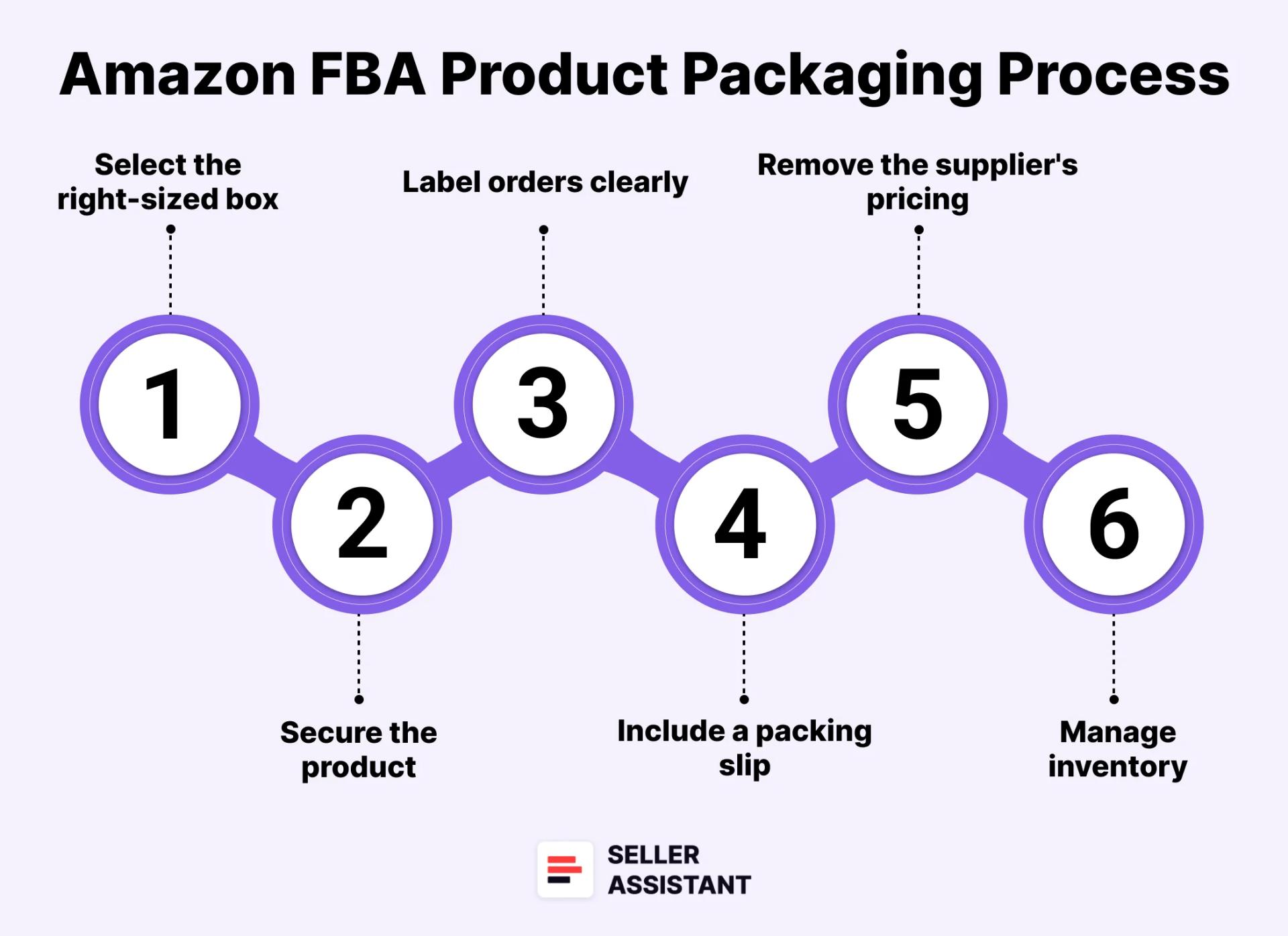
Steps to package your product
Step 1. Select the right-sized boxUse a box that fits your product. Avoid excessive empty space that can cause items to shift during transit. Amazon recommends using new, sturdy boxes to ensure they can withstand the shipping process. Repurposed boxes might not be strong enough.Step 2. Secure the productUse void-fill materials like packing peanuts, bubble wrap, or air pillows to prevent your product from moving around inside the box. Ensure the product is well-cushioned, especially for fragile items.Step 3. Label orders clearlyAdhere to the Amazon shipping label provided with your order clearly on the outside of the box. Ensure the barcode is easily scannable. Use a special internal Amazon barcode, FNSKU, if Amazon requires it. Don\'t include any other markings or labels on the box unless they\'re part of Amazon\'s labeling requirements.Step 4. Include a packing slipWhile not mandatory, including a packing slip with the customer\'s order details inside the box can help ensure that everything you sent was received. This can also help with order discrepancies or returns.Step 5. Remove the supplier\'s pricingDon\'t leave any original pricing information on the product or packaging.
How to Ship Inventory to Amazon FBA?
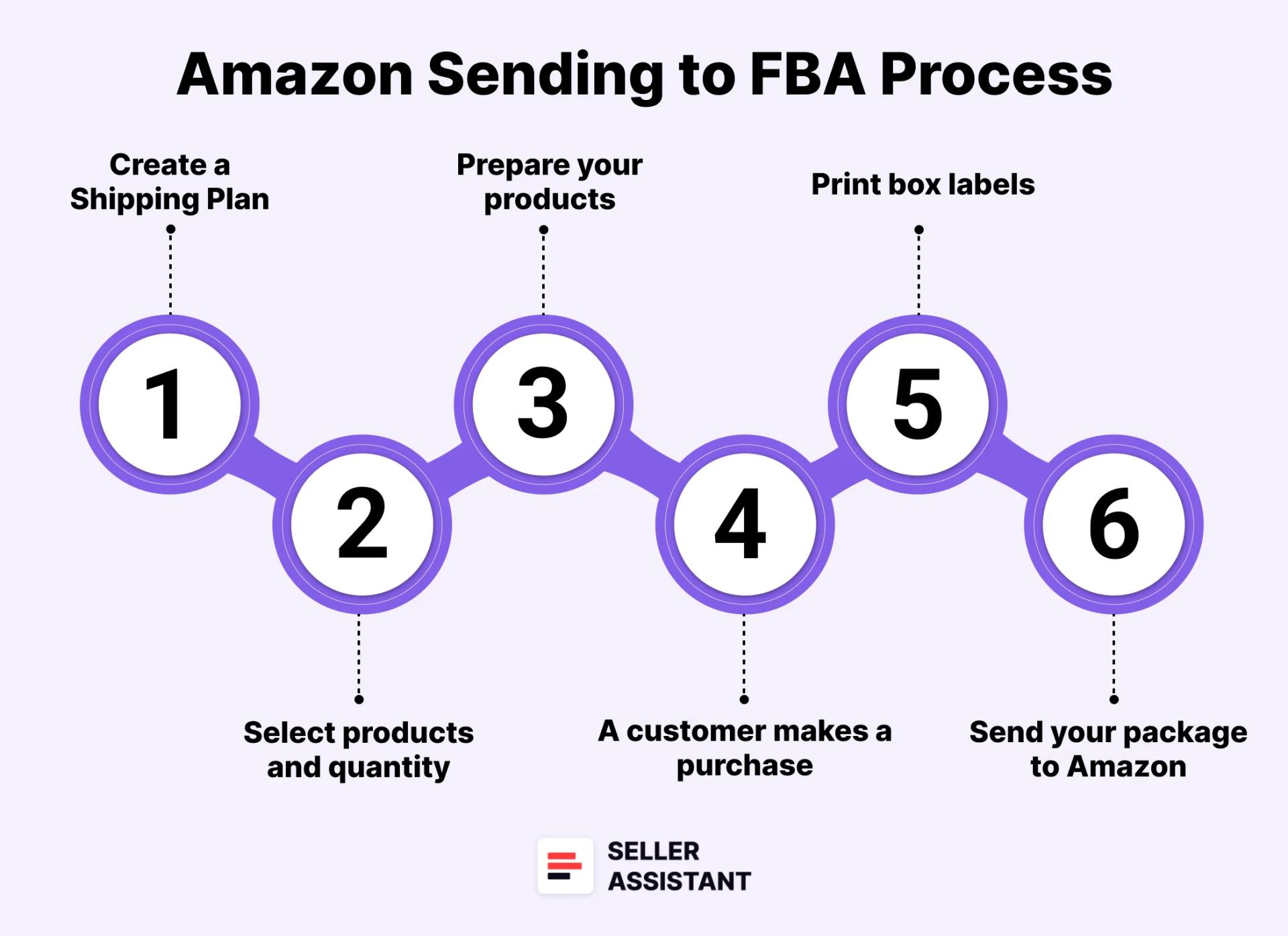
While Amazon does the majority of fulfillment jobs if you use FBA, you still need to send your inventory to Amazon’s fulfillment centers. To do that, you must prepare (package) products as Amazon requires and create a Shipping plan in your Seller Central to tell Amazon what and how you send.
How to Ship Inventory to Amazon FBA
Steps to send products to Amazon FBA
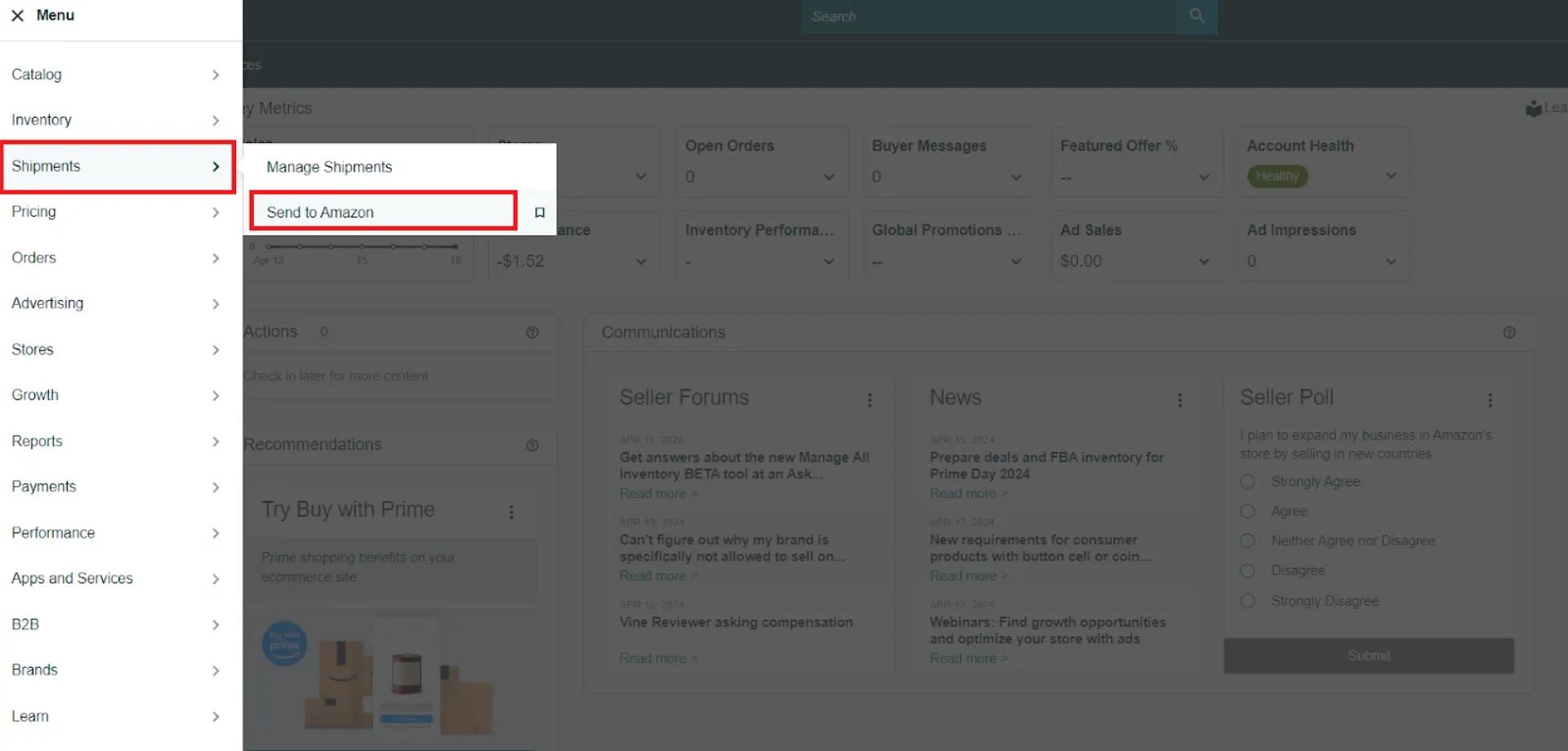
Step 1. Create a Shipping PlanIn your Seller Central side menu, go to Shipments > Send to Amazon.
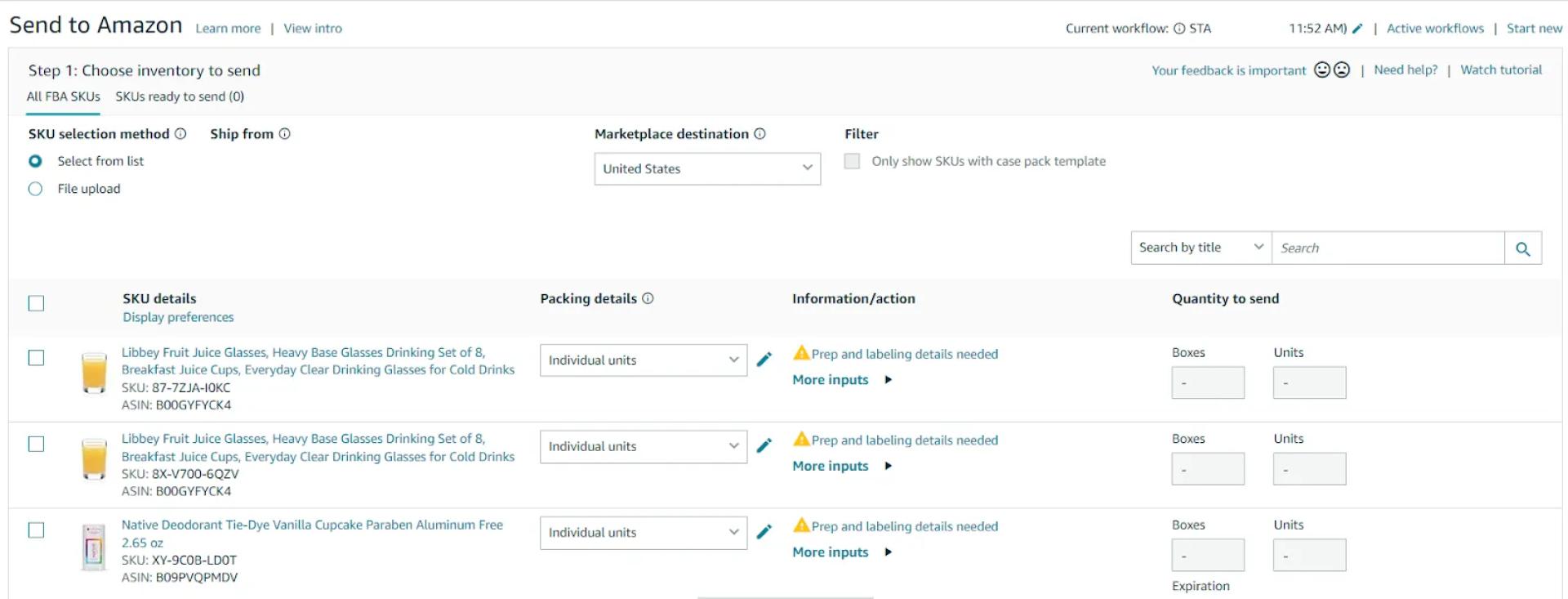
In your Seller Central side menu, go to Shipments > Send to Amazon.Step 2. Select products and quantitySelect the products you want to send to Amazon and specify the quantity for each item.Ensure the product information (size, weight, etc.) matches your listings to avoid processing delays.
Select the products you want to send to Amazon and specify the quantity for each item.Step 3. Prepare your productsPackage your products individually according to Amazon\'s guidelines we discussed above. Then, confirm shipment.Step 4. Print box labelsEach box must have a unique FBA box ID label printed from your shipment workflow. If your product requires FNSKU labels, print them and apply them to the package. Check that the barcodes are visible on your box, are uncovered, and don’t fold over the edges. Make sure the labels are in line with Amazon’s requirements.Step 5. Send your package to AmazonWhen you’re finished, send your package to the carrier you’ve selected to be delivered to Amazon.
How to Price Your Amazon Products?
When pricing your products, you must always make sure your sales generate profit. When you resell something on Amazon, the profit is the selling price on Amazon minus all costs.If you want to get profit from sales, you must price your product in such a way that it includes the profit you want to get, the cost of the item you resell (Cost of Goods Sold, COG), Amazon fees, shipping and handling costs (fulfillment), and other expenses.On the other hand, your price must be competitive. That means it must be attractive to Amazon customers. That is, it must be equal to or 2-3% higher than the Buy Box price.Therefore, to set the «good» price, you must maintain a balance between your costs and profit on the one hand, and the Amazon Buy Box price, on the other hand.
What are Amazon sales costs?
When you calculate your selling price, you must include such costs as COG, all Amazon fees, shipping and logistics, and sales tax and VAT if applicable.
Cost of Goods Sold
COG (Cost of Goods Sold) is the price you paid for the item you resell.
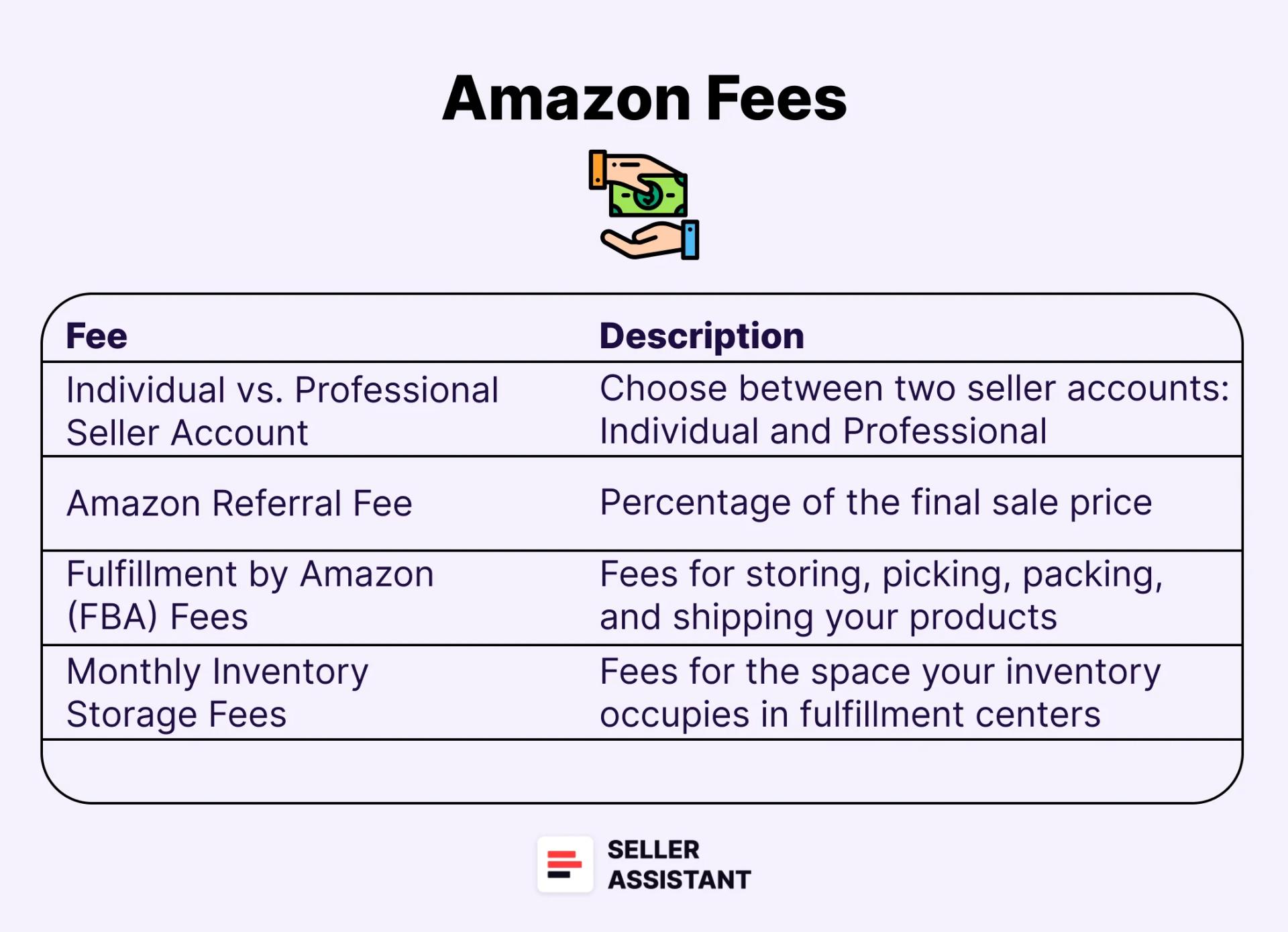
Amazon fees
All Amazon sellers selling plan fees and referral fees. Also, there are optional fees. You pay them if you use additional Amazon services.
Amazon fees
Selling plan fees
The Individual plan costs $0.99 per unit sold, and the Professional plan costs $39.99 per month, no matter how many units you sell; or
The Professional plan will save you money if you sell more than 40 units a month.
Referral fees
The referral fee is paid for each item you’ve sold on Amazon. The fee is a percentage and depends on the product category. Most referral fees are between 8% and 15%. However, in some categories, like Amazon Device Accessories, it hits 45%. In some cases, a minimum referral fee applies.
Fulfillment costs (FBA or FBM)
FBA fees
Fulfillment fees are charged per unit. They are calculated based on the weights and dimensions of the product. The fees differ for standard and oversized products and depend on the size tier. Also, some products that require special care (hazmat, fragile, etc.) may be charged extra;
Storage fees are charged for storing inventory in Amazon’s warehouses. These fees are calculated based on the daily average volume of the space inventory occupies. The rate is based on product type, size tier, and time of year.
Inbound placement service fees
The inbound placement service fee is the cost of spreading inventory across Amazon’s fulfillment centers close to customers. The fee was introduced on March 1, 2024.
FBM fees
Unlike FBA, FBM sellers pick, pack, and ship your products and handle customer service by themselves. FBM sellers don’t pay for this to Amazon. They pay to third-party service providers.
Other fees
Amazon may charge you other fees in some categories (Closing fees for selling media products), High-volume listing fees if you have more than 100,000 products listed, and Refund administration fees if the customer asks for a refund.
Logistics costs
Logistics costs are expenses for preparing orders (packaging and labeling) and delivering them to the customer (FBM sellers) or Amazon’s fulfillment center (FBA sellers).
Shipping to Amazon and prep center costs (FBA)
Shipping to Amazon includes the cost of shipping from the supplier to the Amazon fulfillment center.
Prep center fees
You can prepare products on your own if you don’t sell many products. However, if you sell many products, you can use a specialized service - preparation (prep) center. The preparation center is a service provider preparing your inventory for fulfillment according to Amazon standards. Prep center fees vary depending on which prep center you use.
3PL costs (FBM)
3PL is a third-party logistics service provider preparing your inventory and shipping it to the customer. This service is often used by FBM sellers.
Sales tax and VAT
Sales tax for Amazon sellers is typically collected by Amazon on behalf of sellers. But in some cases, depending on where your business is located, you will need to collect it;
VAT (Value Added Tax) is paid when you sell internationally.
When you set your price, you must know how much money you will get after costs, and how profitable is your investment in the product.
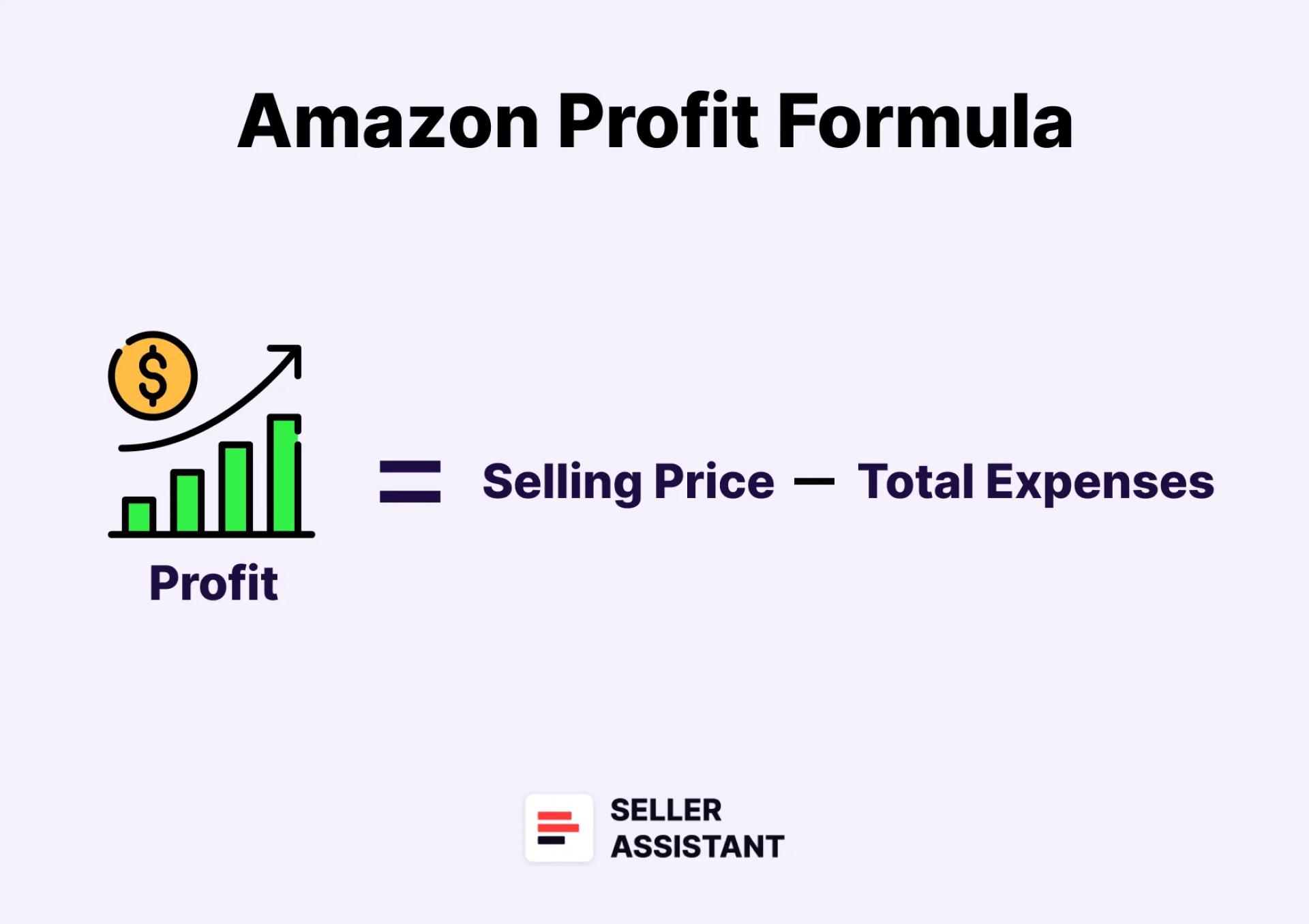
Profit
Profit is calculated as the selling price minus COG, referral fees, FBA fees (for FBA sellers), monthly storage fees sales (for FBA sellers), tax and VAT (if applicable), and logistics (3PL) costs (for FBM sellers).
Profit
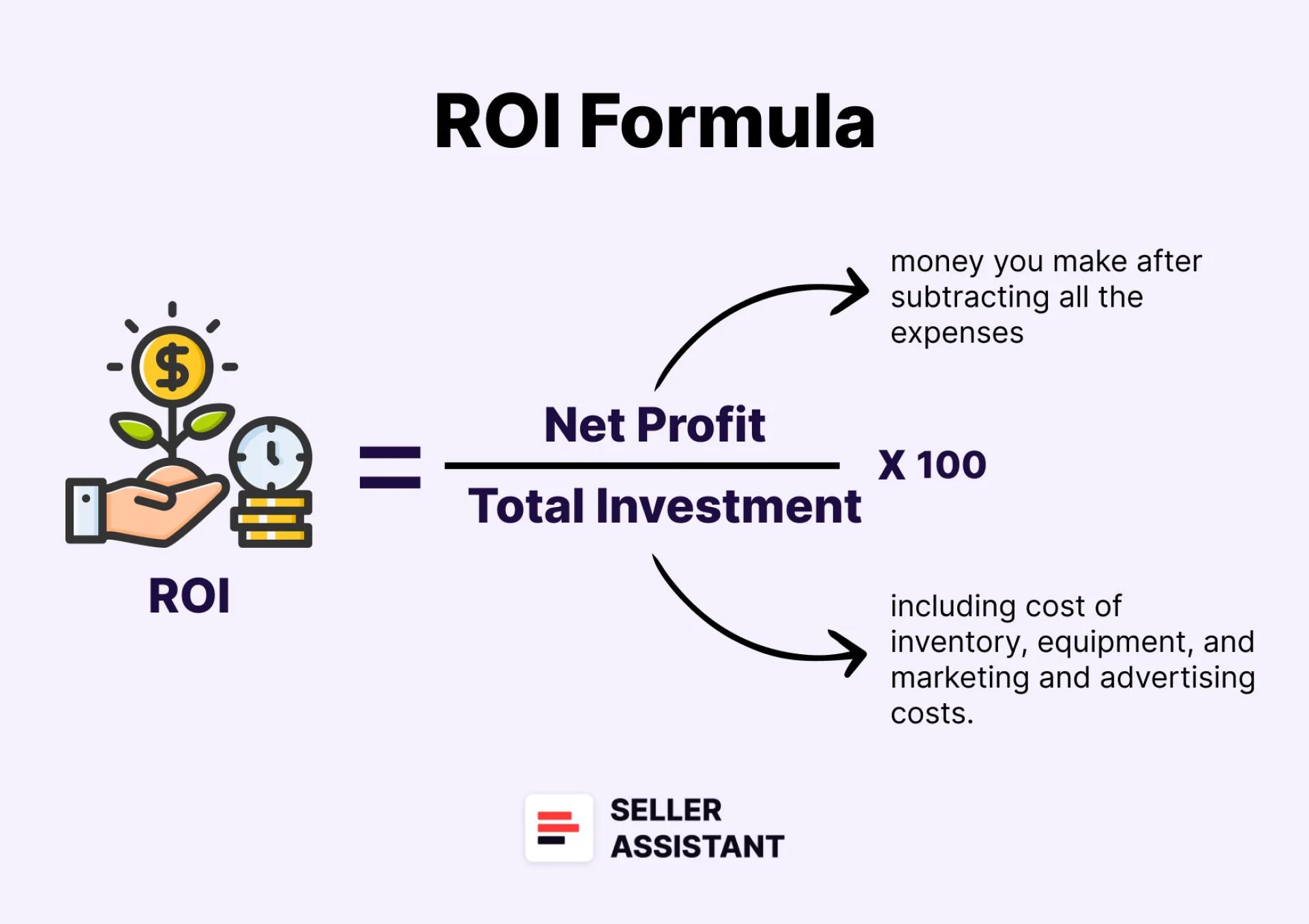
ROI
ROI (Return on Investment) is the profitability of investment expressed as a percentage. ROI is calculated as profit divided by COG, sales tax, and 3PL costs and multiplied by 100%. A «good» ROI is more than 10%.
ROI
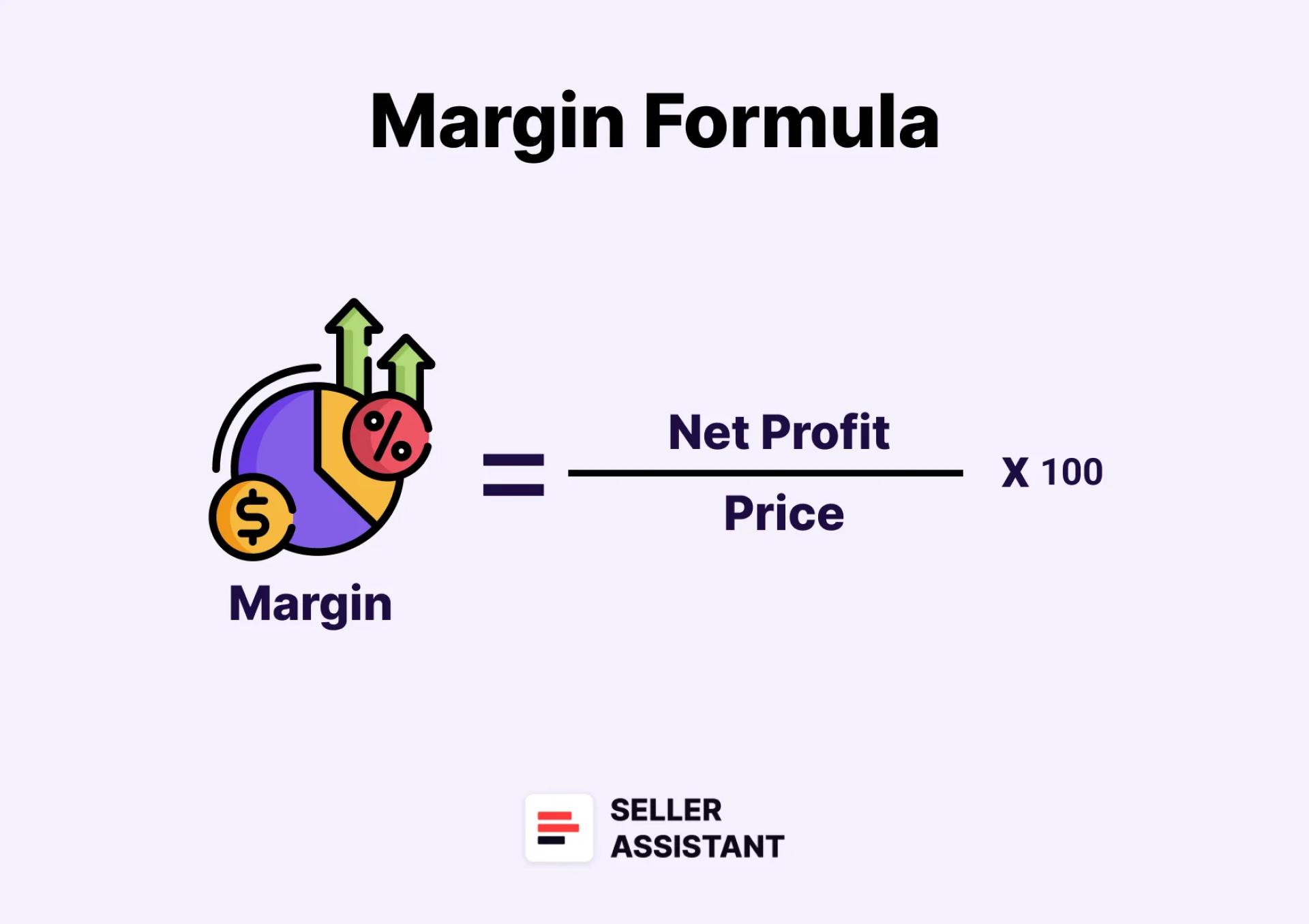
Margin
The profit margin shows the profit percentage generated by sales. It is calculated as profit divided by price and multiplied by 100%. A «good» margin is 10-15%.
Margin
Break-even price point
When you set your price, you must calculate the break-even price point (your minimum selling price). A break-even price is the price point at which you earn zero profit, and will only cover the costs if you sell a product.It’s important to set the break-even so as not to lose money when you reprice the product.
How to calculate costs, profitability, and price?
The most convenient way to calculate costs and profitability is Seller Assistant’s FBA&FBM calculator. It helps you calculate your expenses and product profitability.You have two options: products fulfilled by Amazon (FBA) and products fulfilled by sellers (FBM). You can quickly calculate product profitability, fees, and logistics expenses for FBA and FBM separately.
Steps to calculating product price
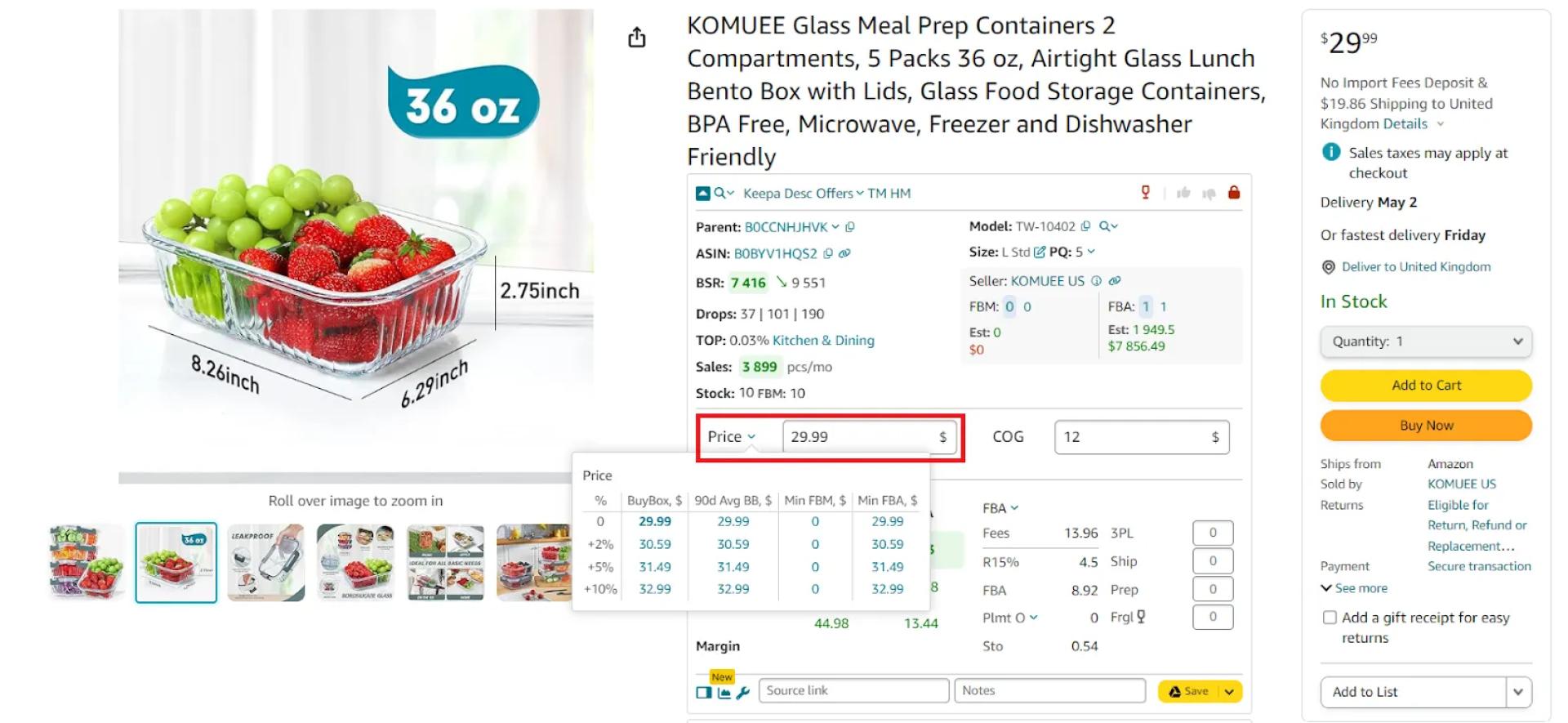
Step 1. Set your desired priceSeller Assistant shows you the maximum FBA and average (over 90 days) Buy Box prices (the best price offer). Click the small arrow beside the “Price” to set the Buy Box +2, 5, and 10%.
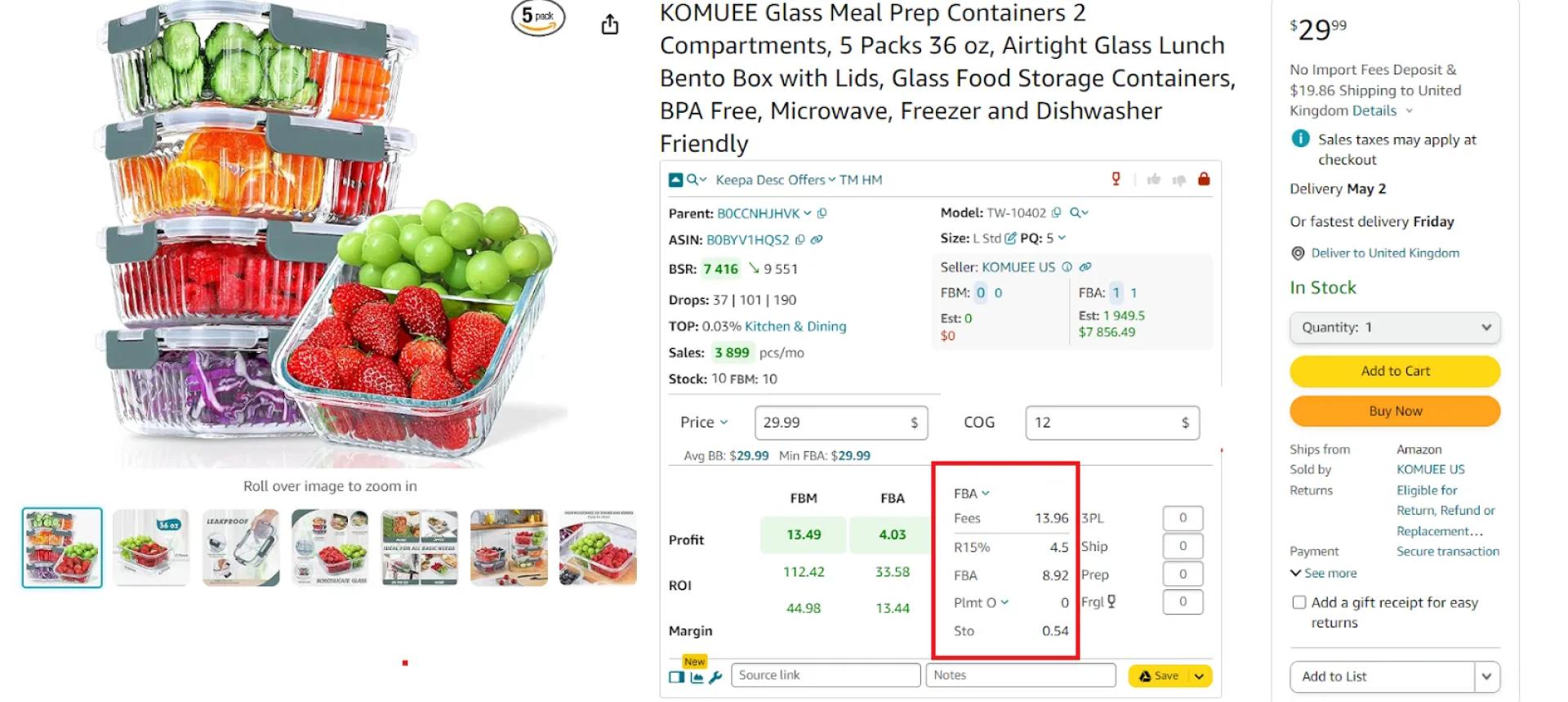
Seller Assistant shows you the maximum FBA and average (over 90 days) Buy Box prices (the best price offer). Click the small arrow beside the “Price” to set the Buy Box +2, 5, and 10%.Step 2. Calculate your Amazon feesEnter the Cost of Goods Sold (product price at the supplier) in the COG field. Select your fulfillment method (FBA or FBM). For FBA, you can choose the inbound placement fee option in the Plmt field (by default it is set to Optimized shipment split, $0). The calculator shows you all Amazon fees.
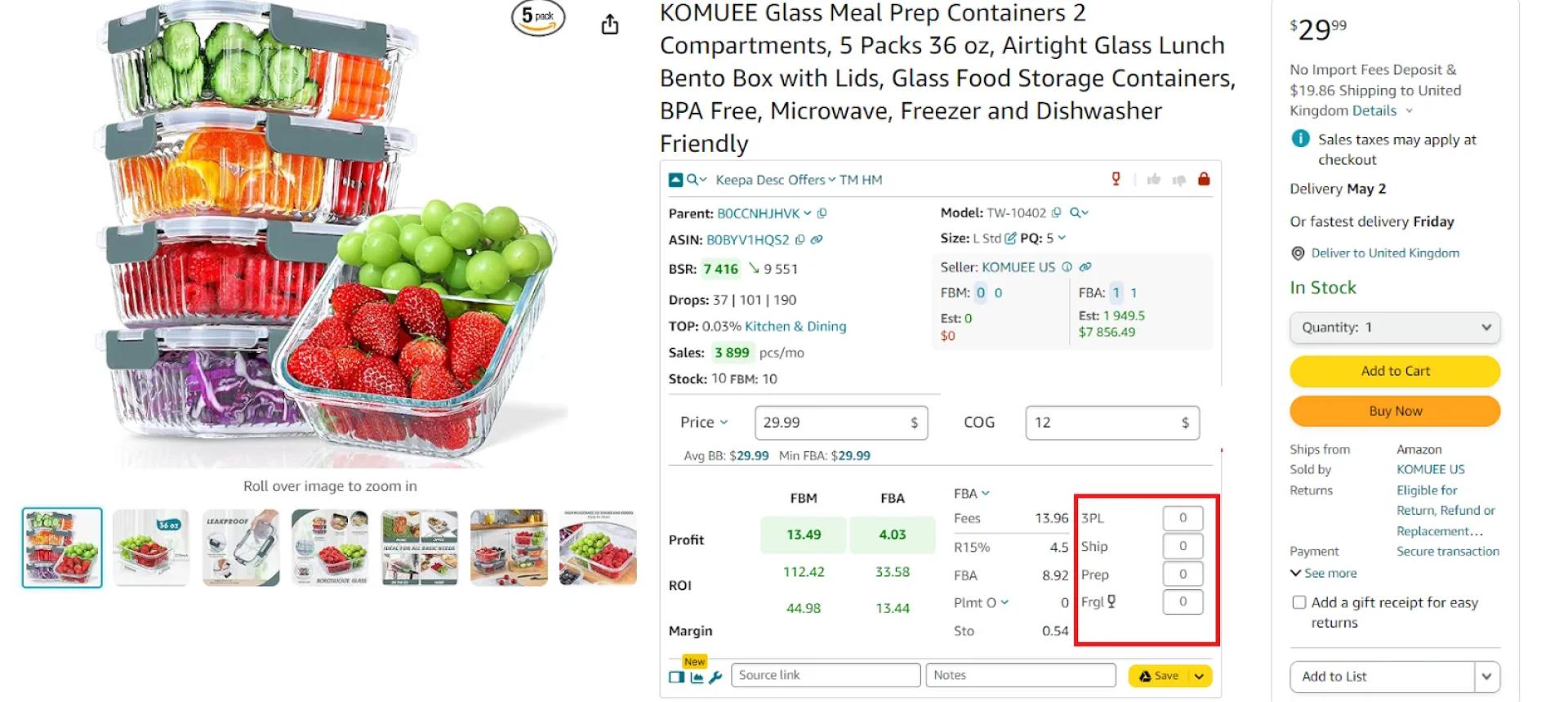
Enter the Cost of Goods Sold (product price at the supplier) in the COG field. Select your fulfillment method (FBA or FBM). For FBA, you can choose the inbound placement fee option in the Plmt field (by default it is set to Optimized shipment split, $0).Step 3. Enter logistics costsFor FBM, add 3PL (Ship + Prep + Frgl) and shipping costs, for FBA add prep center fees (if you use that service), and shipping to Amazon costs.
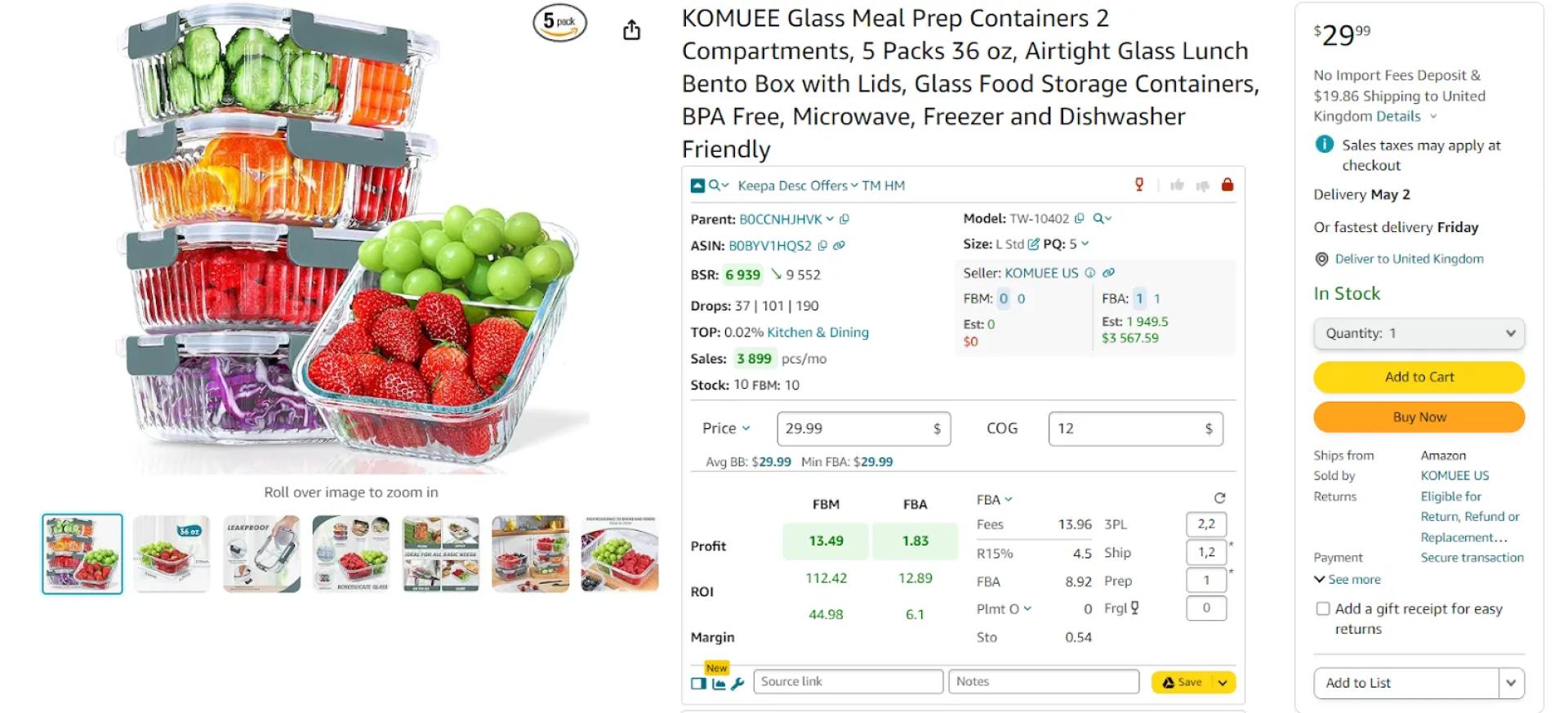
For FBM, add 3PL (Ship + Prep + Frgl) and shipping costs, for FBA add prep center fees (if you use that service), and shipping to Amazon costs.Step 4. Choose the minimum and maximum pricesEstimate the product’s profitability. The calculator automatically shows your profit, ROI, and margin. Hover your mouse over the ROI figure, and the calculator shows you the selling price with 0, 10, and 20% profit and ROI. Choose the minimum and maximum prices with the profit levels you want.
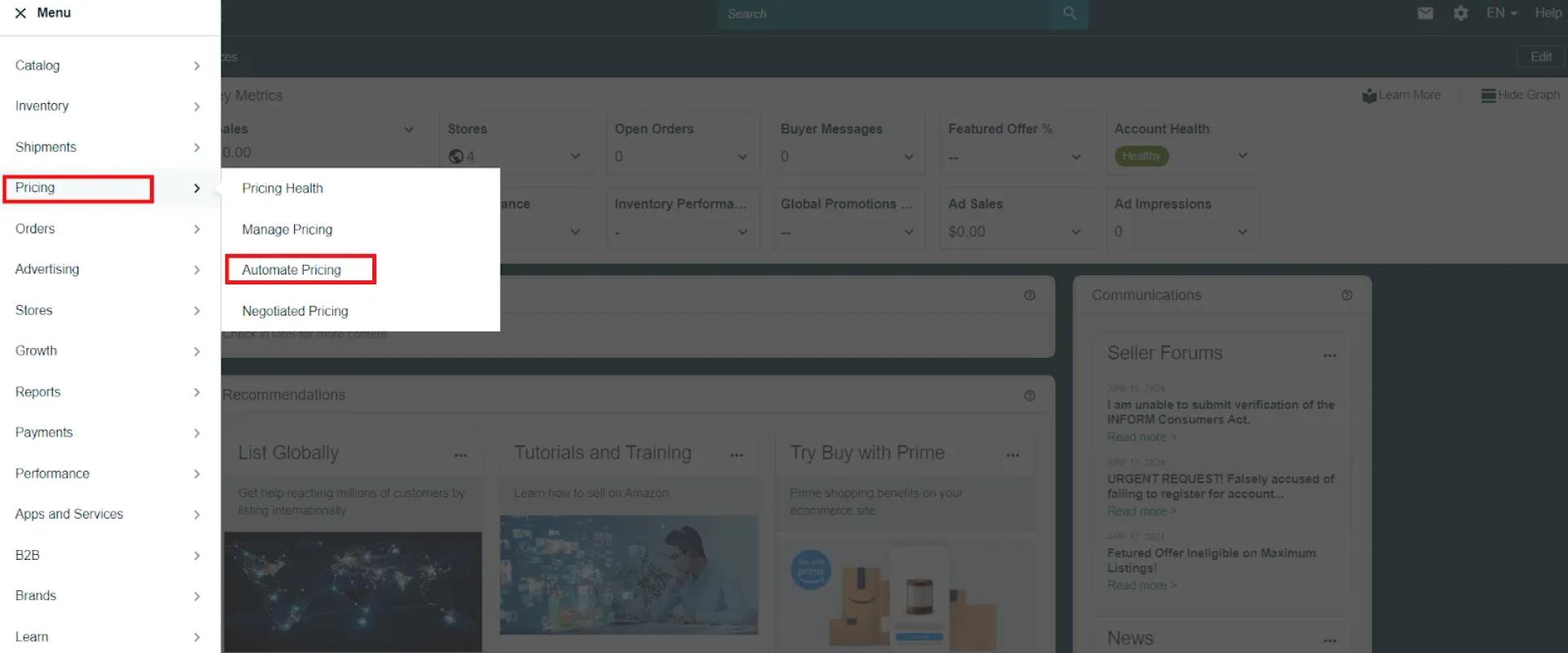
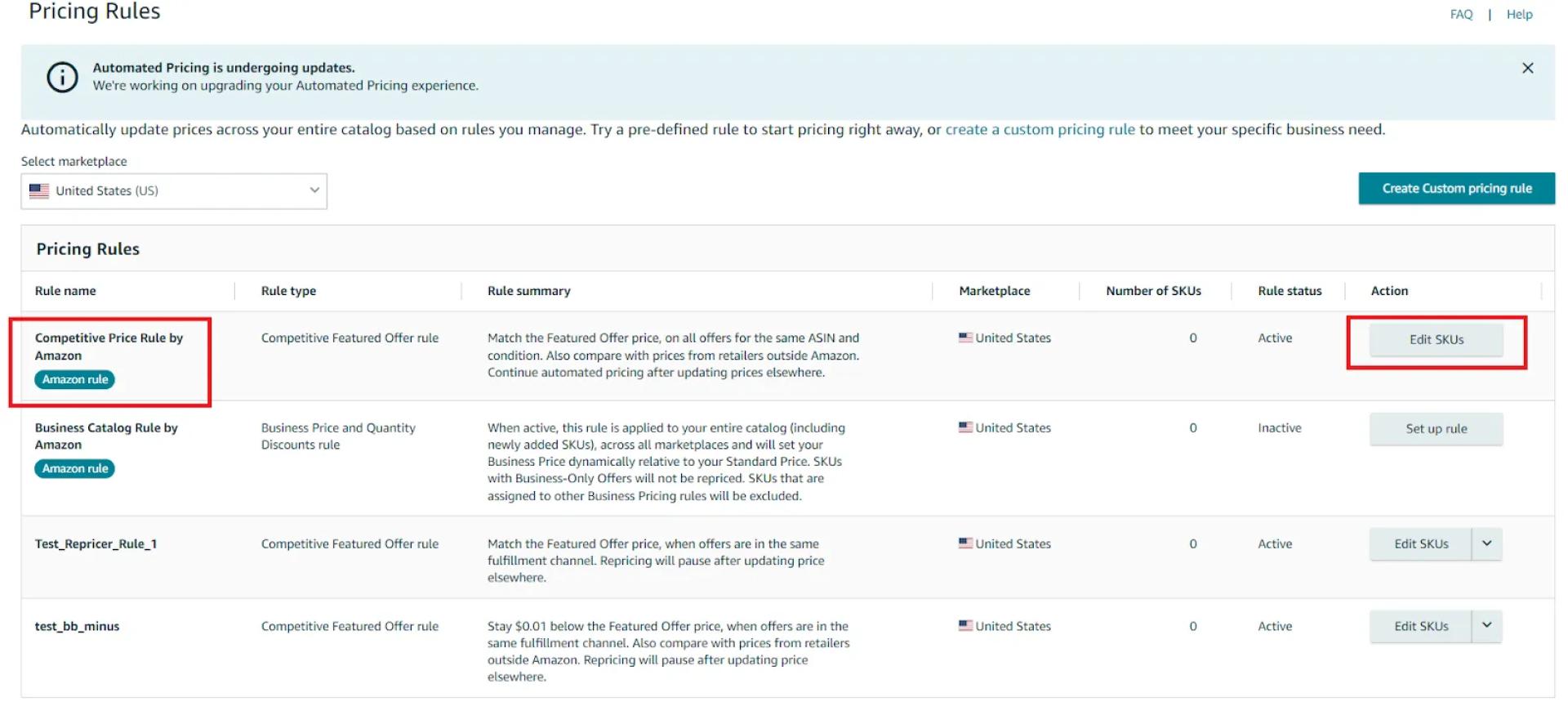
Estimate the product’s profitability. The calculator automatically shows your profit, ROI, and margin. Hover your mouse over the ROI figure, and the calculator shows you the selling price with 0, 10, and 20% profit and ROI. Choose the minimum and maximum prices with the profit levels you want.Step 6. Go to the Amazon repricerIn your Seller Central menu, go to Pricing > Automate Pricing
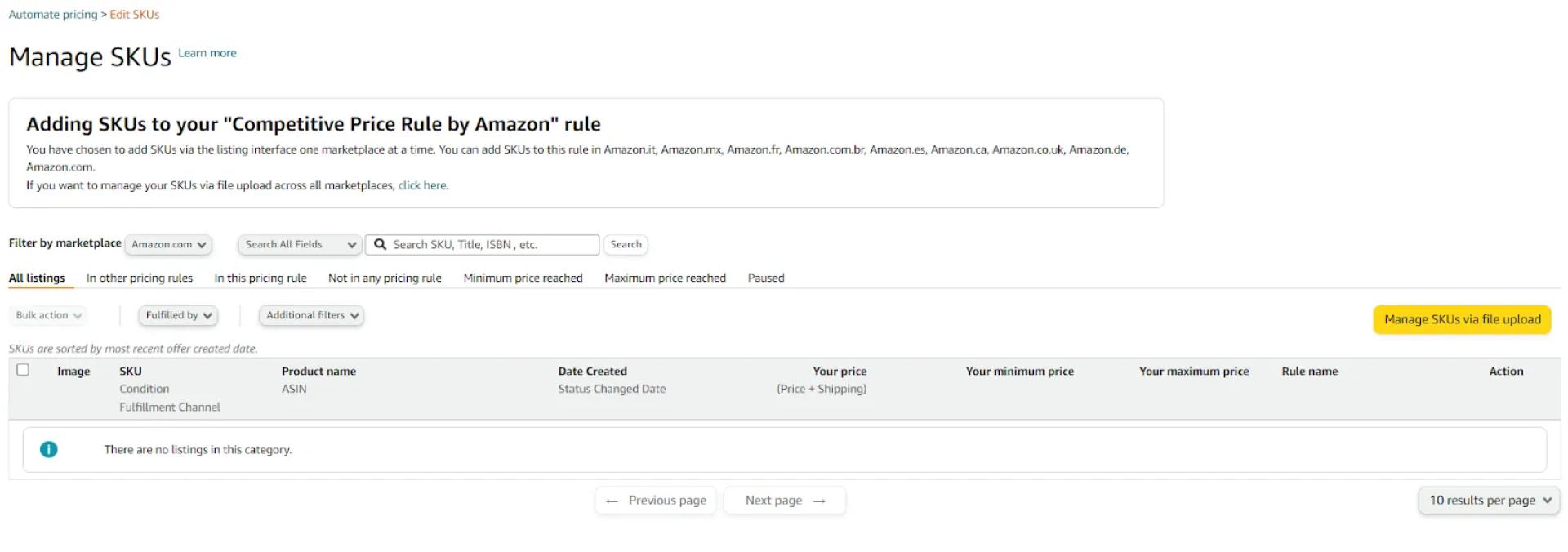
In your Seller Central menu, go to Pricing > Automate PricingStep 7. Configure pricing ruleSelect the pricing rule you want to use, and the number of SKUs, and click edit SKU.
Select the pricing rule you want to use, the number of SKUs, and click edit SKUStep 8. Set minimum and maximum pricesEnter your selling price, minimum and maximum price levels you calculated with Seller Assistant in step 4, and launch the rule. Amazon Automate Pricing will automatically adjust your product prices against your competition to increase your chances of winning the Buy Box. It will automate your product price changes as they change on Amazon within the set limits.
Set minimum and maximum prices
How to Know My Product Was Sold?
When you use Amazon FBA, they take care of all order fulfillment processes, and you don’t need to know exactly when you receive each order. However, as an FBA seller, you must know it immediately to timely process and ship it out.You can get this information in your Seller Central Order and the Amazon Seller Mobile App.Originally published at https://www.sellerassistant.app/blog/how-to-sell-on-amazon-for-beginners-complete-guide











Sign in to leave a comment.