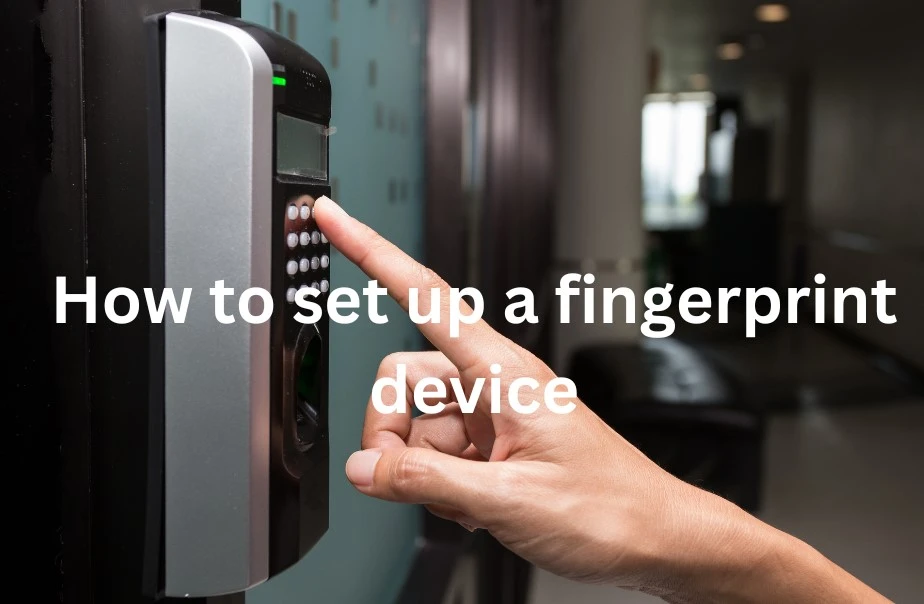

To set up a fingerprint device, download the necessary software and drivers, connect the device to the computer, and follow the instructions provided by the manufacturer. Biometric devices like fingerprint readers are becoming more common as a method for securing access to electronic devices or sensitive data.
Setting up these devices can be simple and straightforward if you follow the provided instructions. For many devices, you'll need to download the software and drivers from the manufacturer's website, or use the software that comes with the device. Once you've connected the device to the computer, you should be guided through the setup process step-by-step.
Properly setting up a fingerprint device can be a great way to keep your device secure, while also making it more convenient to access.
What Are Fingerprint Devices And Why They Are Important?
Fingerprint devices are biometric authentication tools that are used to grant access to computer systems and mobile devices. There are different types of fingerprint devices, including those built into smartphones, tablets, and laptops. They are also commonly used in security systems for buildings and other physical locations.
Fingerprint devices work by creating a digital image of unique patterns on the surface of a person's fingertip, which can be used to verify their identity. This makes them an important tool in protecting sensitive data and maintaining security. With the increasing importance of data privacy, setting up a fingerprint device can be essential in today's world.
Factors To Consider When Setting Up A Fingerprint Device
When setting up a fingerprint device, there are several key factors to consider. Firstly, decide on the location of the device, ensuring it is easily accessible for users. Secondly, consider the connectivity requirements and ensure the device can connect to relevant software and networks.
Compatibility with operating systems is also important to ensure seamless integration. It's also important to consider the equipment required, such as cables and power sources. Finally, regular maintenance and calibration will ensure the device remains accurate and efficient. By carefully considering these factors, you can set up a fingerprint device that is reliable and secure.
Step By Step Guide To Setting Up Your Fingerprint Device
Setting up a fingerprint device may seem intimidating, but it's actually quite easy. First, unpack the device and ensure all the components are included. Next, install the software provided with the device. Then, set up the hardware by following the instructions provided.
Are you interested in knowing the ZKteco uFace 800 Price in Bangladesh? If so, let me guide you through the process of setting up and configuring this device. First, you need to plug in the ZKteco uFace 800 and ensure it is correctly positioned. Once the hardware is properly set up, you can proceed to configure the device by creating a user account and implementing any required security measures. To ensure seamless functionality, it is crucial to conduct a thorough test of the device, making certain that everything is functioning correctly. By following these straightforward steps, you will have your ZKteco uFace 800 fingerprint device operational in no time.
Dos
Maintaining the cleanliness of the fingerprint device is crucial to ensure its longevity. Regularly testing the device is also crucial to ensure that it functions correctly. Setting up multiple users is essential for organizations or households with multiple users. It is also important to securely store fingerprint data to protect it from unauthorized access.
Fingerprint data should only be accessible to authorized individuals. Keep these things in mind when setting up a fingerprint device to ensure its longevity and proper functioning.
Don'Ts
When setting up your new fingerprint device, it's crucial to avoid the following don'ts. Firstly, refrain from sharing access with unauthorized users. Secondly, don't use weak passwords as this jeopardizes security. Finally, do not modify device settings without proper authorization, as this can lead to system malfunctions.
Following these guidelines will help ensure the safety and effectiveness of your fingerprint device. It's important to be diligent and cautious when it comes to device security to avoid security breaches and unauthorized access.
Frequently Asked Questions On How To Set Up A Fingerprint Device
How Do You Set Up A Fingerprint Device For The First Time?
To set up a fingerprint device for the first time, plug it into your computer's usb port, install the necessary software, and follow the on-screen instructions to register your fingerprint and complete the setup process.
What Should You Do If Your Fingerprint Device Isn'T Working?
If your fingerprint device isn't working, try reinstalling the driver software, cleaning the scanner, adjusting your computer's power settings, and ensuring that your operating system is up to date. If the problem persists, contact the manufacturer for assistance.
Can A Fingerprint Device Be Used For More Than Just Unlocking A Computer?
Yes, a fingerprint device can also be used to secure websites and applications, provide access to secure facilities, and even authorize financial transactions, making it a versatile and convenient security solution for a variety of applications.
Conclusion
Having a fingerprint device to secure your computer provides several benefits like added security, convenience, and speed. After going through this guide, you can now easily set up your fingerprint device and maximize its capabilities. Make sure your fingerprint scanner is compatible with your computer and that you have installed the necessary software for it to function correctly.
Avoid common mistakes like not enrolling your fingerprints correctly, not backing up your data, or not checking for any updates. Using a fingerprint device is a simple yet effective way to protect your computer and your personal data. Follow these guidelines, and you're sure to have a seamless experience with your device.
Keep your computer secure and enjoy the convenience of not having to enter passwords every time you log in.





Sign in to leave a comment.