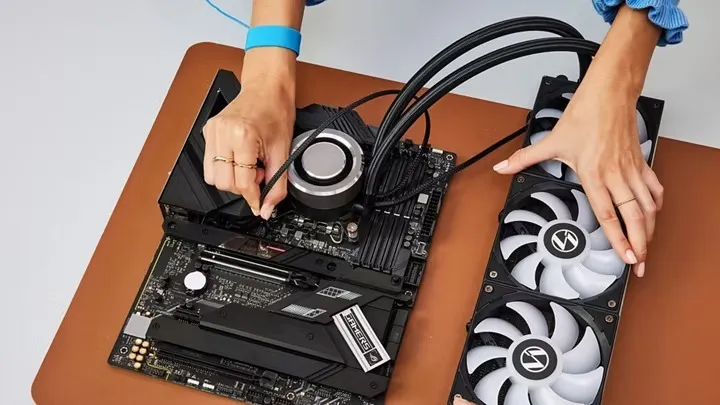

A gaming PC that runs too hot can turn an enjoyable gaming session into a frustrating experience. High temperatures may cause thermal throttling, sudden performance drops, unexpected shutdowns, and, over time, unnecessary stress on components such as the CPU and GPU. The good news is that most overheating problems can be addressed with a few practical changes. From improving airflow and cleaning dust to checking fan performance and monitoring temperatures, there are several ways to keep your system running cooler. This guide explains the most common causes of gaming PC overheating and what you can do to maintain stable performance during demanding games.
Improve Airflow and Keep Your PC Clean
One of the most common causes of overheating is restricted airflow. Gaming PCs generate significant heat through the CPU, graphics card, power supply, and other components. If warm air cannot escape efficiently, internal temperatures can rise quickly.
Start by checking your case fans. Ideally, cool air should enter through the front or bottom of the case, while warm air exits through the rear or top. Make sure fans are positioned correctly and are not blocked by cables, furniture, or other objects.
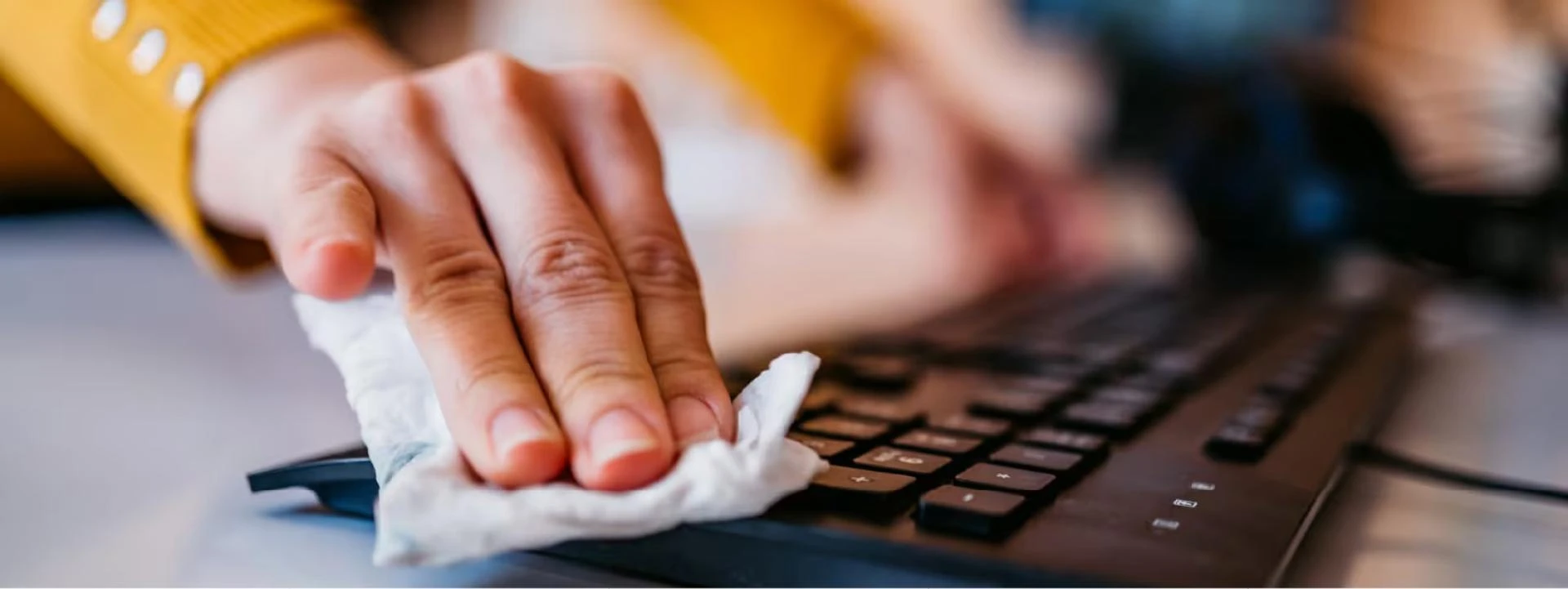
Dust is another major problem. Dust buildup on fan blades, filters, heatsinks, and radiators can reduce cooling efficiency. Turn off and unplug the PC before carefully cleaning these areas with appropriate compressed air or other safe cleaning methods.
If your PC sits inside a cramped desk compartment, consider moving it to a more open location. A little extra space around the case can make a noticeable difference to airflow.
Image insertion point 1: Add an image showing a gaming PC case with correctly positioned intake and exhaust fans, highlighting the airflow direction.
Check CPU and GPU Temperatures
Before changing hardware, find out how hot your components are actually getting. Temperature monitoring software can help you identify whether the CPU, GPU, or both are responsible for the problem.
Gaming temperatures vary depending on the hardware, game, room temperature, cooling solution, and workload. Instead of focusing on one universal temperature limit, check the manufacturer's specifications for your particular CPU and GPU.
If temperatures consistently approach the thermal limits specified by the manufacturer, investigate the cooling system. You may also notice symptoms such as frame-rate drops, fans running at maximum speed, stuttering, or sudden system shutdowns.
Background applications can contribute to unnecessary heat as well. Close programs you do not need while gaming and check whether any processes are placing unusually high loads on the CPU or GPU.
For gamers experiencing persistent performance issues, professional PC repair Sunshine Coast services can help diagnose thermal problems and identify hardware or cooling faults.
Upgrade Cooling and Manage Gaming Performance
If cleaning and improving airflow do not solve the issue, the cooling hardware may need attention. A CPU cooler that is poorly mounted, damaged, or no longer performing effectively can cause temperatures to rise quickly. In some cases, replacing the thermal paste can improve heat transfer between the processor and cooler, although this should be done carefully.
GPU cooling should also be checked. Graphics cards rely on heatsinks and fans to remove heat during gaming. If the GPU fans are not working correctly or the heatsink is heavily clogged, temperatures can increase significantly.
You can also reduce heat generation by adjusting graphics settings. Limiting frame rates, reducing unnecessarily demanding settings, or using sensible power-management options can lower GPU workload without dramatically affecting gameplay.
For more complex problems, Gaming Computer Upgrades Sunshine Coast can be considered when the existing cooling setup is no longer suitable for the hardware.
Conclusion
Keeping a gaming PC cool is about more than preventing an immediate shutdown. Consistent thermal management helps maintain stable performance and reduces unnecessary stress on components during demanding gaming sessions. Start with the basics, such as cleaning dust and improving airflow, then monitor temperatures to identify the source of the problem. If overheating continues, inspect the cooling hardware or consider professional assistance from Techies2Talk.
Actionable takeaways:
- Clean dust from fans, filters, heatsinks, and radiators regularly.
- Make sure intake and exhaust fans create a clear airflow path.
- Monitor CPU and GPU temperatures while gaming.
- Check CPU cooler and GPU fan performance if temperatures remain high.
- Consider cooling or hardware upgrades when your existing setup cannot handle the workload.
As gaming hardware continues to become more powerful, effective cooling will remain an important part of maintaining a reliable and enjoyable gaming PC.




















Sign in to leave a comment.