
Do you wish to change the system you‘re working on? Well, if you’re a regular QB user and want to transfer your software from your old computer to a new one, then here’s the solution. This can be undoubtedly a hectic process and essential too.
However, changing the system after a few years is a sensible approach to get your hands on some amazing functionalities and upgrades. There may be a couple of reasons behind this decision, such as better configuration, faster speed, additional space, and many more.
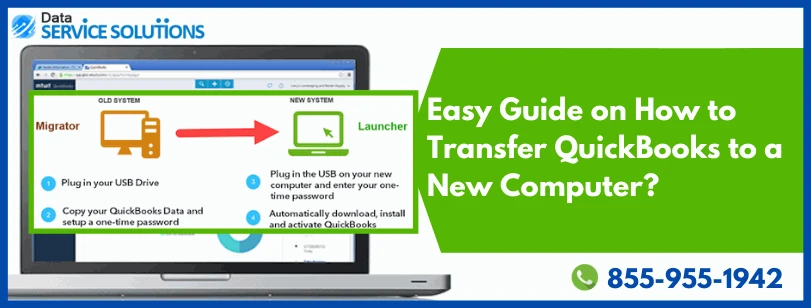
The users can easily use the migrator tool to transfer QuickBooks software from their old to a new computer with a maximum of three files. In such a scenario, you will definitely find transferring QuickBooks accounting software to be a brain teaser.
Here, we’re going to discuss a few steps that will surely help you to understand How to transfer QuickBooks to a new computer. Let’s get started.
What are the requirements to move QuickBooks to a new computer?
Transferring the QuickBooks desktop to a new system doesn’t need a huge list of things; it just demands a few basic things that are enumerated below. Take a look: :
You would have to register for the software after the installation and also make sure that the new system is connected to proper internet services.Uninstall QuickBooks desktop from the old system, but only once you’ve created a backup of the QuickBooks company files.Ensure that you keep the QuickBooks software installation disk or the setup file stored on an external device.To store the QuickBooks desktop files, you might also require an external storage device.You must have a USB flash drive with enough free space to hold QuickBooks files. It might be approximately 15 to 250 MB. License and product registration details are other essential things that are a must for transferring the software.
Read more - Check out the Blog to resolve QuickBooks Error (-12 0)
Here’s how to transfer QuickBooks Desktop to another computer
Below are the quick ways to move most of the QuickBooks data from one place to another. The steps involved in this section are given below:
Use Migrator Tool to transfer QuickBooks Desktop
If you need to reinstall or transfer QuickBooks to a new computer, then the migrator tool will help you with this. The transfer process can be carried out in two parts, which we have elaborated on later in this write-up. Before heading further, make sure to have access to the admin user, as the steps can only be carried out if you are using the admin credentials.
Read more - Check out the Blog to resolve QuickBooks Error 47
Major steps to set up and use the Migrator Tool in QuickBooks
Once you are done with the basics of the Migrator Tool and other important factors, it is the right time to uncover the steps for setting up and using the migrator tool in QuickBooks. The steps are usually divided into two parts. Let’s walk through each of them step-by-step.
Step 1: On the old computer
To start off the process, you need to download and Save the QuickBooks Migrator tools on a USB flash drive. Moreover, you can easily download it from the official intuit website.Now, plug-in the USB drive into the old system.Open QuickBooks and then head towards Files > Utilities > Move QuickBooks to another system.After that, select the option stating, “I’m Ready.”QuickBooks will ask you to create a complex password for securing the company files on the USB flash drive. Always keep in mind that this is a one-time password, and you will need this whenever you plug-ins a USB into the new system. Note down the password on a piece of paper to avoid any further hassle.Pay attention to the on-screen instructions and follow them to start the process of copying files.It might take some time for this process to complete, which largely depends upon the size of the company files. The size of the company files basically falls between 150 to 250 MB.
Read more - Check out the Blog to resolve Unable to Export to Excel from QuickBooks
Step 2: On the new computer
When you’re going to insert the USB drive, the migrator tool will not run on its own due to the Windows security protocols, and that’s why you need to run it manually.To begin with the migrator tool, open the flash drive and search for Move_QuickBooks.bat file and then run it.Next, enter the One-time password created earlier and wait for the tool to finish the procedure.QuickBooks migrator tool file will automatically remove upon completion of the process. But, the data in the USB will remain untouched by all means. To avoid any mess, you are required to change the name of the files on the old system.After that, you need to navigate to the Help tab and tap on Register QuickBooks.Finally, enter all the necessary details like Phone number, postal code, and license key for completing the registration.
To Sum-up!
Are you still finding issues while learning how to transfer QuickBooks to a new computer? No worries, here’s the solution. There are multiple users who have space or speed-related issues while working on the outdated system. Hence, they are suggested to move their QuickBooks data to another computer. However, if you get stuck in the middle of the process and need some assistance, then feel free to dial our Toll- free number in order to get your work done by our certified experts.
Visit writeupcafe to read such useful content!
0







Sign in to leave a comment.