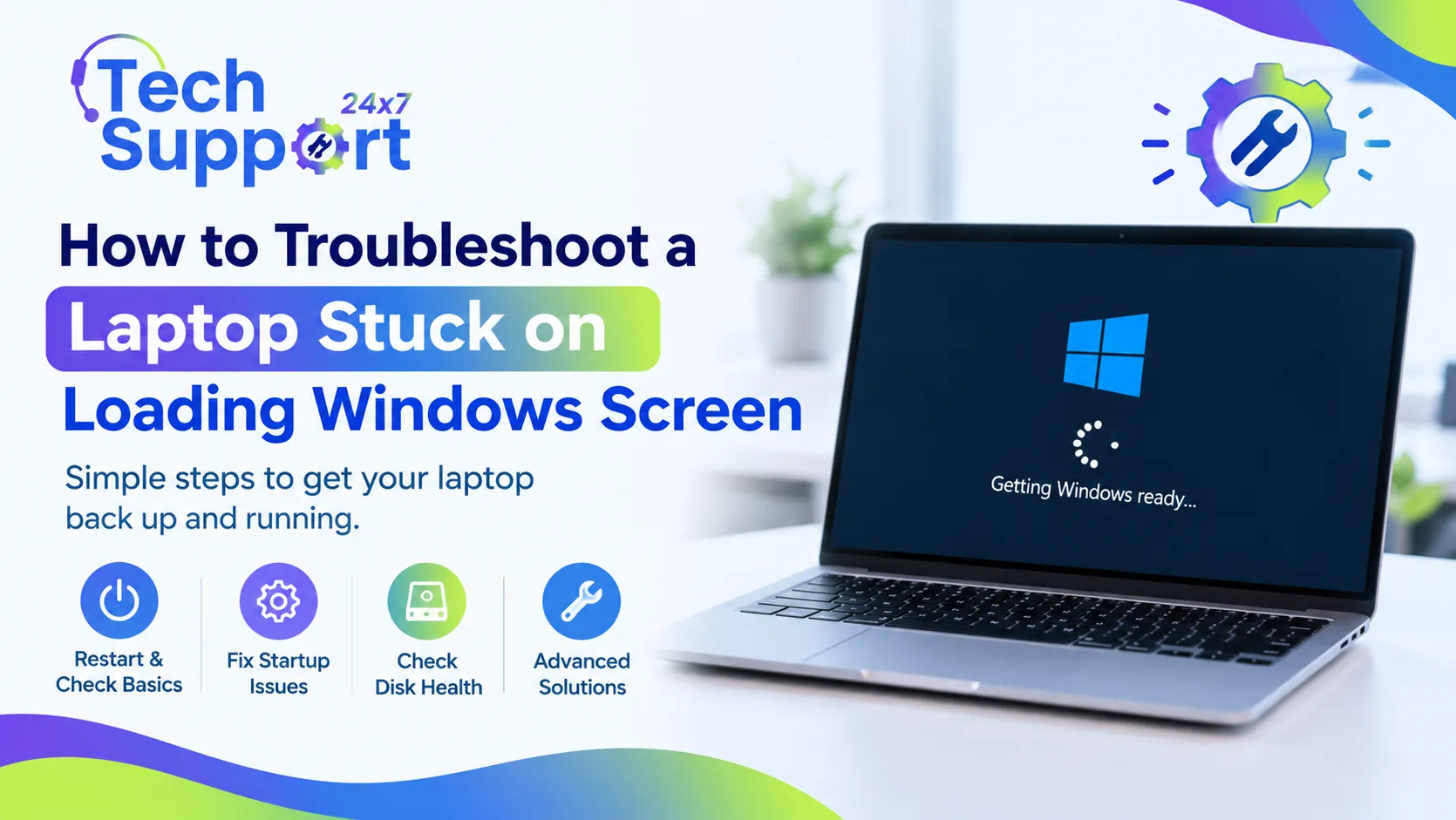

A laptop that remains stuck on the Windows loading screen can prevent you from accessing your files, applications, and important work. The problem may appear after a Windows update, driver installation, software change, sudden shutdown, or system error. In some cases, Windows may eventually start after several minutes, while other laptops remain frozen indefinitely.
If you are dealing with a laptop stuck on loading Windows screen, you can try several troubleshooting steps before considering advanced repair. The right solution depends on whether the issue comes from Windows files, startup programs, drivers, updates, or storage hardware.
Why Does a Laptop Get Stuck During Windows Startup?
Windows needs to load system files, drivers, services, and startup applications before displaying the desktop. A problem with any of these components can interrupt the boot process.
Common causes include:
- Corrupted or missing Windows system files
- An incomplete Windows update
- Incompatible device drivers
- Damaged boot configuration
- Recently installed software
- Malware or unwanted programs
- Hard drive or SSD problems
- Incorrect startup settings
- Sudden power interruption
- Failed system recovery or restore operations
Microsoft's Windows Recovery Environment includes several tools designed to diagnose startup problems, including Startup Repair and other recovery options.
Start With a Basic Restart
If the loading screen appears for an unusually long time, first give Windows a reasonable amount of time to complete the startup process, especially if you recently installed an update.
If the laptop remains completely unresponsive, hold the power button until the device shuts down. Disconnect unnecessary USB devices, external hard drives, memory cards, and other peripherals. Then turn the laptop back on.
A faulty peripheral or external storage device can sometimes interfere with the startup sequence.
If Windows loads normally after removing a device, reconnect your peripherals one at a time to identify the source of the problem.
Check Whether a Windows Update Caused the Problem
A windows update stuck during installation can sometimes leave the system unable to complete its normal startup process. This can happen when an update is interrupted, system files become damaged, or a driver conflicts with the updated Windows environment.
If the problem began immediately after an update, access Windows Recovery Environment and look for the option to uninstall recent updates.
Windows provides recovery options for systems that cannot start, including the ability to uninstall updates through the recovery environment.
Avoid repeatedly turning the laptop off while Windows is actively installing an update unless the system has clearly become unresponsive for an extended period.
Use Windows Startup Repair
Startup Repair is one of the first advanced troubleshooting tools to try when Windows cannot start correctly.
To access it:
- Enter the Windows Recovery Environment.
- Select Troubleshoot.
- Choose Advanced options.
- Select Startup Repair.
- Allow Windows to scan the system.
- Restart the laptop when the process finishes.
Startup Repair can attempt to resolve problems involving damaged system files, boot configuration data, incompatible drivers, and other startup-related issues.
If Startup Repair cannot resolve the problem, move to the next recovery option instead of repeatedly running the same repair.
Try Safe Mode
Safe Mode starts Windows with a limited set of drivers and services. This makes it useful for identifying problems caused by recently installed software, drivers, or startup applications.
From Windows Recovery Environment, go to:
Troubleshoot > Advanced options > Startup Settings > Restart
After restarting, select the Safe Mode option.
If Windows starts successfully in Safe Mode, investigate recently installed drivers, applications, or updates. Microsoft notes that Safe Mode can help determine whether a problem is caused by standard drivers, services, or other startup components.
Repair Corrupted Windows System Files
Corrupted system files can prevent Windows from completing startup. If you can access Command Prompt through Windows Recovery Environment or successfully enter Windows, system repair tools may help.
Two commonly used Windows tools are:
- DISM, which repairs the Windows image
- SFC, which checks and repairs protected system files
Microsoft recommends DISM and SFC as options for repairing system files when troubleshooting Windows problems.
For advanced commands, follow Microsoft's current instructions carefully. Incorrect commands or changes to system partitions can create additional problems.
Check for Storage or Boot Drive Problems
A failing SSD or hard drive can cause Windows to freeze during startup. You may notice additional symptoms such as unusually slow performance, repeated crashes, missing files, or unusual noises from older mechanical drives.
You may also encounter a laptop operating system not found error if the system cannot locate the Windows installation or boot device.
A blinking cursor, boot-device message, or operating system error can indicate a problem with the storage device or boot configuration. Microsoft notes that a blinking cursor on a blank screen can occur when the firmware cannot find a boot device.
If you suspect drive failure, avoid repeatedly restarting the laptop if important files are stored on it. Data recovery should take priority before attempting aggressive repairs.
Consider System Restore
If the laptop worked correctly before a recent software, driver, or system change, System Restore may help return Windows to an earlier working state.
However, sometimes a laptop system restore failed message appears because the restore point is damaged, system files are corrupted, or another Windows recovery problem exists.
Windows recovery options can include System Restore, update removal, Startup Repair, and other recovery methods. Microsoft recommends starting with the least disruptive recovery option and progressing only when necessary.
Always consider the potential impact of a recovery operation before proceeding.
What to Do When Windows 11 Will Not Start
If you have windows 11 not booting, identify when the problem started. Did it happen after an update, driver installation, software installation, power failure, or unexpected shutdown?
Then work through these options:
- Remove unnecessary external devices.
- Restart the laptop.
- Enter Windows Recovery Environment.
- Try Startup Repair.
- Start Windows in Safe Mode.
- Remove a recently installed update or driver.
- Repair corrupted system files.
- Use an appropriate recovery option.
- Check the SSD or hard drive if the problem continues.
Windows 11 also includes newer recovery capabilities on supported versions and devices. Microsoft's Quick Machine Recovery can use Windows Update to apply a Microsoft-provided fix for certain widespread startup problems.
Close Problematic Applications After Windows Starts
Sometimes the startup problem disappears, but Windows applications continue freezing after you reach the desktop. A laptop application not responding issue can occur because of insufficient system resources, damaged application files, software conflicts, or Windows problems.
Try these steps:
- Open Task Manager.
- Identify applications using unusually high CPU or memory.
- Close the unresponsive application.
- Restart the application.
- Install available application updates.
- Check whether Windows has pending updates.
- Uninstall and reinstall the application if necessary.
If multiple applications become unresponsive, investigate the operating system rather than treating each application as a separate problem.
When Should You Get Professional Laptop Error Support?
Basic troubleshooting can resolve many Windows startup problems, but repeated boot failures can indicate a deeper software or hardware issue.
Consider professional assistance when:
- Startup Repair repeatedly fails.
- Windows remains stuck on the loading screen.
- The laptop repeatedly enters a boot loop.
- System Restore does not work.
- Windows displays recurring error codes.
- The SSD or hard drive may be failing.
- Important files are inaccessible.
- You cannot enter Windows Recovery Environment.
- Several Windows repair methods have already failed.
A professional laptop error code repair service can help identify the underlying cause instead of repeatedly applying temporary fixes. The troubleshooting process may involve examining Windows recovery logs, startup configuration, system files, drivers, updates, and storage health.
Final Thoughts
A laptop stuck on loading Windows screen does not always mean that Windows needs to be completely reinstalled. The cause may be an interrupted update, damaged system files, incompatible drivers, startup configuration problems, or storage issues.
Start with the least disruptive troubleshooting steps and move toward advanced recovery only when necessary. If the laptop contains important data or repeatedly fails to boot, avoid experimenting with unfamiliar commands or recovery procedures.
For persistent Windows startup, software, and operating system problems, professional technical assistance can help diagnose the issue and determine the safest repair approach. TechSupport24x7 provides support for software and OS errors, including update failures, unresponsive applications, system file issues, boot-related problems, and driver concerns.


























Sign in to leave a comment.