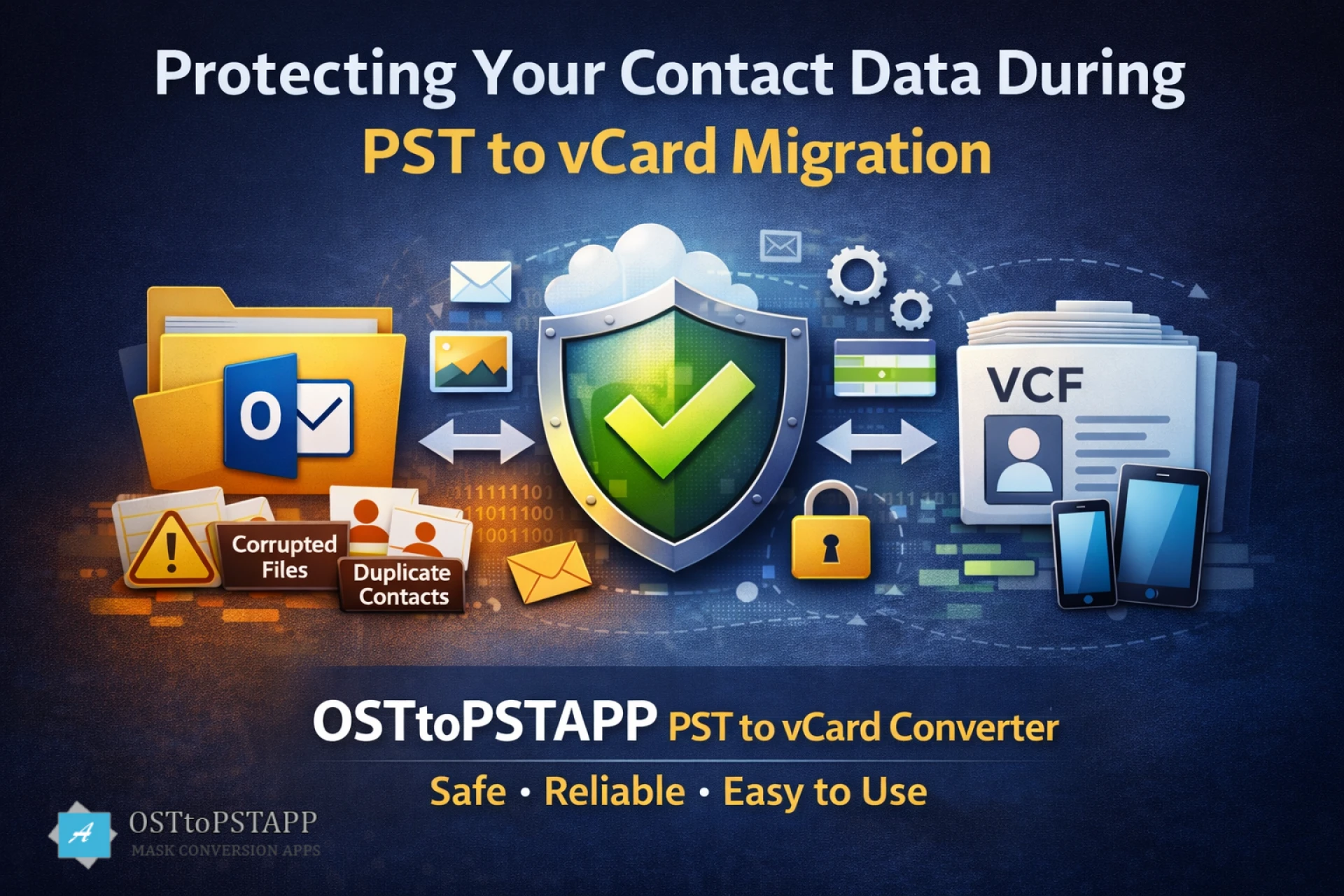
It's more important than ever to protect your contact information while converting Microsoft Outlook PST files to vCard (VCF) format. Unreliable solutions can result in data loss or inadequate backups, and many individuals are aware of how important it is to share information carefully. By explaining file formats, detailed instructions, typical pitfalls and useful examples, this guide assists individuals, small company owners and IT experts in protecting their contacts during PST to vCard migration.
Why Data Safety Matters in PST to vCard Migration
Users frequently forget about data security while exporting contacts from PST to vCard. Even if the process looks simple, there are a few risks that could cause permanent harm-
- Making duplicate contacts: If you export frequently without doing the necessary checks, you can end up with duplicate entries for a single contact.
- Loss of Information: A few devices only export the most basic fields, omitting custom fields, emails, addresses, images and notes.
- File Corruption: PST to VCF files can turn corrupt due to delays or broken software.
- Human Errors: Mistakes, missing contacts and incorrect data can occur while copying and pasting manually.
Understanding PST and vCard File Formats
It is important to know the file formats involved before the migration.
PST- Personal Storage Table
PST files are used by Microsoft Outlook to store contact details and other crucial data. It's best for contacts backup, but it cannot open anywhere.
VCF - Virtual Contact File
Contact information is shared between systems using a global standard format known as vCard. Because vCard files are widely compatible with email clients, CRM systems, mobile devices and tablets, contacts are easy to import and very portable.
Common Risks During PST to vCard Export
Even if you are technically adept, PST to VCF Converter can bring problems if safeguards are ignored. These are the typical issues:
- Data Loss or Incomplete Migration
- Some tools export only basic contact fields, leaving out photos, company information, or notes.
- Duplicate Contacts
- Exporting the same PST multiple times without duplicate detection leads to repeated contacts.
- Corrupted vCard Files
- Interruptions or software errors can corrupt files, making them unreadable.
- Incompatibility Across Devices
- Different devices can support different vCard versions. Exporting to an unsupported version can result in missing fields.
- Human Errors During Manual Export
- Copying contacts manually is prone to mistakes. One missed contact can cause major headaches.
Prevent Data Loss When Migrating Outlook Contacts to vCard
A trusted solution for safely exporting Outlook PST contacts into vCard (VCF) format is OSTtoPSTAPP PST to vCard Converter. Contacts can be found easily across a variety of platforms and devices when proper contact transfer is ensured without data loss or technical issues.
1. Backup Your PST File First
- Take an original contacts file of your PST file before migrating it.
- You should store that document on a different disk drive (or folder) or on the cloud.
2. Choose a Reliable PST to VCF Converter
Not all tools are created equal. A good converter should-
- Keep all contact fields safe during the migration.
- All versions of Outlook from 2003 to 2021 will work with this product.
- Make certain that your user interface is easy to use.
Using a tested converter ensures safe migration with no data loss.
3. Export Contacts in Batches
For large PST files-
- This application can export contacts in bulk.
- Before exporting the next batch, check each one.
- Avoid system crashes or overload by exporting everything at once.
4. Validate Exported vCard Files
After exporting-
- Open vCards on your mobile device, in Windows Contacts, or Outlook.
- Verify that all names, phone numbers, emails, pictures and notes have been exported accurately.
- Before importing into the target system, correct any missing or corrupted contacts.
5. Prevent Duplicate Contacts
Duplicate contacts can clutter your address book-
- Make use of tools that offer options for merging and duplicate detection.
- To keep updated on changes, keep a master contact list.
- Before completing the final import, combine or eliminate duplicates.
6. Maintain Consistent vCard Versions
Different vCard versions have different capabilities-
- vCard 2.1: Basic, widely compatible.
- vCard 3.0: Supports Unicode, images, and extra fields.
- vCard 4.0: Advanced features, newer devices required.
Choose the version that works best with your target devices to ensure data integrity.
7. Check for Missing or Skipped Contacts
- Open the vCard files to see the exported contacts.
- Find any contacts that didn’t transfer.
- Fix missing or incorrect details.
- Make sure all contacts are safe and complete.
Logs act as a safety net, ensuring no contacts are lost during migration.
8. Test Imported Contacts
After importing-
- Verify that all contact information, photos, and notes are intact.
- Open contacts on multiple devices to confirm compatibility.
- Resolve missing or misaligned fields before regular use.
Testing ensures your migration was successful and prevents future issues.
Step-by-Step Example of Safe PST to vCard Migration
- Backup PST file to secure storage.
- Install a trusted PST to vCard converter.
- Load PST into the software.
- Select contacts or folders to export.
- Choose the appropriate vCard version.
- Export contacts in manageable batches.
- Validate each vCard file after export.
- Review migration logs.
- Import vCards into the target system and test.
Following these steps ensures protecting your contact data during PST to vCard migration.
Real-Life User Experiences
Sarah, USA
Using this method, I exported multiple contacts from Outlook to vCard. The emails and pictures arrived flawlessly, and nothing was lost. I was able to avoid doing hours of manual work.
Rahul, India
I was worried about losing client contacts during migration. The batch export and guarantee features made it really easy and everything was intact.
Maria, UK
There were many PST files with a total of thousands of contacts. I utilized a reliable converter to secure the migration. Because I followed the proper process, I was able to ensure that all contacts converted to the new account smoothly without any duplication.
Conclusion
Migrating contacts from PST to a vCard converter doesn’t have to be stressful or risky. By backing up data, using a trusted converter, validating exported files, preventing duplicates, and testing imported contacts, you can protect your contact data during PST to vCard conversion. Whether it’s for personal use, mobile backup, or business operations, safeguarding your contacts is essential.
Get the free demo or download now to perform a smooth PST to vCard migration with confidence and ensure your contacts are always safe.
FAQs About PST to vCard Migration
1. Is it possible to convert PST files to vCard without installing Outlook?
You can, definitely. Numerous stand-alone PST to vCard conversion tools operate without the need for Microsoft Outlook to be installed on a computer.
2. How many contacts can I export at once?
The bulk conversion feature of the majority of trustworthy solutions lets you export thousands of contacts at once. Large files are typically processed efficiently in reasonable portions.
3. Will my photos and custom fields be preserved?
Of absolutely. All contact information, including images, email addresses, notes, and custom fields, will be preserved throughout the conversion thanks to a reliable converter.
4. What if duplicate contacts are created during conversion?
You shouldn't be worried. To keep your contact list clean and neat, multiple converters have intelligent duplicate detection and merging features.
5. Is vCard compatible with mobile devices?
Yes. Your contacts can be found from anywhere because of the general support for vCard files on Android and iOS devices, tablets, and many email platforms.
























Sign in to leave a comment.