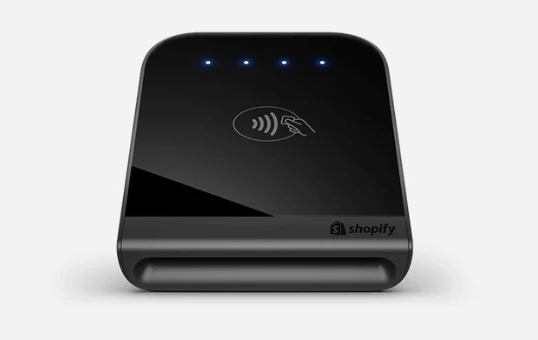
If you run a Shopify store with a physical presence, having a reliable POS (Point of Sale) system is essential. However, many Android users encounter a frustrating issue: their Shopify POS card reader appears grayed out and unresponsive. This problem can bring sales to a halt, especially during busy hours. Understanding why this happens and how to fix it can save time, reduce stress, and keep your business running smoothly. Learn more about “Shopify POS Card Reader Android Grayed Out”
Why Your Shopify POS Card Reader Is Grayed Out on Android
A grayed-out card reader usually means that the Shopify POS app cannot communicate properly with the hardware. This issue can stem from several factors:
- Bluetooth Connectivity Problems: Most Shopify POS card readers rely on Bluetooth. If your Android device has Bluetooth disabled, unstable, or not paired correctly, the reader won’t activate.
- Outdated App or Device Software: Shopify POS updates often improve compatibility with hardware. Running an older version of the app or Android OS can prevent the reader from functioning.
- Insufficient Permissions: The app needs permissions to access location, Bluetooth, and sometimes storage. Without these, the card reader may appear inactive.
- Hardware Compatibility Issues: Not all Android devices are fully compatible with Shopify card readers, especially older or less common models.
Steps to Fix a Grayed-Out Shopify POS Card Reader
Fortunately, there are several solutions you can try to restore functionality. Follow these steps carefully:
1. Check Bluetooth Settings
- Ensure Bluetooth is turned on and your device is visible to other devices.
- Remove any old or conflicting connections that could interfere.
- Restart Bluetooth to refresh the connection.
2. Update the Shopify POS App and Android OS
- Go to the Google Play Store and check for updates to the Shopify POS app.
- Also, verify that your Android system is running the latest version supported by your device.
3. Verify App Permissions
- Open your Android Settings, navigate to Apps > Shopify POS > Permissions.
- Make sure permissions for location, Bluetooth, and storage are enabled.
- Restart the app after adjusting permissions.
4. Re-Pair Your Card Reader
- Turn off your card reader, then power it back on.
- In the Shopify POS app, remove the device from the Bluetooth list and pair it again.
- Confirm that the reader appears as connected in the app.
5. Test on a Different Device
Sometimes the issue is specific to one Android device. If possible, try connecting the card reader to another Android device to determine whether the problem is hardware or app-related.
Preventing Future Issues
To avoid grayed-out card readers in the future, consider the following best practices:
- Regular Updates: Keep both the Shopify POS app and your Android system updated.
- Clear Cache: Periodically clear the app cache to prevent temporary software glitches.
- Use Compatible Devices: Stick to Android models recommended by Shopify for full hardware compatibility.
- Routine Checks: Test your card reader before busy periods to ensure it connects properly.
When to Contact Shopify Support
If none of the above steps work, it may indicate a deeper issue with your Shopify POS system or card reader. Contact Shopify support for assistance, providing details about your Android device, app version, and the problem you’re experiencing. Their team can guide you through advanced troubleshooting or arrange a replacement device if necessary.
Conclusion
A grayed-out Shopify POS card reader on Android can be frustrating, but it’s usually fixable with a few simple troubleshooting steps. By checking Bluetooth connections, updating your app and device, verifying permissions, and re-pairing the hardware, most store owners can restore full functionality. Regular maintenance and using compatible devices help prevent future issues, keeping your Shopify POS system running smoothly and your business ready for every transaction. Visit our official website “pervasivemarketing.com”







Sign in to leave a comment.