

Quick Brief of the Article
Q: What is the best docking station alternative for users with dual computers?
A: For users who regularly switch between two computers, a KVM docking station is often a better alternative to a traditional docking station. It allows two systems to share the same monitors, keyboard, mouse, and other peripherals from one desk. The right choice depends on your setup—whether it is a laptop + desktop, Mac mini + laptop, gaming PC + streaming PC, or laptop + AI workstation.
Why Traditional Docking Stations Fall Short for Two Computers
A traditional docking station is mainly designed to expand connectivity for one computer.
For example, it can connect a laptop to:
- External monitors
- Keyboard and mouse
- Ethernet
- USB devices
- External storage
This works well for a single-computer workspace. But once a second computer becomes part of your daily setup, the problem changes.
You may need to switch monitor inputs manually, reconnect USB devices, or keep separate keyboards and mice for each system.
For dual-PC users, the question is no longer simply:
“How do I add more ports to my computer?”
It becomes:
“How do I let two computers share the same desk setup?”
That is where a traditional dock starts to become less convenient.
Common Dual-PC Setups and Their Challenges
“Dual-PC” does not only mean two desktop towers. It can refer to almost any two computers used at the same workstation.
Laptop + Desktop
This is one of the most common dual-PC combinations.
Typical examples include:
- Work laptop + personal desktop
- Laptop + gaming PC
- MacBook + Windows desktop
- Business laptop + workstation
The laptop provides mobility, while the desktop stays permanently at the desk.
The challenge is letting both computers use the same monitors and peripherals without reconnecting everything each time you switch.
For these users, the best docking station alternative should combine the convenience of laptop docking with desktop switching.
Mac mini + Laptop
A Mac mini + laptop setup follows a similar workflow.
The Mac mini remains on the desk, while the laptop may be used for travel, office work, or mobile productivity.
Both computers may need to share:
- Monitor(s)
- Keyboard
- Mouse
- Webcam
- USB accessories
The main consideration here is compatibility.
Before choosing a KVM docking station, check the display outputs of the Mac mini and laptop, the number of external displays each computer supports, and the resolution and refresh rate required by your monitors.
This becomes particularly important in mixed Mac and Windows environments.
Gaming PC + Streaming PC
Some streamers use two desktop PCs to separate gaming and streaming workloads.
The gaming PC focuses on running the game, while the second computer handles streaming or related creator tasks.
Both systems may still need access to the same keyboard, mouse, monitors, and USB peripherals.
In this scenario, the priority is less about laptop docking and more about managing two permanent desktop systems from one workstation.
Laptop + AI Workstation
AI users, developers, engineers, and creators may also work with two computers for very different purposes.
For example:
- Laptop for coding, meetings, documentation, and everyday work
- AI workstation for local models, GPU workloads, rendering, or other compute-intensive tasks
The AI workstation stays at the desk, while the laptop remains portable.
The challenge is similar to other laptop + desktop setups: both systems need access to the same monitor and peripheral environment without requiring two complete workstations.
What Makes a KVM Docking Station the Better Alternative?
A KVM docking station combines docking functionality with computer switching.
Instead of only connecting peripherals to one host, it allows two computers to share the same workspace.
| Function | Traditional Docking Station | KVM Docking Station |
|---|---|---|
| Expand computer connectivity | Yes | Yes |
| Support two-computer workflows | Limited | Yes |
| Share keyboard and mouse | Usually no | Yes |
| Share monitors | Usually requires separate switching | Yes, depending on model |
| Share USB peripherals | Mainly for one host | Yes |
| Switch between computers | No | Yes |
| Best suited for | Single-computer desk | Dual-computer desk |
This makes a KVM docking station particularly useful when both computers are used regularly.
Instead of switching individual devices one by one, the workstation can be organized around a single shared setup.
How to Choose the Right Docking Station Alternative?
Keep the selection process simple. Focus on four things.
Your Two Computers
Start with the host combination:
- Laptop + desktop
- Mac mini + laptop
- Laptop + AI workstation
- Desktop + desktop
Different combinations may require different connection methods.
Your Monitor Setup
Decide whether you need:
- One monitor
- Dual monitors
- Triple monitors
Then verify that both computers support the display configuration you want.
Your Shared Peripherals
Consider which devices should follow you when switching computers:
- Keyboard
- Mouse
- Webcam
- Microphone
- External storage
- Other USB accessories
Your Display Requirements
If you use gaming or professional monitors, check the required resolution, refresh rate, and connection type before choosing a solution.
A simple rule is:
Start with your two computers and monitor setup, then choose the KVM docking station that fits that workflow.
Best KVM Docking Station Solutions for Dual-PC Users
Different dual-PC combinations call for different solutions.
| Dual-PC Setup | AV Access Solution to Consider | Best Fit |
|---|---|---|
| Laptop + gaming PC | iDock B12 | Hybrid work and gaming |
| Work laptop + personal desktop | iDock B12 | Everyday laptop + desktop switching |
| Laptop + AI workstation | iDock B12 | Daily productivity + AI/GPU workloads |
| Laptop + desktop with triple monitors | iDock B23 | Multi-screen productivity, gaming, or creation |
| Gaming PC + streaming PC | iDock D23i | Dual-desktop streaming workflow |
| Two desktop PCs | iDock D23i | Permanent dual-desktop workstation |
| Mac mini + laptop | Depends on connection requirements | Verify host and display compatibility |
iDock B12: Best for Laptop + Desktop and AI Workstation Setups
The AV Access iDock B12 is positioned for users who regularly switch between a laptop and a desktop-class computer.
This makes it suitable for several common dual-PC workflows:
- Gaming PC + work laptop
- Personal desktop + business laptop
- Laptop + AI workstation
- Laptop + high-performance desktop
The common factor is that one computer is portable while the other remains permanently at the desk.
Instead of connecting the laptop to one set of peripherals and the desktop to another, both systems can become part of the same workstation.
For hybrid workers, this can mean using a work laptop during the day and switching to a gaming or personal desktop later without rebuilding the desk setup.
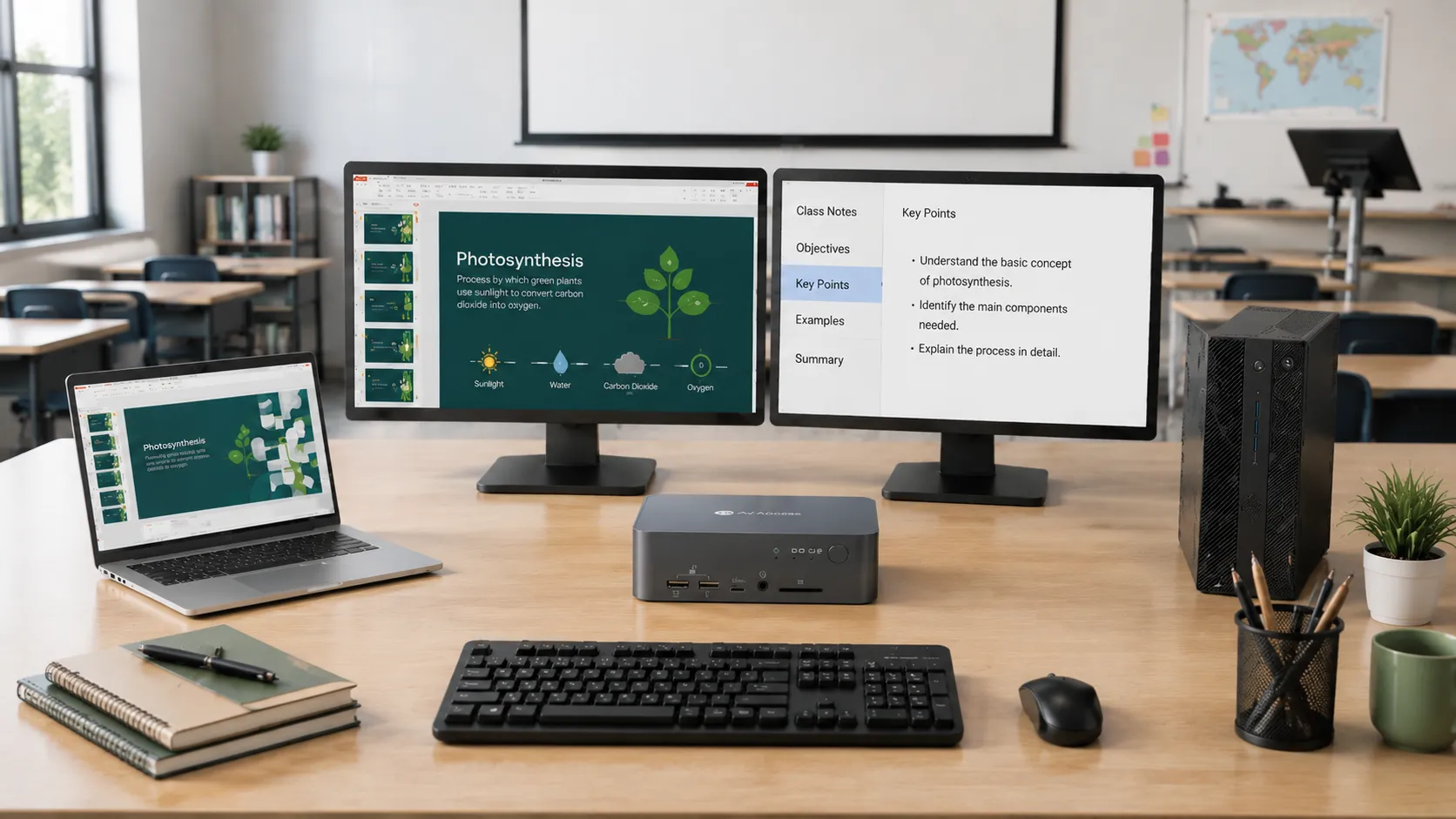
Example: Gaming PC + Laptop

The same setup logic also works well for an AI workstation.
A laptop can handle mobile and everyday tasks, while a desktop workstation remains dedicated to heavier AI or GPU workloads.
Example: Laptop + AI Workstation

This approach allows the AI workstation to remain permanently installed while the laptop can still be removed whenever mobility is needed.
Consider iDock B12 if: your dual-PC setup combines a laptop with a gaming PC, desktop, or AI workstation.
iDock B23: Best for Triple-Monitor Laptop + Desktop Setups
The AV Access iDock B23 is better suited to users who want a larger triple-monitor workspace shared between a laptop and desktop.
This type of setup can be useful for:
- Gamers
- Creators
- Developers
- Designers
- Multi-screen productivity users
For example, a developer may keep code, documentation, and testing environments on separate displays. A creator may use different screens for editing tools, previews, and file management.
The key requirement is not simply switching between two computers. It is allowing both systems to participate in the same multi-monitor workspace.
Example: Laptop + Desktop With Three Shared Displays

Before choosing a triple-monitor solution, verify that both host computers support the intended external-display configuration.
Consider iDock B23 if: you use a laptop + desktop combination and triple-monitor screen space is an important part of your workflow.
iDock D23i: Best for Two Desktop PCs
The AV Access iDock D23i is positioned for workflows where both computers are desktop systems.
Typical examples include:
- Gaming PC + streaming PC
- Main desktop + secondary desktop
- Editing PC + rendering PC
- Development PC + testing PC
These setups have a different requirement from laptop-centered workflows.
Neither computer needs to be “docked” for portability. Both stay at the desk, and the main goal is to share the workstation between two permanent systems.
Example: Gaming PC + Streaming PC

For streamers, this can simplify control of two independent PCs without requiring separate keyboards, mice, and monitor arrangements.
The same approach can also work for other dual-desktop environments where two permanent machines need to share the same desk.
Consider iDock D23i if: both computers are desktop systems and your priority is managing them from one shared workstation.
Which One Fits Your Dual-PC Setup?
A simple way to narrow down the options is:
Laptop + desktop: consider iDock B12.
Laptop + AI workstation: consider iDock B12.
Laptop + desktop + triple monitors: consider iDock B23.
Desktop + desktop: consider iDock D23i.
For a Mac mini + laptop setup, first verify the exact host and display requirements, especially when multiple external monitors are involved.
Conclusion
The best docking station alternative for dual-PC users depends on the two computers you actually use.
A laptop + gaming PC or laptop + AI workstation may be better suited to iDock B12. A triple-monitor laptop + desktop setup points toward iDock B23, while two permanent desktop systems are better aligned with iDock D23i.
Instead of choosing a docking station based only on port count, start with your computer combination, monitor setup, and shared peripherals. That makes it much easier to build one efficient workspace around two computers.
FAQs
What is the best docking station alternative for two computers?
For users who regularly switch between two computers, a KVM docking station is often the better alternative because it allows both systems to share monitors, keyboard, mouse, and supported peripherals from one workstation.
Can I use one docking station for two computers?
Traditional docking stations are generally designed around one host computer. If you need two computers to share the same workspace, a KVM docking station or dedicated KVM solution is usually more appropriate.
Can a laptop and desktop share the same monitors and keyboard?
Yes. A KVM docking station can allow a laptop and desktop to share monitors, keyboard, mouse, and supported USB devices.
Can I use a Mac mini and laptop with the same KVM docking station?
Potentially, yes. You should first check the display outputs, supported external-display configuration, resolution, refresh rate, and host connectivity of both computers.
What is the best docking station alternative for a gaming PC and laptop?
A KVM docking station designed around a laptop + desktop workflow is usually the most relevant option. AV Access iDock B12 is positioned for this type of hybrid setup.
What is the best solution for a laptop and AI workstation?
For a workflow where a laptop handles daily productivity and a desktop AI workstation handles compute-intensive tasks, iDock B12 is a solution to consider. It allows both systems to share the same desk environment instead of maintaining separate peripherals.
What if I need three monitors for my dual-PC setup?
For laptop + desktop users who need a triple-monitor workspace, iDock B23 is the AV Access solution to consider. Make sure both computers support the intended external-display configuration before setup.
What is the best solution for two desktop PCs?
For a gaming PC + streaming PC or another dual-desktop environment, iDock D23i is positioned for this type of workflow.
Is a KVM docking station better than a regular docking station?
It depends on how many computers you use. A traditional docking station may be enough for one computer. If two computers regularly need to share the same monitors and peripherals, a KVM docking station is generally a more suitable solution.

















Sign in to leave a comment.