

Microsoft Outlook is a leading email client, which is widely used by professional and personal users across the world. Email data, contacts, calendars, notes, etc. in Outlook are stored in PST (Personal Storage Table) files. Users can password protect these PST files to maintain their privacy.
But sometimes it happens that you forget the password of that PST file and then Outlook does not allow opening that file. This situation can be extremely annoying, especially when that PST file contains important emails and documents.
In this blog, we will learn what to do in case you forget Outlook PST password and how you can remove or recover the password with the help of manual methods and tools.
What is a password-protected PST file?
When you create a new PST file in Outlook, you get the option to put a password on it. This password is asked on every opening of Outlook, so that unauthorized users cannot access your email file.
But there is no “password recovery” option provided in Microsoft Outlook. It means if you forget the password, there is no default way in Outlook by which you can recover the password.
Manual Method to Remove PST Password in Outlook (If Password is remembered)
If you remember the password, then you can remove the password by following the steps:
Step-by-Step Procedure:
Open Outlook.
Go to File > Account Settings > Account Settings.
In the “Data Files” tab, select the PST file whose password is to be removed.
Click on the “Settings” button.
Click on “Change Password”.
In the dialog box:
Current Password: Enter the current password.
New Password: Leave blank.
Verify Password: Leave blank.
Click on OK.
This will remove the password. But this method works only if you know the current password.
What to do if you forgot the password?
If you have completely forgotten the password and there is no backup, you will have to resort to third-party tools.
Softaken PST Password Remover is a software tool designed specifically for Outlook users who have forgotten the password of PST files and now want to access them again. The tool supports old and latest Outlook versions (Outlook 2019, 2016, 2013, 2010, etc.) and has the ability to remove any type of password (complex, strong or encrypted) without causing any loss.
Key Features
1. Password Removal – Without Data Loss
The Softaken tool safely removes the password and makes your PST file accessible again without any loss.
2. Supports all Outlook versions
The tool is compatible with almost all versions of Microsoft Outlook, be it the old Outlook 2003 or the new Outlook 2021.
3. Works with large and bulky PST files
This tool can easily remove passwords even for files of 20 GB or more.
4. Easy-to-use interface
Its UI is so simple that even a non-technical user can operate it without any training.
5. Process multiple PST files in batch mode
If you have multiple password-protected PST files, you can process them in batch.
How to use? (Step-by-Step guide)
Step 1: Download and install the software
Download the tool from the official website of Softaken and install it on your system.
Step 2: Add PST file
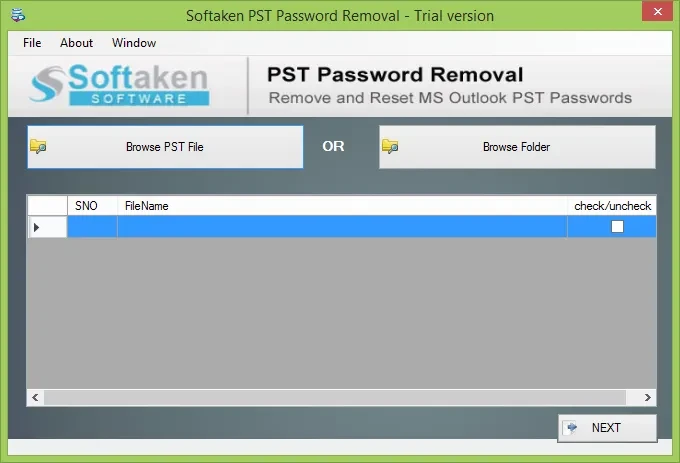
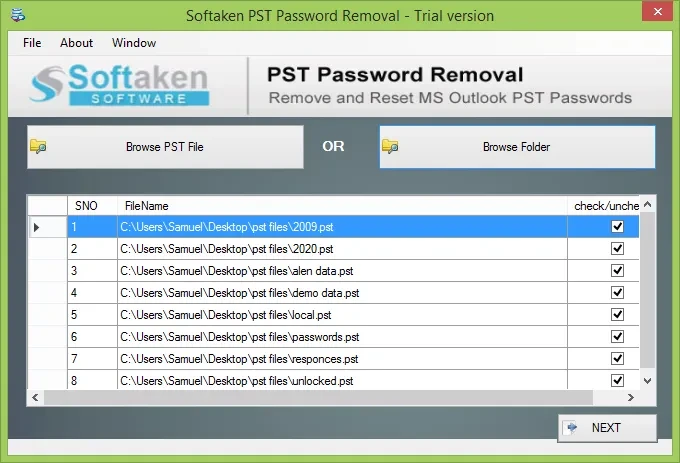
Open the software and select the PST file whose password you want to remove by clicking on the "Browse" button.
Step 3: Choose the password removal option
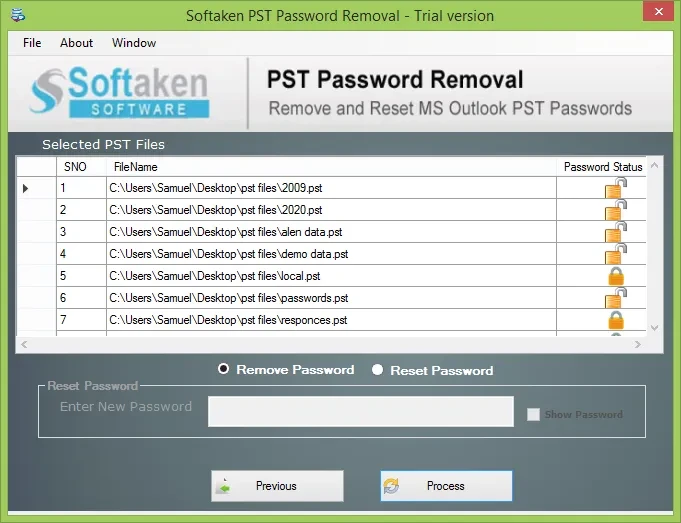
Click on "Remove Password". The tool will automatically detect the password and start the removal process.
Step 4: Save the password-free file
After the password is removed, save the file to a new location. Now you can open it in Outlook without any password.
Important Warning
Always backup the PST file before using these tools.
Download third-party tools from a reliable source.
Free tools come with limited features; premium tools give better results.
Conclusion
Forgetting the password of the Outlook PST file is common, but there is a solution available. If you have the password, you can remove the password from Outlook settings itself. But if you have forgotten the password, you will have to take the help of third-party tools.







Sign in to leave a comment.