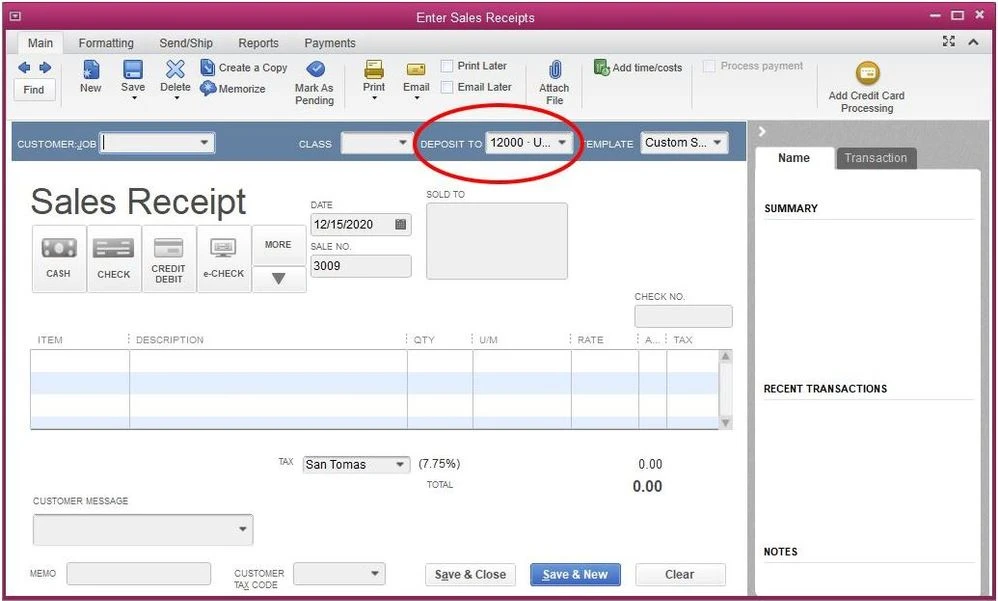

In this article we will learn how to transfer a sales receipt to different customer in QuickBooks Desktop Point of sale or change the name of customer on the receipt instead of cancellation of transaction before emailing .
Steps for transferring a sales receipt to different customer in QuickBooks Desktop Point of sale or change:
Change the customer name on the sales receipt:
- Open QuickBooks Point
- After opening QuickBooks Point of Sale software go the menu.
- Select sales history (it includes every history of transaction).
- Find the Sales Receipt and highlight it.
- After getting Sales Receipt click on the I want to … drop down
- Now select Change/Edit customer
- Select the customer
- Click on Ok
Note: Above mentioned step is also applicable with Return receipt.
Add/edit Promo Codes or Notes from saved receipts:
- Launch your QuickBooks Point
- After opening QuickBooks Point of Sale software go the menu section.
- Now Select sales history (it includes every history of transaction).
- Find the Sales Receipt and highlight it.
- After getting Sales Receipt click on the I want to … drop down
- Now select Change/Edit customer
- Enter the Promo Code and additional notes if required
- Click OK.


























Sign in to leave a comment.