
Printers are one of the most important devices in any office or home workspace. From printing invoices and reports to school assignments and contracts, we depend on printers every day. But nothing is more frustrating than seeing error messages like “printer offline,” “paper jam,” “low toner,” or “printer not responding.”
The good news is that many common printer problems can be fixed easily without calling a technician. In this guide, we will explain simple and practical solutions to fix common printer errors, improve printer performance, and reduce downtime. Whether you are using a laser printer, inkjet printer, wireless printer, or network printer, these troubleshooting steps will help you solve most issues quickly.
1. Printer Offline Error
One of the most common issues is the printer offline error. You send a document to print, but the printer shows offline even though it is connected.
How to Fix Printer Offline:
- Check if the printer is powered on.
- Ensure the USB cable or network cable is properly connected.
- Restart your printer and computer.
- Go to Control Panel → Devices and Printers → Set as Default Printer.
- Disable “Use Printer Offline” option.
For a wireless printer not printing, make sure your printer is connected to the correct WiFi network. Restarting your router can also solve network printer offline problems.
2. Paper Jam Problem
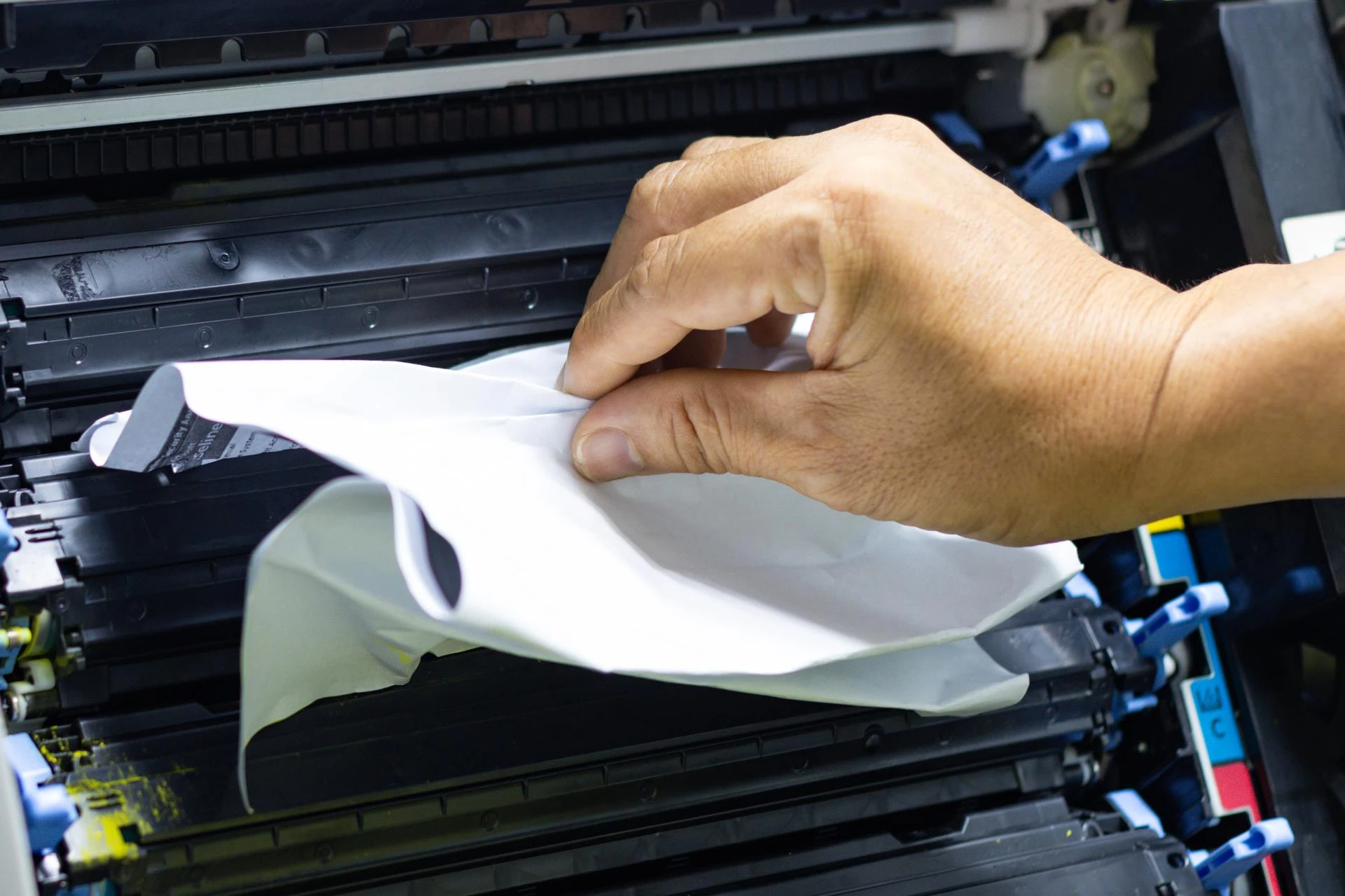
A paper jam is another frequent printer issue in offices. It usually happens due to incorrect paper loading or poor-quality paper.
How to Fix Paper Jam:
- Turn off the printer before removing jammed paper.
- Open the printer cover carefully.
- Remove the paper slowly without tearing it.
- Check the paper tray for misaligned sheets.
- Reload paper properly and close all covers securely.
Using the correct paper size and high-quality printing paper can prevent future paper jam errors.
3. Printer Not Printing
Sometimes the printer is connected but not printing anything. This could be due to driver issues, low ink, or print queue problems.
Steps to Fix Printer Not Printing:
- Check ink cartridges or toner cartridge levels.
- Clear the print queue from your computer.
- Update or reinstall the printer driver.
- Run the built-in printer troubleshooting tool in Windows or Mac.
Keeping your printer drivers updated ensures smooth printing and better compatibility with your system.
4. Low Ink or Toner Cartridge Errors
If your printer shows “low ink,” “replace toner,” or “cartridge not recognized,” it may stop printing.
Solutions:
- Remove and reinstall the ink cartridge or toner cartridge properly.
- Clean the cartridge contacts gently.
- Use genuine printer consumables for better performance.
- Reset the printer after replacing cartridges.
For businesses that print in high volume, using high-yield toner cartridges can reduce printing costs and improve efficiency.
5. Poor Print Quality Issues
Blurry text, faded prints, lines on paper, or smudges are signs of print quality problems.
How to Improve Print Quality:
- Run the printer cleaning cycle from settings.
- Check and align the print head (for inkjet printers).
- Replace low ink or toner.
- Use high-quality paper suitable for your printer model.
Regular printer maintenance helps maintain sharp text and clear images, especially in laser printers used for office documents.
6. Wireless Printer Connection Problems
Many offices use wireless printers or network printers for easy access. However, WiFi connectivity issues are common.
Fix Wireless Printer Issues:
- Restart the router and printer.
- Reconnect the printer to WiFi.
- Check if the printer and computer are on the same network.
- Update printer firmware if available.
If your printer keeps disconnecting, place it closer to the router to ensure strong signal strength.
7. Slow Printing Speed
If your printer is printing very slowly, it can affect office productivity.
How to Fix Slow Printing:
- Change print quality settings from “High” to “Standard.”
- Reduce large image file sizes before printing.
- Check for background print jobs.
- Upgrade to a high-performance office printer if needed.
For high-volume printing, investing in a commercial laser printer can significantly improve speed and efficiency.
8. Printer Driver Problems
Printer driver issues can cause errors like “printer not responding” or “printer unavailable.”
Solution:
- Download the latest printer driver from the manufacturer’s website.
- Uninstall the old driver completely before reinstalling.
- Restart your system after installation.
Proper driver installation ensures smooth communication between your computer and printer.
9. Scanner or Multifunction Printer Errors
If you are using a multifunction printer (MFP) with scanning and copying features, you may face scanning errors.
How to Fix Scanner Problems:
- Check USB or network connection.
- Restart the printer and computer.
- Update scanning software.
- Ensure correct file destination settings.
Regular servicing of multifunction printers ensures all features work properly.
10. When to Call Professional Printer Service
While many printer troubleshooting steps can be done at home or in the office, some issues require professional support.
Call a printer technician if:
- The printer shows hardware error codes.
- There is frequent paper jamming.
- The printer makes unusual noises.
- Print quality remains poor after cleaning.
- Internal parts like fuser unit or drum need replacement.
Professional printer repair services can diagnose complex issues and prevent further damage.
Preventive Printer Maintenance Tips
To avoid frequent printer problems, follow these preventive steps:
- Perform regular printer cleaning.
- Use genuine toner cartridges and ink cartridges.
- Keep the printer in a dust-free environment.
- Avoid overloading the paper tray.
- Schedule annual printer maintenance service.
Businesses can also consider Annual Maintenance Contracts (AMC) to ensure regular servicing and quick technical support.
Conclusion
Printer errors can be stressful, especially during important work deadlines. However, many common printer issues such as printer offline, paper jam, printer not printing, wireless printer problems, low toner errors, and poor print quality can be fixed easily with simple troubleshooting steps.
Understanding basic printer troubleshooting helps save time, reduce printing costs, and improve office productivity. Whether you use an inkjet printer, laser printer, or multifunction printer, regular maintenance and proper usage can prevent major breakdowns.
Before calling a professional printer repair service, try these solutions. A few simple checks can often bring your printer back to normal. And if the problem continues, contacting an expert technician will ensure your printer runs smoothly for the long term.



























Sign in to leave a comment.