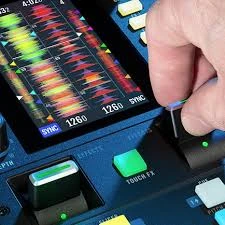

The Rane 72 MK2 is a powerful and versatile mixer, and adding an SSD (Solid State Drive) to your setup can significantly improve performance and workflow for DJs. Here's a step-by-step guide on how to use an SSD with your Rane 72 MK2:
1. Choose the Right SSD
To begin, ensure you have a high-quality SSD that meets your needs. A 256GB or larger SSD is typically recommended, especially if you work with large audio file libraries. Ensure the SSD uses USB-C or another connection compatible with your equipment setup to avoid issues.
2. Prepare Your SSD
Before connecting your SSD to the Rane 72 MK2, format the drive correctly. Most DJs prefer formatting their drives to exFAT, as it is compatible with both macOS and Windows. Be sure to back up any existing data on the SSD before formatting it.
Steps to format the SSD:
- For macOS:
- Open Disk Utility, select your SSD, and choose Erase.
- Set the format to exFAT and click Erase to complete the process.
- For Windows:
- Open File Explorer, right-click on the SSD, and choose Format.
- Set the file system to exFAT and click Start to begin the formatting.
3. Organize Your Files
Organize your music library before transferring it to the SSD. Create folders by genre, BPM, artist, or any other system that streamlines your DJ sets. Proper organization ensures quick navigation during performances.
4. Transfer Files to the SSD
Copy your prepared music library to the SSD. Use high-speed USB ports to reduce transfer times. After transferring, double-check that all files are intact and accessible from the SSD.
5. Connect the SSD to the Rane 72 MK2
After preparing the SSD, connect it directly to the USB port on the Rane 72 MK2 or through your DAW (Digital Audio Workstation) controller if applicable. The Rane 72 MK2 supports integrating external drives for seamless music access.
6. Set Up Software Integration
The Rane 72 MK2 works seamlessly with Serato DJ Pro. Open your Serato DJ Pro software and ensure it recognizes the SSD. If not, check your connections or click on `Rescan Library` in the software to make the SSD accessible.
7. Test Your Setup
Run a test session to verify that tracks play smoothly from your SSD without lag. Pay attention to how quickly tracks load and if searching through your library is responsive. Any issues can often be resolved by checking connections or the drive's formatting.
8. Optimize Your Workflow
Using an SSD can significantly enhance your workflow. The fast read and write speeds allow for rapid access to tracks, minimizing delays during performances. Additionally, the durability of an SSD ensures reliability even with frequent transportation.
Final Thoughts
Using an SSD with the Rane 72 MK2 can revolutionize your DJ setup by providing faster access to your music and increased reliability. By following the steps outlined here, you'll be able to integrate the SSD seamlessly into your workflow, ensuring that your performances run smoothly every time.
To get more interesting posts like this one explore raterpoint.co.uk

























Sign in to leave a comment.