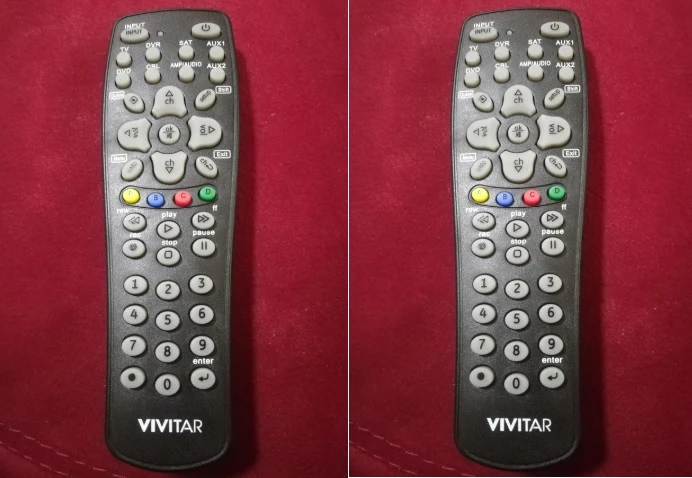
A Vivitar universal remote is a convenient solution for managing multiple electronic devices with a single controller. Whether you want to replace a lost remote or simplify your entertainment system, the Vivitar remote offers an easy and cost-effective alternative. In this guide, we'll explore everything you need to know about the Vivitar universal remote, including setup, programming, and troubleshooting.
Features of Vivitar Universal Remote
Vivitar universal remotes come with various features, including:
- Multi-Device Control: Controls TVs, DVD players, streaming devices, and more.
- Easy Setup: Supports automatic and manual programming methods.
- Wide Compatibility: Works with most popular brands, including Samsung, LG, Sony, and Vizio.
- Ergonomic Design: Comfortable to hold with well-placed buttons.
- Affordable Pricing: A budget-friendly alternative to brand-specific remotes.
How to Program a Vivitar Universal Remote
Programming your Vivitar universal remote is straightforward. You can use manual programming or auto-search programming.
1. Manual Programming with Universal Remote Codes
Follow these steps to manually program your Vivitar remote:
- Turn on the Device: Ensure the TV or other device is powered on.
- Press and Hold the Setup Button: Hold until the LED indicator light turns on.
- Enter the Device Code: Use the remote’s keypad to enter the specific code for your device. (Vivitar remote codes can be found in the user manual or online.)
- Test the Remote: Press the power button or volume controls to check if the remote functions correctly.
- Repeat if Necessary: If the first code does not work, try other available codes.
2. Auto-Search Programming
If you do not have a device code, follow these steps for auto-programming:
- Turn on the Device: Make sure the TV or device is switched on.
- Hold the Setup Button: Wait until the LED indicator remains lit.
- Press the Device Button: Press the corresponding button for your device (TV, DVD, etc.).
- Use Auto-Search: Press and release the power button repeatedly until the device turns off.
- Save the Code: Press the Enter or OK button to save the settings.
Troubleshooting Common Issues
If your Vivitar universal remote is not working correctly, try these troubleshooting tips:
- Check the Batteries: Ensure the remote has fresh batteries and they are inserted correctly.
- Reprogram the Remote: If the remote is unresponsive, reset and reprogram it.
- Ensure Compatibility: Some older devices may not be compatible with the Vivitar remote.
- Verify the Correct Code: If one code doesn’t work, try another from the list.
Where to Find Vivitar Remote Codes
Vivitar remote codes are available in the instruction manual provided with the remote. You can also find them online by searching for "Vivitar universal remote codes" followed by your device brand.
Final Thoughts
A Vivitar universal remote is an excellent tool for simplifying your home entertainment setup. With easy programming methods and wide compatibility, it offers a hassle-free experience for users. Whether you're replacing a lost remote or consolidating multiple remotes, the Vivitar universal remote is a great choice.
For more details on remote codes and setup, visit the Vivitar support website or refer to the user manual.























Sign in to leave a comment.