
Are you moving to Microsoft Outlook email client from Zimbra? Having several TGZ files on the system that you urgently want to access in the same? Looking for a best way to import TGZ file in Outlook? Not to worry, go through the section that has discussed a solution with the help of which users can successfully import TGZ file in Outlook 2019 and earlier editions with emails, contacts, calendars, briefcases, and other items.
Zimbra is widely used collaborative software that formerly known as Zimbra Collaboration Suite. It contains both client and server components i.e. Zimbra Email Server, Zimbra Web Client, and Zimbra Desktop. However, Zimbra Desktop is now discontinued but at one time it has offered feature-rich environment to users. Zimbra Web Client supports email and group calendars with document sharing, chat, and videoconferencing. And Zimbra Server has uses several open-source projects. It also provides SOAP application programming interface to all its functionality and is also an IMAP and POP3 server.
Several users have used Zimbra desktop for their small-scale projects. It is an email client which delivers both online and offline access to Zimbra email. Moreover, the application provides the option with the help of which users can export all their important items in TGZ file. It allows to export all account data such as email messages and attachments, calendar, contacts, notebooks, documents, briefcase folders, and more. However, you can export specific files and folders as well and save them as a backup on the system. The data will be saved in .tgz format so that it can easily import later and your account will be restored.
How to Extract Files & Folders in TGZ from Zimbra?
Zimbra Desktop provides import/export option features with the help of which users can export all the data or specific mailboxes from required Zimbra account. Follow the steps mentioned below to perform the required task -
Open ZimbraGo to Preferences tab and choose Import/Export.From the export panel, choose the account type to export. Click Advance Settings tab and choose the required items to export.Online app will allow to download Zimbra mailboxes in .tgz format.Now, extract downloaded zipped TGZ file.What is the Best Way to Import TGZ File in Outlook?
CubexSoft Zimbra to PST is one of the most popular and demanding conversion utility that is development to import TGZ file in Outlook. The software working is easy and it possesses GUI that anyone can operate to import TGZ file to PST to access TGZ data in Outlook. However, the conversion will be done with emails, contacts, calendars, and other items. Even, the operational steps are limited. They will take few seconds to complete the whole process.
Moreover, the application provides plenty of solid features with the help of which users can import TGZ file to Outlook as per their requirements. Also, users will get free demo that will allow them to experience the entire working of the tool for free.
Working Steps to Import TGZ File in Outlook in a Best Way
Step 1. Download, install, and open Zimbra TGZ to PST Converter on Windows. Click on the first option and press Next.
Step 2. Go to Add File(s) option and add required TGZ file/folder/extracted TGZ items.
Step 3. The tool will scan the selected TGZ files and list them on the software pane.
Step 4. Users can select the required folder and read the data of its files by using Preview section before exporting the same.
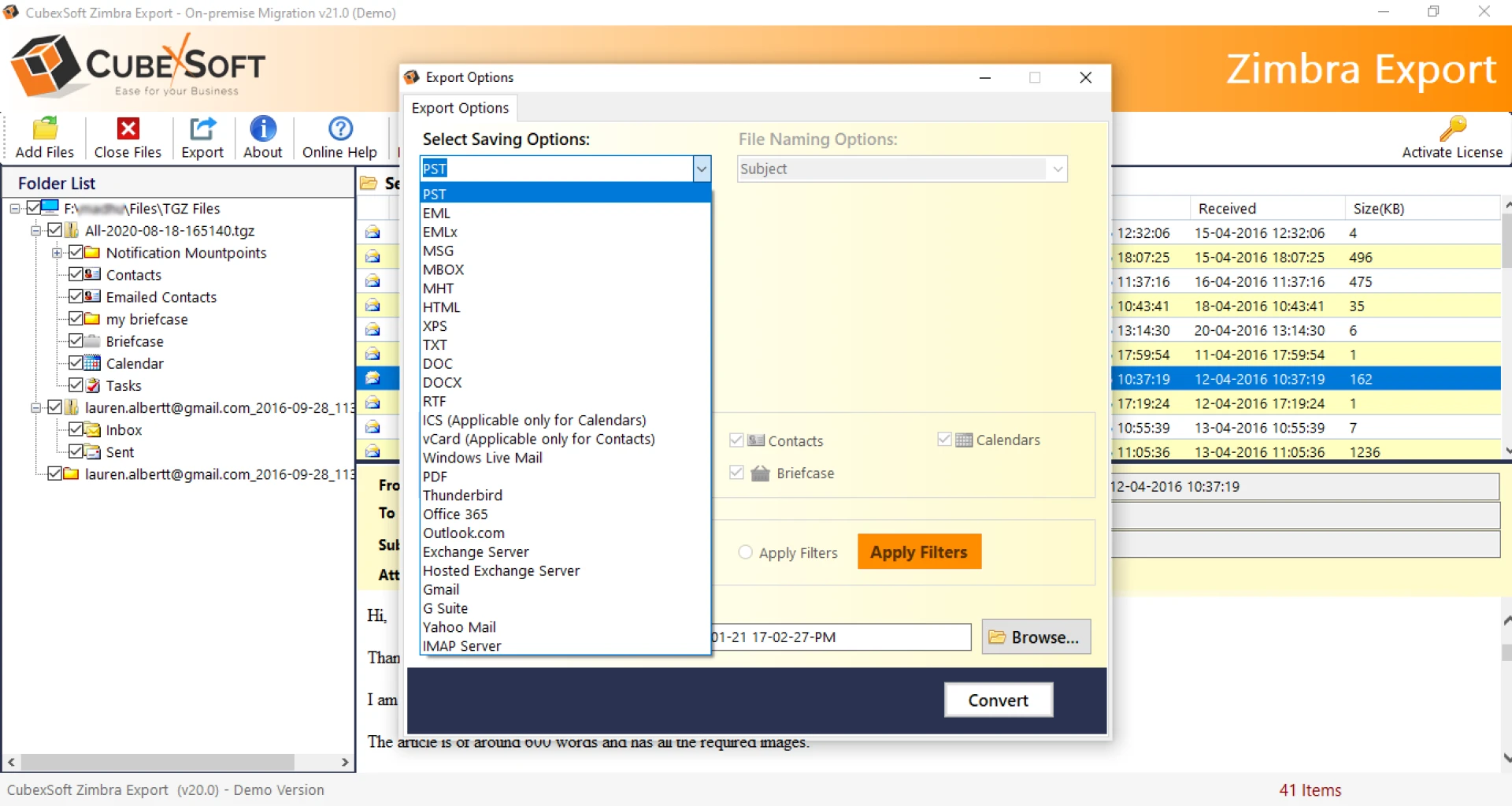
Step 5. Go to Export and select PST format from Select Saving Options.
Step 6. PST will have sub-options and advance filters that users can use to save TGZ file in PST according to specific needs. Last, click Convert button.
Step 7. Now, check the live progress of TGZ to PST conversion.
Step 8. The process will successfully end by displaying “Conversion Completed Successfully” message. Click OK and import resultant PST in required Microsoft Outlook account.
Step-by-Step Guide to Import Resultant PST in Microsoft Outlook
Open Microsoft OutlookGo to File and then pick Open & Export to choose Import/ExportSelect Import from another program or file from Import and Export Wizard screen.Click Next.Select Outlook Data File (.pst) and hit NextClick Browse button and load the path of resultant PST file.Choose the required option appearing under Options. Click Next.Select the Outlook folder to import from and simultaneously select other options as per need. Press FinishAfter pressing the Finish button, users will get the resultant PST file in Microsoft Outlook account. Users can select the required folder and read its data in their profile with accurate content and formatting properties.
Conclusion
The write-up has discussed the best way to import TGZ file to Outlook with emails, contacts, calendars, briefcases, etc. The CubexSoft Zimbra Converter is a wonderful utility. It is tested, verified and highly recommended solution by experts. Anyone can operate the app as it provides trouble-free and simple GUI. Even, the tool has a free demo with the help of which users can test the conversion of TGZ to PST for free. Moreover, they can import first 25 files from TGZ folder to Outlook free of cost.











Sign in to leave a comment.