
Device drivers play a vital role in the smooth functioning of all the devices connected to Windows. Drivers have coded algorithms that help a device communicate with the operating system to send and receive commands. If the drivers are not compatible with the operating system version and updates, your device may not function as desired. It is important that you always keep your device drivers updated on a regular basis. If you are wondering how to update drivers for free, here is the key to it!
There are automated and manual methods to update any device driver on Windows. At times these methods may not work as desired for unknown or non-branded devices. The best driver updater software for Windows can ensure that none of your device drivers are outdated. It can dig out all the device drivers from trusted websites and install the best compatible device drivers on your computer. Before we explore the Best Driver Updater for PC, let’s try out the best possible methods to update drivers manually on a PC.
Run Windows UpdatesDownload Drivers from OEMInstall Drivers Using Device ManagerUse the Best Driver Updater SoftwareRun Windows Updates
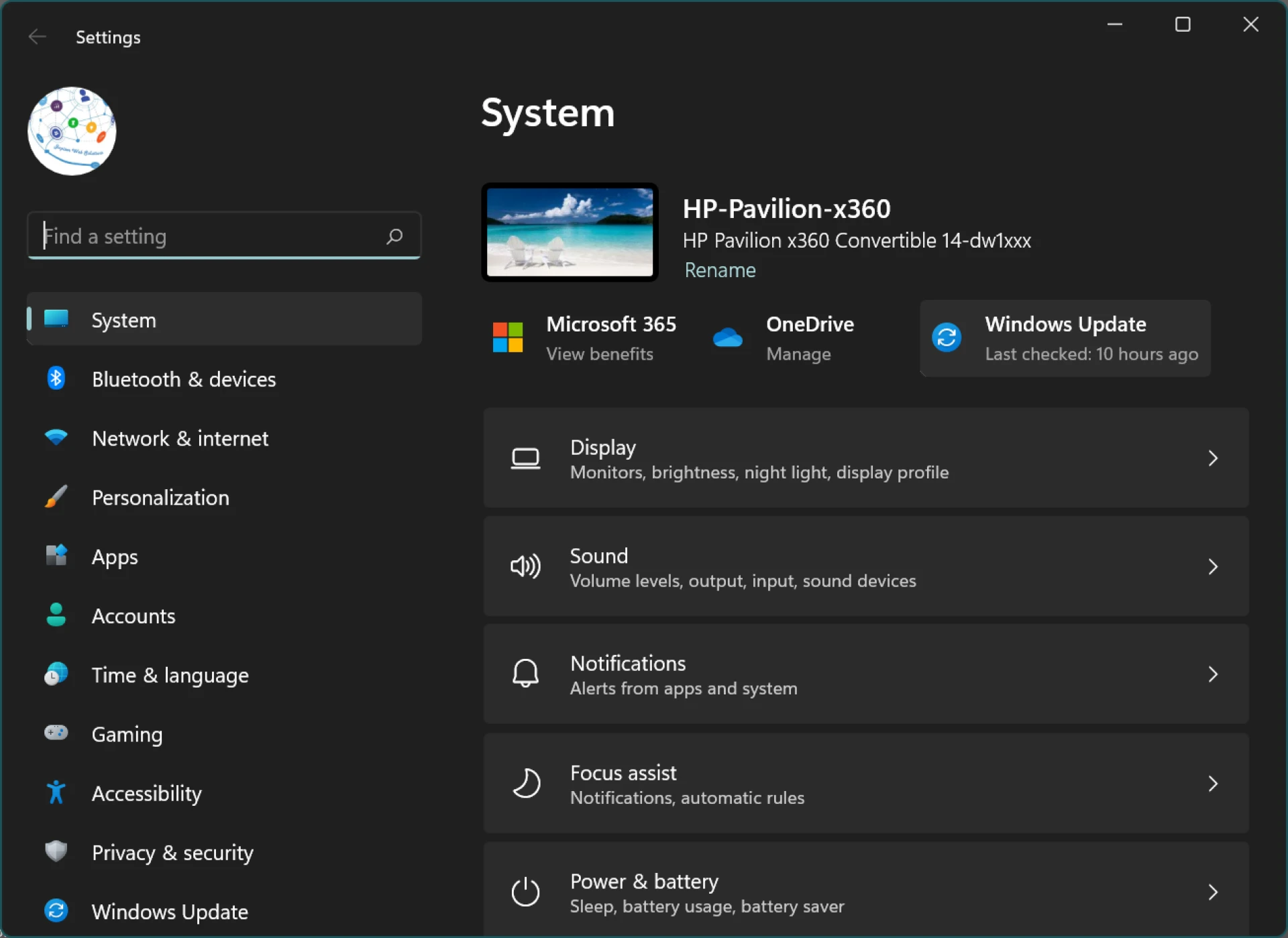
Windows Update brings all the latest updates for device drivers, bug fixes, patches, and advanced features for new utilities. Windows can automatically download and install the latest updates though we can anytime check for the latest Windows Updates manually.
Step 1. Press the Window key and click on the Settings option. Try the (Win + I) keys for the same.
Step 2. Click on the Windows Update at the bottom left panel or on the top right.
Step 3. Let Windows scan and identify the available updates. Select all updates to download and install them on your PC. Changes will only take place when you will restart the PC.
Download Drivers from OEM
Original Equipment Manufacturers (OEM) are companies like Dell, HP, and IBM that build their own devices and release device drivers as and when there is a critical Windows Update released. You can download the latest compatible device drivers as per the latest version of Windows directly from the OEM website. These steps will help you to update the driver for free.
Check Driver Version
Step 1. It’s always good to check the current version before we download any drivers. Press (Win+R) to open the Run window, type DXDIAG, and press the Return key.
Step 2. Here you can check out the display, sound, and other input drivers. Remember important information like the version, date, and name of the device driver that you are about to update. If you can’t find the device here, you will need to check the device information using the next method.
Download Driver
Step 3. Browse the OEM website and search for the latest device driver.
Step 4. Compare the current driver with the newly available driver. It should be newer to the installed driver for better performance.
Step 5. Download the latest driver and double-click the installation file to install the drivers. You should restart the computer to realize changes in the settings.
Install Driver Using Device Manager
Device Manager allows you to check, update, and uninstall the device drivers of all the devices installed on your PC. You can install updated device drivers for any device not functioning properly.
Step 1. Right-click on the Start button and select the Device Manager command.
Step 2. If there is a faulty, corrupt, outdated, or incompatible device driver, it will display a yellow exclamation mark. Expand the faulty device, right-click on the device and select the Update Driver option from the list.
Step 3. On the next window, the ‘Search automatically for drivers’ option is used if all the latest Windows Updates are already installed on your computer. Else, you can select the ‘Browse my computer for drivers’ option to browse and select the latest downloaded device drivers from the OEM website.
Step 4. Follow the installation wizard and finish installing the latest updated drivers.
Step 5. Restart the computer to apply changes and check if the device drivers are installed properly and working fine.
Use the Best Driver Updater Software
The best driver updater software can ensure that there are no outdated, corrupt, incompatible, or missing drivers on your PC. It always keeps on checking for the latest drivers and keeps them updated on your PC.
Advanced Driver Updater
Advanced Driver Updater has been ranked as one of the best driver updaters for Windows PC due to the best available features to keep all the drivers up to date. It has the largest database of all the device drivers that keep on updating itself as soon as there is a new driver released. It has the most robust scan engines to list out incompatible device drivers and finds the perfect match.
Advanced Driver Updater has an exclusion list that skips drivers for the added devices. You can schedule scan time to perform weekly and monthly scans and check for outdated drivers. It ensures that it takes a backup of your currently installed drivers and then updates the latest drivers. If the driver doesn’t work as desired, you can always roll back changes.
Final Words
This article on how to update drivers for free has the best manual methods to download and update device drivers on your PC. These manual methods can help you update device drivers for free however may not work for all devices. If it didn’t work for you, use the best driver updater for your PC and automatically update your device drivers.
0









Sign in to leave a comment.