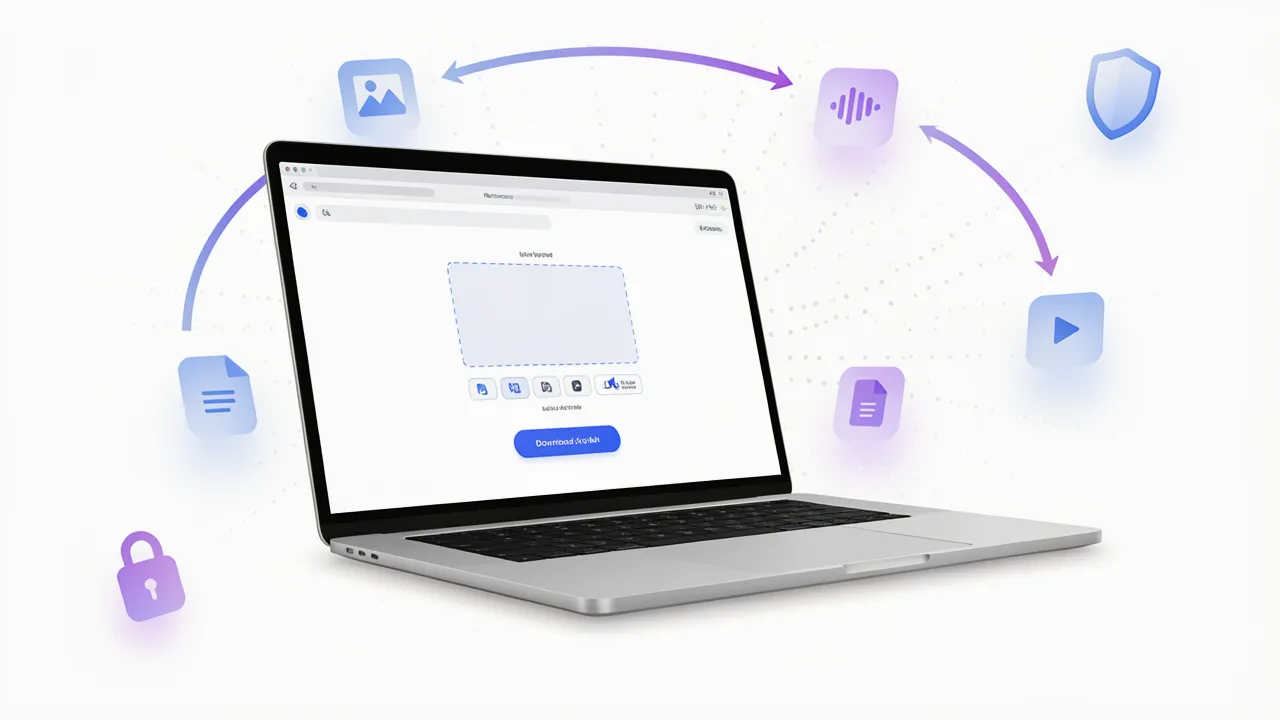

File conversion is a common part of modern digital work. Students convert documents before submitting assignments, professionals change file formats when sharing reports, content creators prepare media for different platforms, and businesses often need to make files compatible with specific software. Although conversion sounds simple, many tools make the process more complicated than necessary through account requirements, confusing interfaces, software installations, and unclear privacy practices.
Browser-based file converters offer a practical alternative. They allow users to change a file from one format to another without installing a large desktop application. With the right tool, the process can be completed in only a few steps: upload a file, select an output format, convert it, and download the result.
The Growing Need for Simple File Conversion
Different devices, applications, and platforms often support different file formats. A document created in one application may need to be saved as a PDF for distribution. An image may need to be converted from PNG to JPG to reduce its size or improve compatibility. Audio files may need to be changed from WAV to MP3 for easier sharing, while video files may require conversion before they can be uploaded to a particular platform.
These situations create a need for tools that are fast, accessible, and easy to understand. Users should not have to learn complicated editing software simply to change a file format.
Traditional conversion software can be useful for advanced workflows, but it may be excessive for occasional tasks. Desktop applications can require installation, updates, storage space, and technical knowledge. Some online services also require users to create accounts before accessing basic features.
A browser-based converter addresses many of these problems by keeping the process focused on the task itself.
What Is Browser-Based File Conversion?
Browser-based file conversion is the process of changing a file’s format through a web browser. Instead of installing a dedicated application, users open a website and use its conversion interface.
Depending on the file type and the technology used by the service, conversion may take place directly inside the browser or through temporary server processing. Local browser processing can be especially useful for privacy-conscious users because supported files do not necessarily need to be uploaded to a remote server.
However, users should always check how a particular service handles different file categories. Not every format can be converted locally, and some complex media conversions may require server-side tools.
Privacy Should Be Part of the Conversion Experience
File conversion often involves personal, professional, or sensitive information. A document may contain contact details, a presentation may include confidential business information, and an audio or video file may contain private material. For this reason, privacy should be considered before uploading files to any online service.
A useful conversion platform should explain:
- Whether files are processed locally or remotely
- Which file types require server processing
- How long uploaded files are retained
- Whether files are deleted after conversion
- Whether an account is required
- Whether files are used for any purpose beyond conversion
Local processing, when supported, can reduce the need to transfer files to a server. It does not automatically make every conversion risk-free, but it can provide an additional layer of control.
Users who want to understand which formats a converter supports can review a detailed supported file formats guide before starting a conversion.
A More Convenient Workflow
The best file converters usually follow a straightforward workflow. A complicated interface can make a basic task frustrating, particularly for users who are unfamiliar with technical file formats.
A clear conversion process generally includes four stages:
- Select a file: Users should be able to browse their device or drag and drop a file into the conversion area.
- Choose an output format: The available formats should be presented clearly, without unnecessary technical language.
- Start the conversion: The conversion button should be easy to find and understand.
- Download the result: Once processing is complete, users should be able to save the converted file quickly.
Easy Converter follows this type of browser-based workflow. It is designed for converting images, audio, documents, PDFs, and video without requiring users to create an account. Its interface focuses on selecting a file, choosing a format, completing the conversion, and downloading the result.
Supporting Different Types of Files
A useful converter should support more than one category of file. Different users have different needs, and a tool that handles several categories can reduce the need to visit multiple websites.
Image conversion
Image conversion is useful when users need to change file compatibility, reduce file size, or prepare visuals for websites and applications. Common image formats include JPG, JPEG, PNG, WEBP, GIF, and SVG. Each format has different characteristics, so the best choice depends on whether the priority is quality, transparency, animation, or file size.
Audio conversion
Audio conversion can help users prepare recordings for playback on different devices or platforms. Formats such as MP3, WAV, FLAC, OGG, OGA, and OPUS are used for different purposes. For example, an uncompressed format may be suitable for editing, while a compressed format may be more convenient for everyday listening or sharing.
Document conversion
Document conversion is common in education, administration, publishing, and business. Users may need to convert DOCX, DOC, Markdown, HTML, RTF, or CSV files into another format for editing, distribution, or archiving.
Video conversion
Video files can be large and may use codecs or containers that are not supported by every device. Converting between formats such as MP4, MKV, WEBM, AVI, WMV, and MOV can improve compatibility. Video conversion may require more processing power than simple document or image conversion, so users should pay attention to processing time and file-handling policies.
Choosing the Right Conversion Tool
Before using a file converter, consider several practical questions:
- Does it support the format you need?
- Is it free for your intended use?
- Does it require registration?
- Can it process files locally?
- Does it clearly explain server-side processing?
- Is the interface easy to use?
- Does it work on your preferred browser or device?
- Does it provide a clear download option after conversion?
It is also important to avoid assuming that every online converter offers the same level of privacy. A service may advertise itself as secure, but users should look for specific information about processing and retention rather than relying only on broad marketing language.
Final Thoughts
File conversion does not need to be a complicated technical task. Browser-based tools can make the process more accessible by removing installation requirements and offering a simple workflow from upload to download. When privacy information is clearly presented and local processing is available for supported formats, users can make more informed decisions about how their files are handled.
Easy Converter is one option for people looking for a free, browser-based way to convert images, audio, documents, PDFs, and video. Its no-account workflow and focus on browser-based processing make it worth considering for everyday conversion tasks. As with any online tool, users should review the supported formats and privacy details before processing important or sensitive files.

















Sign in to leave a comment.