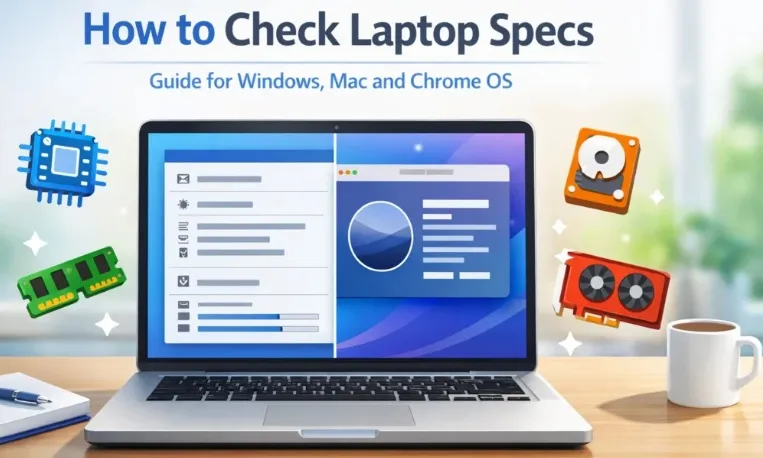
When you buy a new laptop, it feels like it can handle the world. But as time goes on, you might find yourself wondering: “Can I run this new video editor?” or “Why is my system lagging during basic tasks?”
Most people treat their laptop like a "black box"—they know how to turn it on, but they aren't sure what’s happening under the hood. However, understanding your hardware is the first step toward better performance, smarter purchases, and faster troubleshooting.
The "Why" Behind the Specs
Knowing your specifications isn’t just for tech enthusiasts; it’s a practical necessity. Here are three reasons why you should check yours today:
- Software Compatibility: Before you hit "buy" on a new game or a professional design suite, checking your specs ensures you aren't wasting money on software your hardware can't support.
- Identifying Bottlenecks: Is your laptop slow because of a weak processor (CPU) or simply because you don't have enough memory (RAM)? Knowing the difference tells you whether you need a new computer or just a simple upgrade.
- Resale Accuracy: If you ever decide to sell your device, providing accurate specs—like the exact generation of your Intel or Ryzen chip—can help you get a much better price.
Quick Ways to Look Under the Hood
Finding this information is easier than you think, and it doesn't require any extra software.
- For Windows Users: A quick right-click on the Start button followed by selecting System will give you the essentials like your CPU model and RAM. For those who need a deep dive into every component, typing msinfo32 into the Run box (Win + R) opens up a treasure trove of technical data.
- For Mac Users: It’s even simpler. Click the Apple logo and select About This Mac to see your chip type and memory instantly.
What Should You Look For?
When you're looking at your specs, focus on the "Big Three":
- The CPU: The brain of the operation. More cores generally mean better multitasking.
- The RAM: Your short-term memory. If you like keeping 50 browser tabs open, this is what keeps things smooth.
- Storage (SSD vs HDD): If your specs show an HDD (Hard Disk Drive), upgrading to an SSD (Solid State Drive) is the single fastest way to make an old laptop feel brand new.
Conclusion
Your laptop is a tool, and like any tool, it works best when you understand its limits and capabilities. Whether you are a student, a gamer, or a professional, taking sixty seconds to check your specs today can save you hours of frustration tomorrow.
For a complete, step-by-step walkthrough on how to find these details for Windows, Mac, or even ChromeOS, check out the full guide on How to Check Laptop Specs over at TechGodzilla.




























Sign in to leave a comment.